
Notification registry
Check exactly which automated message reaches a customer or staff member, on which channel — and switch off the few marketing ones you don't want sent.
Updated 19 July 2026
When a customer says "I never got a reminder" or you want to stop a promo from going out, this is where you confirm what Seglo actually sends, who it reaches, and on which channel. It's the master list of every automated message tied to bookings, payments, reminders, waitlists, loyalty, and marketing — one row each, ready to inspect.
Open in app: Notification registry
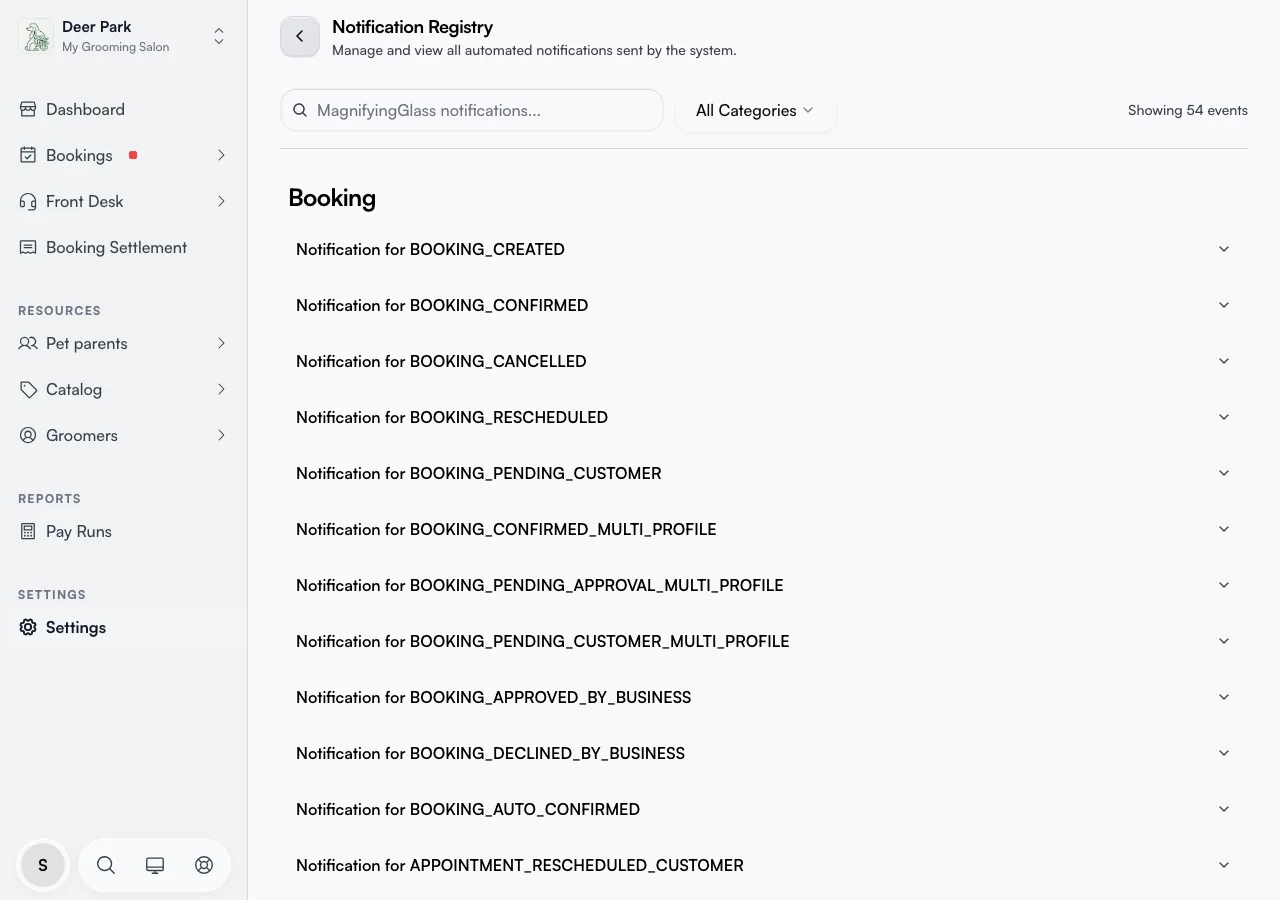
Find the one message you're asking about
The page groups every message under its category heading — Booking, Payment, Reminder, Waitlist, Loyalty, and Marketing — and a counter at the top right tells you how many you're looking at ("Showing 42 events"). To get to one fast, type its name into the search box, or open the All Categories dropdown to narrow to a single category. The search also matches the message's internal name, so partial words like "reschedule" or "waitlist" surface every related message at once.
If a search returns nothing, use Clear all filters to reset both the search box and the category filter in one tap.
Confirm who gets a message and on which channel
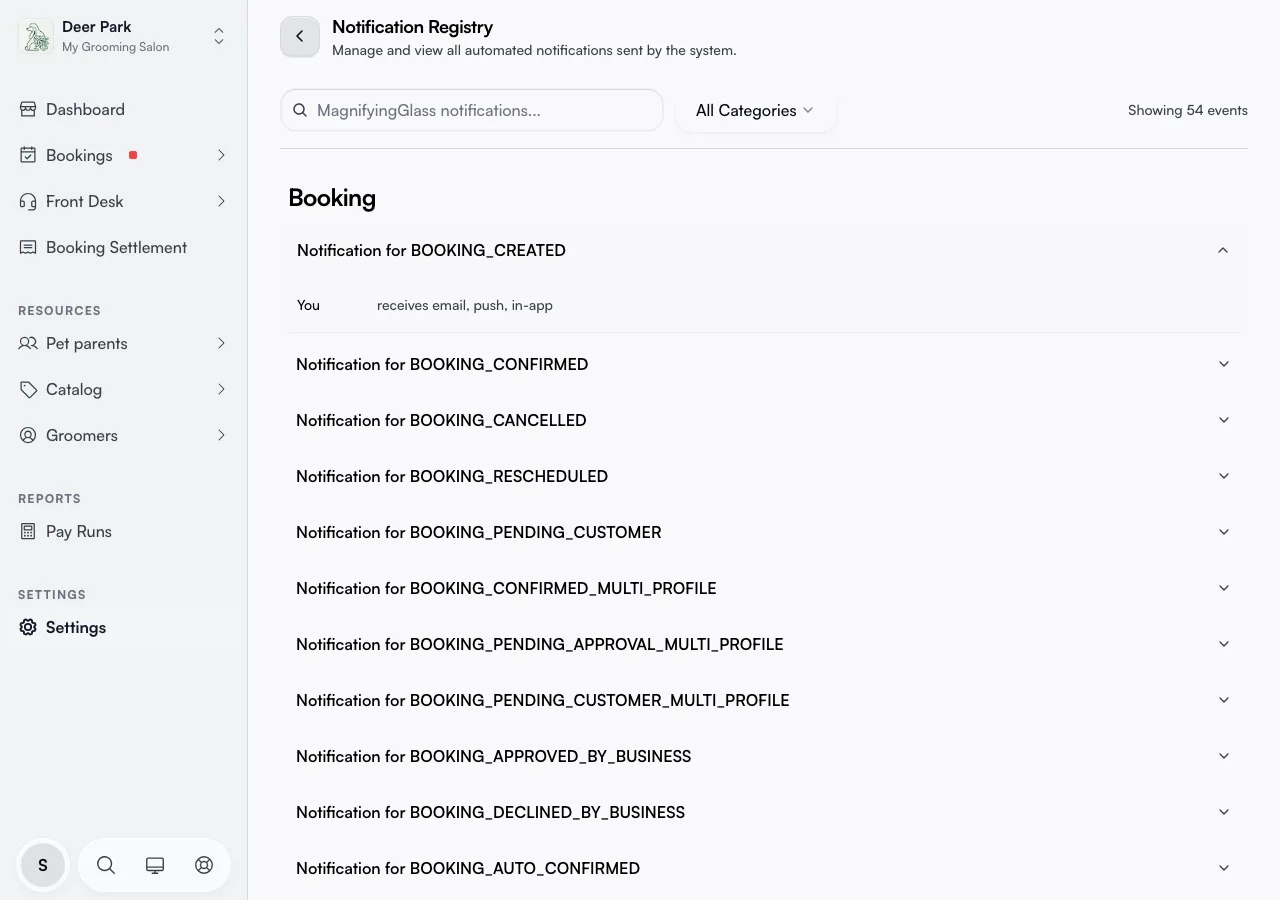
Click any row to expand it. The panel underneath breaks the audience into up to three lines, each showing the exact channels that recipient is reached on:
- Customer — the person who booked (for example, "receives email, sms").
- Staff — the team member assigned to the booking.
- You — your own business inbox and devices (for example, "receives email, push, in-app").
Channels read as plain words: email, sms (text message), push (a notification on a phone), and in-app (inside Seglo). A line only appears if that recipient actually gets the message — so if there's no Staff line, no team member is notified for that event, which is often the answer to "why didn't my staff hear about this".
Switch off a marketing or loyalty message
Only messages you're allowed to opt out of show an Enabled switch at the bottom of the expanded panel — and in practice that's the Marketing and Loyalty ones. Expand the message, flip Enabled off, and it stops going out. The change saves on its own, a brief "Settings updated" note confirms it, and the row gains a Disabled tag so you can see at a glance what's switched off. Turn it back on the same way at any time — nothing here is permanent.
This switch is business-wide. Turning a message off stops it for every customer and every staff member, not just one person, and it only affects messages sent from that point on — anything already queued still goes.
Understand why most messages have no off-switch
Booking, payment, reminder, and waitlist messages deliberately have no Enabled toggle. They're the messages a customer needs to actually use your service — a booking confirmation, a payment receipt, a reminder, a waitlist offer — so Seglo always sends them and won't let you silence them by mistake. If you went looking for a switch on a booking confirmation and couldn't find one, that's why, not a bug.
If you don't want certain reminders so close together, or you want to change when a reminder fires or what it says, that's a different control — see Notification settings. The registry decides whether a message exists and who it reaches; the settings page tunes the optional ones.
Know what's hidden from this list on purpose
Two kinds of message are kept out of the registry so it stays focused on what reaches your customers and team. Account and billing notices — trial-ending reminders, low-balance and credit alerts, auto-recharge results — are filtered out because they're about your Seglo account, not your bookings. So are internal system messages. If a customer expected something Seglo simply never sends, you won't find it here at all, which is itself the answer: the message doesn't exist to be turned on.
Tips
- No toggle means it always sends. Booking, payment, reminder, and waitlist messages can't be switched off — only marketing and loyalty ones can. That's by design, not a missing button.
- Off means off for everyone. A switched-off message stops for all customers and staff. If a single person is missing a message, check their email address or phone number first — the registry isn't the cause.
- Changes apply going forward. Flipping a switch never recalls a message already on its way; it only affects future sends.
- Can't find a message at all? Then Seglo doesn't send it. The registry is the definitive list of what exists.
Related
- Notification settings — adjust timing and wording for the messages that go out.
- Customer notifications — the messages your customers receive about their bookings.
- Usage — how many notifications have gone out and how they're performing.