Usage
See each month's calls, talk time, texts and speech-to-text minutes, broken down by phone line and by person, and what came out of your credit.
Updated 2 October 2026
At the end of the month you want to know how busy the phones were, who took the calls and how much came out of your credit. Usage answers that for any of the last 12 months.
Open in app: Usage
This page is in the web app only: Settings → Usage. The Seglo appointment app and the Seglo Phone app don't have it.
Pick a month
Each tab has a month picker. It covers this month and the 11 before it, using your business's time zone.
Check calls and talk time (Voice Usage tab)
The Voice Usage and SMS & MMS tabs only appear if your business has Seglo Phone.
The top of the tab shows:
- Calls: calls on your Seglo Phone numbers that month.
- Talk time: every connected minute, whether a person or the AI receptionist answered.
- From credit: what the calls cost from your credit. Only minutes the AI receptionist handles are charged per minute, so talk time between your team and customers doesn't come out of credit.
- Answered by AI: calls the AI receptionist picked up.
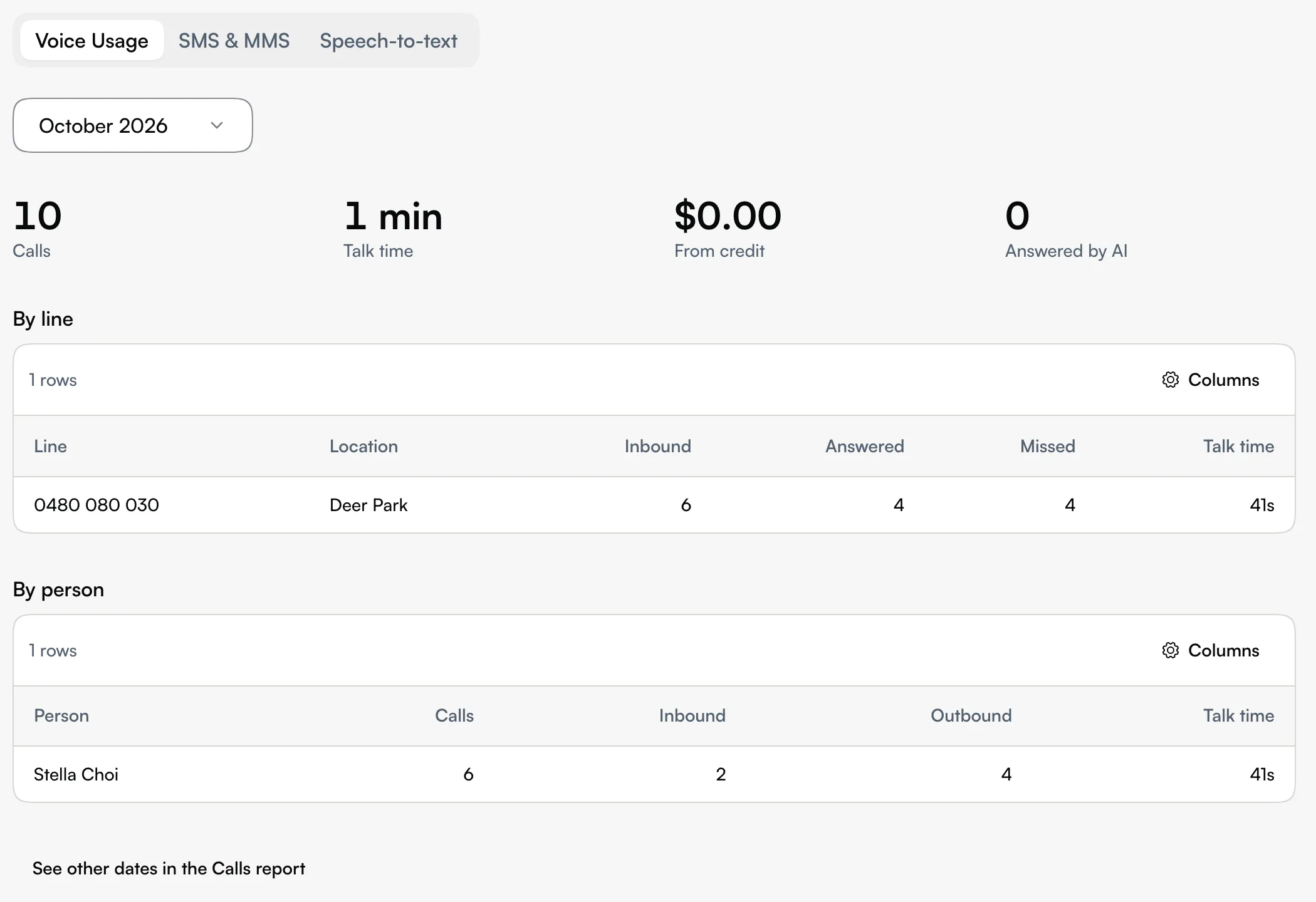
Below that, two tables split the month:
- By line: each number with its Location, Inbound, Answered and Missed calls and Talk time. Use it to see which shop's phone is busiest, or where calls go unanswered.
- By person: each team member's Calls, Inbound, Outbound and Talk time.
A table that has nothing in it for that month is hidden. For dates that aren't a whole month, follow See other dates in the Calls report.
Count texts sent (SMS & MMS tab)
SMS sent and MMS sent (texts with a photo) count the texts your team sent from your Seglo Phone numbers. Only texts the carrier accepted are counted; a failed send isn't.
Automated texts such as appointment reminders aren't counted here. They use credit and show on Credits.
Check speech-to-text minutes (Speech-to-text tab)
Every business sees this tab. It counts the time your team spends dictating with the microphone in Seglo.
- Minutes used against Included minutes, with a bar showing how much of the allowance is gone.
- Charged from credit: minutes past the allowance, at the per-minute rate shown on the page.
- Recordings: how many times someone dictated.
- By feature: where in Seglo the minutes were used.
If nobody used the microphone that month, the tab says No dictation this month.
Tips
- Talk time isn't your bill. Seglo Phone's monthly price doesn't depend on minutes, and calls your team answers don't use credit. AI receptionist minutes do. See Subscription plan and upgrades.
- If credit runs out, the Speech-to-text tab shows how much wasn't charged. Top up on Credits.
- Email delivery isn't on this page. Usage covers calls, texts and dictation.
Related
- Credits: your balance, top-ups and automated message costs.
- Subscription plan and upgrades: what each product costs.
- Reports: the Calls report for any date range.
- Billing: payment methods and invoices.
Related