Who rings when a call comes in
Pick the one number you call and text from, stop a number ringing your phone, and see who each business number rings right now.
Updated 2 October 2026
Two questions decide what happens when your business number rings: which phones ring, and which number a customer sees when you call or text them back. Each person answers the second one for themselves in the Seglo Phone app. The first is shared between each person's own phone and the owner's setup on the web.
Open in app: Seglo Phone on the web (Phone settings in the sidebar, which opens the Seglo Phone page). In the Seglo Phone app, open More → Phone settings.
These settings live in the Seglo Phone app and the web app. The Seglo appointment app has no phone settings.
Choose the number you call and text from (Seglo Phone app)
- Open More → Phone settings.
- Under Outgoing, tap Call & text from.
- Pick Ask every time, or pick one number. Each number is listed with its shop.
Pick a number and every call and text you start goes out as that number, with no prompt. This is one choice for your whole account, even if you work at two shops: choosing a number replaces any number you chose before.
Pick Ask every time and the app asks which number to use each time you call or text. If you only have one number, Outgoing isn't shown, because there's nothing to choose.
Turning off Ring on this phone for a number (below) does not change this choice. You can stop a number ringing you and still call out from it.
Stop a number ringing this phone (Seglo Phone app)
- Open More → Phone settings.
- Find the shop. Its section is headed with the shop name, plus the number when the shop has only one.
- Switch off Ring on this phone.
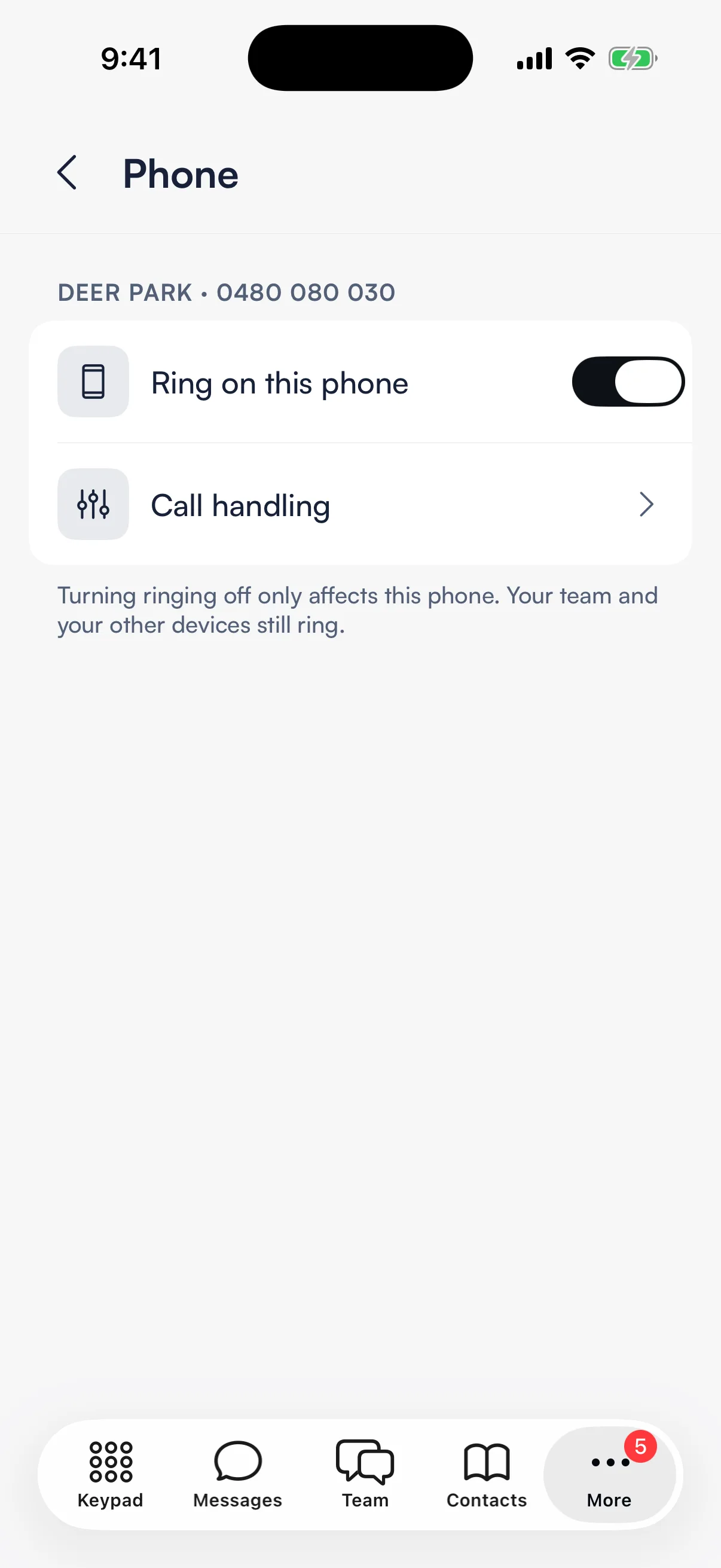
This only affects the phone in your hand. Your team still rings, and so do your other phones and tablets. You keep the number's messages and history, and you can still call out from it.
If switching off leaves that number with nobody to ring, the app tells you: Nobody is on this number now. Calls to that shop then go to voicemail or the AI receptionist, and the owner is told. Your switch still goes off; the message is a heads-up, not a block.
You only see the numbers for the shops you're assigned to. A number that isn't listed is one you can't receive.
Go quiet for a few hours (Seglo Phone app)
Open More → Do Not Disturb, switch it on and set From and To. During those hours your calls go to voicemail or the AI receptionist, and new messages arrive without an alert. The times are in your business's time zone.
More → Notifications & sounds holds Push Notifications, Call vibration, Message vibration and Keypad Sounds. If push notifications are off, your phone may not wake for a call.
See who a number rings right now (web app)
Open Seglo Phone → Numbers. Each number has its own card with one answer at the top:
- How many of the people on that number will ring, for example 2 of 3 will ring.
- Nobody rings right now, with where the call goes instead: your AI receptionist, voicemail, or either.
- Goes to your AI receptionist or Goes to voicemail, when the number's call handling doesn't ring your team.
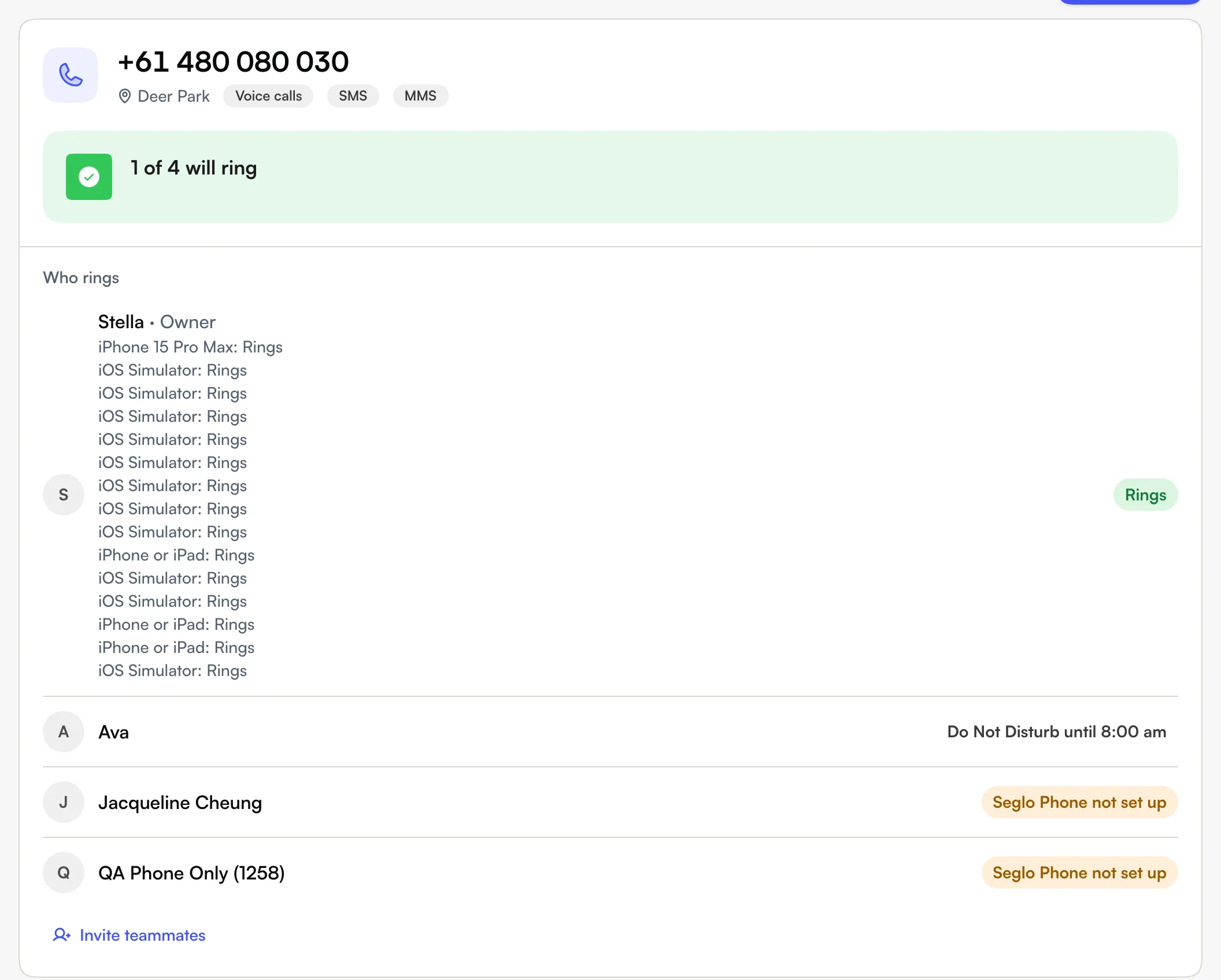
Under Who rings, each person on that number is listed with the reason they will or won't ring. The page shows when it last checked; use Refresh to check again.
| What you see | What it means |
|---|---|
| Rings | That person's phone will ring. |
| On a call | They're already on a call. |
| Muted this number | They switched off Ring on this phone for this number. |
| Do Not Disturb | Their quiet hours are on. |
| Signed out | They aren't signed in to the Seglo Phone app. |
| Seglo Phone not set up | They have access but haven't signed in on a phone yet. |
| No Seglo Phone access | They don't have phone access. See Set up Seglo Phone. |
| Not assigned to this location | They aren't assigned to the shop this number belongs to. |
If you can invite team members, Invite teammates on the card adds someone new. The next call can ring them once they have phone access and sign in.
Decide who can ring for a number (web app)
Owner, or anyone who manages your team.
A person rings for a number when all of these are true:
- They have phone access. On the web, open the person in Team → Groomers and switch on Phone App under Apps. In the Seglo Phone app, use More → Phone access.
- They're assigned to the shop the number belongs to. Locations are set in Team → Access.
- They're signed in on a phone and haven't muted the number or turned on Do Not Disturb.
There's no separate list of who answers each number. Change the shop someone is assigned to, and the numbers they ring for change with it.
Change how a shop's calls are handled
Owner, or anyone allowed to change settings.
- Seglo Phone app: in More → Phone settings, tap Call handling in the shop's section. You can change Call Workflow, After Hours, Voicemail, Call recording and Block Blocked Clients.
- Web app: open Seglo Phone → Numbers and scroll to Call handling. Use Change location to pick the shop.
Both change the same settings. The web adds a forwarding number for unanswered calls. See Phone numbers and routing for each option.
Work in more than one business (Seglo Phone app)
If you answer for two businesses, tap the business row near the top of More (it says Switch business) and pick the other one. Phone settings then shows the other business's numbers, its own Call & text from choice, and its own ring switches.
When your phone isn't ringing
Work down this list:
- Ring on this phone is off for that number in More → Phone settings.
- Do Not Disturb is on.
- You're already on a call.
- You're signed out, or push notifications are off.
- You're not assigned to that shop, so the number isn't in your list at all.
- The shop's call handling doesn't ring staff, for example AI Agent in the Seglo Phone app (AI receptionist first on the web).
The owner can see the reason for each person on the web under Seglo Phone → Numbers, without asking anyone to check their phone.
Related
- Set up Seglo Phone: get a number and give your team phone access.
- Phone numbers and routing: call handling, blocked clients, devices and activity.
- Call recording: record a shop's calls and play them back.
- Receptionist settings: the AI receptionist's voice, greeting and actions.
Related