Seglo

Receptionist settings

Get your phone answered around the clock — route calls your way, choose the voice and greeting, and control exactly what the AI is allowed to do.

Updated 19 July 2026

When a customer calls and nobody's free, you either send them to voicemail or lose them. This page is where you hand that call to an AI receptionist instead — one that answers in a real voice, books and changes appointments, and only ever does what you've told it it can. Set it up once and your phone gets answered while you're with a client, after hours, and on the days you're closed.

Everything you change here takes effect on the next incoming call — calls already in progress finish on the old settings.

Open in app: Receptionist settings

Get a phone number so it can answer at all

Until a number is connected, the whole page is locked behind an Add a phone number to configure your call flow overlay — there's nothing to configure because there's no line to answer. Start at the No phone line assigned card and click Get a Phone Number.

The picker does the work for you: it auto-selects the best-matching local number near your business location and shows it under Your Number. Want a different one? Click Pick a different number to see the full list and choose another. Australian numbers need a one-off identity check, so the flow runs Select Number → Verification → Complete — you upload an ID and an address document once, and the number goes live after approval.

The receptionist call flow page with the phone line card and Get a Phone Number button

If verification can't be submitted automatically, your number is still reserved, you land on the Complete step with a notice, and our team follows up by email — you don't lose the number. Until approval lands, the line shows a Pending Verification badge instead of Active, and the small icons next to the number tell you what it supports: Voice, SMS.

Route calls the way you actually work

Open the Call Flow tab. It's a timeline from the incoming call to "call handled", split into when you're open and when you're closed.

Multi-location businesses: these settings follow the business location you have selected in the sidebar switcher, not a control on this page. Switch location there and the Call Flow tab reloads to show that location's current settings; saving writes only to that location. Other locations are untouched.

Under During Business Hours, pick one:

  • Staff First (recommended) — ring your team first, AI takes over only if no one picks up.
  • Receptionist — the AI answers immediately and can transfer to staff or take a callback.
  • Staff Only — ring your team, fall through to voicemail if no one's free; the AI never answers.

The call flow timeline showing the during-hours and after-hours routing choices

Tune how long the phone rings before the AI steps in

The detail most people miss: pick Staff First or Staff Only and a ring duration slider appears. It sets how long your team's phones ring (10 to 60 seconds, in 5-second steps) before the AI takes over — or before voicemail starts, on Staff Only. Short means callers reach the AI fast; longer gives your team a real chance to grab it first. There's no slider on Receptionist because the AI answers on the first ring.

One exception applies no matter which mode you've picked: if your team is already on a call — inbound or outbound — a new call skips the ring entirely and goes straight to the AI (or to voicemail if you don't have an agent enabled, and always voicemail on Staff Only). This keeps a live call from being cut off by a second call ringing in on the same busy line, and there's no setting to turn it off.

Below the slider there's an optional no-answer forward number. Set it and unanswered calls are forwarded to that number — a mobile, another branch, an answering service — instead of going to the AI or voicemail. Leave it blank to keep the normal flow. Standard Australian mobiles and landlines work; the number is saved in international format automatically. (1300/1800 numbers aren't accepted yet.)

Decide what happens when you're closed

Under Outside Business Hours, choose what callers get after hours:

  • Receptionist (recommended) — the AI handles calls 24/7 and can take messages or book.
  • Voicemail — play a greeting, then record a message.
  • Message Only — play a closed message and hang up, no recording.
  • Same as Business Hours — no special after-hours handling; your business-hours call flow keeps running around the clock.

Pick Voicemail or Message Only and a Custom Greeting Message box appears (up to 500 characters) for the exact words callers hear. The same box serves both, but the wording matters: on Voicemail it plays before the beep, on Message Only it's the last thing they hear before the line ends.

Give it a name, a voice, and the right greeting

AI disclosure is mandatory and cannot be turned off. At the start of every call the receptionist states its name, your business, and that it is an AI (for example: "Hi! Thanks for calling DuDu Grooming. I'm Sarah, the AI receptionist here. How can I help you today?"). This is a legal requirement. If you set a custom greeting, the disclosure is appended automatically — you do not need to include it yourself, and you cannot remove it.

Open the Personality tab. Under Identity, set the Name it answers with (for example, Sarah) and the ToneProfessional, Friendly, Enthusiastic, or Empathetic.

Under Voice, choose a voice from the list (each shows its accent), press the speaker button to hear a sample, and drag Speaking Speed from 0.7x to 1.2x. The preview is close but not identical to a live call — after saving, ring your own number once to hear the real thing.
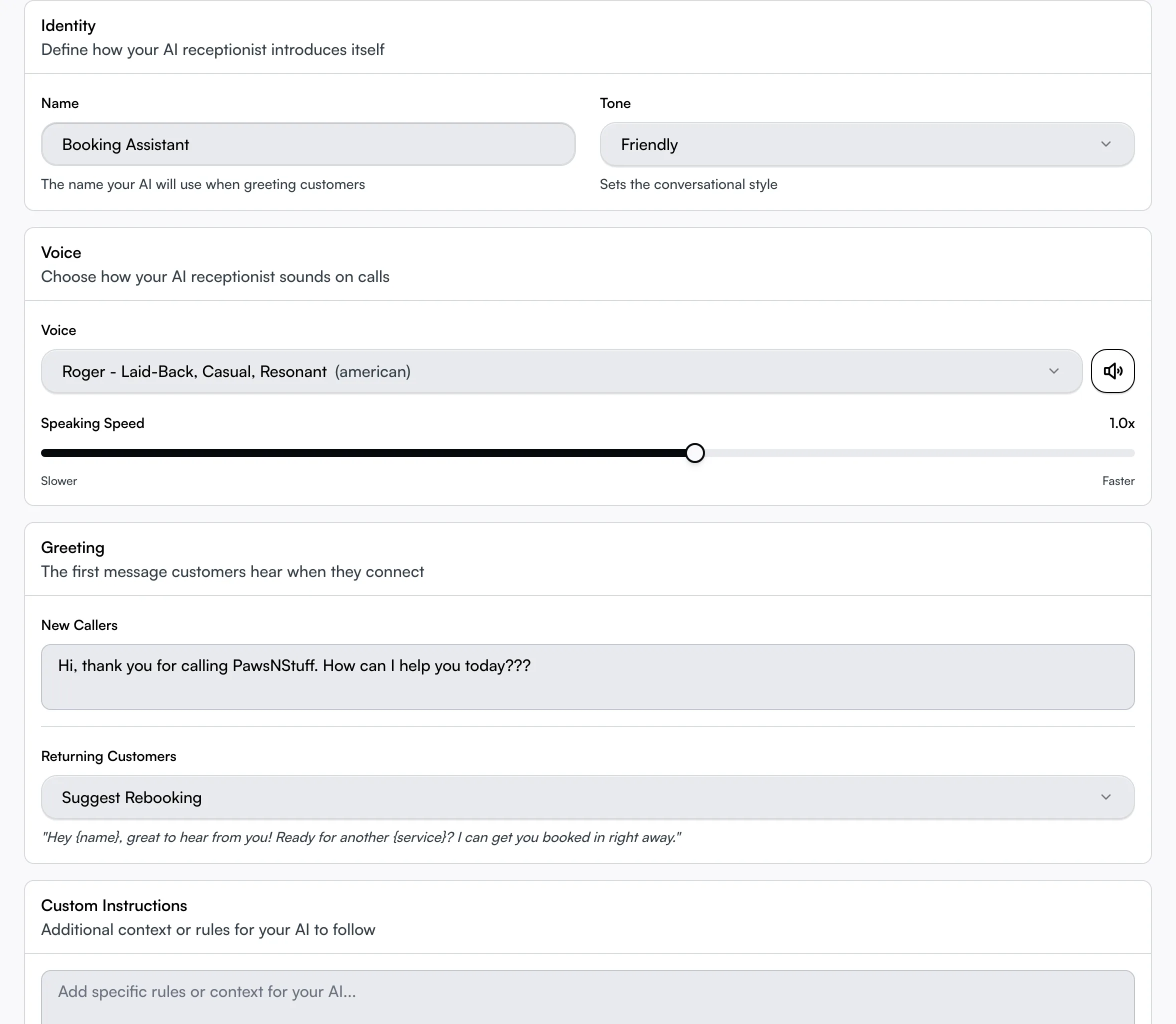
The Personality tab showing the identity, voice, and greeting controls

Greet new and returning callers

Under Greeting, New Callers is a free-text line you write yourself — the opening a first-timer hears. Returning callers are handled for you: the AI greets them by name and thanks them for calling your business, no setup required.

Use Custom Instructions at the bottom for one-off rules in plain English, like "Always mention our current promotion" or "Prioritise morning appointments".

Hand it only the jobs you trust it with

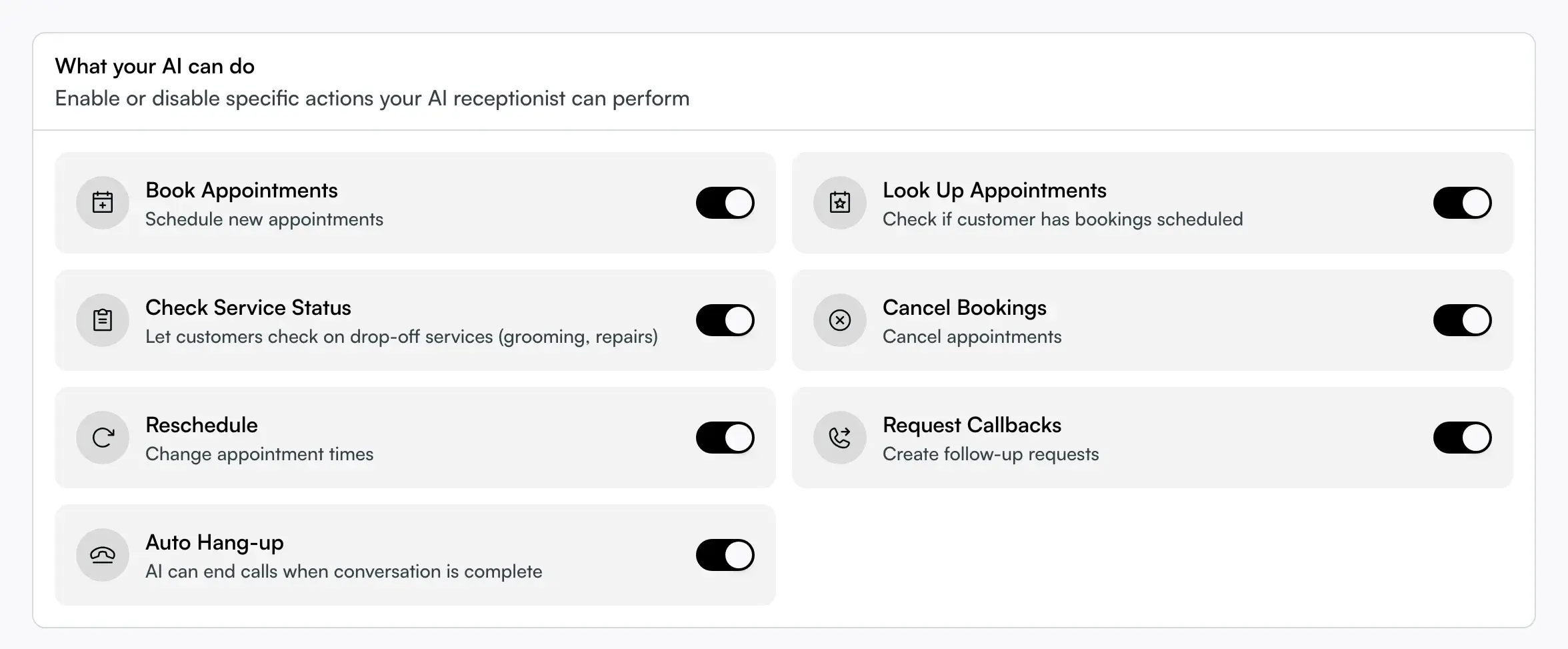
Open the Capabilities tab — one switch per action, so the AI only ever does what you've turned on:

  • Book Appointments (on by default) — schedule new bookings.
  • Look Up Appointments — tell a caller whether they already have a booking.
  • Check Service Status — let drop-off customers check on grooming or repairs.
  • Cancel Bookings — cancel an existing appointment.
  • Reschedule (on by default) — move a booking whenever your cancellation deadline allows.
  • Request Callbacks — log a follow-up for your team.
  • Auto Hang-up (on by default) — end the call once the conversation's done.

The Capabilities tab with a switch per AI action

Start with just booking, then turn on more as your trust grows.

Save everything in one go

Make any change across the three tabs and one unsaved changes bar slides up at the bottom — Save writes routing, voice, greeting, and capabilities together, or reset throws it all away. There's no single master on/off switch — whether the AI answers is decided per location by your Call Flow choices: set During Business Hours to Staff Only and Outside Business Hours to Same as Business Hours (or Voicemail/Message Only) to stop the AI answering that location's calls entirely, without releasing the number.

Tips

  • Two settings decide who answers a live call, not one: the During Business Hours mode and the ring duration. Long ring + Staff First means most callers reach a person; short ring sends them to the AI fast.
  • Already on a call? The next one never rings your team — it goes straight to AI/voicemail, regardless of mode or ring duration. If a caller says "your phone was busy" while you were sure you were free, check whether someone else on the team was already on a call — the routing is business-wide, not per staff member.
  • The after-hours greeting box is shared but the timing differs — on Voicemail it plays before the beep, on Message Only it's the final word before hang-up. Write it to fit the one you picked.
  • Reschedule is on by default. If a caller can't move a booking, it's usually your cancellation deadline blocking it.
  • Capability on but the AI still won't do it? It usually couldn't find the caller's booking. Open Receptionist conversations to see exactly what it tried.
  • Switching a location's Call Flow off the AI doesn't release your number — it just stops the AI answering for that location. The number stays connected until you remove it.

Related

Related articles