Messages and Calls
Read and answer customer texts and Instagram DMs, pin the chats you need, and check your call log, on web, the appointment app and the Phone app.
Updated 2 October 2026
A customer texts to move a booking, another DMs you on Instagram, and someone rang while you had a dog on the table. Messages is where you read and answer customers. Calls is your call log.
Where to find them in each app:
| App | Messages | Calls |
|---|---|---|
| Web app | Messages in the left sidebar | Calls in the left sidebar |
| Seglo appointment app | Messages tab, Customers side | Not in this app |
| Seglo Phone app | Messages tab | Keypad tab (Recent calls) |
On web, Messages, Calls and Callbacks sit together in the sidebar, under a Seglo Phone heading if your business also has bookings. The old /business/receptionist/inbox address redirects to Messages.
In the appointment app, the Messages tab has Team and Customers at the top when you can see customer messages. Team is team chat. Without permission to see customer messages, the tab shows team chats only.
On an iPad running as a front-desk kiosk, the same Messages and Calls, plus Callbacks, are one tap away from the Front Desk tab in the kiosk's bottom nav.
Messages fill up once you have a phone number connected. If they're empty, set one up in Phone numbers and routing. To get Instagram DMs here too, see Instagram messages.
Messages page
One row per customer conversation, newest first. Texts and Instagram DMs share the list.
Read the row before you click
- Channel badge: a small coloured badge shows where the conversation came from, such as SMS or Instagram.
- Unread: a red dot on the channel badge, and the name in bold. Both clear once you open it.
- Customer: their saved name, when you have one.
- Last message: a preview of the latest message, with its time.
- Owner (third line): who's looking after it, when your business uses the team inbox.
- A lock means the conversation is private. A pin means you pinned it.
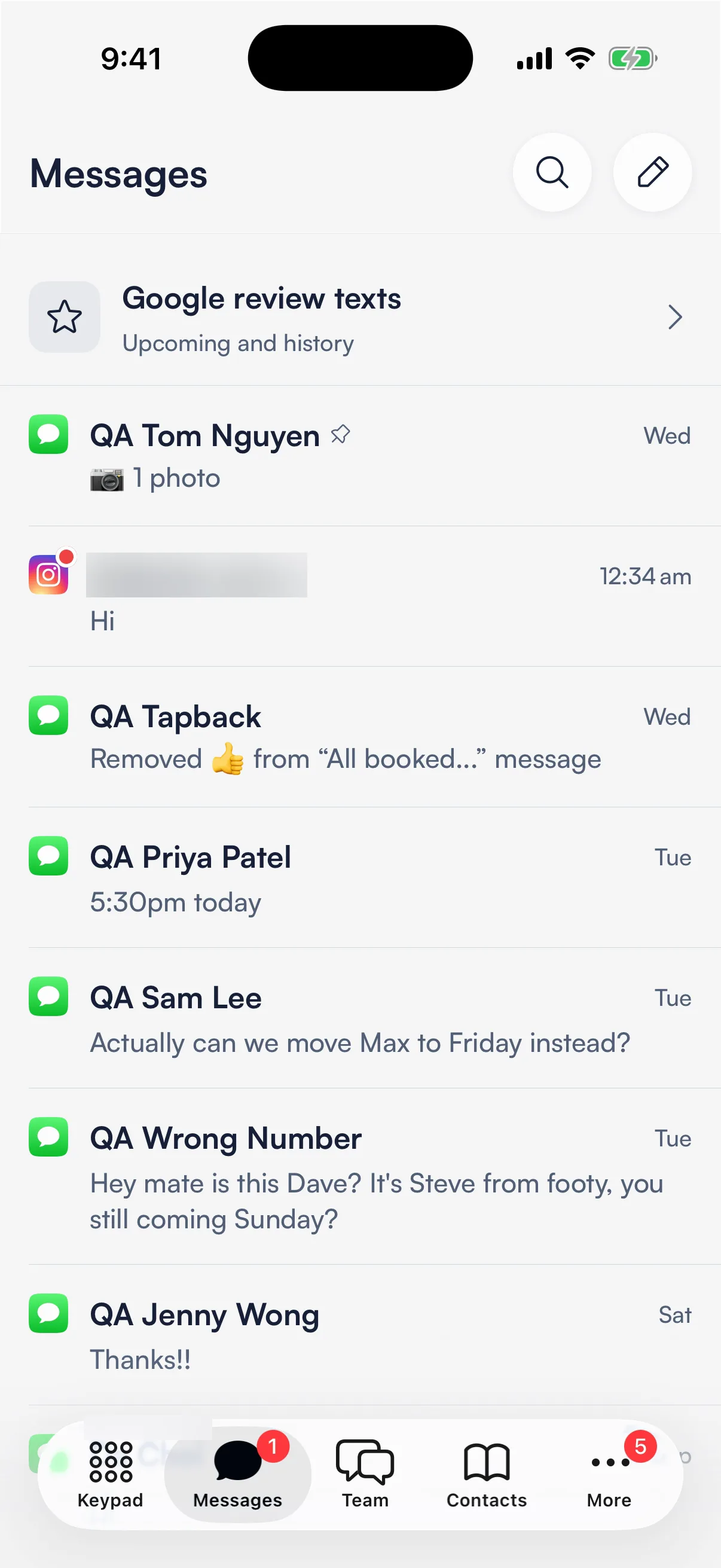
The Messages badge in the nav or tab bar counts conversations with unread messages.
Pin a conversation to the top
Pin the customers you're dealing with this week so they don't sink under new messages. You can pin up to 5 customer conversations. Your pins are only for you; the rest of the team's lists don't change.
- Web app: right-click the row, or hover and click …, then Pin.
- Seglo appointment app: long-press the row and tap Pin.
- Seglo Phone app: long-press the row and tap Pin. Swiping still does Take it and Done.
Pinned conversations go to the top of All, most recently pinned first. Mine, Unassigned and Done keep their usual order and just show the pin. For a sixth pin, Seglo asks you to unpin one first. Team chat has its own 5 pins.
Search, and show one number at a time
- Web app: click the magnifier (Search messages). Results are split into Conversations and Messages.
- Seglo appointment app: tap the magnifier in the Messages header.
- Seglo Phone app: tap the search icon and type at least 2 characters.
If your business has more than one number, the appointment app and Phone app can show one number at a time. Tap the number picker in the Messages header and choose a number, or All numbers to see everything. The web app always shows every number together. Messages has no date filter; use search instead.
Reply to a customer
Open a conversation, type at the bottom and press Send. A text reply goes from your business number; an Instagram reply goes to the customer in Instagram (see reply limits). You always send it yourself — nothing goes out automatically, whether you typed it or adopted an AI suggestion below.
Staff can also drop a pre-written quick reply into the message box with one tap instead of typing common phrases from scratch — the lightning-bolt icon next to the message box opens the picker, in all three apps.
AI reply suggestions
When a customer texts in, a suggested reply can appear on its own in a card above the message box — you don't have to ask for it. It's the same AI that answers your phone calls, reading the conversation and proposing what to say back.
- It only ever suggests — it never sends. The card sits above the box; nothing goes to the customer until you tap Send on it yourself.
- Tap the suggestion to load it into the message box first if you want to change a word or two before sending — your cursor lands at the end, ready to edit. If you'd already started typing your own reply, the suggestion is added below it rather than overwriting what you wrote.
- Times are checked, not guessed. If a suggestion mentions a specific day or time (e.g. "Friday at 2pm works"), the AI checked your real calendar for that slot before writing it — it won't invent an opening. When it can't work out your availability, it suggests saying you'll check and get back to them instead of guessing.
- A new text from the customer replaces the suggestion. If they send another message before you reply — even "actually never mind" — the old suggestion disappears and (if there's still something to reply to) a fresh one takes its place, so you're never looking at a suggestion that's gone stale mid-conversation.
- Nothing shown means nothing was generated yet (or it expired). The suggestion can take a few seconds to appear after a text comes in, and it doesn't stick around forever — if you come back to it much later, just write your reply as normal.
- This is separate from quick replies. Quick replies are phrases your team wrote in advance and insert on purpose. An AI suggestion is generated automatically per conversation, tailored to what the customer just said.
Resend a failed message
If a message couldn't be delivered, it shows a red Failed mark under the bubble. Right after a failed send, a banner above the message box offers Retry — tap it to send the same text (and photo, if it had one) again; the failed message stays in the thread as a record, and the new attempt appears right below it.
Calls page (web app)
Calls shows every inbound and outbound call on your business number — one row per call event, newest first.
Read the row before you click
- Direction arrow — pointing down = inbound call; pointing up = outbound call.
- Customer — saved name first; falls back to their phone number.
- What happened — a plain-English summary of who handled the call and what the outcome was. Examples: AI answered, Answered by staff (or the staff member's name), Missed call, Declined call, Left a voicemail, Booked an appointment. A Booked an appointment result means the call ended in a confirmed appointment, whether the AI or a staff member handled it — click the row to jump straight to the booking detail.
- Duration — how long the call lasted.
- Time — how long ago the call came in.
Badge count
The Calls badge in the nav shows how many calls have outcome = MISSED — meaning the call rang but nobody (AI or staff) answered it. Calls that went to voicemail, were answered by staff, were handled by the AI, or were declined are not counted as missed.
Filter
The filter bar lets you narrow the list:
- Outcome / handler — All handlers / AI / Staff / Missed. Selecting Missed shows only calls where nobody answered — this count matches the nav badge exactly.
- Date range — defaults to Last 30 days.
Open a call detail
Click any row to open the detail panel on the right. The panel shows the handler, call duration, outcome, the AI summary (a short recap of what the customer wanted), and the full line-by-line transcript. If a staff member answered, the panel shows their name and there is no AI transcript — follow up with that person directly.
Understand who handled a call
- AI — the receptionist answered and managed the call end to end.
- Staff member name — a person on your team accepted the call in the Seglo Phone app. Their name is captured at the moment they answered.
- Declined — every team member the call rang chose to decline it. This is different from Missed: nobody was reachable at all versus your team actively saying not now. A declined call doesn't count toward the Calls badge or the Missed filter — treat it the same as a missed one for follow-up, since the customer still didn't get through.
- Blank / Missed — the call was not answered by anyone (missed, hung up before answer, or voicemail without AI handling).
Find the AI bookings
Look for rows where "What happened" reads Booked an appointment and the row's handler is AI. Opening that row shows the confirmed booking — customer name, service, date — and a link that takes you straight to the booking detail. This is the easiest way to confirm the receptionist is turning calls into revenue.
See where a callback came from
If a row shows an outcome of Callback, click it to open the call detail. The panel includes a View conversation link that takes you back to the original call or chat the AI flagged for follow-up — so you can read what the customer asked before you ring them back. Manage the follow-up task itself in Callbacks.
Tips
- Unread badge = someone is waiting. Check Messages at the start of each shift so no thread sits unanswered.
- Calls badge = missed calls that need follow-up. A rising badge in a busy period usually means staff are not logged in to the phone app or are unavailable.
- Declined ≠ Missed. A Declined call means your team saw it ring and chose not to pick up — a deliberate call, not a lost one. It never shows up in the Calls badge or the Missed filter, so a follow-up-worthy declined call is easy to overlook if you only work the badge. This applies to calls you place too — if a customer rejects a call your team made, that shows as Declined as well.
- Missed filter = badge count. The Missed filter on the Calls page narrows to the exact same rows counted by the badge, so you can work through them one by one.
- Last 30 days is the default on Calls. Older calls are still there; widen the date range.
- SMS replies come from your business number. The customer sees the same number they texted.
- Pins are personal. Pinning a customer doesn't move it for anyone else, so tell a teammate directly if they need to pick it up, or hand it over.
- Messages live-updates; Calls doesn't. New texts appear automatically. On Calls, use the refresh button to pull in the latest after a busy stretch.
- Old Inbox bookmark?
/business/receptionist/inboxredirects to Messages automatically.
Related
- Team inbox: who looks after each conversation, handovers and Done.
- Instagram messages: connect Instagram and reply to DMs.
- Team chat: message your staff.
- Callbacks — the follow-up task queue generated when the AI could not close a call.
- Receptionist dashboard — aggregate counts: how many calls the AI handled and booked this month.
- Phone numbers and routing — the numbers these calls and messages come in on.
- AI agent configuration — the receptionist that answers calls and books appointments.
- Quick replies — the shared library of ready-made SMS replies your team can insert with one tap.
Related