Receptionist conversations
Read back every call and chat your AI receptionist handled, find the ones that need you, and hear exactly how a customer was treated.
Updated 19 July 2026
When you weren't at the desk, this is how you find out what happened — which calls became bookings, which ones went wrong, and exactly what your AI receptionist said to each customer. Open it after a busy stretch to catch the few interactions that need you, instead of trusting that every call went fine.
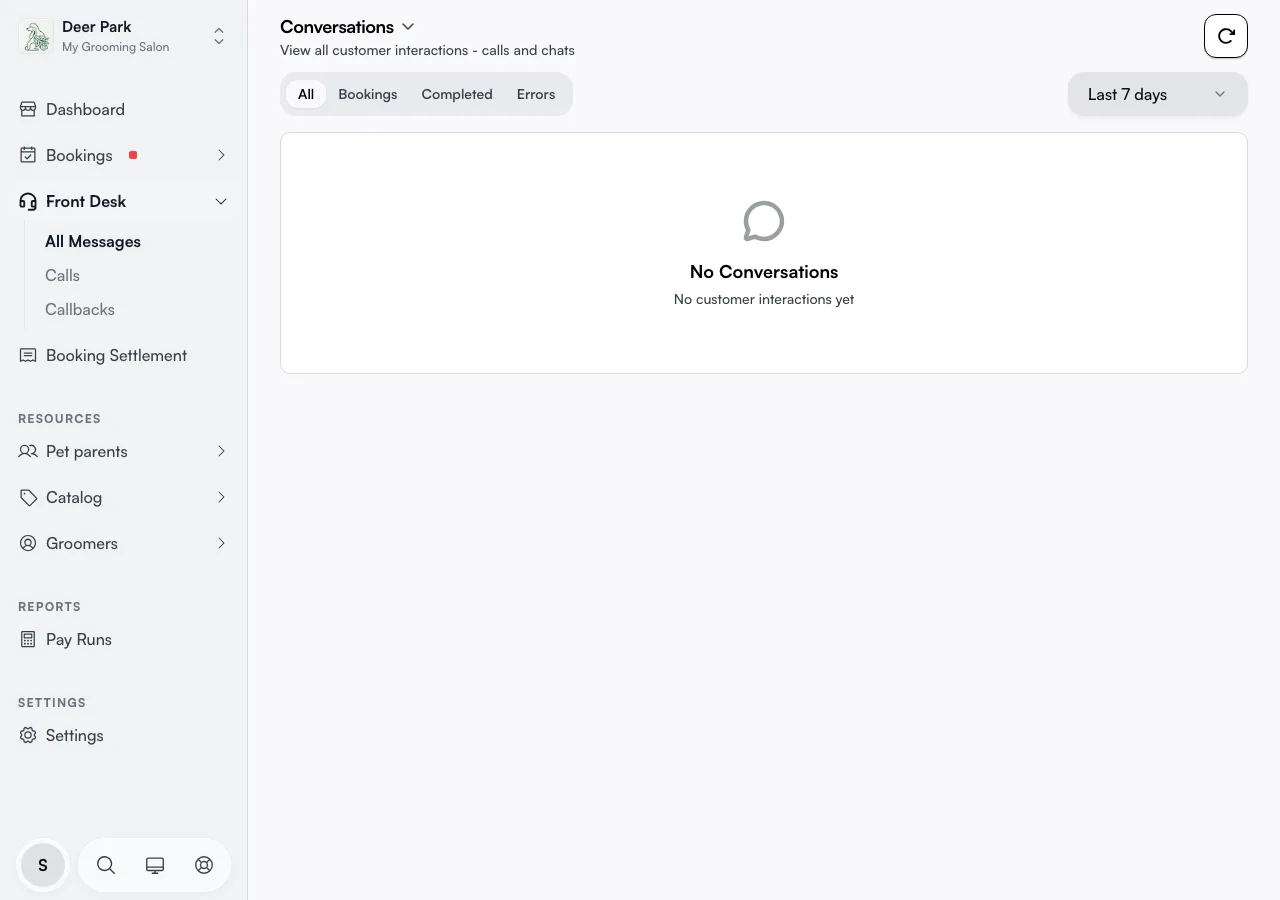
To get here, open Front Desk in the left navigation — you'll see Messages, Calls, and Callbacks as sub-items. Calls is your voice call log; Messages is your SMS thread list. There's no single combined feed anymore — each channel gets the page that fits it — but a call and a chat still work the same way once you open one: see Messages and Calls for a full walkthrough of both pages.
Catch the calls that went wrong
On the Calls page, filter by AI in the handler dropdown and look down the What happened column for Call error — these are the interactions that ran into a problem and are most likely to cost you a customer. Common causes are someone hanging up mid-confirmation, a service the agent couldn't find in your catalog, or a capability switched off in Receptionist settings. Open each one and read the transcript to see where it stalled.
The filter bar above the call log lets you narrow what you see:
- All handlers — every call.
- AI — calls the receptionist handled end to end.
- Staff — calls a human on your team answered.
- Missed — calls where nobody answered.
See further back than last month
The Calls page defaults to Last 30 days, so anything older won't show until you widen it. Use the date menu to pick Today, Yesterday, Last 7 days, This month, Last month, or All time. Pick All time when you are hunting for one specific older call.
The list shows 20 calls per page; when there are more, Previous and Next buttons appear at the bottom with the page count. The refresh button beside the filters pulls in anything that came in after you opened the page — handy if you're watching the desk in near-real-time.
Messages works differently: it's an unbounded thread list (no date filter), and the search box at the top of the pane is how you find an older conversation.
Tell a call from a chat at a glance
Each call row on the Calls page carries a small icon showing the direction before you click:
- A blue incoming-phone icon — an inbound call (the customer rang you).
- A green outgoing-phone icon — an outbound call the agent placed.
Website chat isn't part of this view — Messages covers SMS threads only.
The Duration column on the Calls page shows the call's length (for example 4m 12s). The customer label falls back gracefully in both the row and the detail panel — a saved name first, then their phone number, and (in the detail panel) their email if there's no phone number, with Unknown only when there's nothing at all.
Hear exactly how a customer was treated
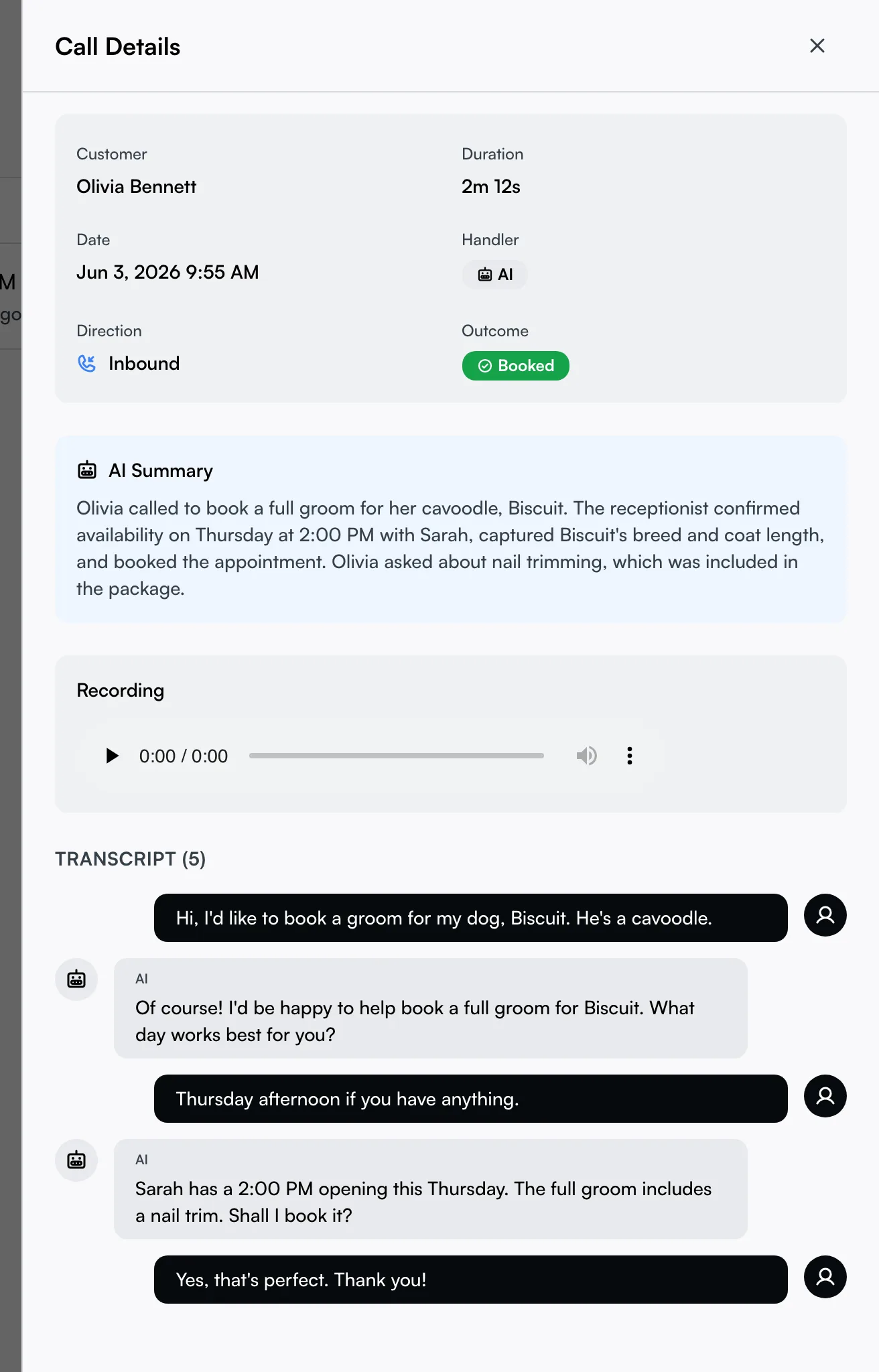
Click any call row to open Call Details. The top block summarises who it was, how long it ran, the date, and the Handler badge: an AI badge when the receptionist took it, a staff member's name when a person did, or Voicemail (orange) when it went to message. You also see whether it was Inbound or Outbound and the final outcome.
If the agent wrote one, the AI Summary appears next — a one-paragraph recap of what the customer wanted and what was done. Read this first when you just need the gist.
Play the recording — or the voicemail they left
When a call was recorded, a player sits below the summary so you can listen back to the actual exchange. If the call went to voicemail instead, the panel labels it Voicemail and plays the message the customer left. Messages threads don't have a recording or transcript concept — the message history itself is the full record there.
Read who said what, line by line
The bottom of the Call Details panel is the full Transcript, with a count beside the heading. The customer's lines sit on one side and the receptionist's on the other, and the receptionist's are labelled AI or Staff so you can follow the back-and-forth. That Staff label matters — it means a human stepped in and took over part of the conversation, so a call isn't always all-agent. If a call has no line-by-line transcript yet, the raw text shows instead, and older calls may show nothing if the record has aged out.
Spot the outcomes beyond AI / Staff / Missed
The handler filter only sorts by who took the call. Open a row and the Outcome badge in the detail panel can show results the filter doesn't separate out: Cancelled (a booking was undone), Completed, Answered or AI Answered, and Active for a call still in progress — alongside Booked, Missed, Voicemail, and Error. The What happened column on the list condenses all of this into one plain-language phrase per row, so you rarely need to open a row just to see the outcome.
Tips
- Nothing showing at all? The receptionist is likely off, or no number is connected — confirm both in Receptionist settings.
- A call you remember is missing? It's almost always the date window — the Calls page defaults to Last 30 days. Switch to All time before assuming it's gone. On Messages, use search instead — there's no date filter to widen.
- A missing recording on an older call is normal — recordings are kept for a limited time, so copy out the transcript if you need a permanent record.
- A booking from a call lives on your calendar, not here — this page is the record of the conversation, not the appointment. Follow-up requests the agent took show up separately under Callbacks.
- The green Booked outcome is the clearest signal — that call produced a confirmed appointment. Open the row and click the booking card to jump straight to it.
- Staff-answered calls have no AI transcript — when a person took the call, the handler badge shows their name and the transcript area is empty; that's expected.
Related
- Messages and Calls — the full walkthrough of both Front Desk pages (SMS threads, call log, badges).
- Receptionist dashboard — call volume and booking counts at a glance.
- Receptionist settings — tune what the agent can do and which numbers it answers.
- Callbacks — follow-up requests the agent captured during a call.
Related