Leave and time off management
Approve or reject your team's time off, require advance notice before staff can request it, and handle the gotchas around appointments and coverage.
Updated 26 July 2026
When a team member asks for time off, you decide here whether it goes ahead — and the moment you approve, the system stops customers booking that person for those dates. A pending-count badge next to Leave Requests keeps unanswered requests in front of you so nobody's holiday gets forgotten.
Open in app: Leave Requests
This page needs a plan that includes leave management. If yours doesn't, you'll see an upgrade prompt instead of the list — see Subscription plan. Staff submit their own requests from their app; your job here is to say yes or no.
See what's waiting and what it will cost you
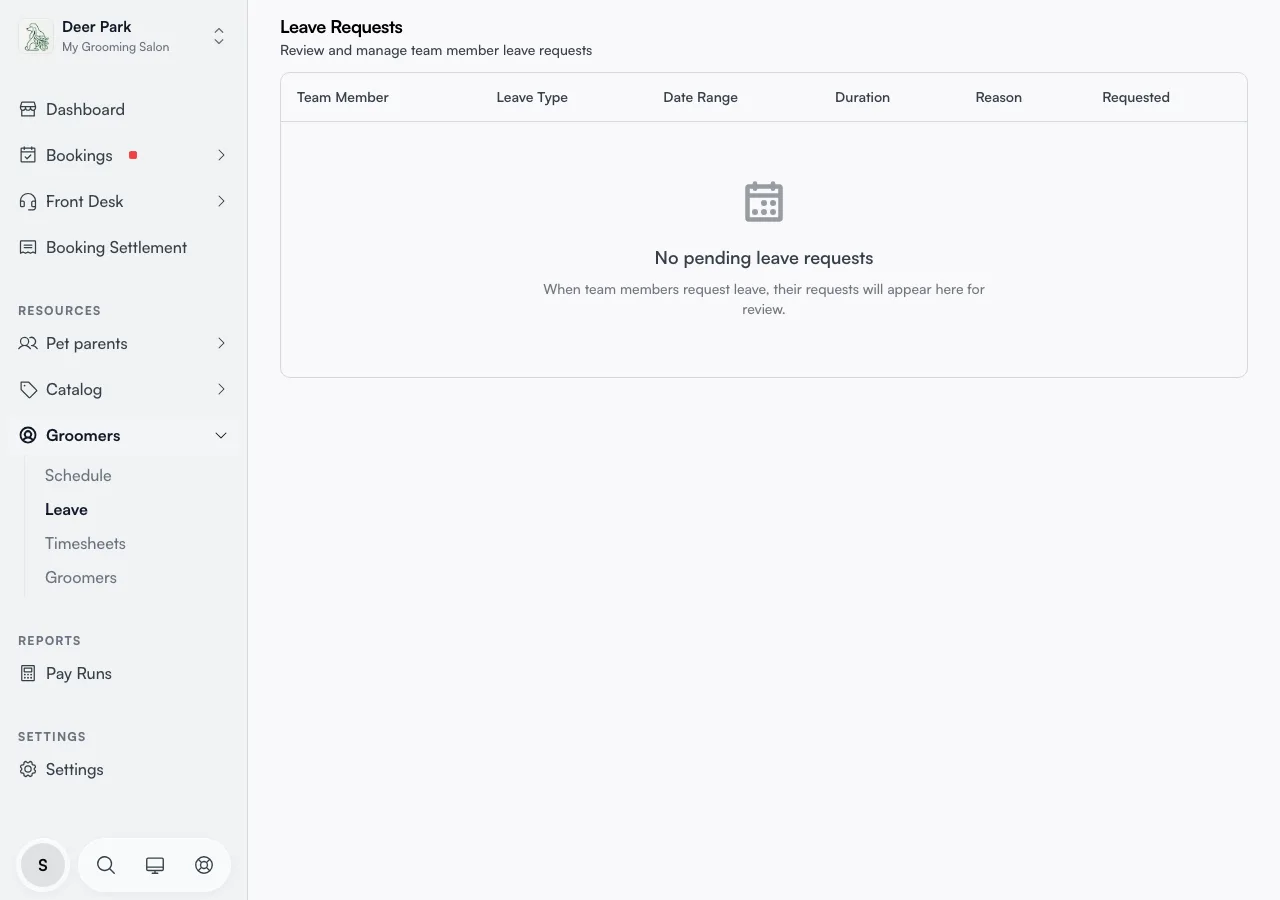
Open Team → Leave. Every request is a row showing who asked, the Leave Type, the Date Range, the Duration in days, their Reason, and how long ago they asked. Leave types are colour-coded — Annual Leave, Sick Leave, Public Holiday, Emergency Leave, Bereavement Leave, and Personal Leave — so a wall of sick days stands out at a glance.
Watch for the amber "N appts affected" flag in the Reason cell. It only appears on rows where the person already has confirmed bookings inside the requested dates, so you can spot the high-impact requests and sort out cover before you touch them. Duration counts both the first and last day, measured in your business's own time zone — a Monday-to-Monday request reads as 8 days, not 7.
Only active team members appear here. If you've deactivated someone, their old pending requests drop off the list.
Require advance notice for a leave type
If last-minute leave requests keep catching you out, set a minimum number of days each leave type needs to be requested by. Once it's set, staff can't submit that type of request for a date inside the window — you decide how much runway you need before someone books their own time off.
Click Leave notice policy at the top of this page. You'll see one row per leave type staff can request themselves — Annual Leave, Sick Leave, Personal Leave, Emergency Leave, and Bereavement Leave. Enter a number of days for any type you want to gate; leave it at 0 for no requirement, which is how every type starts. Public Holiday isn't listed here — staff never self-request it, so there's nothing to gate.
Save applies immediately, measured in your business's own time zone. The next time a staff member tries to submit that leave type for a date inside your window, their app blocks the submission before it reaches you.
Requests you enter yourself on the Staff schedule always bypass this setting — it only limits what staff can request for themselves, never what you enter on their behalf.
Approve or reject without leaving the page
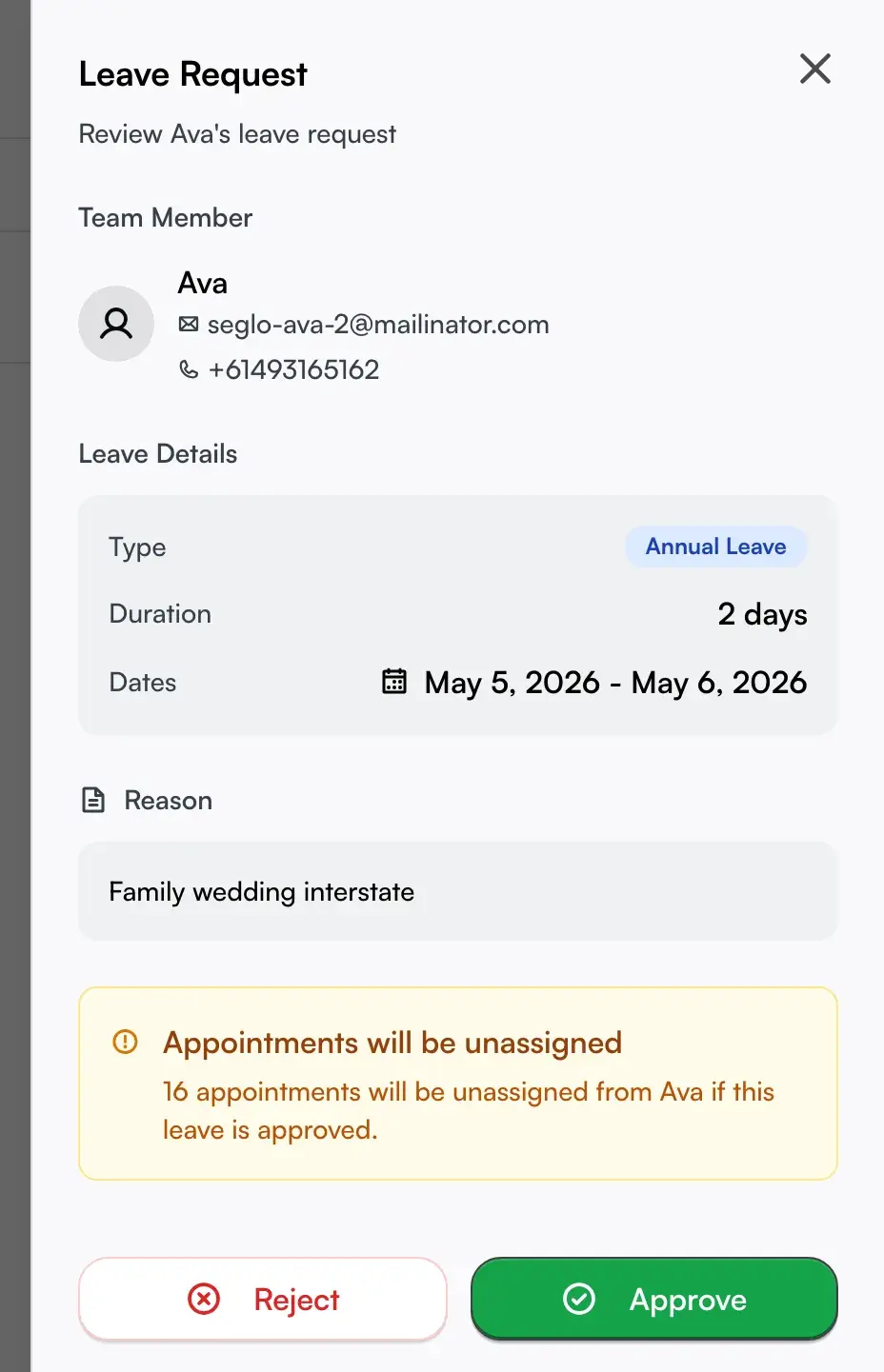
Click any row to open the detail panel. It shows the person's name, email, and phone, the leave type, the exact dates, the day count, and any reason they wrote — everything you need to decide in one glance. Click Reject and it's done immediately, with a confirmation toast — rejecting changes nothing about their schedule or availability, it just tells them no.
Click Approve and, if there's nothing booked against those dates, it's just as immediate: their availability is blocked for every day in the range, so customers can no longer book them, and you get a confirmation toast.
Handle the appointments approval will unassign
If the request overlaps confirmed bookings, Approve doesn't unassign anything on the spot — it opens a panel first, right there in the drawer, listing every affected appointment (up to ten, with a "+N more" line if there are more, grouped by day for a request spanning more than one). Nothing is written yet.
From that panel you choose:
- Unassign all N bookings — commits the leave and pulls every one of those appointments off the person's schedule in one go. They stay on the calendar, unstaffed, ready to reassign to someone else.
- Cancel — backs out. The request is still pending, nothing was written, and you're back at the drawer. Pressing Approve again re-checks the bookings fresh and re-opens the panel if the conflict is still there.
This is the same conflict panel you'll see when marking someone off on the Staff schedule directly — one consistent decision point everywhere leave can strip a booking, rather than a warning you could miss.
Whenever an approval — from this page, from the Staff schedule, or from a recurring shift's leave override — actually unassigns at least one booking, you'll receive an email and an in-app notification listing up to ten of the affected bookings (with client name, service, and date/time), plus a link that takes you straight to the schedule where you can reassign staff. This alert fires as soon as you confirm the unassign — no delay.
Reassign them afterwards from the Schedule — an Unassigned panel appears on the right side of the schedule and shows one card per unassigned pet. Drag a card into any available staff lane to assign it, or tap it to pick a staff member from the drawer. Line up that cover before you approve, especially for a long window — once you've confirmed the unassign, the slots are already freed and the clock is running on those orphaned bookings.
Know why a request might never reach you
Staff can't submit a request that clashes with their own existing work. If they already have bookings inside the dates they want off, their app blocks the request outright — so the "appointments affected" count you see only covers bookings made after the request was submitted. They also can't stack two overlapping requests; a second one covering the same dates is refused before it's sent.
This is why a clear request can still show affected appointments later: the bookings landed in the gap between them asking and you deciding. The sooner you action a request, the smaller that gap.
If you've set a minimum notice requirement for a leave type, staff also can't submit that type for a date inside the window. Their app shows how many days' notice is required and the earliest date they're allowed to pick, with a shortcut that jumps straight there — requesting exactly on that earliest date is fine, only the dates before it are blocked. This is enforced on our side too, so it can't be bypassed by anything on their end.
Block time off without an approval trail
Not every absence needs a request. For a public holiday you're closing for, or to mark someone off on the spot, add the time off directly on the Staff schedule instead of waiting for a request to come in. Marking leave there approves it on the spot — same effect on availability, no back-and-forth — which is the fast path for things that aren't really up for debate.
To undo an approved block later, clear it from the staff schedule. That cancels the leave and hands the person their availability back, so customers can book them again from that point on.
Tips
- Nothing is blocked while a request sits pending — a customer can still book that person right up until you approve. Approving is what closes the door, so don't assume a pending holiday is protecting the slot.
- Approving two people onto the same window isn't stopped, even if it leaves a service with nobody to run it. The system won't warn you about coverage gaps across staff — check that yourself before signing off a busy period.
- Watch the unassign count every time. Those bookings need a new staff member afterwards, and they won't reassign themselves.
- Staff can't edit a request once it's sent. To fix a wrong date, reject it and ask them to submit a fresh one.
- A notice window isn't retroactive. Requests already in your queue were checked against whatever the rule was (or wasn't) when they were submitted — changing the number of days doesn't re-check them.
- Everyone gets told the outcome. You're emailed when a request comes in, and the team member is notified by email (and text where set up) the instant you approve or reject — no need to chase them.
Related
- Staff schedule — where approved leave blocks the roster, and where you add no-approval time off.
- Schedule — where you reassign the pets an approval unassigns, via the Unassigned panel.
- Timesheet and hours tracking — day-of clock activity once they're back.
- Team members — invite staff and set who is bookable.
Related