Schedule (resource-based booking)
Run your team's day on one grid — book straight off an open slot, drag a card to move it, and assign unassigned pets to staff in one drag.
Updated 2 October 2026
When you need to see your whole team's day at a glance and book into it without hopping between screens, this is the calendar you live in. Each booking can hold several services and several staff, and if a service needs a room or piece of equipment, the right one is picked for you.
It runs alongside the older Calendar — both read and write the same live bookings, so a change in one shows up in the other within a second or two. Owners and admins land on Schedule; staff members open Calendar instead.
Open in app: Schedule
Book straight off an open slot
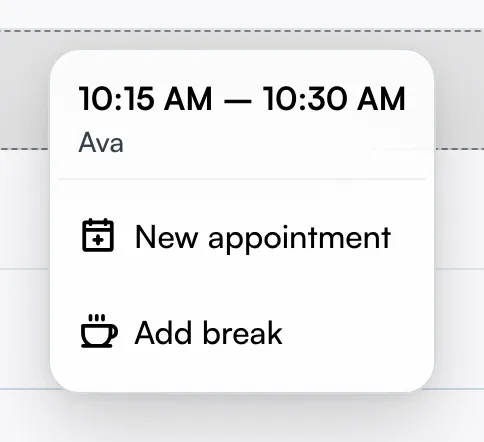
The fastest way to add a booking is to click an empty space in a team member's lane on the By staff view. The slot under your pointer highlights; click it and a small menu opens with New appointment and Add break. Choose New appointment and the form opens with the time and staff member already filled in from the slot you clicked.
Slots outside your opening hours are allowed, so a 7pm booking on a 6pm-close day still works from here. You cannot click into a past slot — the menu shows a note in its place instead. On a touch device the same menu opens as a bottom sheet.
Build a multi-service, multi-staff booking
Whether you opened it from a slot or the New booking button, you work down one scrolling form:
- Time — start time and duration.
- Client — search by name, email, or phone, or add a new client in place.
- Services — add one at a time, picking the variant for each (for example, "Cut & Blow — long hair").
- Additional recipients — assign a different staff member to a service, or add a second person for a multi-staff booking.
- Room — appears only when a chosen service needs a room or tool, showing the first one free for the time. Tap Change to pin a specific room.
- Notes — anything the team should see.
The form is a side sheet on desktop and a full-screen drawer on mobile. Close it part-way and your draft is still there when you reopen it. Click Create and the card lands on the lane and on Calendar at once.
Booking a factor-priced service
If the service you select uses factor-based pricing — where the price and duration depend on the subject's traits (pet weight, coat type, vehicle size) — a question form opens in place inside the booking form:
- Returning profiles with stored answers: the questions are pre-filled from the profile's saved values, with a live price already calculated. Tap any question to change its answer.
- New profiles with no stored answers: the questions start blank. Answer each one — the price and duration update in real time at the bottom of the form.
Tap Add to bill once everything required is answered. The resolved duration auto-fills the booking's end time. You can still adjust the start or end time in the Time section at the top of the form. Required factors are enforced — the service can't be added to the booking until they're all answered.
Answers are saved back to the profile automatically. When the booking is created, the answers are written back to the client's profile. The next time you create a booking for that profile, the drawer pre-fills from those saved answers so returning clients skip re-entry.
Editing factor answers on an existing booking is not yet supported. To update stored answers, create a new booking with the corrected values.
Push a booking through a clash
If the time clashes with another booking or pushes a staff member past their current workload, a conflict dialog appears. Pick another time, or — if you are an owner or admin — tap Override / 覆寫 (or Force booking / 強制預約 for a workload-cap warning), type a short reason, and confirm. The override is recorded in the booking's audit trail with your name and reason.
Who can force a booking:
- Owner / admin — can overbook a busy staff member or an occupied room, bathing bay, or other resource. Every forced overbook is logged.
- Staff — cannot force a booking; the dialog only offers alternative times.
- Customers — can never force an overbook, regardless of what they send.
One ceiling that cannot be waived — multi-slot pools. A capacity pool with, say, four drying bays holds exactly four concurrent bookings. When all four are full, no one can add a fifth — owner included — because the physical limit can't be negotiated away. The fix is real-world: free a bay (reschedule what's holding it) or raise the pool's capacity if your space genuinely grew. All other resource types (a single room, a single piece of equipment, a single staff member) can be overbooked by an owner with a reason.
Overbooked slots appear on the calendar. A booking that was force-accepted lands on the schedule exactly where you placed it. If two bookings now share a staff member or a resource at the same time, their cards sit side by side in the same lane. The override itself — who forced it and why — lives in the booking's audit trail.
Assign unassigned pets to a staff member
When a confirmed booking has no staff member — because a staff member went on leave, you created it by hand, or the auto-assign couldn't pin anyone — an Unassigned panel appears on the right side of the By staff view. It shows one card per unassigned pet (not per booking), sorted by time, with the pet's name, service, and time slot. The panel only appears when there is at least one unassigned pet; it disappears automatically once all are assigned.
To assign by dragging: press and hold a pet card until it lifts, then drag it into any staff lane. When you drop it, the pet is assigned to that staff member and its card moves into the lane. The panel count drops by one; the panel hides when it reaches zero. If the target staff member is already fully booked in that window, the card snaps back and a toast tells you why — pick a different lane or a different time.
To assign by tapping: click a card to open the booking detail drawer, then use the staff picker inside to choose someone. This is also how you assign on mobile — the unassigned pets appear as a section in the schedule view; tap one to open the drawer and pick a staff member there (drag is desktop-only).
Multi-pet bookings: each pet is its own card. Dragging one pet's card assigns only that pet — siblings already on a staff member stay put. A booking with three pets (two assigned, one not) shows exactly one card in the panel.
Drag a card to move or reassign it
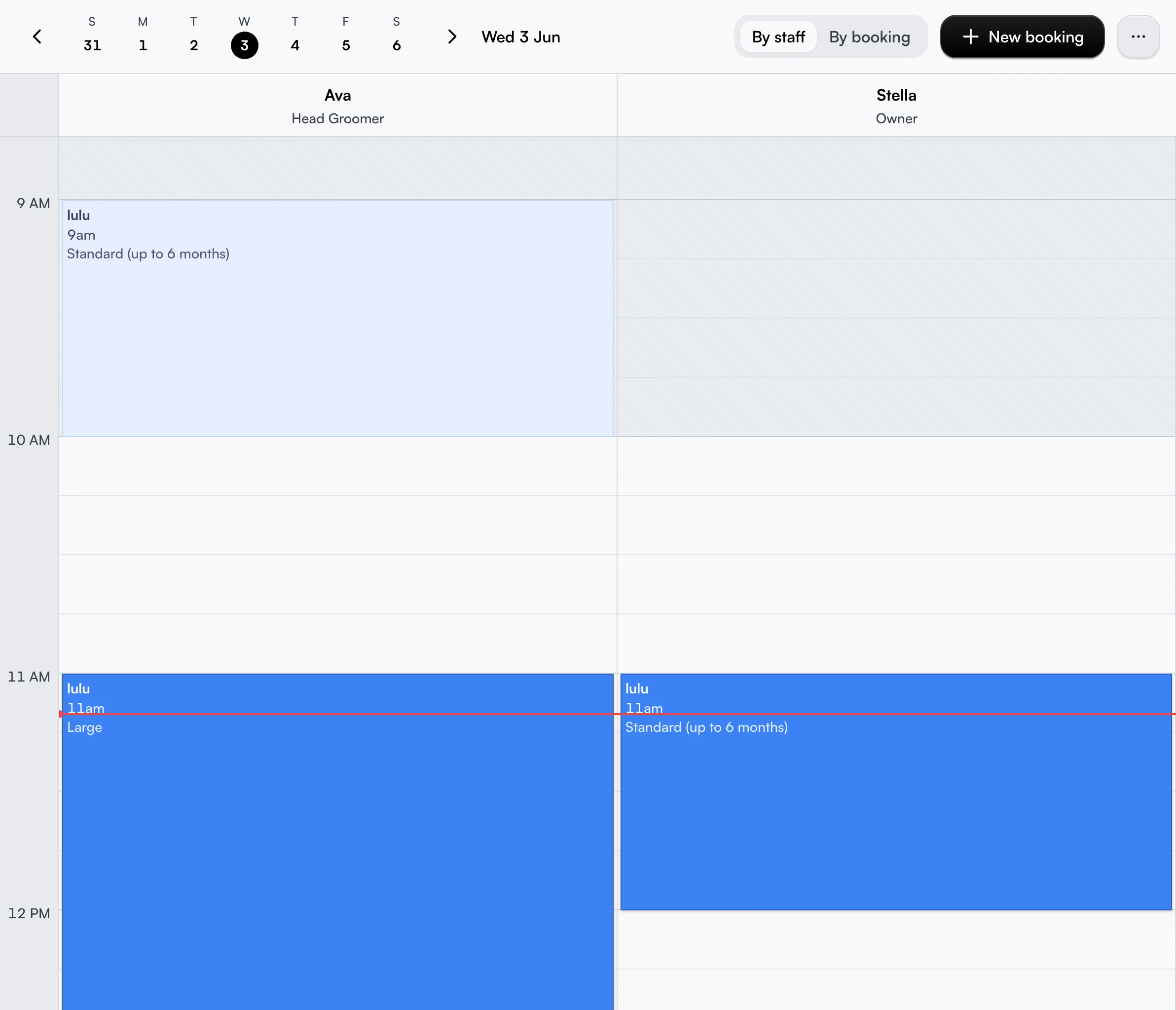
To reschedule without opening the form, press and hold a booking card briefly until it lifts and a ghost band shows where it will land. Drag up or down to change the time (it snaps to 15-minute steps), left or right onto another lane to reassign the staff member, or diagonally to do both at once. Release to drop and a Move this booking? prompt appears with a Notify customer toggle (on by default) — confirm to save the move, or dismiss to cancel it.
The duration never changes; dragging only moves the start. If a booking spans more than one staff member, each is a separate card and you move only that part. Leave Notify customer on to send the customer the new time. Drag works the same on the mobile Schedule tab. You cannot drag into a past slot, drag on the Activity view, or stretch a card to change its length — use Edit for those.
See more (or fewer) staff at once
The grid shows a set number of staff lanes per page. Open the ⋯ menu (top right) and pick Staff per page — 4, 6, 8, or 12. Six is the default. Your choice is remembered on this device, and the page caret buttons step through the rest of your team when you have more staff than lanes. This control lives only in the By staff view.
Hide the staff and statuses you don't want to see
Two filters in the ⋯ menu quietly shape the grid:
- Status — by default the grid shows Confirmed, Pending, and Paid, and hides No-show and Cancelled bookings. Tick those on when you want to see what fell through — they're off until you ask for them.
- Staff — untick a team member to drop their lane from the grid. The menu shows a small count (for example, 4/6) whenever a filter is hiding something, so you always know a view is trimmed.
Run the whole day at a glance — the Activity view
The Activity view (the view switcher in the toolbar, icon: pulse) drops the staff lanes and instead shows one chronological list of every booking on the selected day, earliest first. It's the "what's happening" view: every pet on the day is on screen — done, in progress, and still to come — each with a live state that updates by itself as the clock ticks (once per minute, no reload). There is no time slider; the board is always live "now".
Each row shows the start time, the client and pet, the service and assigned groomer, and a state tag that tells you where that booking is right now:
- Starting soon — begins within the next 15 minutes.
- Hands-on — a groomer is actively working on it.
- Assisting — a colleague is helping the primary groomer for part of the service.
- Processing — a treatment or process is running with no staff needed right now (for example a coat developing or fur drying); the tag shows the minutes left.
- Turnover — the last service step is done and the booking is in its clean-up window.
- Done / Cancelled / No-show — finished or off; these rows fade so the eye skips past them.
A summary strip at the top carries the at-a-glance signal — today's booking count, the current time, how many pets are hands-on / assisting / processing right now, and which rostered groomers are free at this moment. A "now" line runs across the list separating what has already started from what is still to come.
Click any row to open that booking's full detail drawer (same drawer as the By staff view). Add new bookings with the New booking button in the toolbar; there is no slot-click quick-add on this view. The staff and status filters in the ⋯ menu apply here the same as on By staff.
The Activity view is also available on mobile — open the ⋯ overflow menu on the Schedule tab and choose Activity. The same board appears in a page-scroll layout.
Take a booking through its day — complete, pay, no-show
Click any card to open its booking detail: the client's contact details, the time, services with prices, payment status, any photos uploaded against the booking, and its team notes. The buttons you see depend on where the booking is:
- An active booking offers Complete, Edit, Send reminder, and Cancel booking.
- In this panel, Take payment appears once the visit is Complete and the booking still needs checkout. Mark the visit complete when grooming has finished; completing it does not charge the customer.
- Once paid, Book next becomes the big button — Send receipt moves into the More menu alongside it.
The most-relevant action is the big button; the rest sit behind the three-dot More menu. Complete, Take payment, and Cancel require permission to edit bookings. Taking a payment also requires permission to take payments.
Book next — rebook a paid visit without retyping it
Click Book next on a paid booking and instead of a blank form you land straight on an availability picker — the same client, service and variant, staff member, and any factor answers (pet weight, coat type, and so on) are already carried over. Pick a day, pick a slot, and confirm; the new booking is created while the original stays exactly as it was.
The carried-over details sit in a summary above the day picker. Tap any factor-answer pill, or the Change link beside it, to drop back into the full booking form with everything still filled in — nothing is locked in once you're past the first tap.
If something carried over no longer holds up — the service has since been discontinued, or its questions changed — Schedule tells you and drops you into the full form to pick again, rather than letting you book against a setup that no longer exists.
Reach the actions that hide themselves
A few actions appear only under the right conditions, which is why they seem to come and go:
- Send reminder, Send receipt, and Send profile form vanish when the client has no email or phone on file — there's no one to send to. Add a contact detail and they return.
- Send profile form also shows only for drop-off bookings (pet grooming, car detailing) when your business actually has a profile form set up. It always lives in the More menu.
- Edit is offered while a booking is pending or confirmed; once a booking is completed or cancelled, editing is closed off.
Jump straight to a booking or day
The page remembers the day and view you're on in its web address, so you can bookmark "Schedule, Tuesday, Activity" and return to exactly that. Searching for a client or booking in the top Search (Cmd-K) and choosing a result drops you on this page with that booking's detail already open — no hunting through lanes.
On the Seglo appointment app, the same search lives as a button docked beside the bottom tab bar (a 5th icon in the top bar on Android). Tap it to open a full-height search sheet over clients and bookings — recent taps and quick jumps to Today and Pending requests show before you type anything. Type a name, phone number, or booking code to get grouped results; tapping a result opens that booking or client directly, and the calendar follows the booking's date.
Tips
- A staff member missing from a service's list usually has no skill assigned for it. Open Team → Members to confirm.
- No-show and Cancelled bookings are hidden by default — if a cancelled booking seems to have vanished, tick it on under Status in the ⋯ menu.
- Can't see a Send button? The client has no email or phone on file. Add one to the client profile.
- Schedule follows your booking rules. Lead time, buffers, and the booking window are set in Appointment settings, not here.
- Changed your mind mid-booking? Close the form — your draft survives — and reopen the same card.
Related
- Calendar — the day, week, and month view of every booking, plus slot-search and drop-off bookings.
- Appointment settings — booking windows, lead time, and buffers.
- Appointment requests — customer-submitted bookings waiting for approval.
Related