Team notes
Leave staff-only notes on a booking, @mention a teammate so they get notified, and add to a client's note from team chat, on web and the appointment app.
Updated 2 October 2026
"Matted behind the ears, owner OK'd a shave-down." The next person to handle that dog should see it without asking around. Team notes sit on the booking, where the team looks at the visit, and customers never see them.
Add a note to a booking (web app)
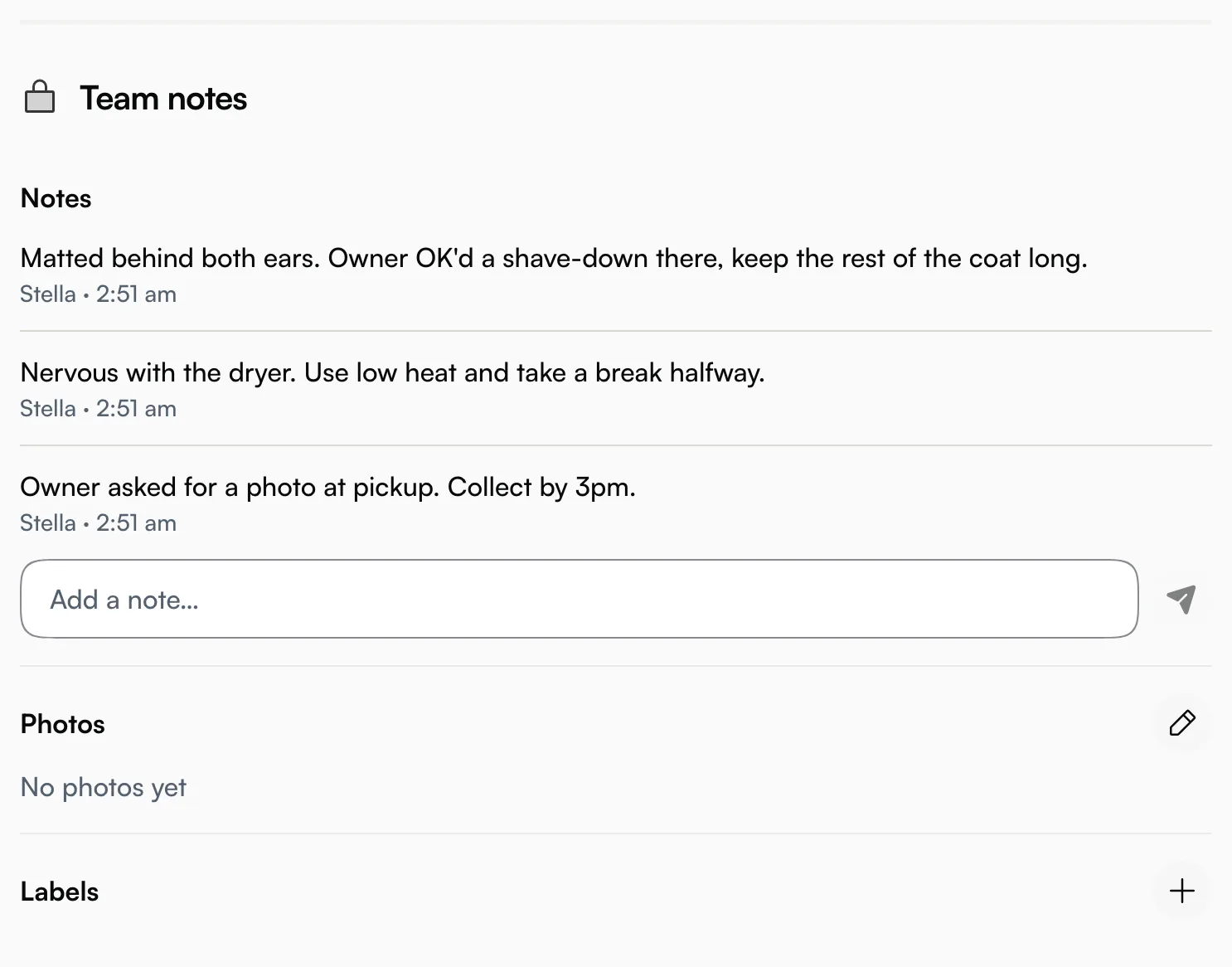
- Open the booking from the calendar or schedule.
- Find Team notes. Under Notes, type in Add a note….
- Click Save note.
You can also tap the microphone to dictate a voice note. Seglo writes it out as text.
Each note shows who wrote it and when. The customer's own request from booking is shown separately as What the customer asked.
Add a note to a booking (Seglo appointment app)
- Open the booking.
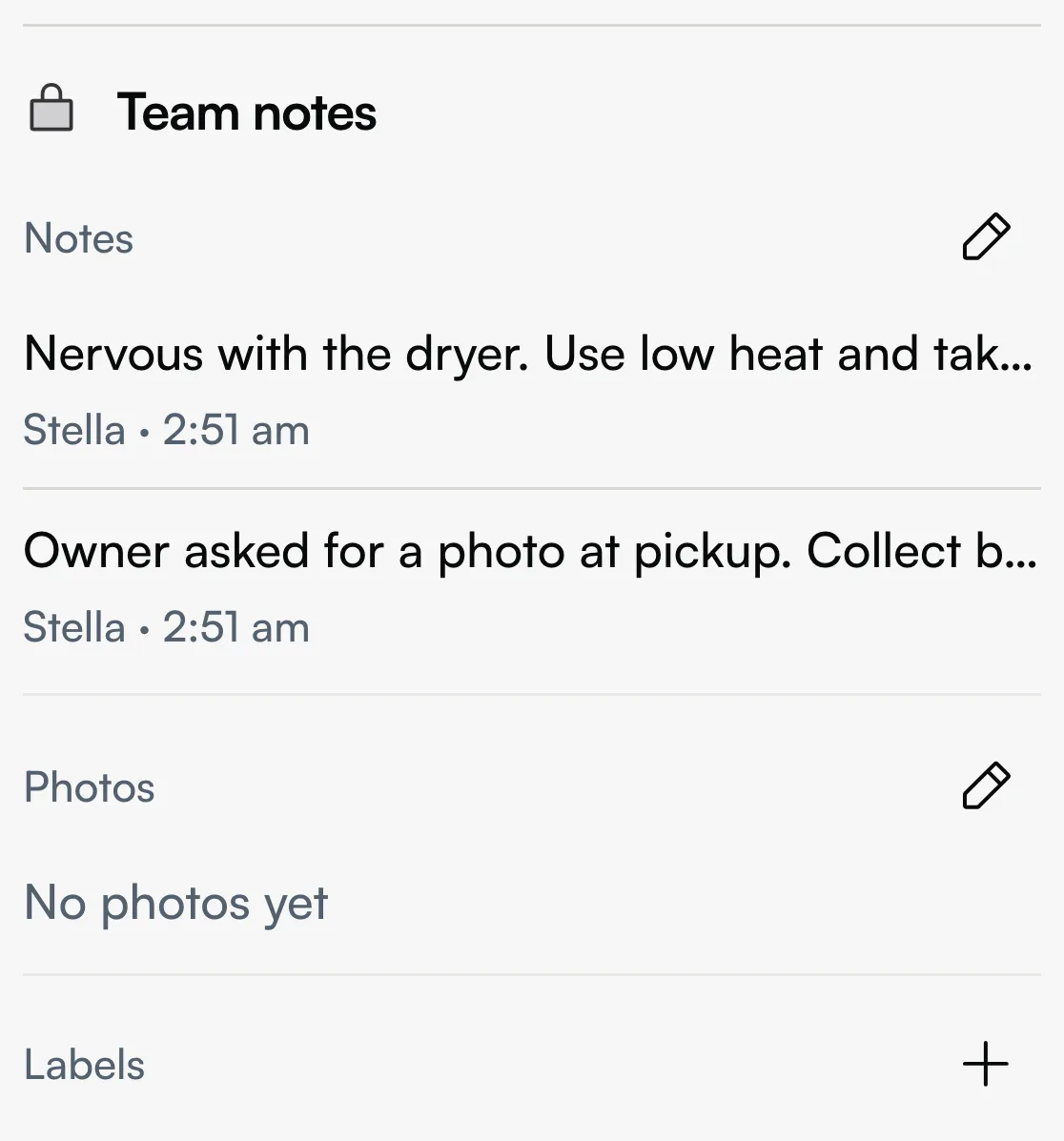
- Team notes shows the latest two notes. Tap the pencil button (Add note, or View all notes when there are more).
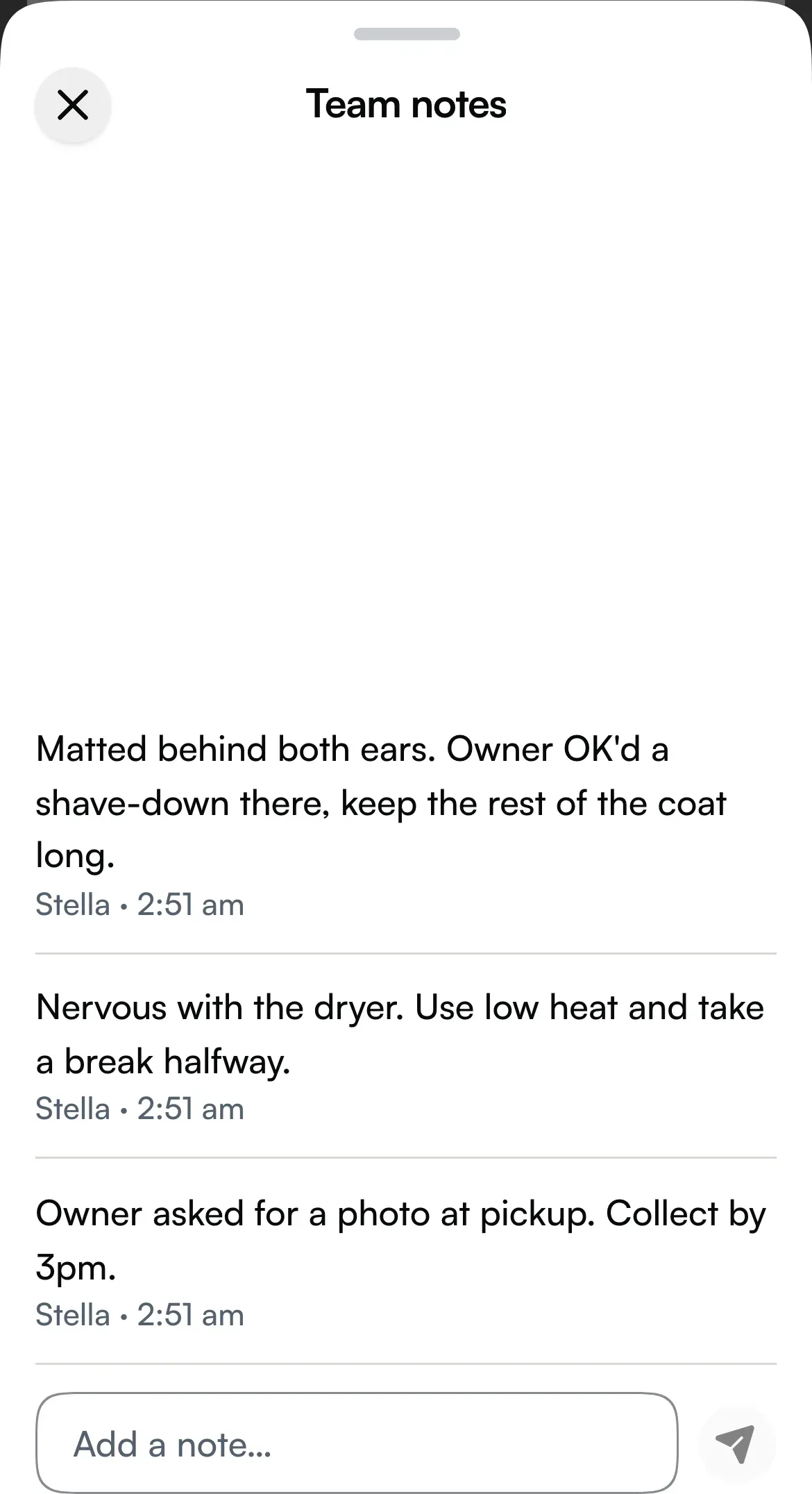
- The Team notes sheet opens with every note. Type or dictate your note and send it.
The Seglo Phone app doesn't show team notes.
Who can add and remove notes
Anyone on the team who can see the client and the booking can add a note. A groomer who only sees their own bookings can still note them.
- Notes can't be edited. To fix one, add a new note.
- Only the author can delete a note. The bin icon appears on your own notes only, and deleting is immediate, with no confirm step.
Tag a teammate with @
Type @ in a note and pick from Team, Clients or Bookings. Clients and bookings appear after you type 2 letters.
The teammates you mention get a notification: "{your name} mentioned you" / "You were mentioned in a staff note". This alert can't be turned off. Tapping it opens the booking (or client) the note is on. If the note was deleted, or they can't see that record, they see Can't open this note.
Only teammates are notified. Mentioning a client or booking just links to it.
Add to a client's note from team chat
The note on a client's card is the one the whole team reads before every visit. You can add to it without opening the client. In team chat on the web app or the appointment app:
- Tap + → Add note.
- At What is the note about?, choose A client and pick them. Or choose A booking to add to that booking's team notes.
- Write the note and tap Save note.
A client note is added at the end of their existing note, with the date and your name. It never replaces what's there. A card is posted in the chat so the team knows.
Get notified about team and customer messages
Seglo can send pushes to the web app (desktop browser) and the Seglo appointment app for:
- Team chat message: a teammate sent a message in a chat you're in. You can turn this off.
- Mentioned in team chat and Mentioned in a staff note: always sent.
- New customer message: a customer sent a text or a website chat message. This goes to people who can reply to customers. You can turn it off.
Choose which ones you get in the web app under Settings → Notifications → My notifications. That page needs permission to change settings. The appointment app only has an on/off switch for the whole device: Settings → App Settings → Push Notifications. See Push notifications.
The Seglo Phone app has its own message alerts and doesn't receive these.
Tips
- Write what the next person needs. "Nervous with clippers near the face" helps at the table. "Was fine" doesn't.
- Team notes stay private. The booking says it plainly: only your team can see these notes and photos, and they're never included when you share.
Related
- Team chat: message the team about a visit.
- Client directory: the client's card and its note.
- AI notes: notes Seglo gathers from calls and messages.
- Push notifications: turn alerts on for each device.
Related