Google review requests
Text customers a Google review request after a groom, automatically or one at a time, with your own message and the visit photo, and check what's scheduled.
Updated 10 October 2026
The best time to ask for a Google review is the evening after a groom, while the owner is still looking at photos of their freshly groomed dog. Seglo texts them for you: automatically after completed bookings, or one customer at a time when you choose.
Open in app: Google review settings · Google reviews
Before you start
Review requests go by text from your shop's Seglo Phone number, so you need a number that can send and receive texts. Customer replies land in Seglo Phone Messages. Requests are never sent by email.
Each shop also needs its Google review link. In the web app, open Settings → Google reviews and find your shop under Your shop on Google (Search Google Maps, then Use this). Or paste your link under Google review link. If your Google listing is connected, Seglo uses its review link automatically.
Write your shop's review message (web app)
- Open Settings → Google reviews. The page is Google review settings. If you have several shops, choose the Location.
- Under Message, write what customers get. The buttons + First name, + Pet name, + Shop name, + Service and + Staff name add details that change for each customer. Write with AI offers drafts (Friendly, Short and Professional). Pick one to put it in the box.
- Check the Preview. Seglo adds your Google review link on its own line at the end, so don't paste the link into the message.
- Click Save message. To go back to the default, click Use default.
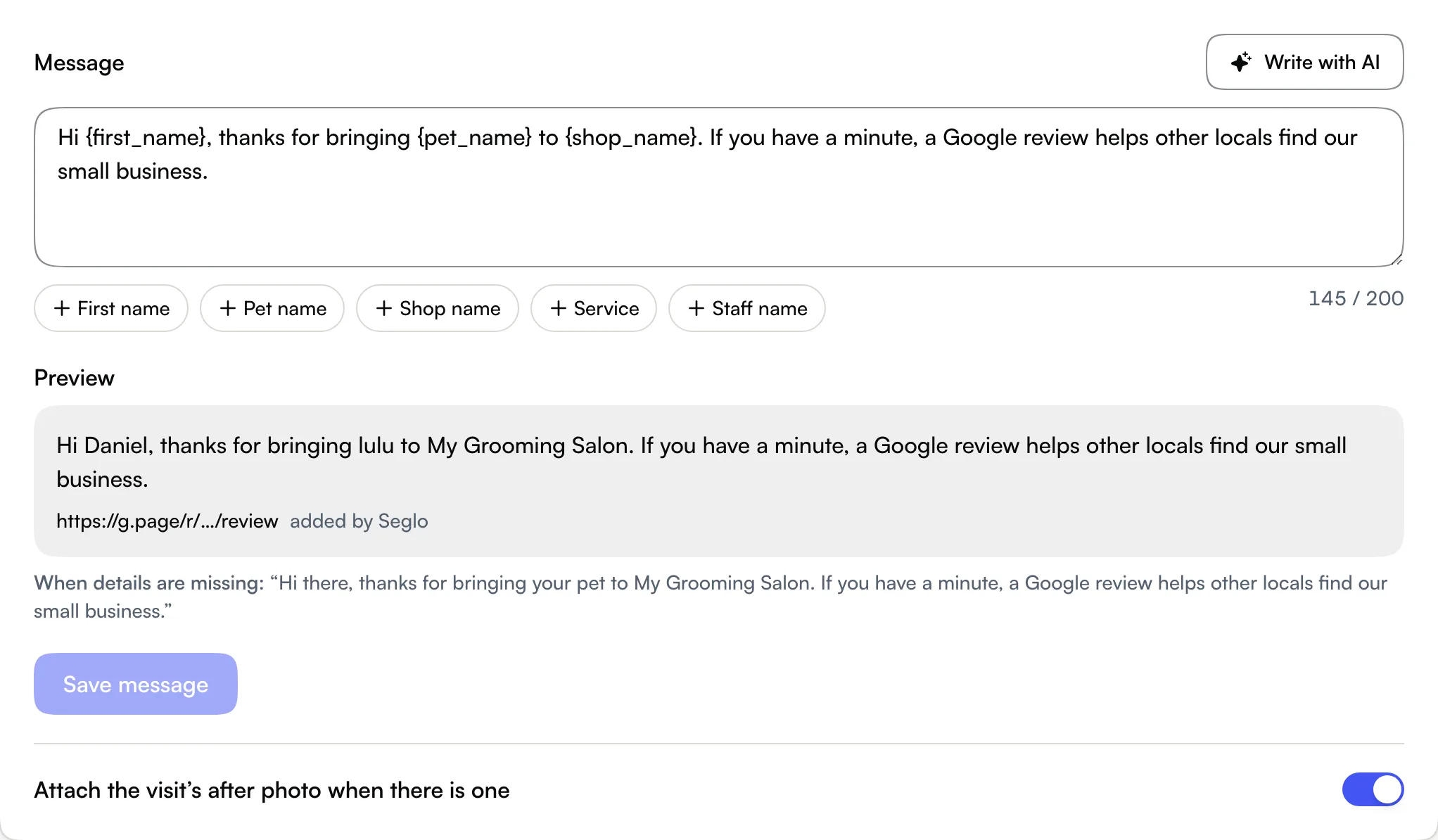
If you don't write one, the default message is: "Hi {first name}, thanks for bringing {pet name} to {shop name}. If you have a minute, a Google review helps other locals find our small business."
Seglo checks your message before saving:
- Keep it under 200 characters, so it fits in two texts.
- Include your shop's name, so customers know who's asking.
- No offers. Google doesn't allow discounts, gifts or prizes in exchange for reviews.
- Don't end on a question (only a warning). The reply may come when nobody's watching.
When a detail is missing, Seglo fills in something sensible, such as "there" for a missing first name or "your pet" for a missing pet name. When details are missing shows exactly what it uses.
Write your shop's review message (Seglo Phone app)
- Open More → Google review texts.
- Tap the settings (gear) button. If you have more than one shop, pick it.
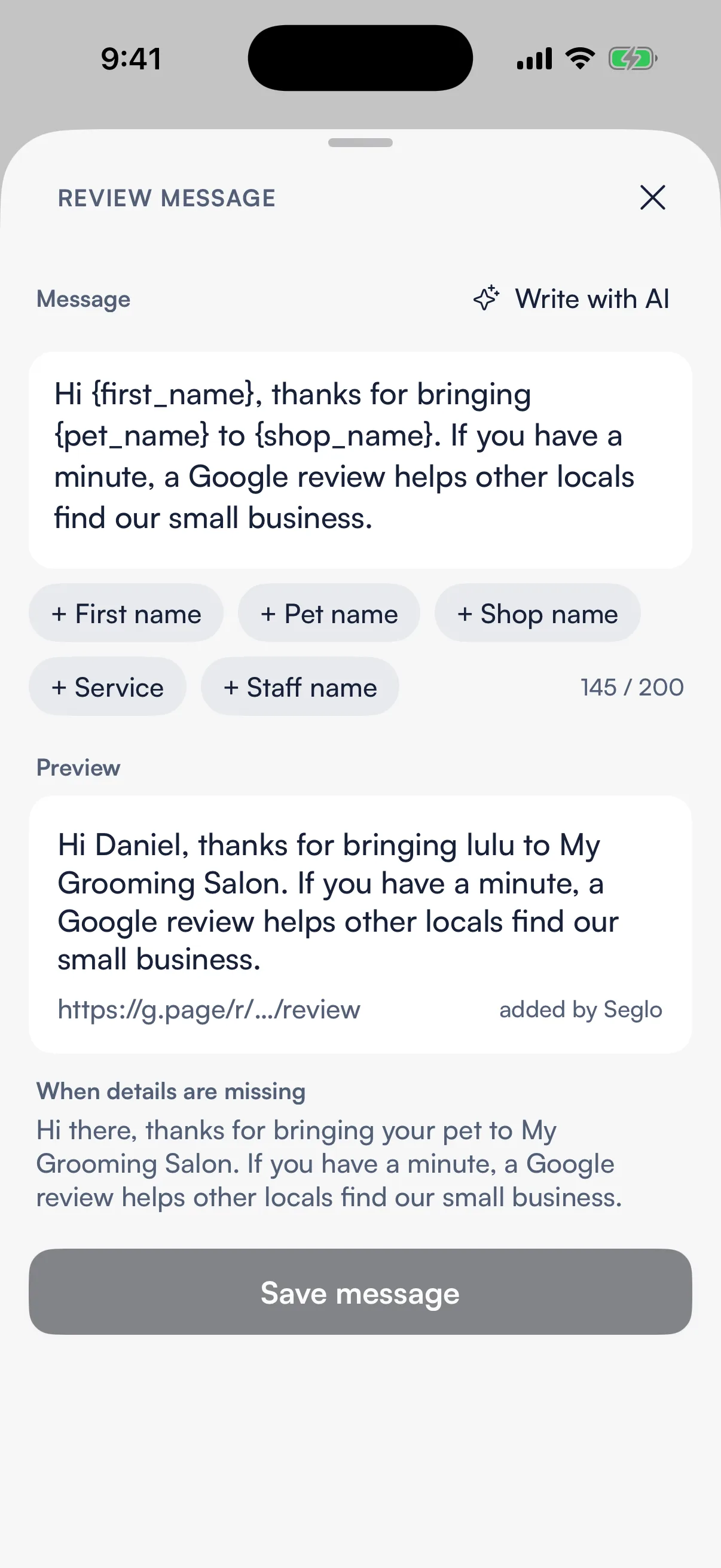
- Tap Message. The Review message sheet has the same detail buttons, Write with AI, preview and 200-character limit as the web app.
- Tap Save message.
The same sheet holds the shop's Google review link (Save link, Open link).
Ask automatically after each groom
In the web app, under Triggers on Settings → Google reviews, turn on Ask automatically after each completed booking. In the Phone app it's Send automatically in the shop's settings sheet. Both need Bookings: a business with only Seglo Phone asks customers one at a time instead.
In the web app, choose When we ask: That evening, The next evening or A few days later. Advanced sets the time of day, the hours Seglo never texts before or after, the most people a day (up to 15), days you never ask, and when to give up. These timing settings are in the web app only.
Attach the visit's after photo when there is one sends the groom's after photo with the text. If there's no after photo, Seglo uses the visit's newest photo. Turn it off to send text only. Seglo turns it on to start with. In the Phone app it's Attach the visit's after photo in the same sheet.
To skip one visit, create the Don't ask for a review booking label (Create booking label under Triggers) and add it to that booking.
Ask one customer yourself
Use this when a customer has just told you they love the groom.
- Web app: in the customer's conversation, open More (⋮) → Ask for a Google review. You can also find it in the client profile's menu.
- Seglo appointment app: in the conversation's menu, or in the client profile's header.
- Seglo Phone app: tap the G button in the message box toolbar. It only appears when the customer can be asked, and shows a dot once an ask is queued.
The ask opens with your shop's message already filled in for that customer. Change the words if you like, and optionally Add a photo (one photo, up to 5 MB on web). Then tap Queue for tonight. It doesn't send straight away. It goes out in your shop's next evening send slot, and the dialog says roughly when.
Changed your mind? Open it again and choose Don't send. A cancelled ask doesn't count, so you can ask that customer later.
If the customer can't be asked, the ask explains why. For example, they were invited on a date, they have no mobile number, or Google reviews aren't set up yet.
Avoid asking the same customer twice
Each customer is invited once across your whole business, including all their pets and locations, whether the ask was automatic or by hand. Skipped, cancelled and failed requests don't count. There's no cooldown that starts asking them again later.
Check and change scheduled texts
- Web app: open Google reviews in the sidebar. Scheduled texts lists what's coming, with Preview, Change date and Skip this visit. Sent texts shows each customer's history. Asks your team queued by hand are marked Asked by staff.
- Seglo Phone app: More → Google review texts (or the Google review texts row at the top of Messages) has Upcoming, Skipped and History, filtered by day and shop.
Skipping a visit cancels only that text, not the appointment. If a customer replied, sending pauses. Read the conversation, then use Resume sending. Restore request brings back a skipped request that's still allowed. A sent text isn't proof a review was posted.
Stop asking a particular customer
- Web app and appointment app: in their conversation's menu, choose Never ask for reviews. The conversation then shows "Review asks are off for this number." Choose Ask for reviews again to undo it. In the client profile, the same control is the Ask for reviews switch.
The Phone app doesn't have the "never ask" control. Use the web app or the appointment app.
Tips
- Who can change what. Changing review settings needs permission to change settings. Asking a customer needs permission to edit clients.
- Nothing sends from Seglo for a visit you imported from another booking system, or one that was refunded.
- Pet name only works for a pet business. If your business type changes, customers get the default message until you save a new one.
Related
- Set up Seglo Phone: the number review texts are sent from.
- Messages and Calls: where customer replies arrive.
- Appointment photos: the after photo that can go with the text.
- Business profile: your shop's name and details.
Related