Appointment calendar
Run your whole day from one screen — drag to move a booking, find any client fast, filter the clutter, and the controls most people never find.
Updated 12 September 2026
This is the screen you run your day from — every booking across your whole team on one page, so you can see who's busy, slot in a walk-in, move an appointment, and clear a request the moment it lands. It reads the same live information your customers see when they book, so what's on screen stays current, and a cancellation from a customer's own link clears on its own within a minute or two without you refreshing.
Open in app: Schedule
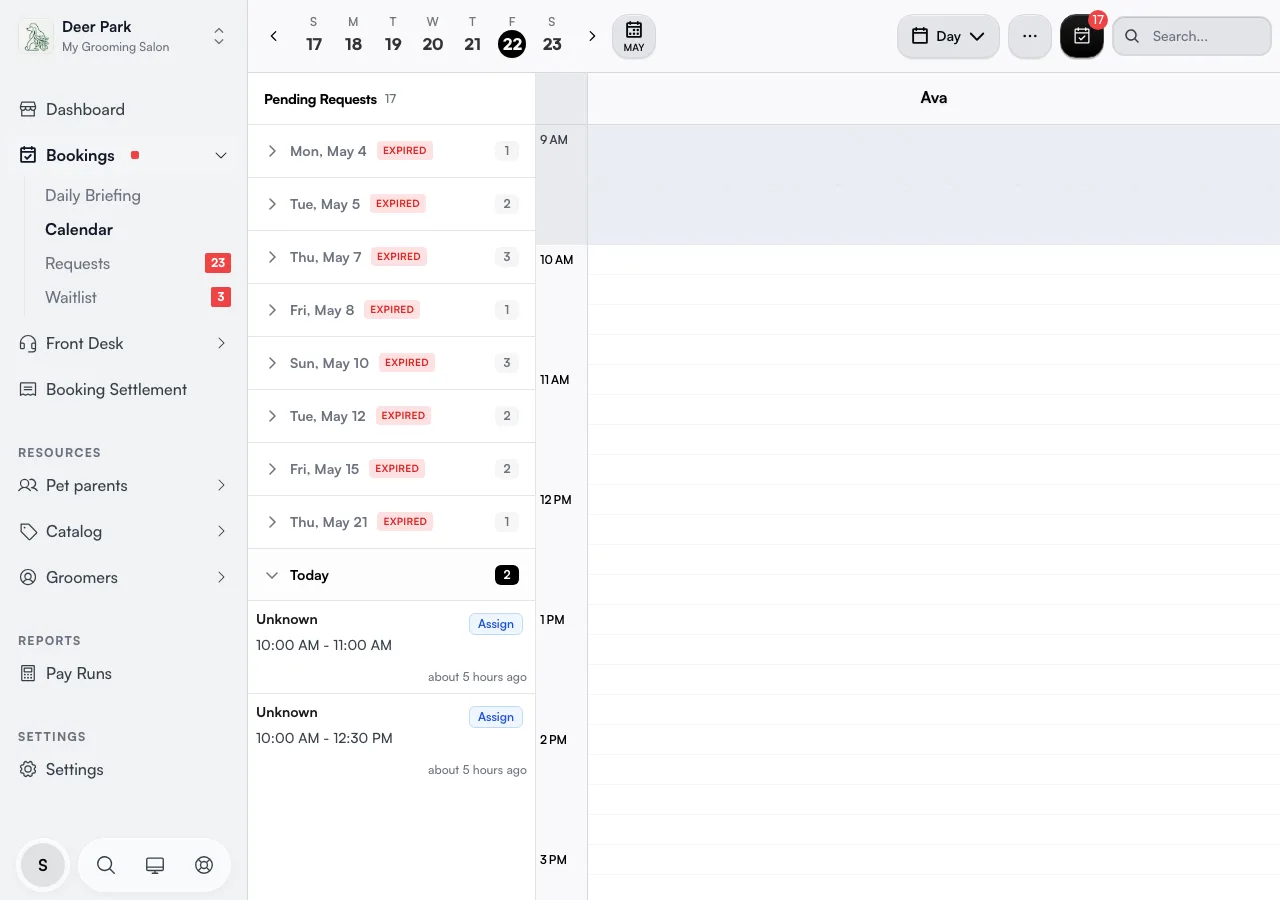
See who's coming and how full each person is
Open Bookings → Calendar. Each team member gets their own column and the time of day runs down the left edge; a booking is a coloured block in the column of whoever it's assigned to, and a taller block is a longer appointment. The Pending Requests panel on the left lists bookings still waiting on a decision, grouped by date so you clear the oldest first — open one to give it a staff member and slot, which drops it onto the calendar as confirmed.
To read a booking, click its block: you get the full detail and can reschedule, reassign, edit, take payment, add a service, product, or discount to the bill, mark complete, mark no-show, send a reminder, or cancel from there. To create one by hand, click any empty slot in a person's column and the booking form opens with that person and time already filled in.
For a factor-priced service (see Factor-based pricing), the detail also shows a "Booked as" line with exactly what the customer selected at booking time — e.g. "Dog size — Large · Coat — Double". This is a snapshot from the moment of booking, so it stays accurate even if the customer's saved profile answers change later. Non-factor bookings and appointments booked before this feature don't show this line.
Use a different contact for one visit
When someone else handles drop-off or pickup, create the booking from Schedule and select the usual client. Expand Different contact for this visit?, then enter Mobile for this visit, Email for this visit, or both.
Leave either field empty to use the client's details for that channel. Save the booking and reopen its detail to check the contact marked For this visit. Booking messages use that visit's contact details; the client's own record and login do not change.
A contact you enter for this visit stays with it if you later edit the client's phone or email. Check the visit contact before sending a reminder, receipt or ready-for-pickup message.
Move a booking by dragging it
You don't have to reopen a booking to change its time. Drag the block up or down to a new time. To make an appointment longer or shorter, drag its bottom edge to a new end time. To move a booking to a different team member, open it and reassign from the detail drawer — on this calendar a drag changes the time only, not the staff member.
After any drag, a short prompt asks whether to notify the customer of the change. Choose to send it for a real reschedule the customer needs to know about, or skip it for a tidy-up move that doesn't affect them.
If a move would break one of your booking rules, the calendar warns you that a scheduling rule blocked the change rather than moving it silently — so an overbooked or out-of-hours drop never slips through unnoticed.
Choose which day starts your calendar week
Open the calendar's ⋯ menu and change Week starts on to your preferred day. The calendar and its date pickers use that choice.
This is your own calendar preference. It does not change another team member's view, business opening hours or the payroll work week.
Find any booking in seconds
The search box doesn't just match a client's name. Type a phone number, an email, a service name, or even a staff member's name, and the calendar narrows to matching bookings across the team. It's the fastest way to find "that 2pm for Lulu" when you can't remember the day — or to confirm whether a caller already has something booked.
Cut the calendar down to what you care about
Three filters keep a busy day readable:
- Staff filter — show only the people you're interested in instead of every column at once.
- Status filter — hide everything except, say, confirmed bookings, or surface only the ones marked no-show.
- Show Bookable Only — drops the columns for staff who aren't open to online booking, so you're looking only at the people customers can actually reach. The button shows the count of bookable staff when it's on.
These live in the top bar on a wide screen; on a phone or tablet, tap the ⋯ (more) button to reach them.
Switch between day, week, and month
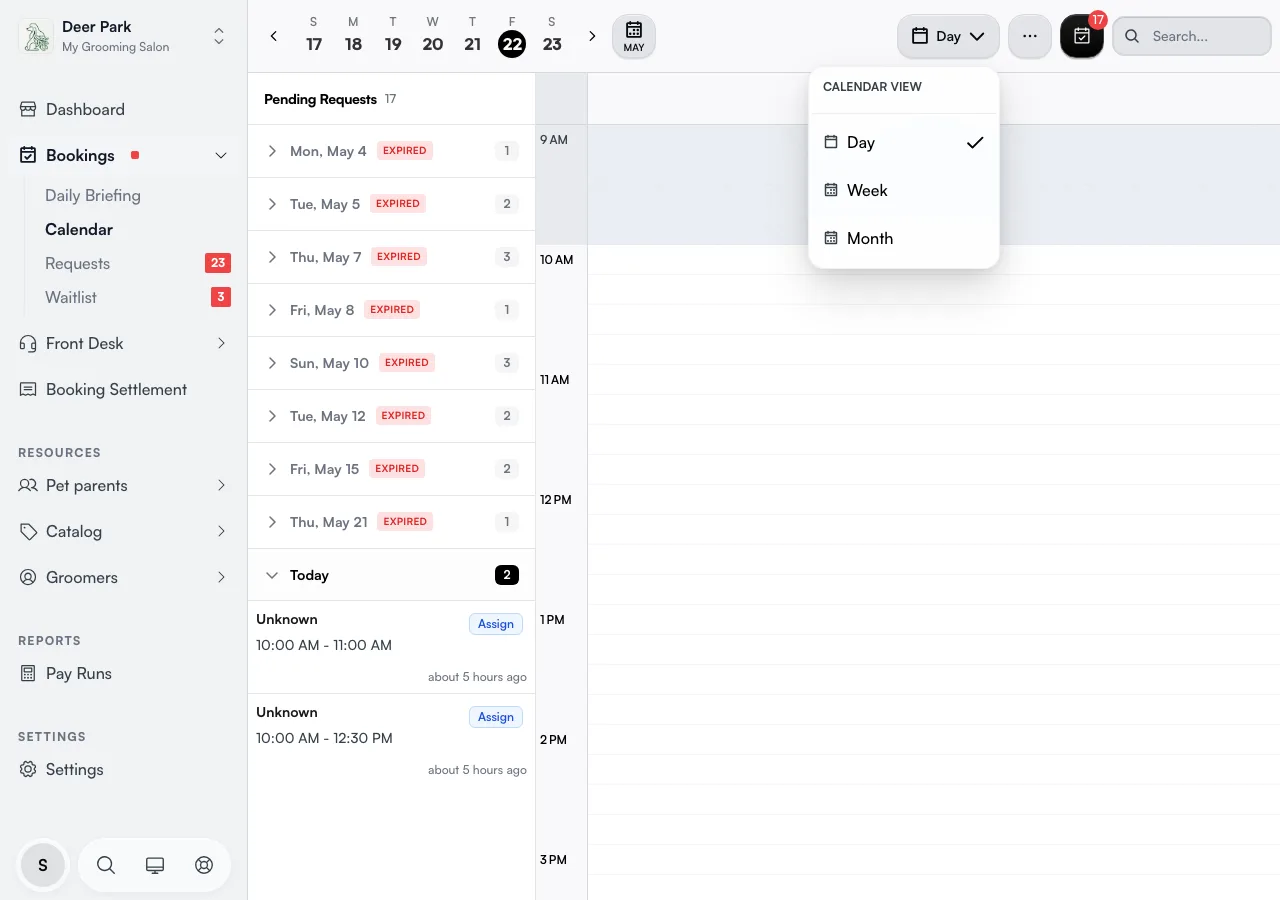
The view button in the top bar shows your current view — click it to pick Day (one date in detail, a column per person), Week (the whole team across seven days), or Month (the wide planning view). Step forward and back with the arrows beside the date strip, or jump anywhere with the date picker.
A quiet shortcut most people miss: with no booking or text box focused, the left and right arrow keys on your keyboard step the calendar back and forward a day (or a week, or a month, to match your current view). It's the fastest way to flick through a quiet week.
Fit more (or less) on screen
Two display controls hide in the ⋯ more menu. Zoom makes each hour taller or shorter — turn it up to read a packed morning, down to see the whole day at once. In day view, Staff per view sets how many staff columns fit on screen before you scroll sideways (up to 10), which matters most on a small screen or a big team. Both settings stick, so the calendar opens the way you left it.
Block out a break or a closure without making a booking
Click any empty slot to open a quick menu: New Appointment to book a service there, or Add Break to block that time for a staff member — handy for lunch, cleanup, or admin — without creating a fake booking. The menu won't let you drop either one in the past.
To close the whole business for a day — a public holiday, a team offsite — open the ⋯ menu and choose Business Closures. A closure stops new customer bookings landing on that day, which a per-staff break can't do on its own.
Know what every icon means
Open Status Icons from the ⋯ menu for the legend. The one that confuses people is Customer Confirmed — that means the customer clicked the confirmation link in their reminder, a stronger signal than a booking you confirmed yourself. The legend also covers Pending, Confirmed, Completed, Cancelled, No Show, and a PAID marker so you can tell at a glance which visits still owe money.
Drop-off businesses
If you run drop-off services — pet grooming, car detailing, repairs — a booking shows the customer's drop-off and pickup window instead of one fixed start time, and the exact working slot inside that window is arranged for you. How wide that window can be is set in Appointment settings.
Tips
- A staff member missing from the calendar usually hasn't finished setup. Open Team → Members and check the invite was accepted, at least one service is assigned, and they're set as bookable. (If they're there but greyed out, check whether Show Bookable Only is on.)
- The calendar is scoped to one location. If bookings seem to vanish after a location change, switch the location back or clear the filter.
- A drag won't always go through. If a move is refused with a conflict dialog, the slot is already taken. Owners and admins can tap Override and enter a reason to deliberately overbook; staff members can only pick a different time.
- A booking the customer insists they cancelled but that still shows means they cancelled outside Seglo, by phone or email. Cancel it inside Seglo from the booking detail so your payments and reports stay correct.
Related
- Appointment requests — the queue of customer bookings waiting for your approval.
- Appointment settings — buffer time, booking windows, drop-off windows, and approval rules.
- Waitlist — fill the gaps you spot on the calendar from waiting customers.
- Payments overview — adding to the bill, taking payment, and reconciling a balance or refund after a booking is paid.
Related