Appointment settings
Choose who can book online, approve requests, set booking windows, and leave space between grooming appointments.
Updated 11 October 2026
Choose who can book online, which times customers can choose, and what they need to read or provide before booking. Open one setting, make your changes, then save in that panel.
Open in app: Booking settings, Appointment workflow
Find the setting for the job (web app)
Open Booking Settings from your calendar, or Settings → Booking Settings on your phone. The same controls are grouped by what you want to change:
| Group | What you set here |
|---|---|
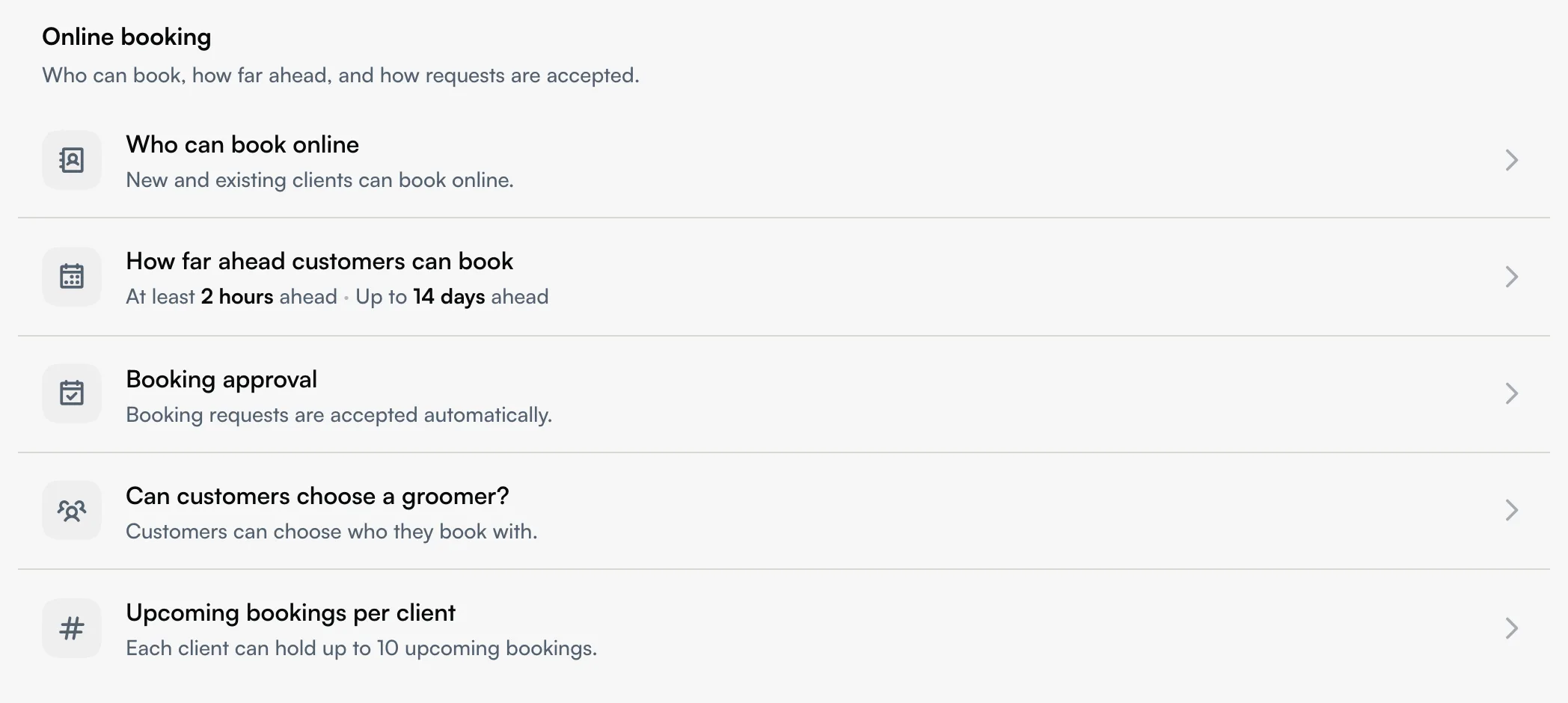
| Online booking | Who can book, advance notice, approval, groomer choice and each client's upcoming booking limit. |
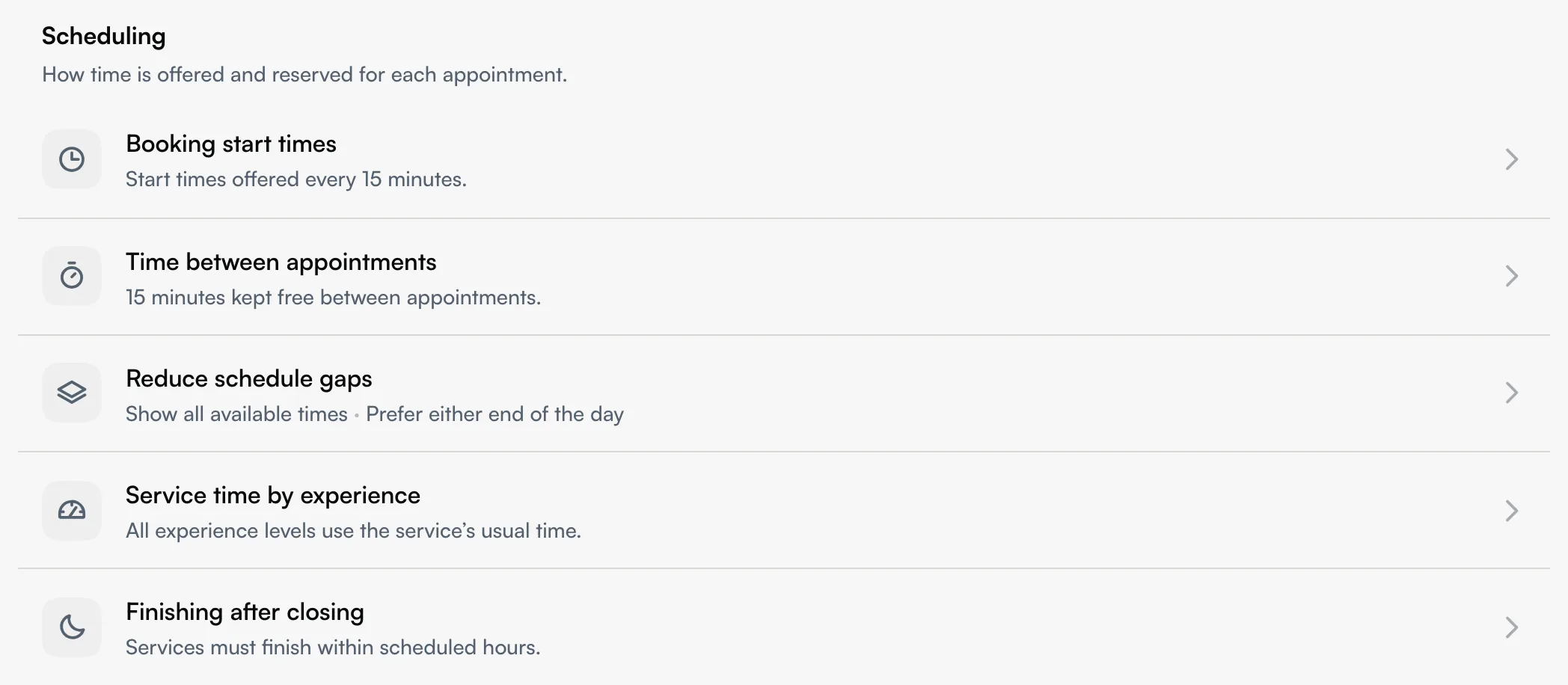
| Scheduling | Start time spacing, time between appointments, schedule gaps, service time by experience, finishing after closing and drop-off timing. |
| Cancellations & cards | Cancellation rules, saved cards and booking deposits. |
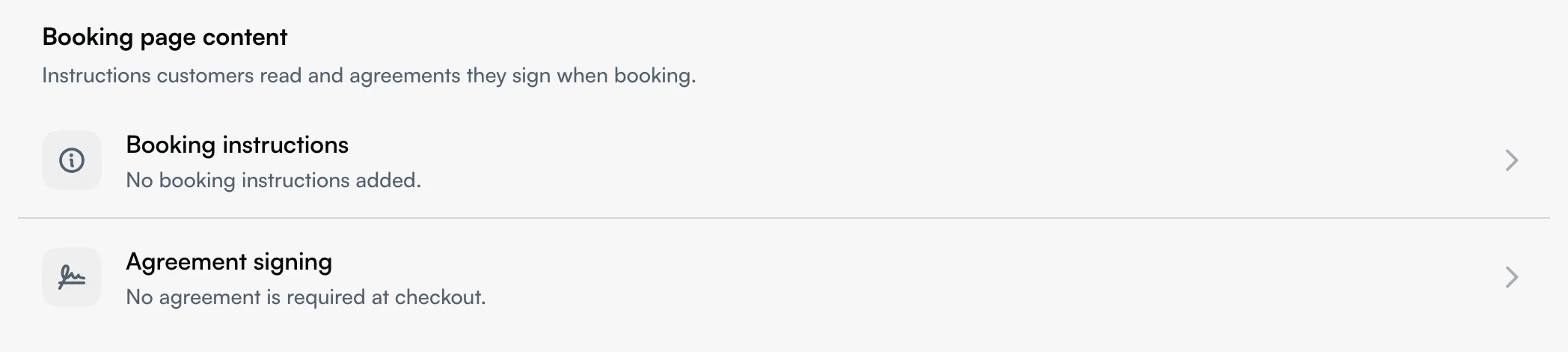
| Booking page content | Instructions customers read and agreements they sign. |
To choose the steps your team records during a visit, use Settings → Appointment workflow. There is also an Appointment workflow link at the bottom of Booking settings.
Keep online booking for customers you know (web app)
Under Online booking, open Who can book online. Choose Existing clients only, then Save. Choose Anyone to accept new and existing clients.
Customers must sign in. They can book if their account is already linked to a client in your list, or their account's email or verified phone matches a client; sharing your booking link does not bypass this check. If a regular cannot continue, compare their client record with the account they use to sign in. Your team's calendar bookings are not restricted by this setting.
Let customers choose their groomer (web app)
Open Online booking → Can customers choose a groomer?. Choose Customers choose to let customers pick a groomer or leave the choice to you. Choose You assign to let them choose a time while Seglo assigns an available team member. Save.
This also applies to drop-off bookings. Your team can still select staff when creating a booking. Changing this option does not reassign existing appointments.
Approve bookings before they confirm (web app)
- Open Online booking → Booking approval and turn on Manual Approval.
- Under How long do you need to respond?, choose one of the response times from 1 to 48 hours.
- Choose Auto-cancel or Auto-approve for unanswered requests, then Save.
With manual approval off, customers complete any required deposit when booking. With it on, review your requests list; your timeout choice applies if you do not respond. If a deposit is required, the customer selects a card and authorises the amount when requesting the booking. Acceptance or auto-approval charges that card for the accepted pets; their bookings confirm after payment succeeds. The customer may need to return to My Bookings if payment needs attention, such as a bank check, another card or approval of a changed amount.
Change how soon or how far ahead customers can book (web app)
Open Online booking → How far ahead customers can book:
- Minimum booking notice sets the hours of notice you need.
- Same-day booking cutoff stops bookings for today after a chosen time. No cutoff removes that restriction; minimum notice still applies.
- How far ahead can customers book sets the number of days customers can book ahead.
Save. To limit the number of bookings one client can hold, open the separate Upcoming bookings per client setting, change Booking limit per customer, then Save there.
If a customer cannot book today, check notice, cutoff, opening hours, closures and available staff. Your team can book outside customer booking windows, but other availability checks still apply.
Offer start times without adding cleanup gaps (web app)
Open Scheduling → Booking start times and change Start time spacing, then Save. With a 15-minute spacing, available times can include 9:00, 9:15 and 9:30; with 30 minutes, 9:00 and 9:30.
This controls the times offered online. It does not reserve a break between appointments.
Leave cleanup time between appointments (web app)
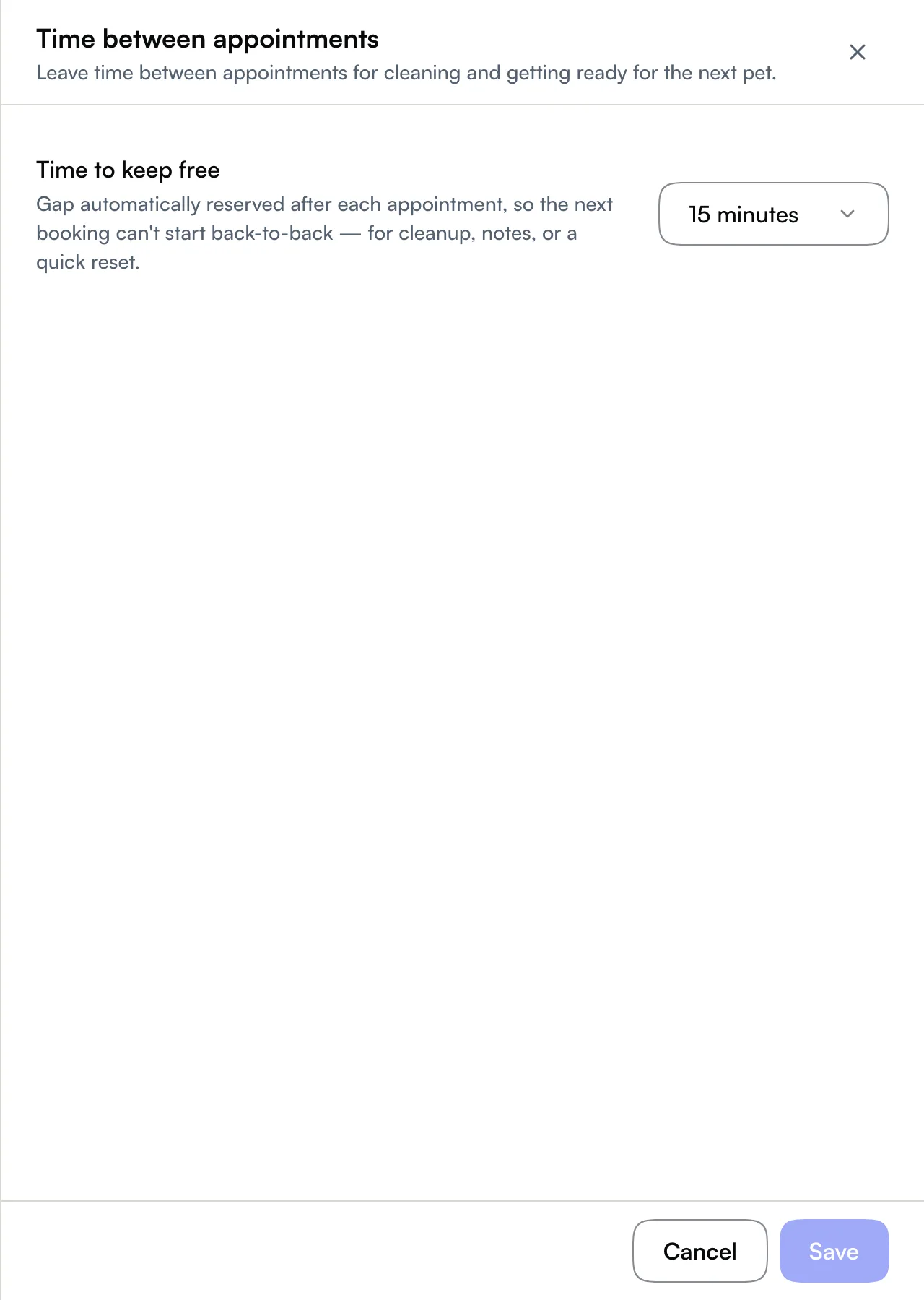
Open Scheduling → Time between appointments, set Time to keep free, then Save. Choose No buffer if you do not need a gap.
Use this for cleaning or notes before the next pet. It changes availability for new bookings; it does not move appointments already booked back-to-back.
Keep new bookings closer together (web app)
Open Scheduling → Reduce schedule gaps. Choose whether bookings should build up Earlier, Later or at Either end. Turn on Concentrate bookings on fewer staff to favour staff who already have bookings that day.
Choose how much choice customers see: All times shows every available time, while Flexible, Compact and Tight progressively narrow the selection on partly booked days. When narrowing is on, Advanced settings lets you adjust Maximum choices on the most focused days and Only narrow a day after it reaches. Save.
This changes the times offered online. It does not move existing appointments; your team can still book an available time not offered on the customer page.
Allow different service times for different experience levels (web app)
Open Scheduling → Service time by experience. Adjust Junior and Expert pace, review the pace comparison, then Save. Intermediate stays at the standard pace.
This changes hands-on time, rounded to the nearest five minutes. Processing time, rest time and prices stay the same.
Allow a service to finish after closing (web app)
Open Scheduling → Finishing after closing. Turn on Flexible end times, choose Maximum overtime minutes, then Save. The choices are 15, 30, 45 or 60 minutes.
For example, a 30-minute allowance can let a service finish at 6:30pm when scheduled hours end at 6pm.
Choose how early a pet can arrive (web app)
For a shop using drop-off scheduling, open Scheduling → Earliest drop-off. Choose Just before service, 1 hour before, 2 hours before, 4 hours before or Any time after we open, then Save.
An earlier arrival can mean the pet waits for its service. This does not change the cleanup buffer. The control only appears for drop-off scheduling; Booking settings has no Service Model switch. See Earliest drop-off.
Choose deposits or a saved-card requirement (web app)
Open Cancellations & cards → Booking payment and turn on Require a card or deposit. Choose Take a deposit to collect a percentage, or Save a card to keep a payment method without charging it. Choose Save. Turn the switch off and save to require neither.
For deposits, enter a whole Deposit percentage from 1 to 100. Time to resolve a payment issue accepts 1–72 hours after approval, defaults to 24, and never extends past the appointment start. This gives customers time to resolve a declined card or bank check; it is separate from your time to review a request. Deposits require AUD, connected Stripe online payments and accepted payment fee terms. See Booking deposits.
Only the owner can save the card requirement. Your plan must include online payments and your active provider must support Card on file. If prompted, use Go to Payments to finish setup. If the setting cannot load, choose Try again before changing it.
Saving a card takes no payment. Cancellation rules remain separate; see Booking policies for fees and charging a no-show.
Show instructions or request an agreement (web app)
Under Booking page content, choose the setting that matches what customers need to do:
- Booking instructions: add a title and text, turn the section on, then Save. Use it for parking or arrival notes. You can add up to five sections; these notices do not collect answers or signatures.
- Agreement signing: choose the audience and review the agreement wording. Save a new agreement as a draft, then activate it when ready. Only one agreement can be active at a time. See Forms.
Choose which visit steps your team records (web app)
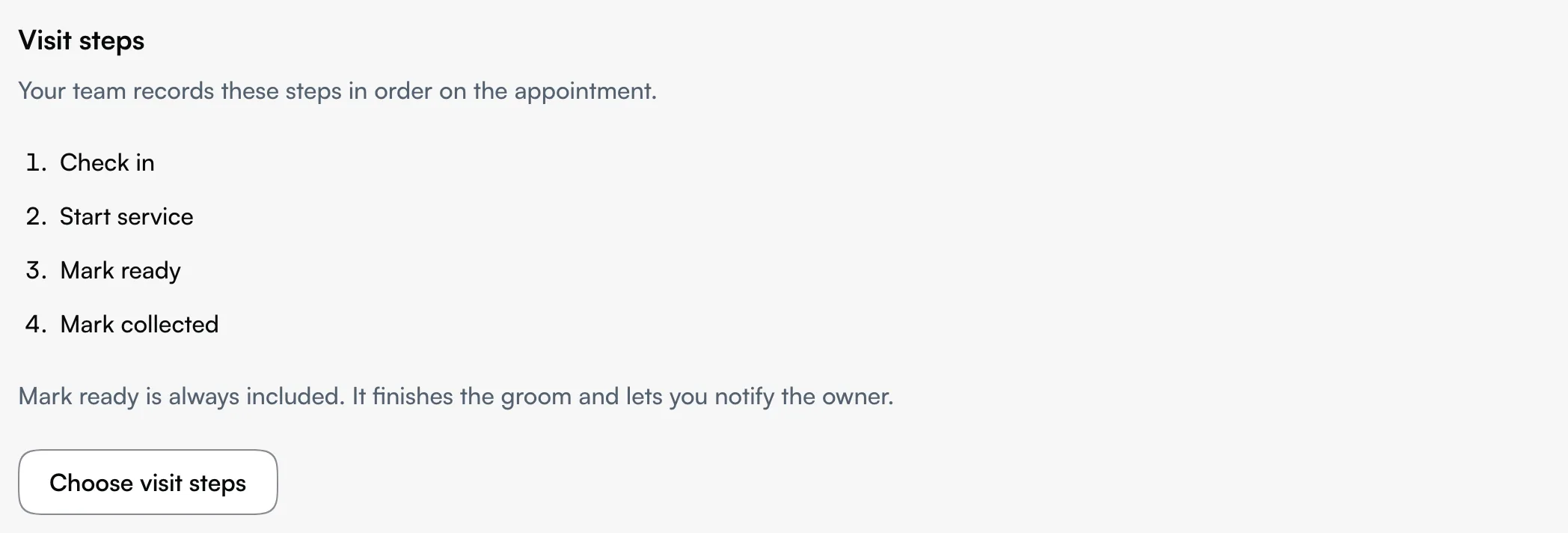
Open Settings → Appointment workflow → Choose visit steps. Turn Check in, Start service or Mark collected on or off, then Save. All three are on by default. You need permission to edit settings.
Mark ready always stays on. If you turn off Mark collected, the visit closes when paid. These controls describe the visit your team handles after booking.
Related
- Booking deposits — upfront payment and the remaining balance.
- Appointment calendar — manage booked visits.
- Booking policies — cancellation deadlines, fees and the terms kept with a paid deposit.
- Drop-off timing controls — compare arrival times, spacing and cleanup gaps.
- Booking-led Scheduling — keep days with no one rostered open as Open Slots and choose who works after the booking.
Related