Push notifications
Get alerted the moment a booking, cancellation, or payment lands — set up each device, silence overnight, and recover after a declined prompt.
Updated 2 October 2026
You are usually with a client when the next booking, cancellation, or payment comes in, and you can't watch a screen all day. A push alert lets the activity reach you the moment it happens — on your phone, tablet, or computer — so you react without checking. This page walks through switching it on, picking exactly which alerts come through on which device, silencing them overnight, and getting them back if you ever blocked the prompt by mistake.
The one thing to know up front: permission is granted per device, not per account. Saying yes on your phone does not say yes on your work laptop — each device asks you separately, and you control each one.
Open in app: Notification settings
Turn on alerts for the first time
When you finish setting up your staff profile, Seglo shows a Stay in the loop prompt — once per device. Tap Enable notifications and your device's operating system asks "Can Seglo send you notifications?". Tap Allow and that device starts receiving the alerts your settings have enabled.
If you'd rather not decide right now, tap Skip for now. Seglo remembers that choice per device — the prompt won't appear again on that device. It never counts as a refusal; you can still enable push at any time from Settings → Notifications.
If you missed the prompt on a phone or tablet, open the Seglo app's App Settings and switch on Push Notifications — that brings the prompt back.
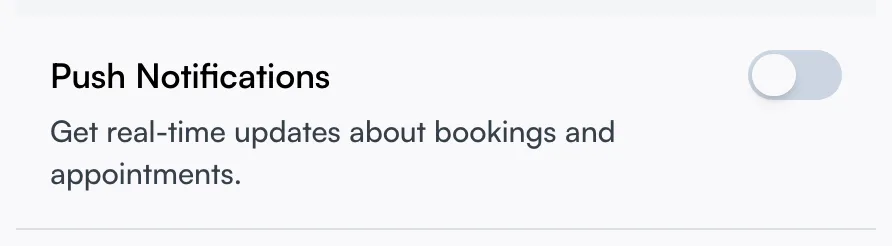
On the web dashboard the browser handles permission directly. If your browser can't do push you'll see "Push notifications are not supported in this browser" in place of the toggle — switch to a supported browser to get alerts on that computer.
Get alerts back after you declined
Once you tap Don't allow, most devices never show the prompt again, so the switch inside Seglo can't turn it back on by itself. You have to re-allow it at the device level:
- On iPhone or iPad: open iOS Settings → Notifications, find Seglo, and switch Allow Notifications on.
- On Android: open your device Settings → Apps → Seglo → Notifications and turn them on.
- Inside the Seglo app: when alerts are blocked at the device level you'll see a "blocked" note with a button that takes you straight to the right settings screen.
- On the web: if the browser has Seglo blocked, an Enable in Settings button appears next to the toggle — use your browser's site settings to allow notifications for Seglo.
Reinstalling the app counts as a brand-new device, so the prompt appears again and you can simply tap Allow.
Choose which alerts reach which device
Allowing the prompt only opens the door — you still decide what comes through. On Notification Settings, the Enable Push Notifications switch is the master control; turn it off and every push stops at once, no matter what else is set.
With it on, two switches steer where pushes land:
- Web Notifications — show alerts in your web browser, on the computer you run the dashboard from.
- Mobile Notifications — send alerts to your phone and tablet.
Leave both on to be reached everywhere, or turn one off — handy if you want pushes on your phone but a quiet laptop while you work. These platform switches only appear once the master switch is on.
Get team chat and customer message alerts
These alerts come as pushes to the web app (your browser) and to the Seglo appointment app:
| Alert | Who gets it | Can you turn it off? |
|---|---|---|
| Team chat message | Everyone in that team chat, except the sender and anyone who muted the chat | Yes |
| Mentioned in team chat | The teammate you @mention, even if they muted the chat | No |
| Mentioned in a staff note | The teammate you @mention in a booking's team notes | No |
| New customer message | People who can reply to customers, when a customer sends a text or a website chat message | Yes |
Tapping one opens that chat, conversation, or the booking or client the note is on.
- Web app: choose which of these you get under Settings → Notifications → My notifications. That page needs permission to change settings.
- Seglo appointment app: there's no per-alert list. App Settings → Push Notifications turns all pushes on or off for that phone.
- Seglo Phone app: it has its own call and message alerts and doesn't receive these.
Silence notifications overnight
Open the Quiet Hours section to stop all alerts during set hours — for example after closing. Turn it on, then set a Start Time and End Time.
A period that runs past midnight is fully supported: set the start later than the end (say 10:00 pm to 8:00 am) and Seglo reads it as overnight, showing a "spans midnight" note so you know it carried into the next morning. A confirmation line restates the window — "No notifications will be sent during this time" — so you can check it at a glance before leaving the section.
Quiet Hours has its own timezone picker, separate from the rest of the app. That matters if you manage a business in a different city than the one you're sitting in — set it to the salon's timezone so "10:00 pm" means 10:00 pm where the work is, not where you are.
Let critical alerts break through quiet hours
Quiet Hours is not absolute. Critical alerts — a failed payment, for instance — can override it and still reach you, because they're the kind of thing you'd want to know about even after hours. You can't get those exceptions removed; the trade-off is that the truly urgent things never sit silently until morning.
Add email and SMS as a backstop
Push is not the only channel. The same page has an Email & SMS section with Email Notifications and SMS Notifications switches. Turn these on to receive the same activity by email or text as well as — or instead of — push, which is a reliable backstop for any device where you've left push off or haven't allowed it.
Set preferences once for every business
These switches are account-level — they apply across every business you're attached to, so a manager working two salons sets them once. Each individual business also has its own notification settings if you need a different setup per location; those live in the notification settings for that business.
Every change here takes effect immediately across all your devices — there's no save button to hunt for and nothing to sync by hand.
Tips
- A new phone or laptop needs its own Allow. Permission never carries over from another device.
- On iPhone the system shows the permission dialog only once per install. If you declined, the only way back is iOS Settings → Notifications → Seglo — the in-app switch alone won't do it.
- "Skip for now" is remembered per device. After you tap Skip, that device won't see the prompt again. It is not a refusal — you can still enable push at any time from Settings → Notifications. The permanent "no" only comes from tapping Don't allow on the device permission dialog.
- Quiet Hours uses its own timezone. Managing a business in another city? Set that picker to the business's timezone or your quiet window will land at the wrong hour.
- Not getting an alert you expected? Check both gates: the device permission first, then that the master push switch — and the platform switch for that device — is on.
Related
- Notification settings — choose which events use the push channel and how customers are notified.
- Notifications inbox — the same alerts kept as a feed inside Seglo, in case you miss a push.
- Notification settings — the master list of every message Seglo can send, who receives it, and on which channel. </content>
Related