Call transfer
Hand a live call to a teammate who can help. Your customer waits on hold, and the call comes back to you if they can't answer.
Updated 16 October 2026
A customer asks about a groom only your senior groomer can answer, and they're at the other table. Transfer the call: their phone rings while your customer waits on hold, and nobody has to call anyone back.
Open in app: transfer from a live call. In the Seglo Phone app, use Transfer on the call screen. On the web app, use the transfer button in the call card at the bottom right.
Transfer works in the Seglo Phone app and in calls you answer on the web app. The Seglo appointment app doesn't take calls.
Transfer a call (Seglo Phone app)
-
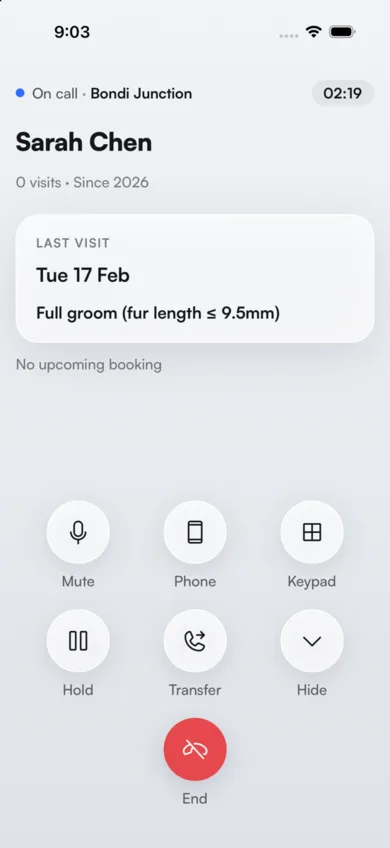
While you're on the call, tap Transfer.
-
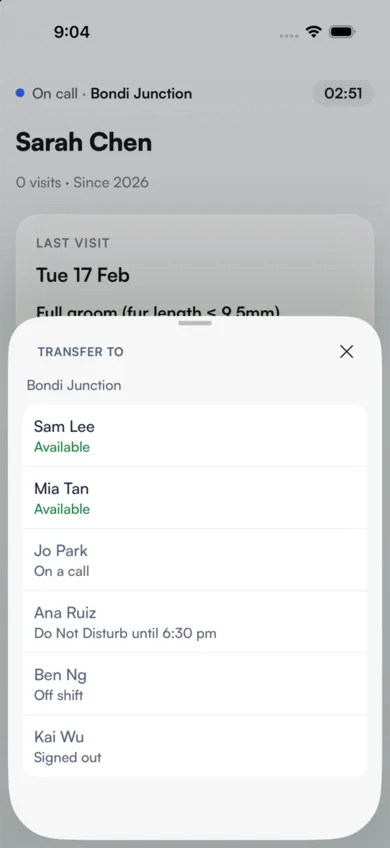
Transfer to opens with the shop the call came in to, and everyone who answers that number. Tap a teammate marked Available.
-
Your call ends and Transferred to and their name shows. You're free for the next call.
Your customer hears "Transferring your call. Please hold.", then hold music until your teammate answers.
Transfer a call (web app)
-
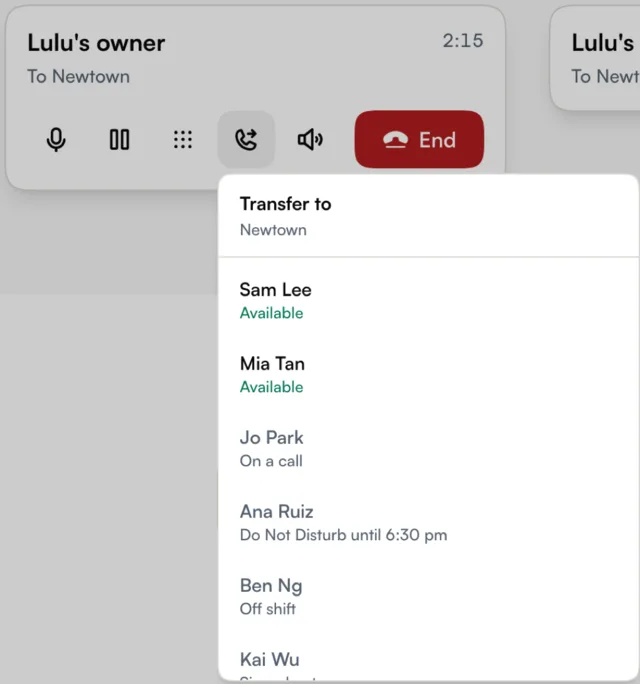
While you're on a call in your browser, click the transfer button in the call card, between the keypad and the speaker buttons.
-
Transfer to lists your teammates for that shop. Click someone marked Available.
-
The card shows Transferring…, then Transferred to and their name.
Know who you can transfer to
The list shows everyone who answers that number, with what they're doing right now. You can only pick someone marked Available. The others stay in the list so you can see why:
- On a call: they're already talking to someone.
- Do Not Disturb until a time: they're in their quiet hours. See Who rings.
- Off shift: your number rings only the people on shift, and they aren't.
- Signed out, Calls muted on their phone or No phone set up: nothing of theirs can ring right now.
- Not at this location: they don't work at the shop the call came in to.
If a teammate becomes busy between opening the list and tapping their name, you'll see "Name can't take calls right now. You're still on the call. Choose someone else." The list refreshes, and your customer is still with you.
Answer a transferred call
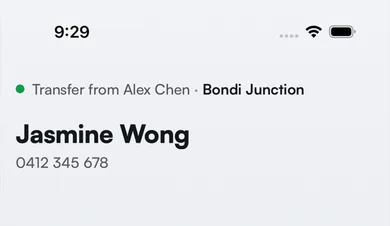
A transferred call rings like any other call, including when the app is closed or your phone is in your pocket. The top line says Transfer from and the name of the person who sent it, with the caller's name and number underneath.
Answer it and you're straight through to the customer. Tap Decline if you can't take it: the call goes back to the person who sent it.
When your teammate can't answer
The call comes back to you once. Your phone rings again with your teammate's name and didn't answer, and your customer stays on hold the whole time.
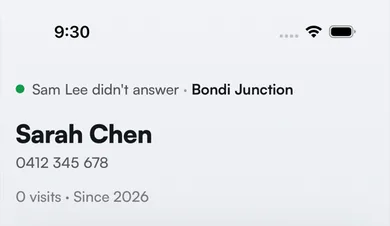
- No answer: it rings for your number's usual ring time, then comes back to you. Set it with Ring duration in Phone numbers and routing.
- Declined: it comes back to you straight away.
- They take another call while it rings: that counts as declined, so it comes back to you.
- Their phone is switched off or has no internet: the list can't tell, so they can still show as Available. With the latest version of the Seglo Phone app on their phone, the call comes back to you after about 12 seconds. On earlier versions it rings for the full ring time first.
- The call drops in the first few seconds after they answer: that counts as not answered, and it comes back to you.
If you can't take it back either, the call follows your number's no-answer setting, such as voicemail.
If the call drops later in the conversation
Once your teammate has been talking with the customer for a few seconds, a dropped connection is handled like any other call. Your customer hears "One moment please, we are just reconnecting you." while your teammate's app reconnects, for up to about 35 seconds. If it can't reconnect, your customer hears "Sorry, we've lost the connection. Our team will call you back." and a callback is created for your teammate in Callbacks. See Call protection for how a teammate can take a dropped call over.
Check who handled a transferred call
Call history keeps one entry per call, with who answered first and where the call went.
- Seglo Phone app: in Keypad → Recents, the row reads Transferred to name with answered, missed or caller hung up.
- Web app: open the call in Calls. Call Details shows the Handler and, under it, Transferred to name and the outcome.
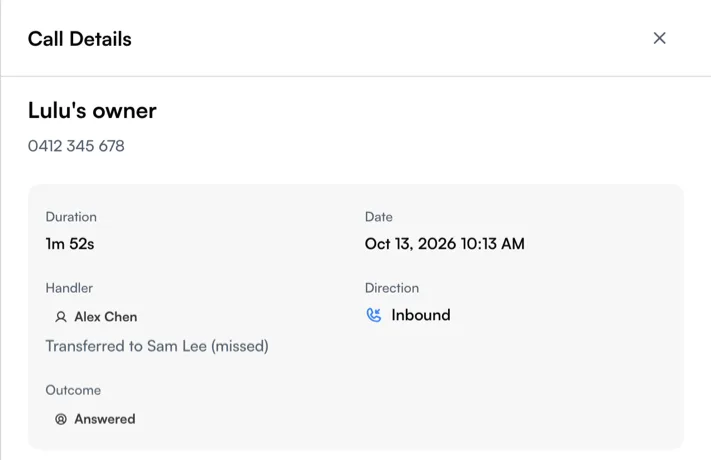
A transfer your teammate missed and you then answered isn't counted as a missed call. See Recent calls.
Tips
- You can transfer a call more than once. Whoever has the call can pass it on again, including back to you.
- One teammate at a time. You can't transfer to the whole team, a group or an outside number, and you can't talk to your teammate before the call reaches them.
- Your customer hung up while it rang? Your teammate's phone stops ringing, and history shows caller hung up.
- Recording carries on. If staff-call recording is on for the shop, it keeps one recording across the transfer. See Call recording.
Related
Related