My profile
Change your photo, name and details on the web, in the Seglo Phone app or in the appointment app, and pick the services customers can book with you.
Updated 2 October 2026
When a customer picks who they'll see, your photo, your name and the services you offer are what they go on. Your team sees the same name and photo in chats and on calls. This page covers where to change each of them in each Seglo app.
Your sign-in email and closing your account are covered in Account and login settings.
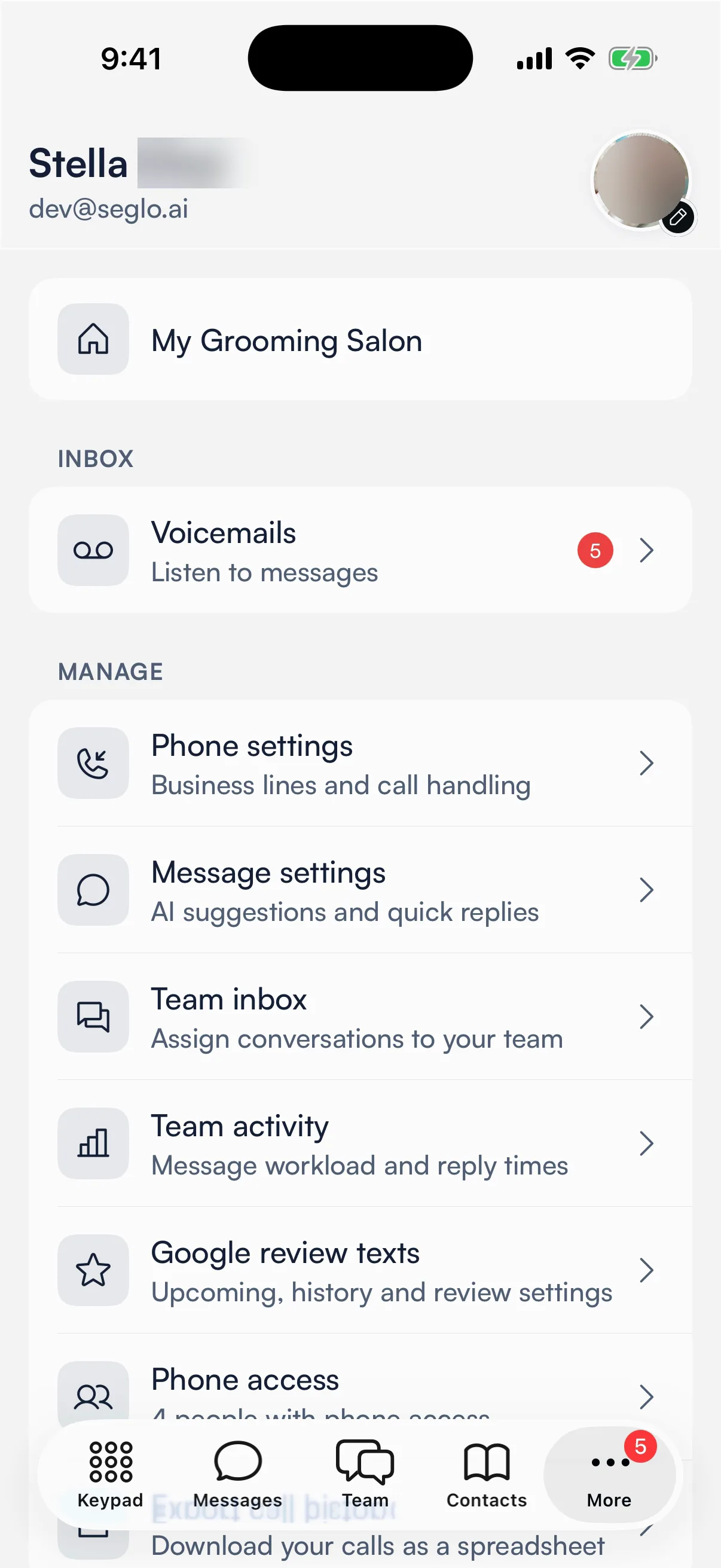
Open in app: Your profile on the web. In the Seglo Phone app, tap your name at the top of More. In the Seglo appointment app (team members), open More → My Work → My Profile.
| You want to change | Web app | Seglo Phone app | Appointment app |
|---|---|---|---|
| Photo | Yes | Yes | No (shows it only) |
| First and last name | Yes | Yes | Yes |
| Display name and phone | Yes | Yes | Yes |
| Date of birth and address | Yes | No | Yes |
| Bio | Yes | No | Yes |
| Services you can perform | Yes | No | Yes (Skills) |
Change your profile (web app)
Open Your profile. The page has two save buttons, and each covers different cards.
Your name. Under Account details, edit First name and Last name, then choose Save account name. Your email can't be changed here.
Photo and everything else.
- Click the round photo at the top and choose an image. PNG, JPG, WebP and HEIC all work.
- Under Booking profile, set your Display name and an optional Bio of up to 1000 characters.
- Under Personal details, add your Phone and Date of birth if you want them on record.
- Under Address, add an address if your business keeps one on staff profiles.
- Choose Save profile.
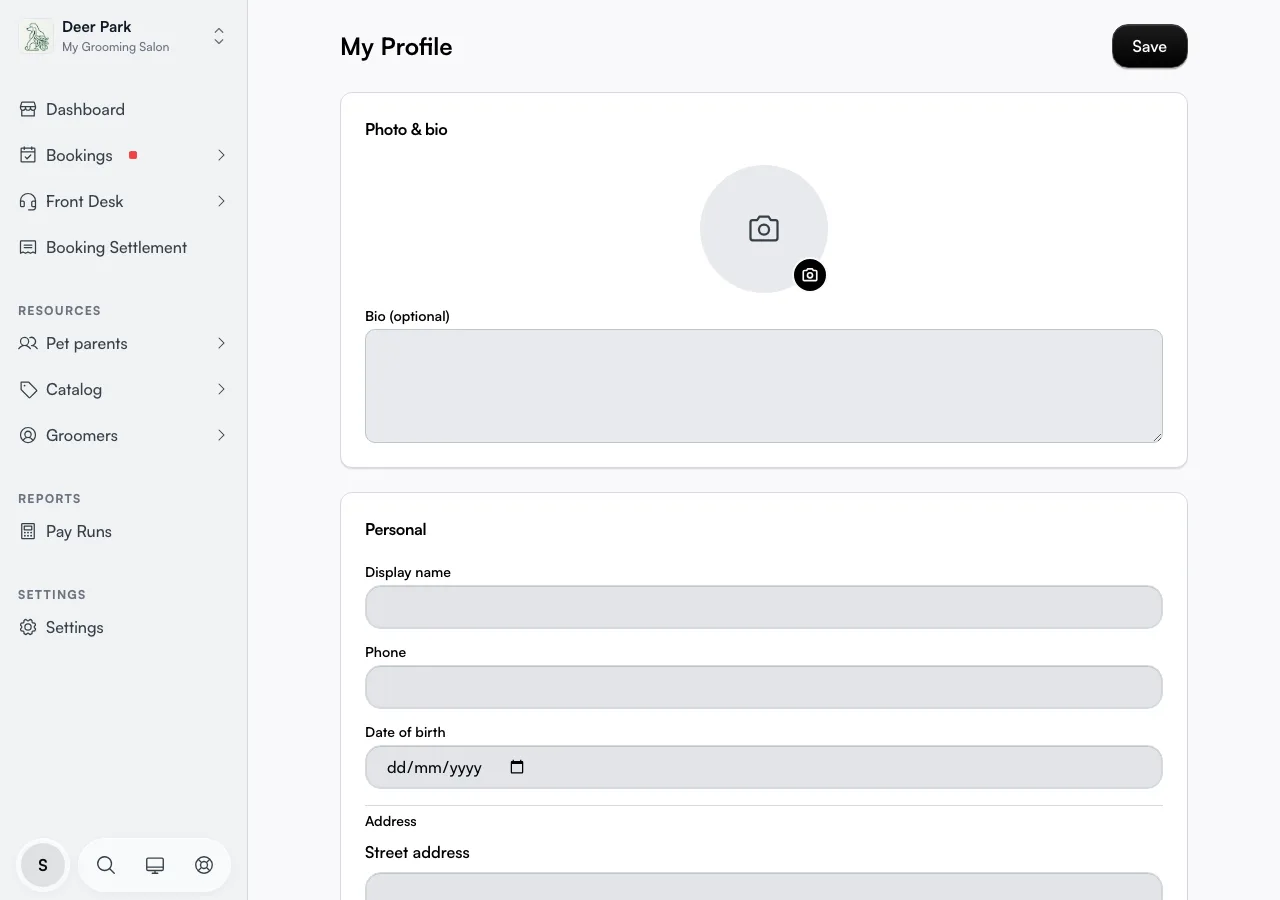
The new photo shows straight away, but it's only kept when you choose Save profile. Reload before saving and it's gone.
Display name is the name on your booking card and across your team's screens. Set it to what you want shown, like "Jess" rather than your full legal name.
Pick the services you can do (web app)
Under Services you can perform, tick each service you offer. A customer booking a service only sees staff who have ticked it, so this decides how much work comes to you.
- Click a category to open it. The count beside it, such as 2/5, is how many you've ticked.
- Tick services one by one, or use Select all for the whole category. The clear button unticks it.
- Choose Save skills. It only lights up once your ticks differ from what's saved.
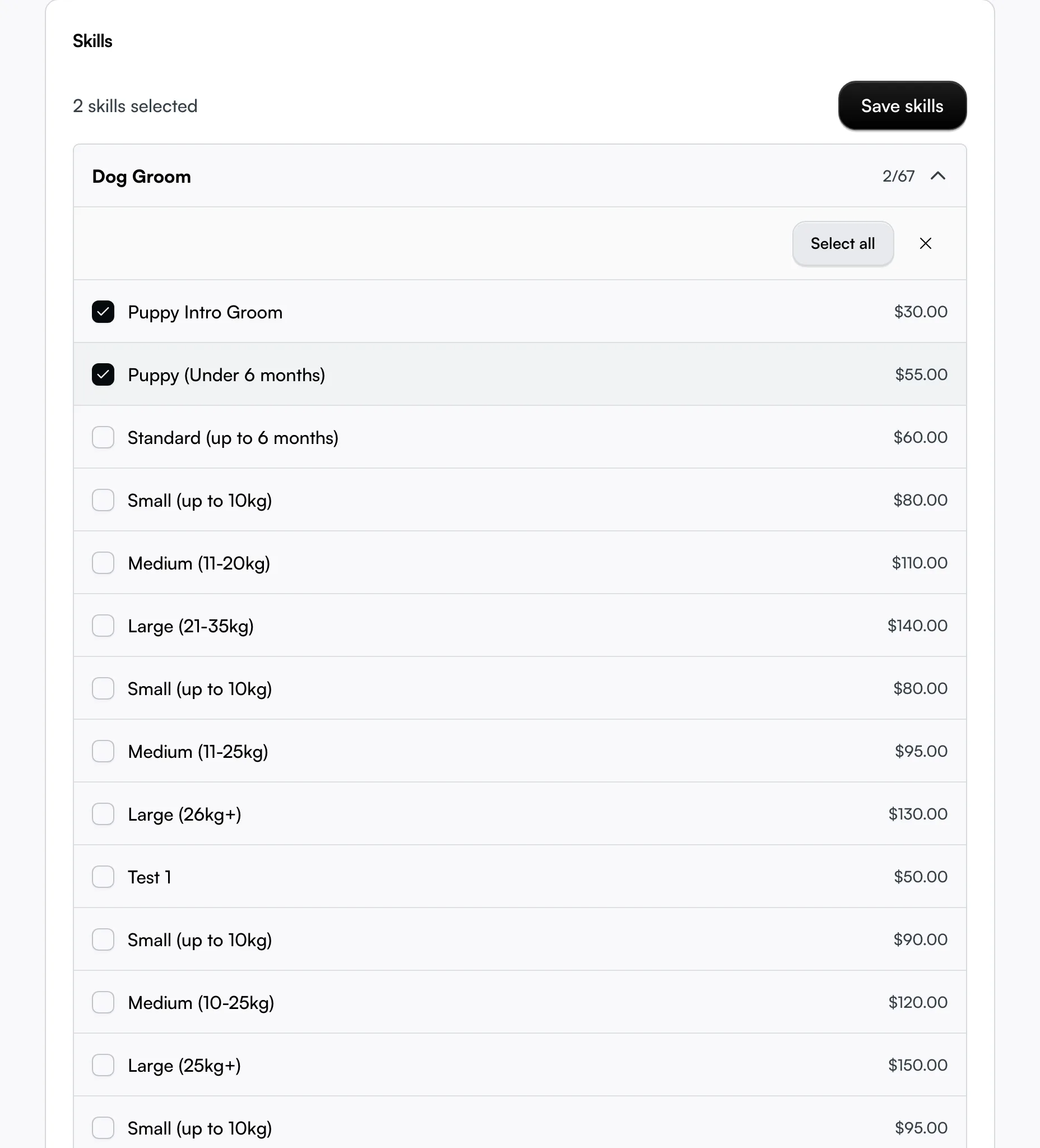
Services without a category are grouped under Other at the bottom. If the card says No services available yet, your business hasn't built its service catalogue yet.
Change your profile (Seglo Phone app)
Your name and photo sit at the top of More, and stay there as you scroll.
- Tap your name or photo at the top of More.
- To change your photo, tap it and choose Take Photo or Choose from Library. The new photo saves as soon as you pick it.
- Under Account, edit First name and Last name. Your email is shown but can't be changed here.
- Under Personal details, edit Display name and Phone.
- Tap Save at the top right. It appears once you've changed something.
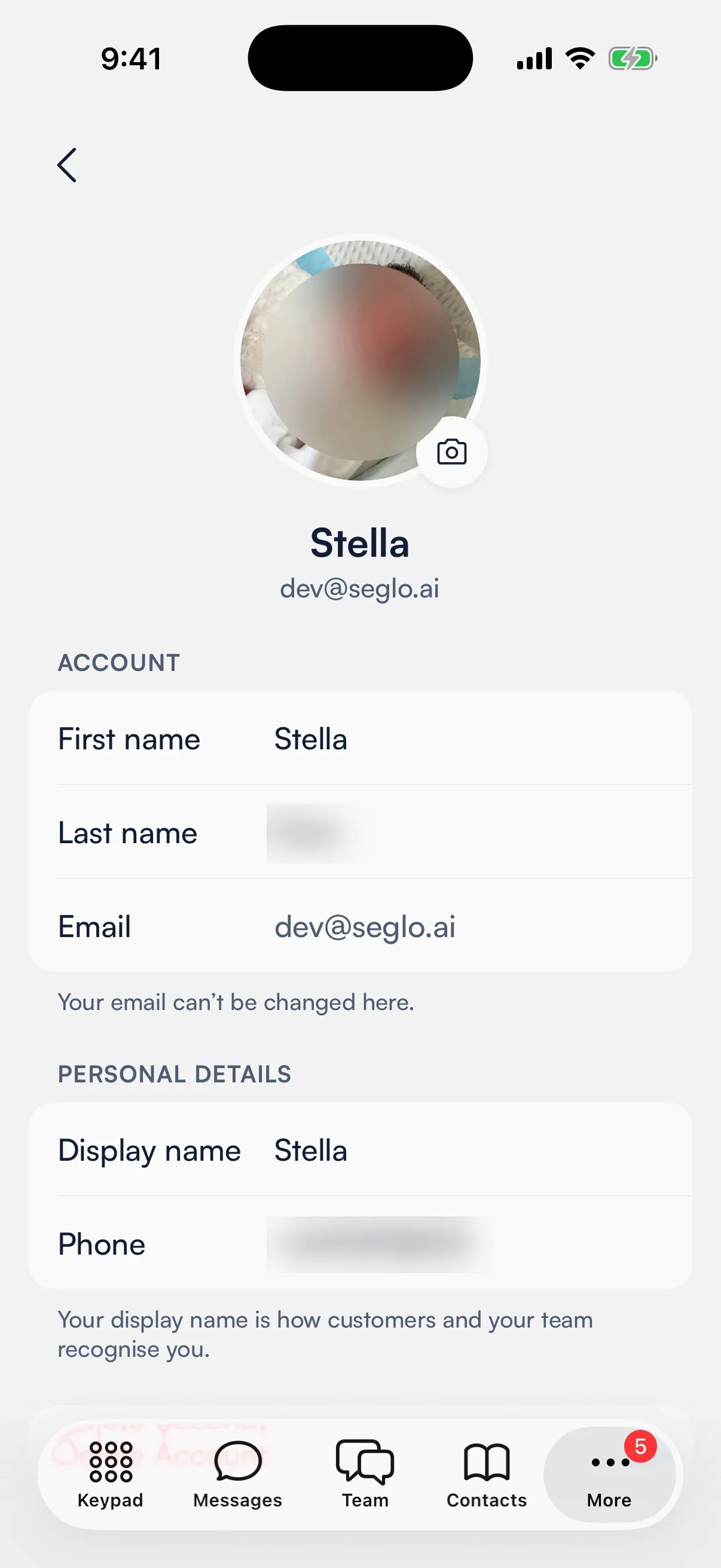
First name, last name and display name can't be left empty. If you leave with unsaved changes, the app asks whether to discard them.
Delete Account at the bottom of the screen opens the account deletion page in your browser.
Change your profile (Seglo appointment app)
Team members. Open More → My Work → My Profile. The page shows your photo, contact details and employment details, and an Edit list:
- Personal: first name, last name, display name, phone and date of birth.
- Address
- Skills: the services you can perform.
- Bio
Each row says how complete it is, for example 2 of 4 filled. To change your photo, use the web app or the Seglo Phone app.
Clear the profile checklist on your dashboard
Team members. Until your profile is filled in, a Complete your profile banner on your dashboard shows how far along you are, for example 2 of 4 items filled. The four items are your display name, phone, photo and at least one skill. Date of birth and address don't count.
Dismiss it with the ✕ and it stays hidden for the rest of your session, then comes back if the profile still isn't complete.
Tips
- On the web, two buttons, two saves. Save account name covers first and last name; Save profile covers your photo and the other cards; Save skills is separate again.
- Work at more than one business? Your display name, photo and skills are kept per business. Switch business first, then edit.
Related
- Account and login settings: your sign-in email and account-level settings.
- Services catalogue: where the services in your skills list come from.
- Staff welcome: getting started as a team member.
Related