Service catalog
Build the menu customers book — and the buried controls for staff, add-ons, processing-time overlaps, and per-location pricing most owners never find.
Updated 3 October 2026
Nothing on your booking page exists until it lives here — every appointment, price, and staff assignment hangs off your service list, so a customer can't book a thing until you have at least one published service with someone assigned to it. This is where you decide what you sell, what it costs, who performs it, and a few powerful controls that quietly double your daily capacity if you know where they are.
Open in app: Services
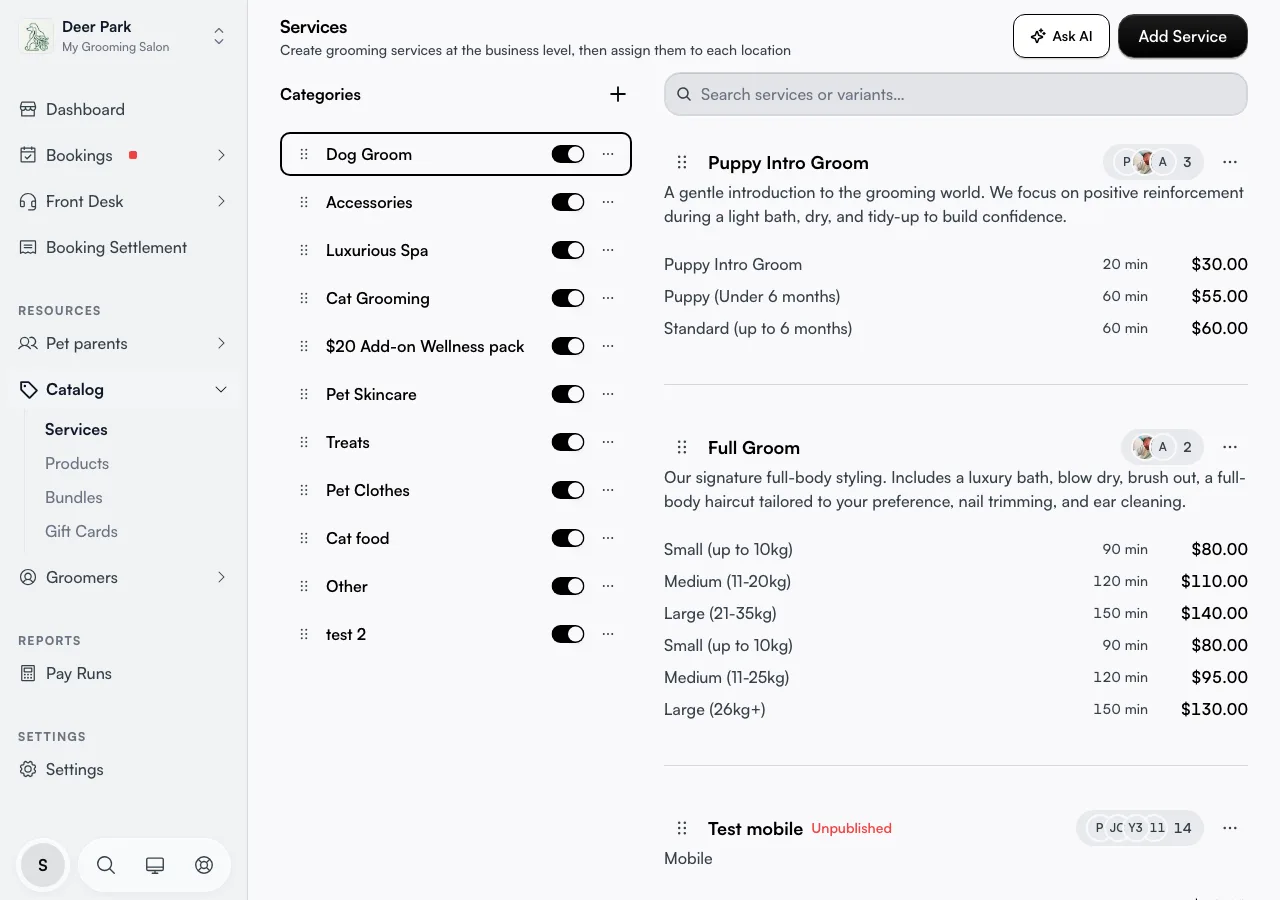
Start a catalog from scratch in seconds
Every service lives inside a category, so an empty catalog asks you to pick a starting point. Browse Templates loads a ready-made set built for your industry — search by name, industry, or tag, preview the categories and services it contains, then apply it and edit from there. Create Category builds your own from a blank page instead.
Templates are the fast path: a grooming or salon template drops in a full menu with sensible durations you can trim, rather than typing every line by hand.
Add a service customers can actually book
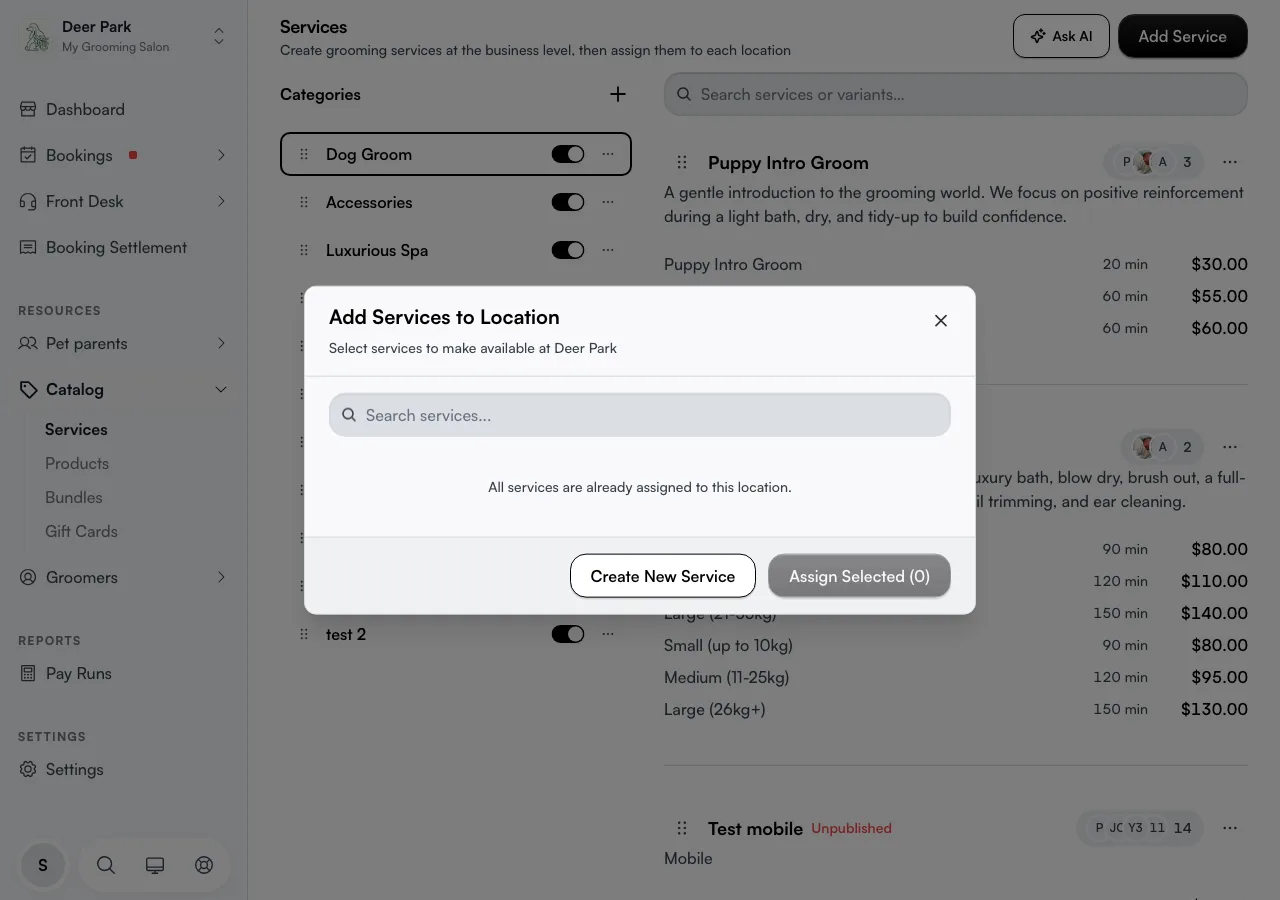
Click Add Service. On a multi-location business this first opens Add Services to Location — that dialog exists to pull services you already built elsewhere into the current location (tick them and Assign Selected), so you never rebuild the same service per branch. To build a fresh one, click Create New Service inside it.
In the editor:
- Enter the Service Name — what customers see on your booking page.
- Pick a Category. If you opened from a selected category, this is locked to it.
- Leave it as a draft, or switch on Publish Immediately to go live the moment you save. A draft carries a red Unpublished label and stays hidden until you publish.
- Add at least one pricing option under Pricing — each carries its own price and duration.
- Click Create Service.
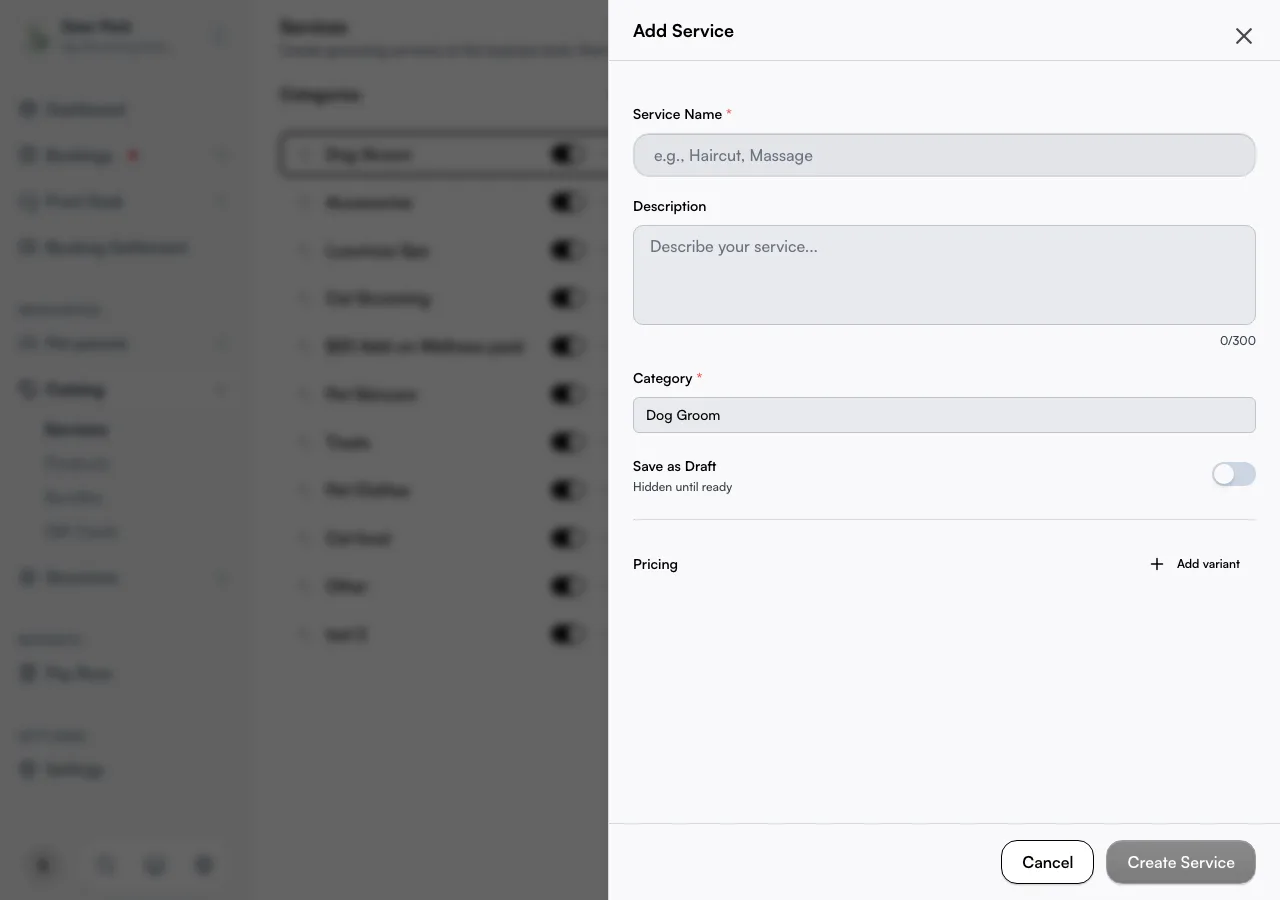
The Create Service button stays disabled until the name, category, and at least one valid pricing option are all set.
Once the service exists, open Descriptions in its editor to explain what the service, each option, each add-on and each booking question covers — up to 4,000 characters each. AI can draft or improve the wording from your own notes, and nothing is saved until you review it. Your AI receptionist answers customers from what you save here.
Assign staff so the option isn't dead on arrival
A pricing option no one can perform is unbookable, full stop. You assign staff inside each pricing option, so the same service can be done by different people depending on which option a customer picks — the small dog groom by anyone, the large dog groom by your senior groomer only.
If an option has no one assigned, the editor shows a red No staff assigned warning. You can still save, but customers won't see that option until you tick at least one person. The staff badge on each service row opens the service straight to its staff picker, so you can fix it in two clicks.
Charge "from $X", a fixed price, or nothing
Each pricing option has a Price Type most owners never open:
- Fixed Price — the exact amount, the default.
- Starting From — shows "from $X" on the booking page, for services where the final price depends on the dog, the hair length, or the job. The price field still sets the displayed figure.
- Free — disables the price field entirely and books the option at no charge — for consultations or complimentary add-ons.
Sell add-ons that ride alongside a main service
Flip a pricing option's Service Type from Primary to Add-on and it stops being a standalone booking — it becomes an extra a customer attaches to another service (a nail trim onto a groom, a treatment onto a cut). An add-on shows a purple Add-on tag on the row, and its Duration becomes optional — leave it blank ("No additional time") for an add-on that adds cost but no extra minutes.
Turn off commission per option
Each pricing option has an Eligible for Staff Commission switch, on by default. Turn it off for an option you don't want counted toward a performer's commission — a freebie, a re-do, a wholesale line. It's per option, not per service, so one service can have some commissionable options and some not.
Serve two clients at once with processing time
This is the buried capacity lever. Switch on Processing Time on a pricing option, pick when the passive stretch happens (At End, At Start, or Custom), and set the Processing Duration — the editor splits the timeline into hands-on Active minutes and passive Processing minutes, like colour developing or a coat drying.
During the Processing stretch the staff member is freed to start another client, so a 90-minute colour with 45 minutes of development can hold a second booking in the middle. Under During processing, staff can serve: pick how many clients overlap in that window (1 to 4). The row then shows "Processing: 45 min (batch: 2)" so you can see it's active at a glance.
Keep a quick service from restarting the care cycle
When a pet comes in for a nail trim between full grooms, its next full groom should stay where it was. Open the service and tick Doesn't reset the care cycle. Completing that service then leaves the pet's last groom and suggested next groom unchanged, and Auto Book keeps booking from the last full groom. Every service counts toward the care cycle until you tick this.
Find anything fast, and set the order customers see
The search bar matches both service names and the pricing options inside them, across every category — so searching "puppy" surfaces it even if you forgot which category it sits in. Long result lists are capped with a "showing N of M" note nudging you to refine.
Outside of search, drag a service by its handle to reorder it. The order on this page is the order customers see on your booking site, so put your headline service first.
Set a different price at one branch
On a business with more than one location, choose a location in the catalog's location switcher, then open a service to edit it. This works the same in the web app and in the Seglo appointment app.
- The usual fields now read Normal price and Normal time. They apply at every location unless a location sets its own.
- Underneath, fill in Price at [location] and Time at [location] (min). Leave them blank to use the normal price and time, or click Use normal to clear them.
- Save the service. Only the fields you changed are saved.
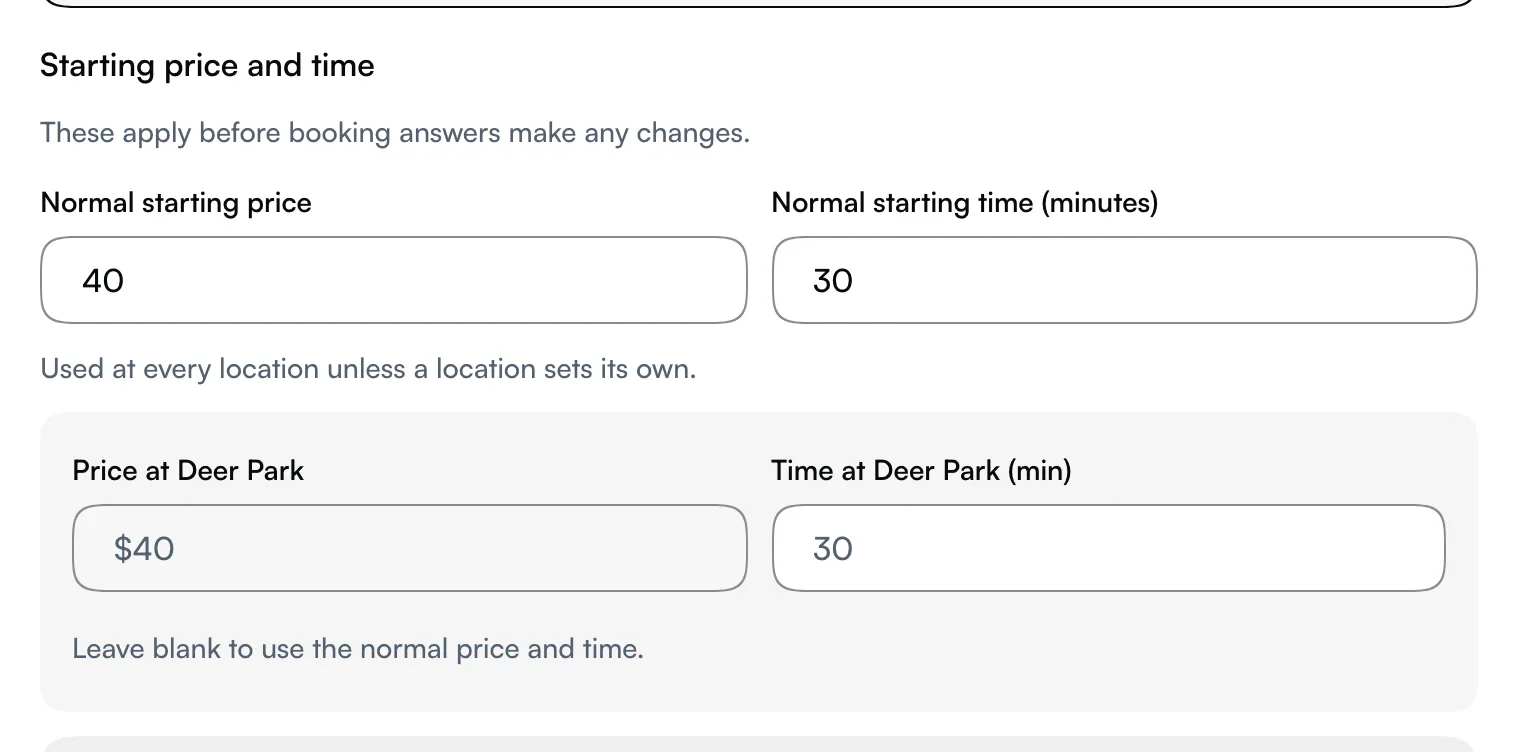
Each pricing option gets its own location price and time. On a service priced by pet details (factors), only the starting price and time can be set per location; the adjustments for size or coat stay the same everywhere.
If the location doesn't offer the service yet, the form shows Not offered at [location]. Click Add to [location] and the price fields open straight away.
In the service list, a location you've set a price for shows that location's figure, with Normal and the usual price beside it when they differ. Use this for a branch that charges more, without making a duplicate service.
Remove a category or service safely
Deleting a category is guarded: the confirm dialog makes you tick a checkbox naming the category before the delete button enables, because it takes the services inside with it. An empty category is hidden from the customer booking page anyway, so you can often just leave it.
For a single service, the ⋯ menu on its row gives Edit, Publish/Unpublish, and Delete. Reach for Unpublish before Delete — unpublishing hides the service from customers while keeping its history intact, so your past reports and bookings still work. Delete is permanent and wipes every variant and its data.
Tips
- A service no one can book almost always has a pricing option with No staff assigned — open it and check each option for the red warning.
- Changing a price never touches existing bookings. They keep the price they were made at; only new bookings use the new price.
- Unpublish, don't delete, anything with history — the data stays so reports keep working, and you can republish later.
- An empty category is invisible to customers — it only appears once it holds a published service.
Related
- Service variants and pricing — the price, duration, and add-on options inside a service.
- Service photos and portfolio — add photos and before-after pairs to a service.
- Bundles — sell several services as one fixed-price pack.
- Products — sell retail items alongside your services.
Related