Service photos and portfolio
Show your actual work on each service — gallery shots and drag-to-reveal before-and-afters — so customers book on results, not just price.
Updated 19 July 2026
A customer choosing between two salons looks at the work first, not the price list. This is where you attach proof to each service — plain gallery shots and drag-to-reveal before-and-after pairs — so your booking page shows what the service actually delivers.
Open in app: Services
Get to the photos in the first place
Photos attach to a service that already exists. Open Catalog → Services, click a saved service to edit it, then open its Portfolio row. The Portfolio section only shows up in edit mode — if you are still creating a brand-new service you won't see it, because there's nothing to attach the photos to yet. Save the service first, then reopen it. See Service catalog for creating services.
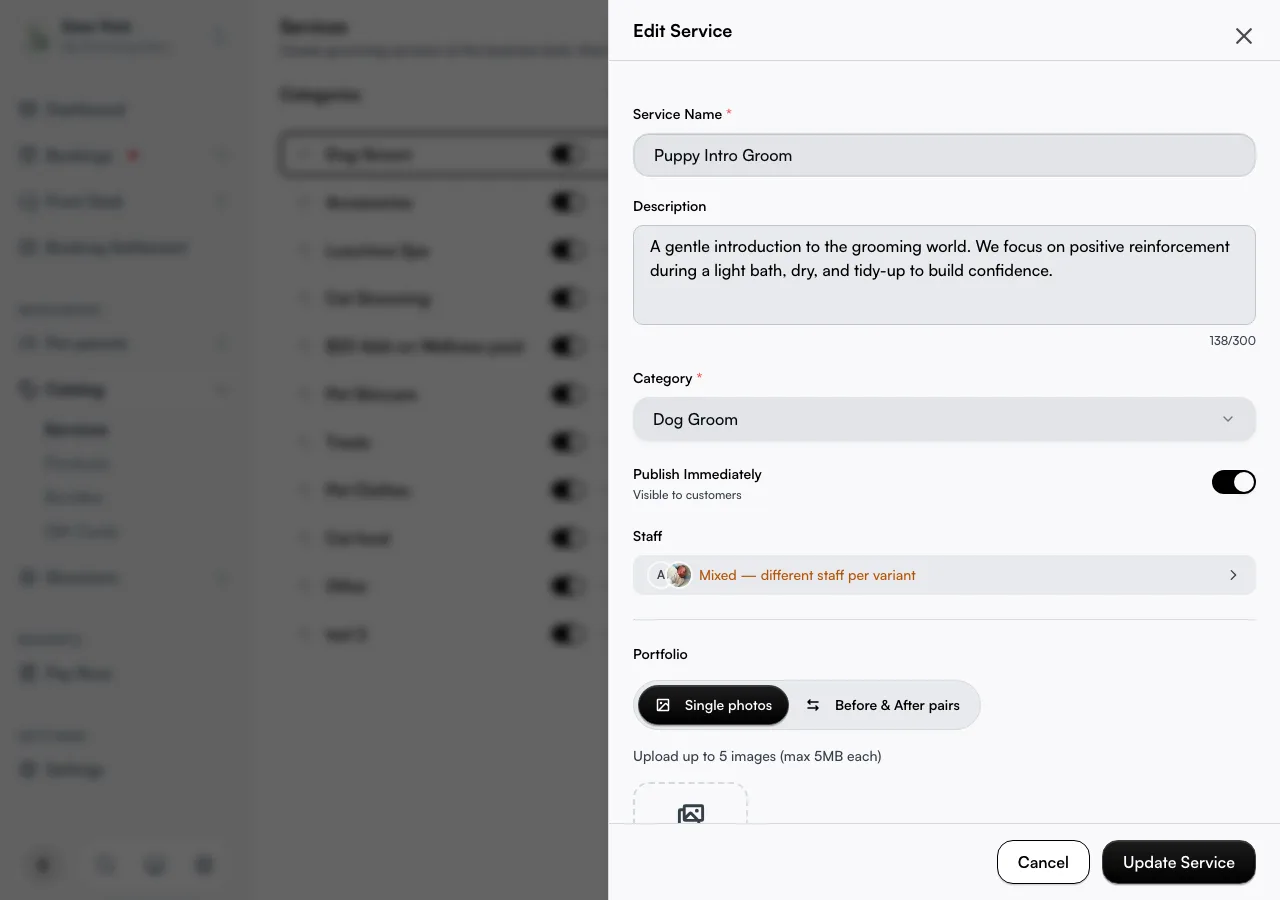
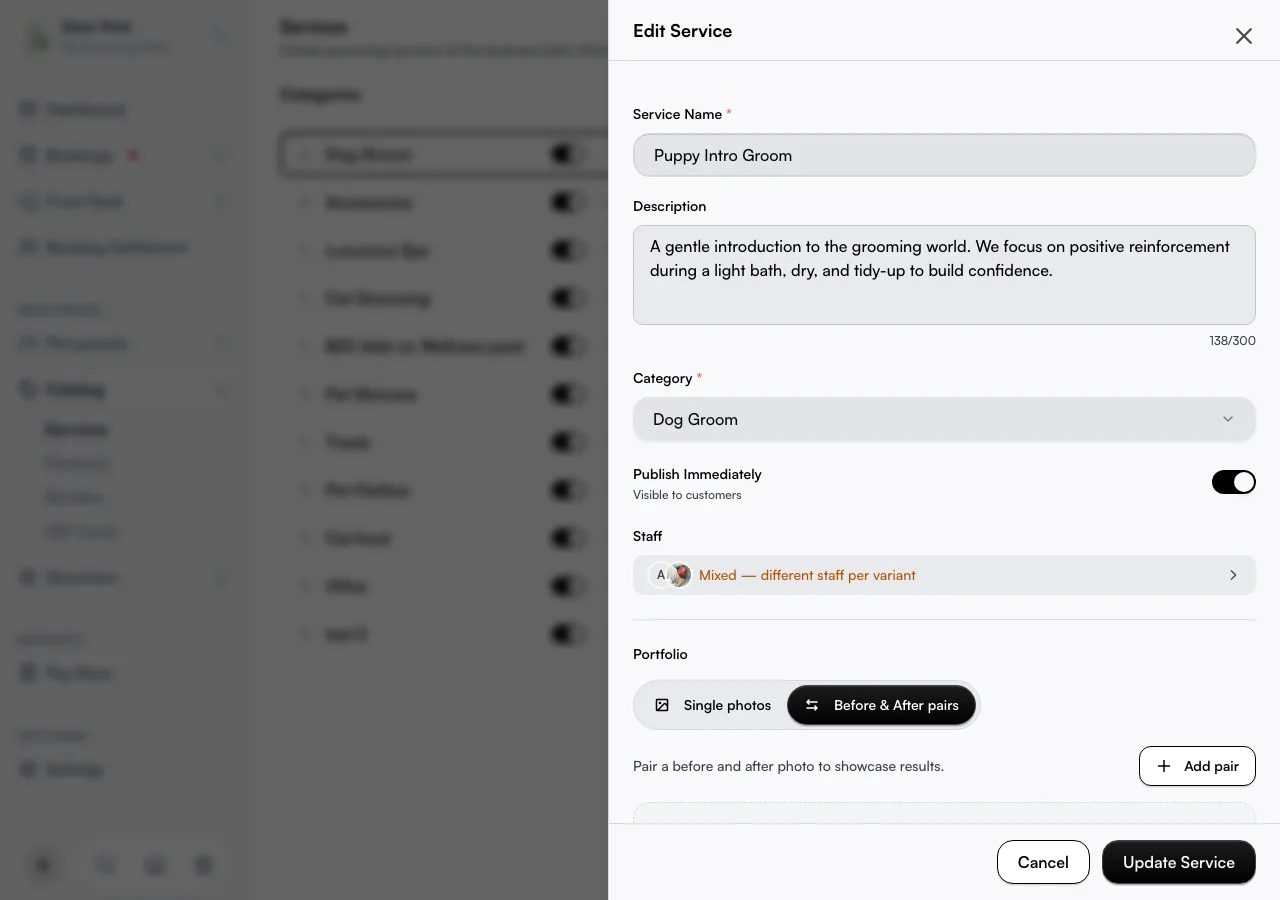
Inside the Portfolio panel there are two modes you switch between with the toggle at the top: Single photos and Before & After pairs. They are independent — see below.
Add gallery shots of the result
With Single photos selected, drop in or choose your images. A service holds up to 5 portfolio items in total (see the shared-limit section below), each up to 10 MB, in JPG, PNG, or WebP. As you reach five single photos, the upload tile disappears and a "Maximum of 5 images reached" line appears — delete one to free a slot.
Every photo is cropped to a square before it saves — a cropper opens on each upload so you frame it yourself, and the booking-page grid stays neat no matter what shape the original was. To remove a shot, hover it and click the small ✕ in its corner.
Show the transformation with a before-and-after
Use a pair when the change is the whole sell — colour correction, a fresh groom, a tattoo cover-up, a cosmetic treatment.
- Switch the toggle to Before & After pairs, then click Add pair.
- Pick a Before photo and an After photo. Each one opens the square cropper as you choose it, so both halves line up in the slider.
- Add an optional Caption (up to 200 characters — e.g. "Balayage refresh after 6 weeks"), then click Save pair. Both files must be JPG, PNG, or WebP and under 10 MB; the Save pair button stays disabled until both slots are filled.
Each saved pair shows as an interactive slider right there in the editor — drag the handle, or use the left and right arrow keys, to wipe between the two photos. It opens at a 50/50 split, and it's the exact comparison your customer gets on the booking page. The two images stay linked for good: delete a pair and both halves go at once.
Know how the photo limit is shared
A service holds up to 5 portfolio items in total, and single photos and before-and-after pairs share that one allowance. Each before-and-after pair counts as two items (the before and the after), so a service with five single photos has no room left for a pair, and one pair leaves room for three more items. Switching the toggle never deletes anything; it just shows you one set or the other.
 SERVICE PORTFOLIO  (Catalog -> Services -> edit -> Portfolio)
 |
 +-- Single photos ........ square shots, shown as a grid
 |
 +-- Before & After pairs .. each pair = one drag-to-reveal slider
                              (each pair uses 2 of the shared 5 items)
Put the same photos on a product
Products carry photos the same way, with one difference: single photos only — there's no before-and-after mode. Open a product in Catalog → Products (in edit mode, same as services), use its Images section, and you get the same up-to-5, 10 MB, square-cropped uploads. See Products.
Keep business-wide photos out of here
The service Portfolio is only for one service's results. Your cover banner, logo, and general business gallery — the imagery at the top of your public page, not tied to any single service — live under Settings → Profile → Branding. Don't reach for the service Portfolio for those; they're a different area with different cropping.
Tips
- The 5 is shared, and a pair costs two of it. Single photos and before-and-after pairs draw from the same allowance of five portfolio items per service — each pair uses two, so plan the mix accordingly.
- Photos go live as soon as you upload them. There's no extra publish step for portfolio media — once it saves, it's on your booking page.
- Every image is forced square. The cropper opens on each upload on purpose; frame the subject in the middle so nothing important gets clipped.
- Deleting one half kills the pair. Remove either the before or the after and its partner goes too — you can't leave an orphan half.
- To reuse an image on two services, upload it to each. Photos belong to the service they're attached to; there's no shared library.
- Don't see the Portfolio row? You're still creating the service. Save it, then reopen it to edit.
Related
- Service catalog — create and edit the services these photos attach to.
- Service variants and pricing — the priced options customers pick after the photos sell them.
- Products — products take photos the same way (single photos only).
Related