Bundles
Sell a multi-service pack at one fixed price — pick-any-N offers, where they're offered, and the rules that decide when one can go live.
Updated 19 July 2026
When you want to sell a multi-service pack at one price — "any 3 treatments for $180" — without discounting each service by hand, you build it here. You pick a pool of services, decide how many the customer chooses from it, and set one total price for the pick.
Open in app: Bundles
Bundles are built from variants of services you already offer, so set those up first in your service catalog. You need at least one location too.
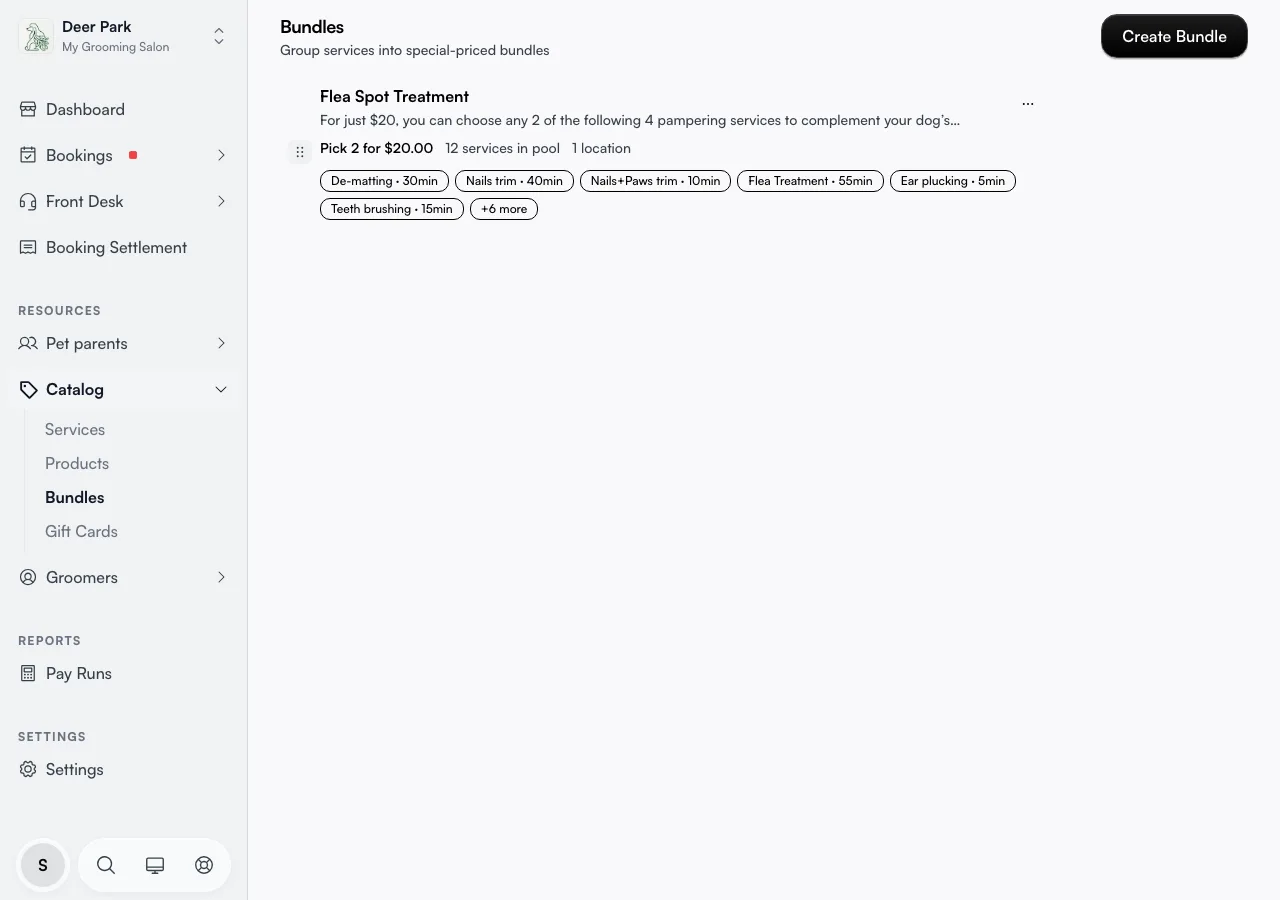
Build a "pick any N for $X" offer
- Open Catalog → Bundles and click Create Bundle.
- Enter a Name (and a Description up to 1000 characters if you want one).
- Set Customer picks — how many services they choose — and for price ($) — the one total they pay for that pick.
A live line under the price restates the rule — "Customer picks 2 services for $20.00" — so you can sanity-check it before you save.
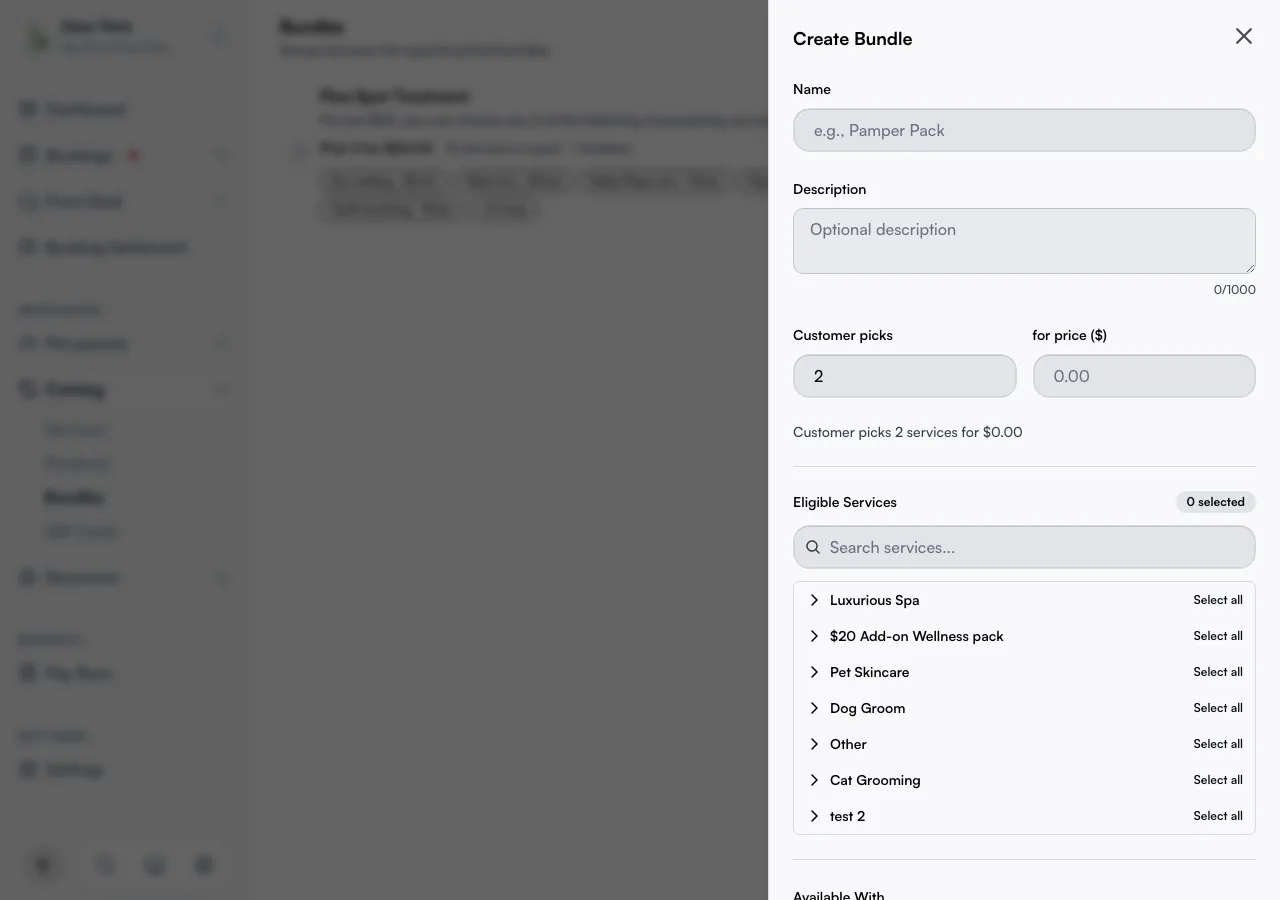
Choose what goes in the pool
Under Eligible Services, expand a category and tick the variants you want in the pool. Use the search box to find one fast, or Select All to drop a whole category in at once.
One rule trips people up: the pool must hold at least as many services as the pick count. A "pick 3" bundle needs at least 3 variants in the pool, or it won't save. Put more in than the pick count and you give customers real choice — "pick 3 of these 6" feels like an offer; "pick 3 of these 3" is just a fixed pack.
Decide where it's offered
Two controls keep a bundle from showing up where you don't want it:
- Available With — All primary services, or Specific services only. Use "specific" to attach the bundle to one service line rather than offering it everywhere.
- Locations — tick at least one. A bundle runs only at the locations you check, so a single-branch promo stays at that branch.
Put it live (and take it down)
A new bundle is not shown to customers until you publish it — until then it carries an Unpublished badge and stays internal, which is useful for building one ahead of a launch. Open the ⋯ menu on the row to Publish or Unpublish at any time, Edit to change any field, or Delete to remove it for good.
Set the order customers see
Drag a row by its handle to reorder your bundles — the order on this page is the order customers see on your booking site. Put your headline offer first.
Tips
- The Create button stays disabled until the name, a valid price, the pick count, enough pooled variants, and a location are all set. If you can't click it, one of those is missing — usually too few variants in the pool.
- New bundles are hidden by default. Built one and customers can't see it? It's still Unpublished — open the ⋯ menu and Publish.
- A bigger pool than the pick count is the point. "Pick 3 of 6" reads as a deal; "pick 3 of 3" is just a set price with no choice.
Related
- Service catalog — the services a bundle draws from.
- Service variants and pricing — the priced options that go in the pool.
- Products — physical items you sell alongside services.
Related