Service variants and pricing
Give one service several price-and-duration options, configure an ordered workflow of steps to free staff during passive phases, and reserve the rooms or gear each option needs.
Updated 13 September 2026
When the same service comes in sizes or tiers — Small, Medium, Large, or Express, Standard, Deluxe — you don't build a separate service for each. You add the price and length as options under one service, and the customer picks the one they want when booking. A service carries no price of its own; price and duration always live on its options.
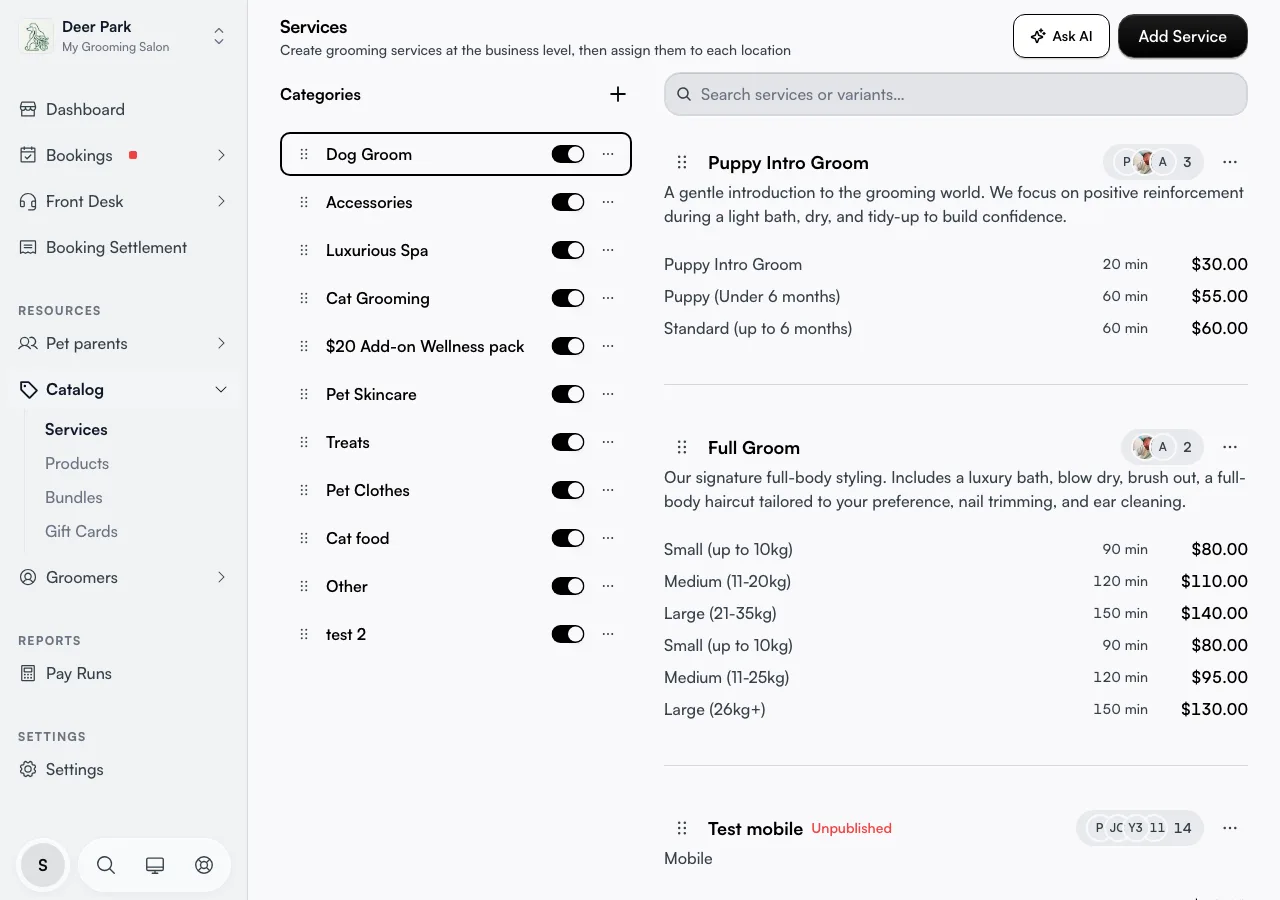
You build them inside the service editor, in the Pricing section. Click Add Service to start a new one, or click an existing service row to edit it.
Open in app: Services
Add a size or tier without duplicating the service
In the web service editor, use Pricing → By service option, then click + beside Service options (Add service option). You can add Small, Medium and Large while creating a new service; you do not need to save it first. Fill in each option, then save the service. The fields that matter most:
- Variant Name — what the customer sees, such as "Small (up to 10kg)" or "Express". This is required.
- Price Type — Fixed Price for a set amount, Starting From to show a "from" figure when the final price varies, or Free.
- Price — the amount. The price box is locked and ignored when you choose Free, so you don't have to zero it out.
- Duration — how long the booking runs and how long the block is on your calendar.
Saving first is needed for later workflow or resource setup, not for adding these price-and-duration options.
Add a second option only when there's a real choice to offer. A service with one option shows no picker — the customer books it straight away. Two or more, and they choose.
Sell add-ons that attach to a main booking
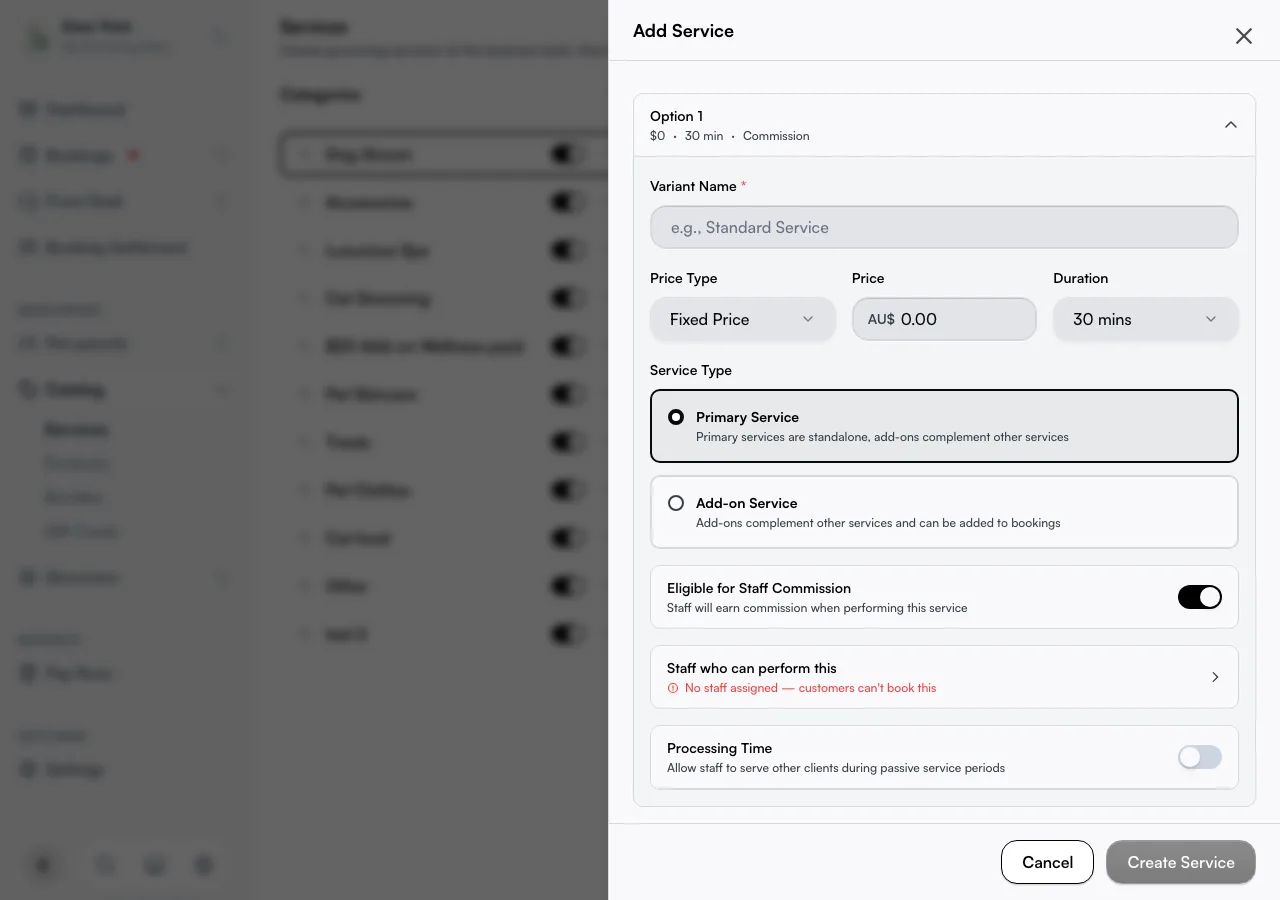
Each option has a Service Type: Primary Service (a standalone booking) or Add-on Service (an extra the customer attaches to another service, like a nail trim onto a groom). Add-ons carry an Add-on tag in the editor so you can tell them apart at a glance.
An add-on's Duration is optional. Leave it blank and the field reads "No additional time" — useful for an extra that happens inside the main service and doesn't lengthen the booking. Set a duration only when the add-on genuinely adds minutes to the appointment.
The first primary option is the one shown first to customers, so put your most common choice at the top.
Configure how a booking flows through your team (step sequence)
A service option is an ordered list of steps that describes who is needed at each stage of the job. By default Seglo treats the whole booking as one step performed by the assigned provider, but you can break it into as many steps as you need — and handing the passive parts to a helper or to nobody is what frees your provider to take another booking in parallel.
Open an option in the service editor (the option must be saved first — the section reads "Save the service first, then set up its step sequence here" until then) and find the Step sequence section. Click Add step for each stage. Each step has:
- Step name — a display name (e.g. "Prep", "Colour develop", "Finish"). This is for your reference only; it is never shown to customers or used as a logic flag.
- Duration — how many minutes this step takes.
- Who performs it — three kinds of choice in one picker:
- The provider does it — the staff member assigned to the booking handles this step (they're busy).
- Nobody — runs unattended — nobody is held (the client or product is resting, curing, or drying). The provider's calendar is free during this window.
- A role (the Assistant, or any of your rooms, equipment, or capacity pools) — a resource of that type handles the step. The provider's calendar is free while it does.
- For a role step, a second picker chooses what happens if none is free: If none is free, the provider covers it (the booking still commits; the provider absorbs the step) or If none is free, don't allow the booking (the slot is hidden until a resource of that role is free).
Reorder steps with the up/down carets, or remove one with the trash icon, then click Save steps. The steps must add up to the option's total duration — Seglo blocks the save with "Steps must add up to the service duration" otherwise, and a running Steps total is shown as you edit. A summary line reads "Provider holds Xm with a helper · Ym without", so you can see at a glance how much a helper shrinks the provider's held time.
How a role step unlocks more capacity
When a step is handled by a role (a second person), the primary provider's calendar is free during that window. Seglo can fill that freed window with another booking on the same staff member. This is how a single groomer or stylist can serve more clients in a day without rushing — the engine simply offers their free windows as available slots.
- When a rostered person of that role is free (Bonus) — the provider's footprint shrinks to only the steps they personally handle, and the engine offers more bookings.
- When nobody is available and the step is set to Fallback — the provider covers the step themselves; the booking still commits. You don't get the capacity bonus that day.
- When nobody is available and the step is set to Reject — that time slot is hidden from customers until someone of that role is rostered and free.
Pool capacity = the number of rostered resources of that role that are free during the step window. Two free people of the same role means two concurrent provider-free bookings can run at the same time.
Adding a helper for a role step
How you set up the role depends on whether it's a person or a thing:
- A person helper (an Assistant). Go to Team, add or open the person, and give them a position linked to the Assistant scheduling role (positions are defined on Settings → Resources → Positions). Assigning that position makes them an active assistant automatically — you do not add them again as a resource. Then roster them on Staff schedule; the engine reads their shifts to know when a helper is free. Assistants need no service skills.
- A room, tool, or pool. Create the resource type and add the actual resources on Settings → Resources (the Resource types and Resources tabs). These have no roster — they're free during your opening hours minus whatever's already holding them.
For a full walkthrough of freeing your provider to fit more bookings, see Fit more bookings with helpers.
Pricing-question options can also adjust step durations
If a service uses Pricing questions instead of fixed variants, each pricing rule row carries a + min field per offload target — one for each resource type you can hand a step to (e.g. Assistant) and one for Rest / processing time. These add or remove minutes from that step's window, and the totals are clamped so they stay within the resolved duration.
Reserve the rooms or equipment an option needs
Some options need more than a person — a bath needs a bathing room, a blow-dry needs a high-velocity dryer. Each option can declare the rooms or equipment it requires, so Seglo only offers a slot when both the staff member and the resource are free. By default an option needs nothing but staff, and nothing changes for your existing options until you add a requirement.
Expand the option and find the Resource requirements block below its fields:
- Click Add and pick a resource type. Only rooms and equipment appear here — staff are set on the Staff who can perform this row above.
- Set how many of that type the option ties up. Most need one; raise it only when the work genuinely holds two of the same resource at once.
- Each requirement saves the instant you add or change it — you tap the count, then the tick to confirm. You don't re-save the whole service.
An option with no requirements reads Staff only. One with requirements lists each as a row you can edit or delete.
Service: "Full Groom"
  ├─ Small   → 60 min, $40   needs: 1 Bathing Room
  ├─ Medium  → 90 min, $60   needs: 1 Bathing Room
  └─ Large   → 120 min, $80  needs: 1 Bathing Room + 1 HV Dryer
       price · duration · staff      rooms / equipment
A few rules worth knowing:
- Save the service first. The Add button stays greyed out on a brand-new option until the service has been saved once — requirements attach to a saved option.
- You can't require the same type twice. Try to add a type already on the option and Seglo tells you it's "already added" instead of duplicating it.
- It warns, it doesn't block. Require a type you own none of and Seglo still saves it, showing an amber No active [type] note. Add the matching room or gear under Resources to clear it.
Control who can perform each option, and earn commission
Open Staff who can perform this on an option to set which team members customers can book for it. An option with no staff assigned shows a red No staff assigned — customers can't book this warning and stays un-bookable, so check this whenever a new option won't appear on your booking page.
The Eligible for Staff Commission toggle (on by default) decides whether staff earn commission on this option — turn it off for loss-leaders or free extras you don't want to pay commission on.
The order customers see
Options appear to customers in the order they sit in the editor, and the first primary option is the default — add the choice you most want booked first.
Tips
- Keep names distinct. "Small" and "Smaller" confuse customers — use clear labels like "Small (up to 10kg)".
- Nothing applies backwards. Changing a price, duration, or requirement affects only new bookings. Appointments already on the calendar keep the rules they were made under.
- One option, no picker. A single fixed-price service should have exactly one option — that's the cleanest experience, not a gap.
- Processing time needs a duration first. The editor stays inactive until the option has a length to split, and it always leaves 5 active minutes.
- Split into separate services only when customers think of them as different bookings. Different sizes or rooms belong on options of one service, not on services of their own.
Related
- Service catalog — create the service that holds these options.
- Bundles — group options into a pick-any pack at one fixed price.
- Resources — define the rooms and equipment an option can require.
- Fit more bookings with helpers — the end-to-end setup for freeing your provider with steps and assistants.
Related