AI receptionist setup
Stop missing calls — set who answers, how long the phone rings first, what the AI sounds like, and the exact jobs it's allowed to do.
Updated 19 July 2026
Every missed call is a booking that walked. This page hands your phone to an AI receptionist that answers when you or your team can't — it books appointments, looks up bookings, takes callback requests, and speaks in a name and voice you pick. Set it once and it works around the clock.
Open in app: Receptionist Settings
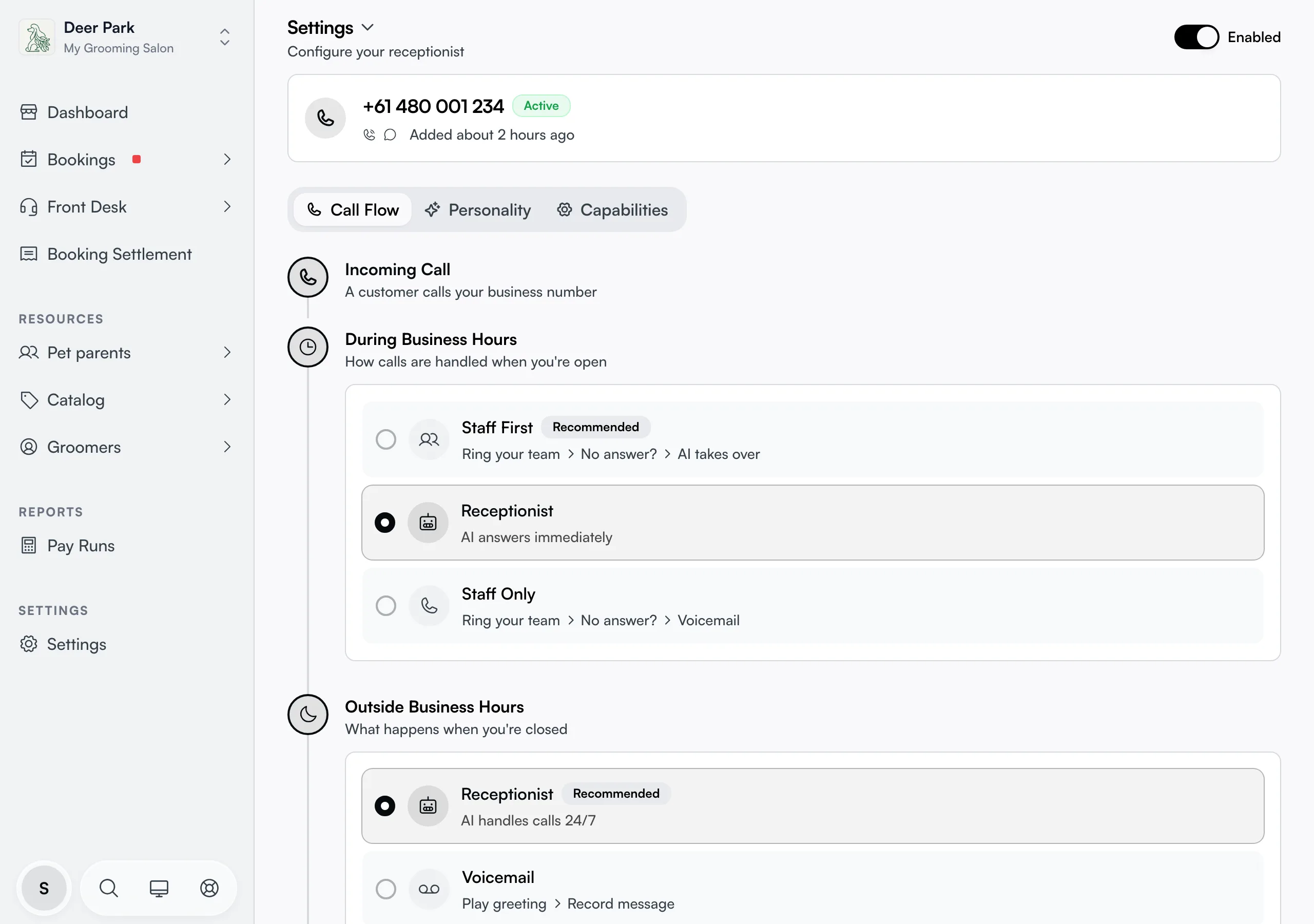
What unlocks the settings
Two things gate the settings before you get this far. The AI receptionist add-on must be active on your subscription plan — without it, the page shows an upgrade prompt instead. And the three tabs stay greyed out until a phone number is attached; if none is, you see Add a phone number to configure your call flow. Add a number first, then everything opens up.
Configure call routing per location
If your business has more than one location, each one can have its own call workflow — different routing mode, ring time, or after-hours action per location. There's no switcher on this page itself: the settings follow whichever location you have selected in the app's location picker (in the header/sidebar), and the controls update to show that location's current settings. Save writes only to the currently-selected location, leaving other locations unchanged. Single-location businesses never need to think about this — nothing changes for you.
Choose who picks up the phone first
The Call Flow tab is where you decide whether a human or the AI answers, during hours and after.
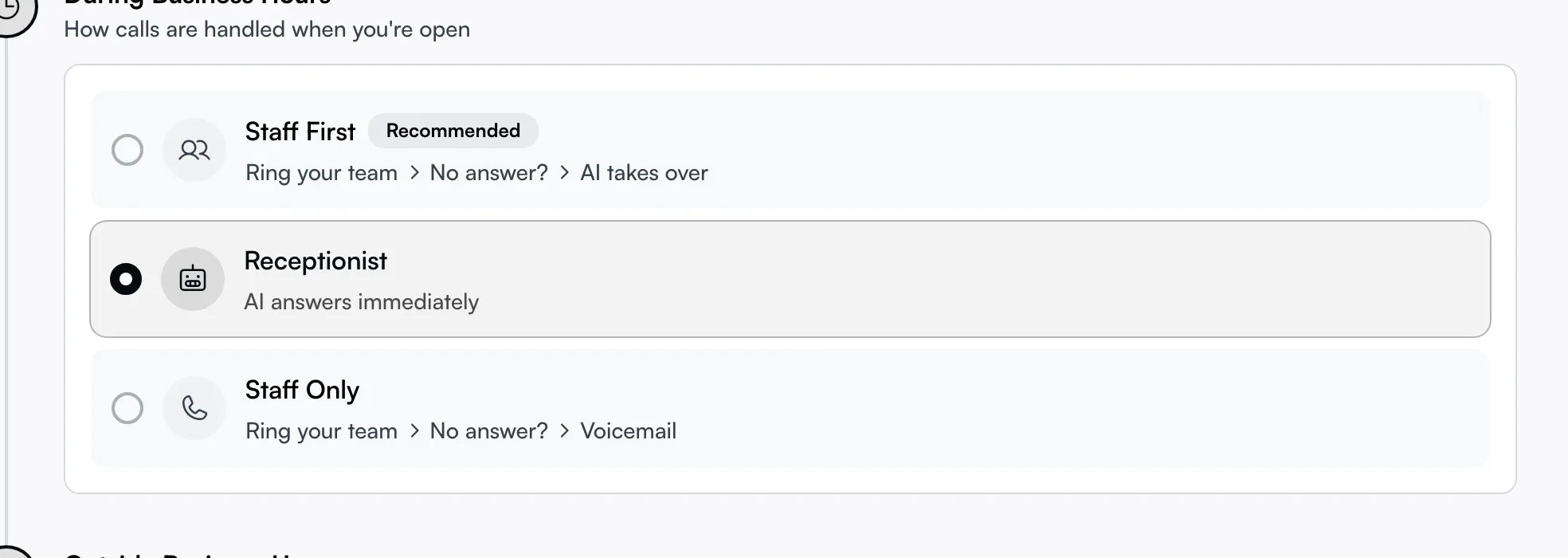
For calls while you're open, pick one:
- Staff First (recommended) — your team's phones ring first, and the receptionist only takes over if nobody answers.
- Receptionist — the AI answers immediately and can transfer to staff or take a callback.
- Staff Only — only your team rings, with voicemail if no one's free (the AI stays out of it).
Set how long the phone rings before the AI jumps in
This is the control most owners never find. Pick Staff First or Staff Only and a ring duration slider appears underneath — drag it from 10 to 60 seconds (it defaults to 20). That's how long your team's phones ring before the AI takes over (or before voicemail, on Staff Only). Too short and the AI cuts in before anyone can grab the phone; too long and callers hang up. The label even changes to match the mode you chose, so you always know what the timer triggers.
Handle calls after you close
Lower on the Call Flow tab, Outside Business Hours decides what happens when someone rings while you're shut:
- Receptionist (recommended) — the AI answers 24/7 and can still take bookings and messages.
- Voicemail — plays a greeting, then records a message.
- Message Only — plays a "we're closed" message and ends the call.
- Same as Business Hours — no special after-hours handling; your business-hours call flow keeps running around the clock.
Pick Voicemail or Message Only and a Custom Greeting Message box appears (up to 500 characters). Write exactly what closed callers hear — your hours, when you'll call back, a link to book online. Leave it blank and a sensible default plays instead.
Give it a name, tone, and the right voice
The Personality tab shapes who callers think they're talking to. Set a Name (for example, Sarah or Alex) — it's how the AI introduces itself — and pick a Tone: Professional (formal, business-like), Friendly (warm), Enthusiastic (energetic), or Empathetic (understanding and caring). For a vet clinic taking anxious calls, Empathetic lands very differently from Enthusiastic.
Under Voice, choose how it sounds and tap the speaker button to preview it before you commit — voices list their accent, so you can match your region. Then there's a quieter control: Speaking Speed, a slider from 0.7x to 1.2x. Nudge it slower for older clients or noisy lines, faster if the default feels sluggish.
Greet new and returning callers
Still on Personality, the Greeting box holds the opening line every caller hears, new or returning. The AI doesn't greet callers by the name on your client record, because that field often holds your own notes.
AI disclosure is mandatory and cannot be turned off. At the start of every call the receptionist announces its name, your business, and that it is an AI (for example: "Hi! Thanks for calling DuDu Grooming. I'm Sarah, the AI receptionist here. How can I help you today?"). This is a legal requirement. If you write a custom greeting, the disclosure is automatically added after it — you do not need to include it yourself, and you cannot remove it.
Add house rules with Custom Instructions
The last block on Personality is a free-text Custom Instructions box — extra rules the AI follows on every call. Use it for the things no toggle covers: "Always mention our spring promotion", "Prioritise morning slots", "We don't groom aggressive dogs without a prior visit". It's the closest thing to training your own receptionist by hand.
Decide exactly what it's allowed to do
The Capabilities tab is a grid of switches — turn on only the jobs you trust the AI to handle solo.
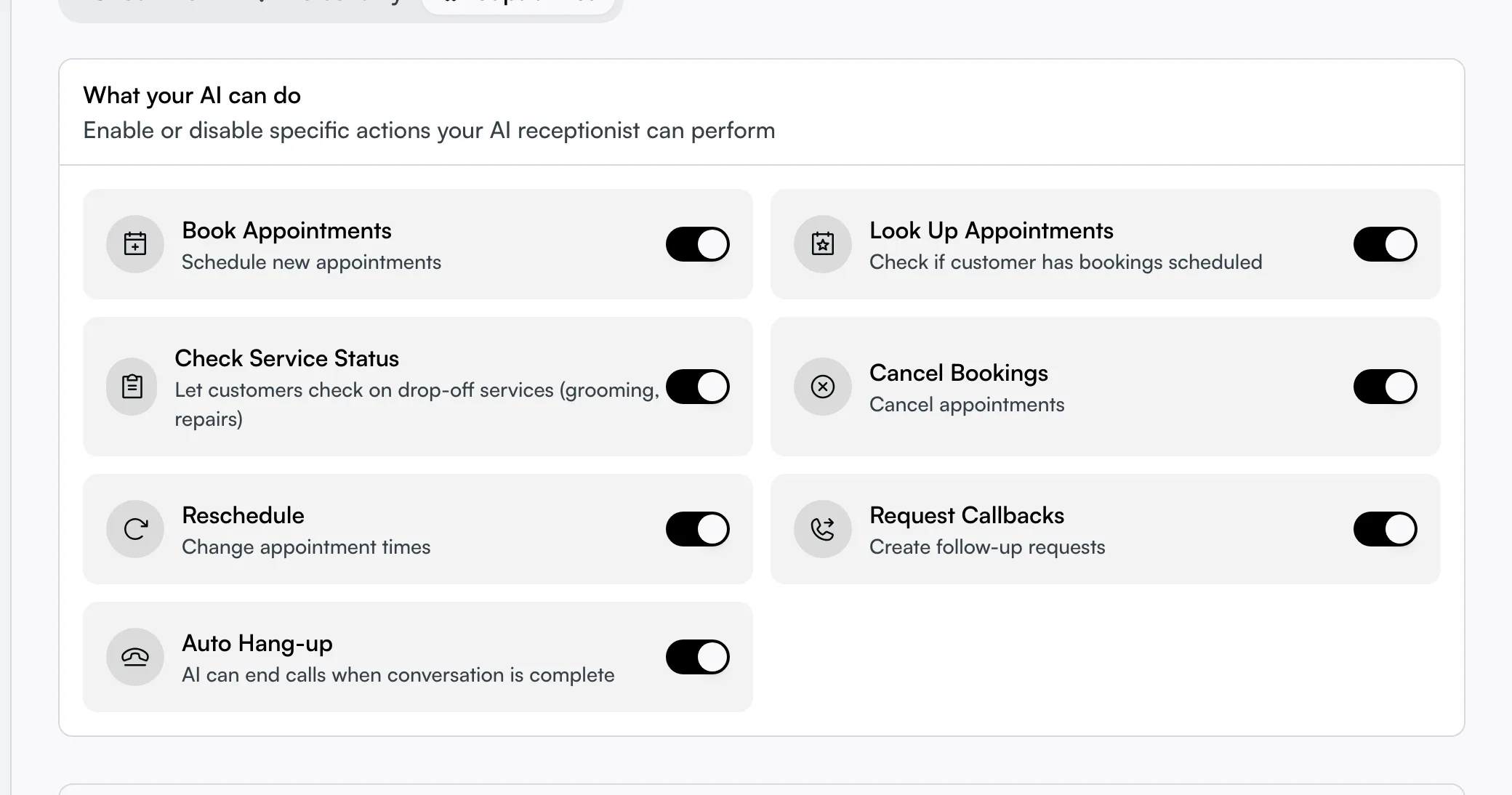
- Book Appointments — schedule new bookings.
- Look Up Appointments — check whether a caller already has one booked.
- Check Service Status — let customers check on a drop-off in progress (grooming, repairs) — handy for pet and workshop businesses.
- Cancel Bookings and Reschedule — change or drop existing appointments.
- Request Callbacks — log a follow-up for your team instead of handling it live.
- Auto Hang-up — let the AI end a call once it's clearly done.
When you've adjusted any tab, a floating Save button keeps the changes — nothing is live until you tap it.
Cancel the package later
When the add-on is active, a Manage plan button appears at the top of the page. Open it and you'll find the AI Receptionist Package with a Cancel package option. Cancelling stops the receptionist answering at the end of your current billing period — not instantly — and you can resubscribe any time.
Tips
- The tabs stay locked until a phone number is connected. If they look greyed out, that's the cause — add a number first.
- Ring duration is the call-flow setting people miss. If callers say the AI answers too fast (or your team never gets a chance), it's this slider, not the routing mode.
- Preview the voice and check the speed before saving — together they set the first impression of every call, and a too-fast voice reads as rushed.
- Returning-customer greetings only fire for known callers. A first-time number always gets the New Callers line.
- Multi-location businesses: switch locations from the app's location picker, not from inside this page — the Call Flow settings shown always match whichever location is currently selected.
Related
- Phone numbers and routing — connect or release the number the receptionist answers on.
- Receptionist settings in depth — the full call-flow, personality, and capability reference.
- Subscription plan and upgrades — where the AI receptionist add-on lives.
Related