Notifications inbox
Catch up on every booking, cancellation, reschedule and payment in one feed — find one fast, clear the backlog, and act on the ones that need you.
Updated 27 July 2026
Activity never stops while you're with a client — a booking comes in, someone cancels, a payment lands. This is where you catch up the moment you have a free hand and jump straight to the one thing that needs you, without digging through the calendar or your email.
Every event lands here on its own within a few seconds of happening, newest first. You don't refresh to see new ones — they arrive live.
Open in app: Notifications

Catch up on what happened while you were busy
Open Notifications from the left navigation. Each row gives you the headline and a one-line summary, a colour-coded Type badge (New Bookings, Cancellations, Reschedules, Payments, and more), and how long ago it arrived under Received. Anything you haven't seen yet carries a blue dot and bolder text, so a quick glance tells you what's new.
Opening a row marks it read — the bold text and blue dot drop away. Reading never deletes anything; the row stays in the list, it just stops counting toward your unread tally.
Jump straight to the booking that needs attention
Click any row to go to the place it's about — you don't have to find it yourself. A booking alert opens that booking on the appointment calendar ready to edit; a leave request opens the review queue; a low-credit or billing alert opens Settings → Billing; and so on across every kind of alert Seglo sends. The row is marked read the instant you click through.
Not every alert has somewhere to go. A purely informational one shows no pointer cursor and does nothing when clicked — that's expected, not broken, and it isn't a sign the alert failed to load.
This is the fast path most people miss: the inbox isn't just a log, it's a set of shortcuts into the exact thing each alert is about.
Find one specific alert fast
Type into the Search notifications box to narrow the list to matching text — a customer's name, a service, anything in the title or message. It's the quickest way to pull up one client's recent activity out of a long feed.
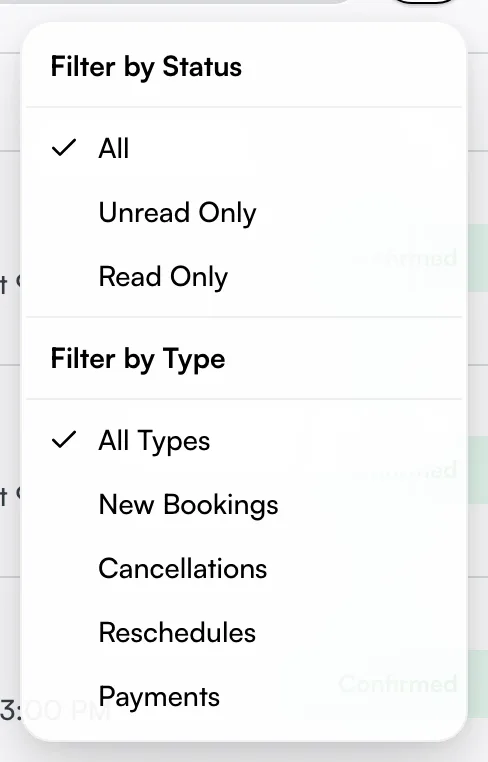
To slice the list instead, click the funnel button. Filter by Status shows All, Unread Only, or Read Only; Filter by Type shows All Types, New Bookings, Cancellations, Reschedules, and Payments. A small number on the funnel tells you how many filters are active, so you never forget the list is hiding rows. Search and filters stack — combine them to find, say, every unread payment.
Clear the whole backlog at once
When you have unread items and nothing selected, a Mark All button appears at the top. One click marks every unread notification read — the way to wipe a built-up count after a busy stretch.
To clear only some, tick the checkboxes on the rows you want, then use Read. Use the checkbox in the header row to select or deselect everything currently shown at once.
Bring an alert back as unread
Marked something read too soon, or want to leave it flagged as a reminder to deal with later? Tick its checkbox and click Unread — it flips back to bold with the blue dot and rejoins your unread count. This is the trick for using the inbox as a short to-do list: keep the one you still owe action on marked unread until it's done.
Act on alerts on your phone
On the appointment app, Notifications is no longer one of the bottom tabs — find it under More → Needs attention → Notifications. The unread count still shows as a badge there. The inbox itself does more than mirror the desktop list. It pushes the items that need a decision — a booking awaiting approval, a confirmed booking with no staff assigned yet, a failed payment — to the top, each tagged with a coloured badge (Approval Needed, Assign Staff, Payment Required) so the urgent ones never get buried under routine confirmations.
Tapping an item that goes somewhere opens it; tapping a purely informational alert does nothing — it stays in the list exactly as it was. Swipe a row left to Dismiss it (mark it read) — except for a confirmed booking still missing its staff member, where dismiss is deliberately blocked so you can't sweep away something that still needs assigning. Pull down from the top of the list to refresh.
Tips
- A row that looks like plain text, not a link, has nowhere to go. That's a purely informational alert — tapping or clicking it does nothing on purpose. Use swipe (on the app) or the checkboxes (on the desktop list) to clear it instead.
- Expected an alert that never came? It's almost always switched off in Notification settings — the event still happens, it just doesn't surface here. Turn it on there and future ones flow in.
- Different people see different counts. Each person sees only the notifications their role allows, so an owner and a receptionist can show different unread totals. That's by design, not a glitch.
- The funnel badge is your reminder. If the list looks short or empty, check for a number on the funnel — a filter may be hiding rows. Reset to All to see everything.
- To act right now, click through. The inbox is for catching up after the fact. To reschedule, take payment, or cancel immediately, click the alert to open the booking, or work from the appointment calendar.
Related
- Notification settings — controls which events ever reach this inbox.
- Push notifications — get the same alerts on your phone or desktop lock screen.
- Appointment requests — the queue for bookings the "Approval Needed" alerts point to.
- Appointment calendar — open and act on the bookings these alerts link to.
Related