Seglo

Data import

Move your clients, services, team, and appointment history off another platform — and check every record in preview before customers ever see it.

Updated 20 July 2026

Switching from another booking platform without re-typing every client, service, and past appointment by hand — that is what this page is for. It reads your old account, shows you everything it found, and holds the whole import in a private preview so nothing reaches your customers until you say go.

It only reads from your old platform — it never changes or deletes anything there — so you can run it while you are still taking bookings on the old system.

Who can use this: owner and admin roles only.

Open in app: Import Data
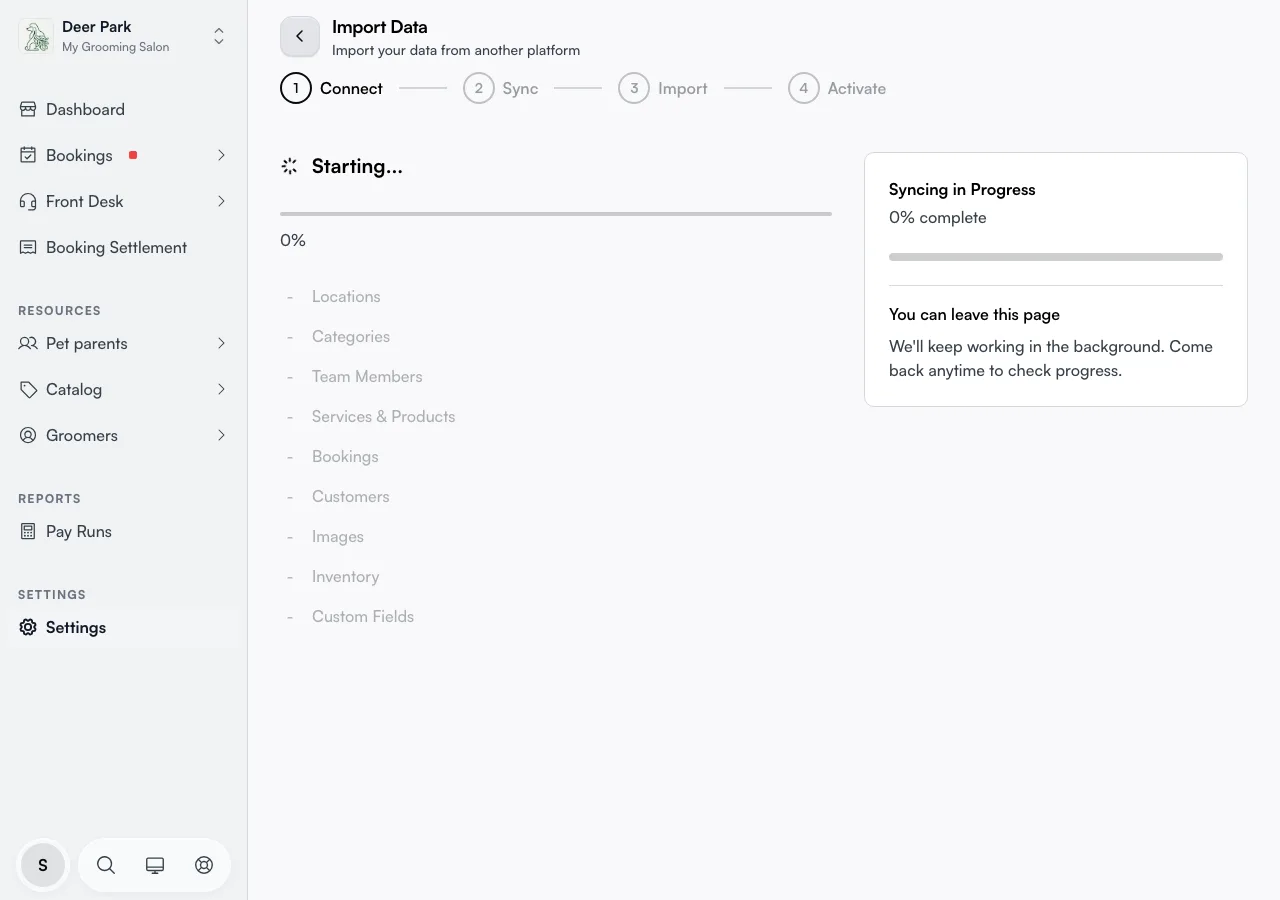
The Import Data page with the step bar at the top

Bring your business across from another platform

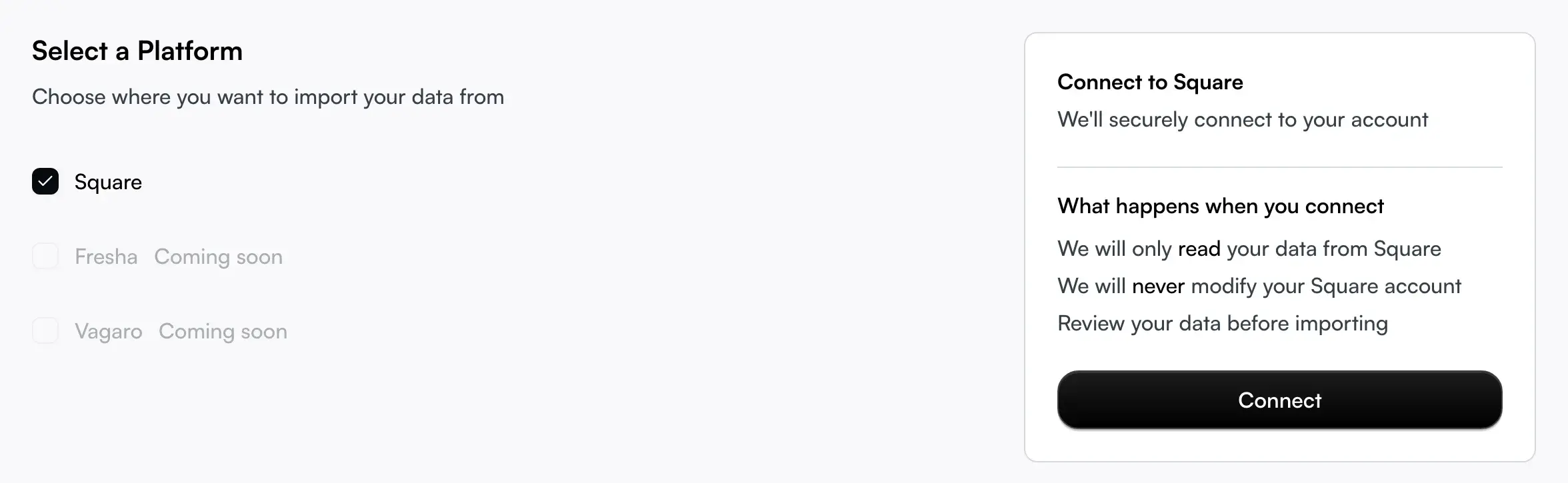
Open Settings → Import Data, pick your source under Select a Platform, and click Connect. Today you can import from Square; Fresha and Vagaro show Coming soon and can't be selected yet. Connecting sends you to that platform to sign in and approve read-only access, then drops you back here.

From there the page walks itself through a short series of stages shown in the step bar at the top, and hands off from one to the next on its own. Every import sees Connect, Sync, Import, and Activate; Locations and Staff only appear when they're relevant — Locations if Square has more than one, Staff if any of your team didn't match automatically. The bar is set once a run starts and won't grow or shrink partway through it. You only act at a few points: choose which locations to import, match any team members Seglo couldn't confidently match, review the data and start the import, then go live.

The platform list with Square selected and the Connect panel

Choose which Square locations to import

After connecting your Square account, Seglo fetches your Square locations and shows you a location picker before pulling any data. Check the locations you want to import in this run, then click Import selected locations.

  • Locations you have already imported on a previous run appear greyed out with an "already imported" marker — you can't re-import them here (their data is already in Seglo and will not be duplicated).
  • You do not have to import everything at once. Leave a location unchecked and come back later to import it on a separate run.
  • Services and customers are merchant-wide in Square, so they are imported in full on your first run and shared across all locations. Subsequent runs import only bookings and the location record for the new location — services and customers are not re-imported.

The location picker showing two checked locations and one greyed-out already-imported location

Import another location later

Once a run is activated, the Migration Complete screen shows an Import another location option listing any Square locations you haven't imported yet. Click it to start a new run scoped to those remaining locations. (See "After you activate: the go-live screen" below if that new run finishes but you don't activate it right away — the go-live rescue notice has you covered.)

Each subsequent run is idempotent — importing a location a second time will not create duplicate clients, services, or appointments. Every record carries a Square ID so Seglo can safely update existing rows instead of creating new ones.

Pick up an import you already started

You don't have to babysit it. Seglo keeps working even if you close the tab, and when you come back it reopens at the exact stage you left — mid-sync, waiting at the review screen, or sitting in preview. A finished or failed import doesn't reopen; you start fresh instead.

One catch worth knowing: if you began an import while first setting up your account, finish it inside onboarding, not here. Seglo notices an onboarding import in progress and sends you back there automatically rather than letting you start a second one.
Match your Square team to your Seglo staff

Seglo tries to match every Square team member to an existing Seglo staff record on its own — by their Square ID first, then by email and name. Most of the time this needs nothing from you: a "8 of 10 team members matched exactly" line tells you how many were resolved automatically. If everyone matched, this step doesn't appear at all and the step bar skips straight to Import.

When someone doesn't match cleanly, Seglo lands you on a dedicated Match your Square team to Seglo step: one table, every row the same shape, listing the Square person, their booking count, and Is this person in Seglo? — sorted with the highest booking counts first, so the person with the most riding on the answer is the first thing you see.

  • A person Seglo recognises (a likely match) shows a highlighted guess in the row's select, written as a question — e.g. Carol Tam? — with a warning tint so it visibly still needs your OK. Opening the select and choosing the right person (including the guessed one, if it's correct) settles the row; picking someone else works just as well — there's no separate "not them" control, the select itself is the correction. Accept all N guesses confirms every suggested match in one click; each stays individually revisable afterwards.
  • A person Seglo can't place at all is pre-filled as a new staff member — you don't have to do anything for these. The select already shows + Add <name> as new staff, with a checkmark next to their name to show it's settled. You can still change it to an existing Seglo staff member or to Don't import their bookings at any time.

Every row's select offers the same three kinds of choice: any existing Seglo staff member by name, + Add <name> as new staff, or Don't import their bookings.

Only an unconfirmed guess blocks Continue — a row where Seglo suggested a specific match and you haven't confirmed or overridden it yet. A person Seglo couldn't place at all never blocks you, no matter how many bookings they have, because they already default to being added as a new staff member — nothing is left stranded. This is deliberate: creating a new staff record can never mis-assign an existing person's bookings, but accepting a wrong guess can, so only guesses require your explicit sign-off. In practice, if none of your Square team matched an existing Seglo record, you can get through this step in one click — every unmatched person just becomes a new staff record, and their bookings land on them correctly.

The Import screen showing data counts, the team-match summary line, and the Start Import panel

Set which staff customers can book

Bookability isn't part of the import flow — it's a Team settings decision, same as for any staff member. Seglo sets a smart default when your team is created: anyone active with at least one location comes in bookable, while inactive staff and anyone with no location are switched off, so a long-departed stylist or a back-office admin doesn't show up on your booking page by accident. After import, the Review your team link on the go-live screen takes you straight to team settings to confirm or flip it for anyone.

Decide what happens to duplicate clients

If the same customer already exists in Seglo (matched by email or phone), the review screen shows a Default action for duplicates choice:

  • Merge — folds the imported details into the existing client so you don't end up with two of the same person.
  • Skip — leaves your existing record exactly as it is and ignores the incoming copy.

If no duplicates are found, this choice simply doesn't appear. The Customers count flags how many "may merge" so you know what's at stake before you pick.

See how your custom fields land

Seglo's assistant maps your old custom fields into Seglo's client forms automatically during the sync (you'll see "Analyzing your data" while it does). The Import screen shows a one-line summary of how many fields will be mapped, with an Edit in Form Settings link right next to it. If the mapping guessed wrong or dropped a field you need, that's where you go to rebuild it — see Forms for the full picture of mapped, auto-created, and skipped fields.

Check everything in preview before customers see it

After Start Import, your appointments land in preview mode: reminders stay off, customers can't see their bookings, and your team's schedules don't show them yet. This is the safety window the whole flow is built around. This is also the one screen in the flow that holds a single decision — Activate — so it stays focused on checking your data, not on ongoing tools like resync.

Work through the Verify your data checklist on the Review before you go live screen — each row opens in a new tab so you can spot-check without losing your place: appointments, clients, services, business profile, industry, and business hours & location. Confirm service durations and prices, opening hours, and that appointments landed on the right people.

When you're satisfied, click Activate Appointments and confirm. Future appointments go live on your calendar, reminders start sending on schedule, customers can view and manage their bookings, and your team sees everything. Activation can't be undone, so finish your checks first.

After you activate: the go-live screen

Once activated you land on the Migration Complete screen, which is where the ongoing tools live — resyncing, importing another location, reviewing your team. It also carries a receipt of what came in: customers, appointments, services, products, and team members, including how many of each merged into existing records rather than being created fresh.

If you import a second Square location and finish that run without activating it, this screen surfaces a "One import is still waiting to go live" notice with a Go live button, so a second import can't get stranded behind the first one's screen.

Catch the bookings that came in after you started

Customers don't stop booking on your old system the moment you begin. Sync clients and Sync bookings, on the Migration Complete screen after you've activated, pull in anything new since your last check and drop it straight onto your live calendar. Your existing data is untouched either way.

Both your initial import and every Sync bookings press already look 12 months ahead, in addition to the last 30 days — so a booking scheduled several months out is picked up automatically, not just ones in the near term.

Pull in bookings scheduled further ahead

If a customer has booked with you more than 12 months out, it won't be caught by the buttons above. Fetch future bookings, next to Sync clients and Sync bookings, sweeps as far ahead as Square has bookings — with no cutoff — and keeps going until it finds two consecutive gaps in your calendar, so a normal seasonal quiet period doesn't stop it early. It reports how far forward it reached when it finishes.

This can take several minutes on a busy calendar. It's safe to run more than once — pressing it again won't create duplicates.

Run both platforms side by side after you activate

Activating doesn't force an instant cutoff. You can keep taking bookings in Square while your team gets used to Seglo — Seglo keeps mirroring Square in the background for as long as you need.

Square bookings show a "Square" badge and are read-only in Seglo. Anything a customer books in Square appears on your Seglo calendar and in the booking detail with a Square badge. You can view it, but you can't edit, reschedule, or cancel it from Seglo — any change has to be made in Square itself. This is deliberate: Square is still the source of truth for those bookings, and an edit made in Seglo would be silently overwritten the next time Square sends an update. Bookings you create natively in Seglo are never affected.

We do not sync Square payments, refunds, or invoices. Only booking details come across — client, service, time, staff. Revenue reports, staff payroll, and your Xero sync all automatically exclude Square-origin bookings, so they never show up as unpaid revenue or count toward staff commission. If you need Square's financial data, that stays in Square (or your accounting software) for as long as you're running both systems.

Sync freshness — two numbers to check if something looks stale, shown on this page once you've activated:

  • Last Square update received — the last time Seglo actually got new data from Square.
  • Last sync ran — the last time Seglo checked in with Square, whether or not anything had changed.

If "last sync ran" is recent but "last update received" is old, that's expected — it just means nothing changed in Square. If both go stale, the sync may have stopped (most often because your Seglo subscription lapsed — sync only runs on an active subscription, and picks up any missed Square events automatically once you're active again).

If you press Sync clients, Sync bookings, or Fetch future bookings while your subscription has lapsed, the page tells you plainly — "Sync is off" — rather than a generic error, so you know to renew before trying again.

When you're ready to stop, press "I've finished moving — stop Square sync." This is a one-way action: once pressed, Seglo stops checking Square for updates and the Square badge / read-only behaviour stays only on the bookings already imported. There's no automatic deadline — coexistence runs for as long as you keep your subscription active and don't press this button.

Reconnect Square if the connection expired

If your Square connection has expired since your last import run (Square access tokens are time-limited), the page will show a Reconnect Square button instead of starting the sync. Click it to re-authorise Seglo with Square — it picks up on the same import job so you don't lose any progress. After reconnecting, the sync continues from where it left off.

Tips

  • Import locations one at a time if you prefer. You can import your busiest location first, confirm everything looks right, then come back for the rest.
  • Services and customers carry over once. On your second and later runs, Seglo re-uses the services and customers already in your account — it only pulls bookings for the new location. You won't see duplicated services or clients.
  • Re-importing is safe. Every record is matched on a unique Square ID, so running an import twice will update existing rows rather than creating duplicates.
  • It's not a live sync you have to babysit. Once activated, Seglo keeps mirroring new Square bookings on its own; Sync clients, Sync bookings, and Fetch future bookings are for catching up on demand rather than waiting.
  • Stuck on "Starting…" / "Waiting for connection"? If the sign-in didn't complete, use Cancel & Start Over to reset and reconnect — it only appears while the connection is still pending.
  • Set duplicate-client handling on the Import screen, and bookable staff in Team settings after import. The duplicate choice is easiest to get right once, before the records exist; bookability lives with the rest of your staff settings, so it's easy to revisit any time.
  • An import that fails isn't your fault to debug. You'll get a plain-language reason and a Reference ID — send that to [email protected] and start over.

Related

  • Business profile — confirm your hours and location after importing.
  • Appointment calendar — where imported bookings appear once activated.
  • Clients list — review the customer profiles that came across.
  • Forms — adjust the custom fields your import created or mapped.

Related articles