Call recording
Record a shop's calls on Seglo Phone, choose the notice callers hear, then play, download or delete a recording from the call.
Updated 2 October 2026
A customer swears they asked for the short trim. A new staff member is learning the phone. With call recording on, you can play the call back instead of guessing, and every recorded call gets a written summary and transcript as well.
Open in app: Seglo Phone on the web. In the Seglo Phone app, open More → Phone settings → Call handling.
Recording is set in the Seglo Phone app and the web app, and recordings play in both. The Seglo appointment app has no call recording.
Before you start
- Recording needs a Seglo Phone plan. Without one, nothing is recorded: the app's row reads Needs Seglo Phone and the web says Needs a Seglo Phone plan.
- Recording is set per shop. Every number at that shop follows the shop's setting.
- To change it you need permission to change settings and to manage Seglo Phone. The owner has both and can give them to others.
- Tell your team in writing before you turn it on. Anyone who can see calls can play every recording and keep a copy.
Turn on call recording (Seglo Phone app)
- Open More → Phone settings.
- In the shop's section, tap Call handling, then Call recording. The row shows Off, On, On · no notice or Needs Seglo Phone.
- Switch on Record calls.
- Leave Play a recording notice on, or switch it off.
- Tap Save at the top right.
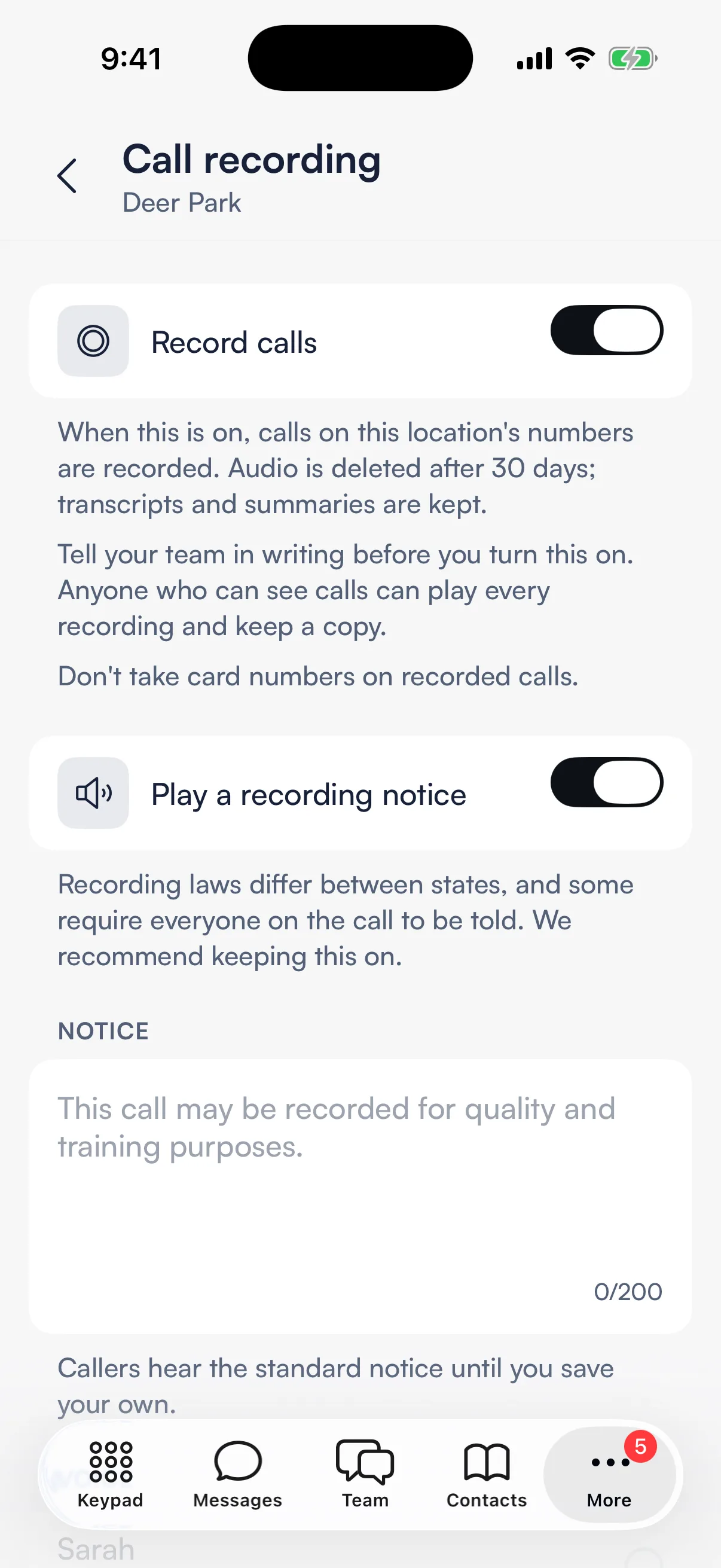
The change applies from the next call. A call already under way keeps the setting it started with.
Turn on call recording (web app)
- Open Phone settings in the sidebar, then the Numbers tab.
- Scroll to Call handling. If you have more than one shop, use Change location to pick it.
- Under Call recording, switch on Record calls, and leave Play a recording notice on or switch it off.
- Choose Save on the You have unsaved changes bar at the bottom of the page.
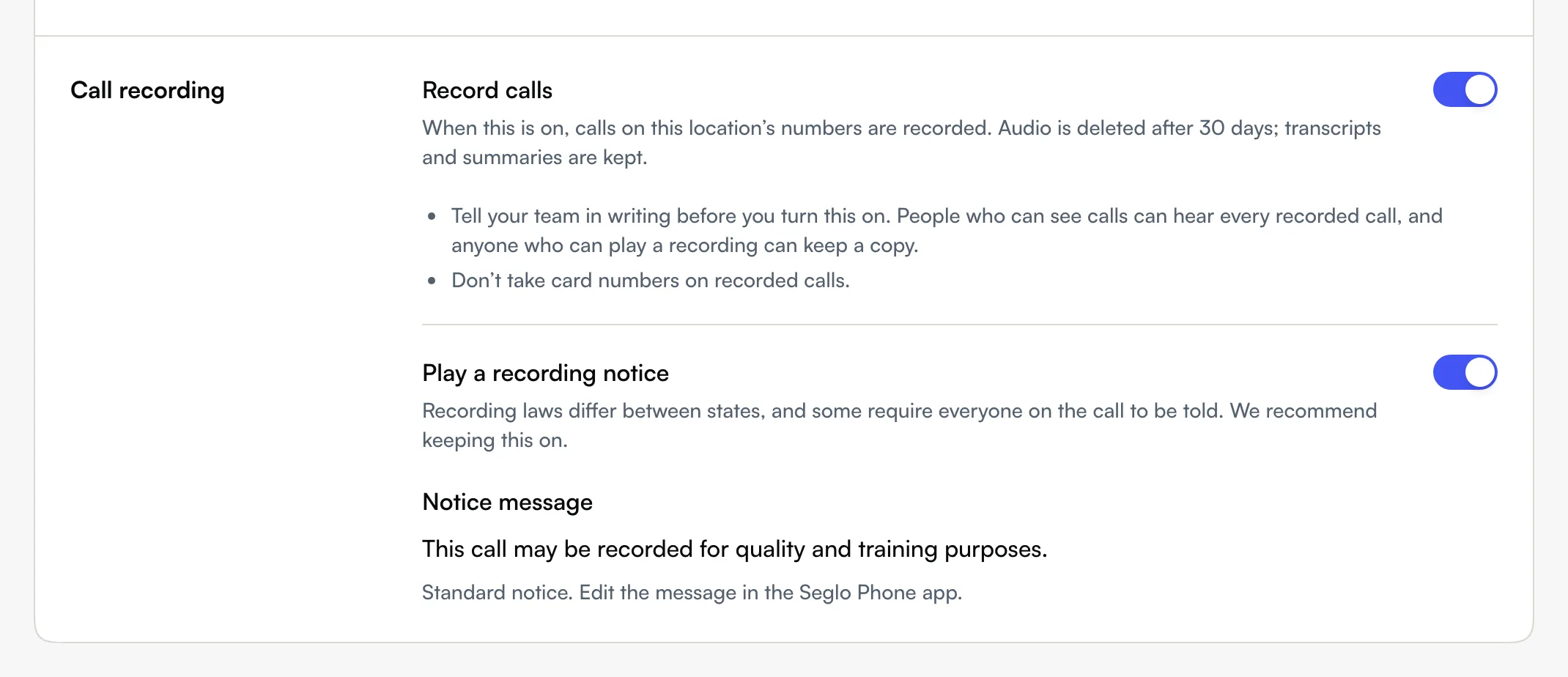
The web shows the notice text but doesn't edit it. To change the words or the voice, use the Seglo Phone app.
Change what callers hear (Seglo Phone app)
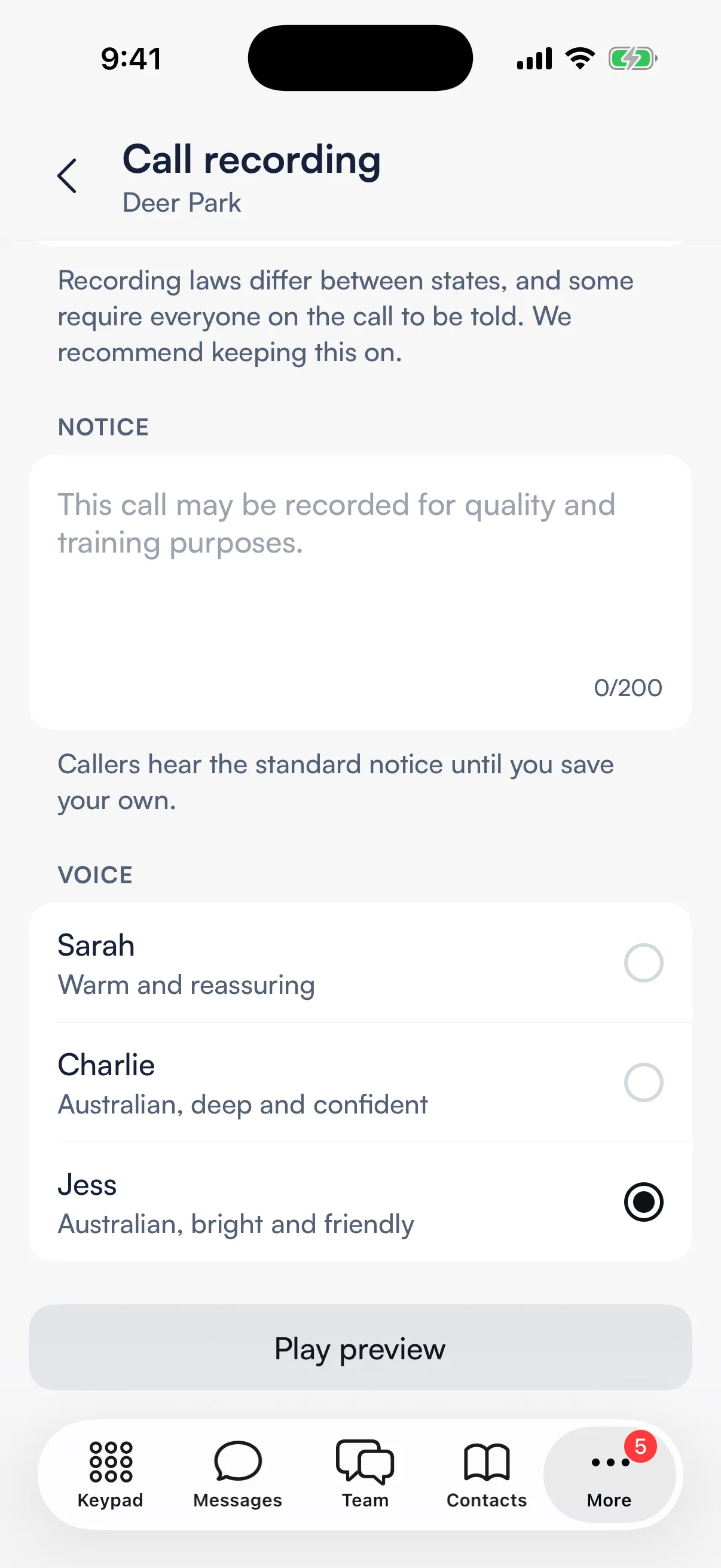
With both switches on, the Call recording screen shows the notice:
- Type your own words under Notice, up to 200 characters. Leave it empty to use the standard notice: "This call may be recorded for quality and training purposes."
- Pick a voice under Voice.
- Tap Play preview to hear it.
- Tap Save.
Reset to default brings back the standard notice in the standard voice.
The notice plays on incoming and outgoing calls before the conversation starts. Recording laws differ between states, and some require everyone on the call to be told, so we recommend keeping it on.
Play a recorded call (Seglo Phone app)
In Keypad → Recents, a recorded call has a small record mark at the end of its row. Tap the call. Its call page has a Recording card under the Summary: play or pause, drag to any point, and see how long it runs. The card also says Kept until and the date.
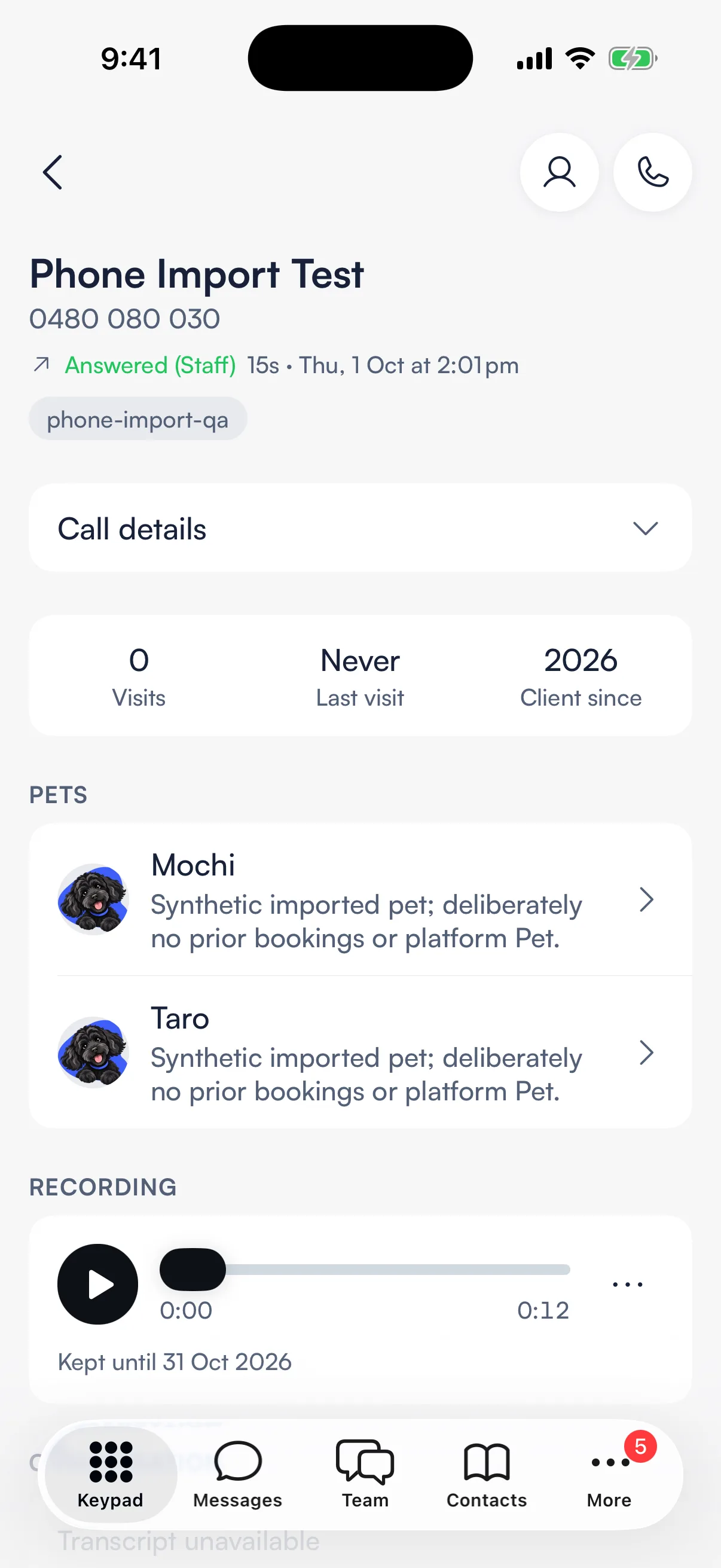
The summary and transcript of a recorded call appear on the same page. The transcript comes a little after the audio; until then the conversation reads Transcribing….
Play a recorded call (web app)
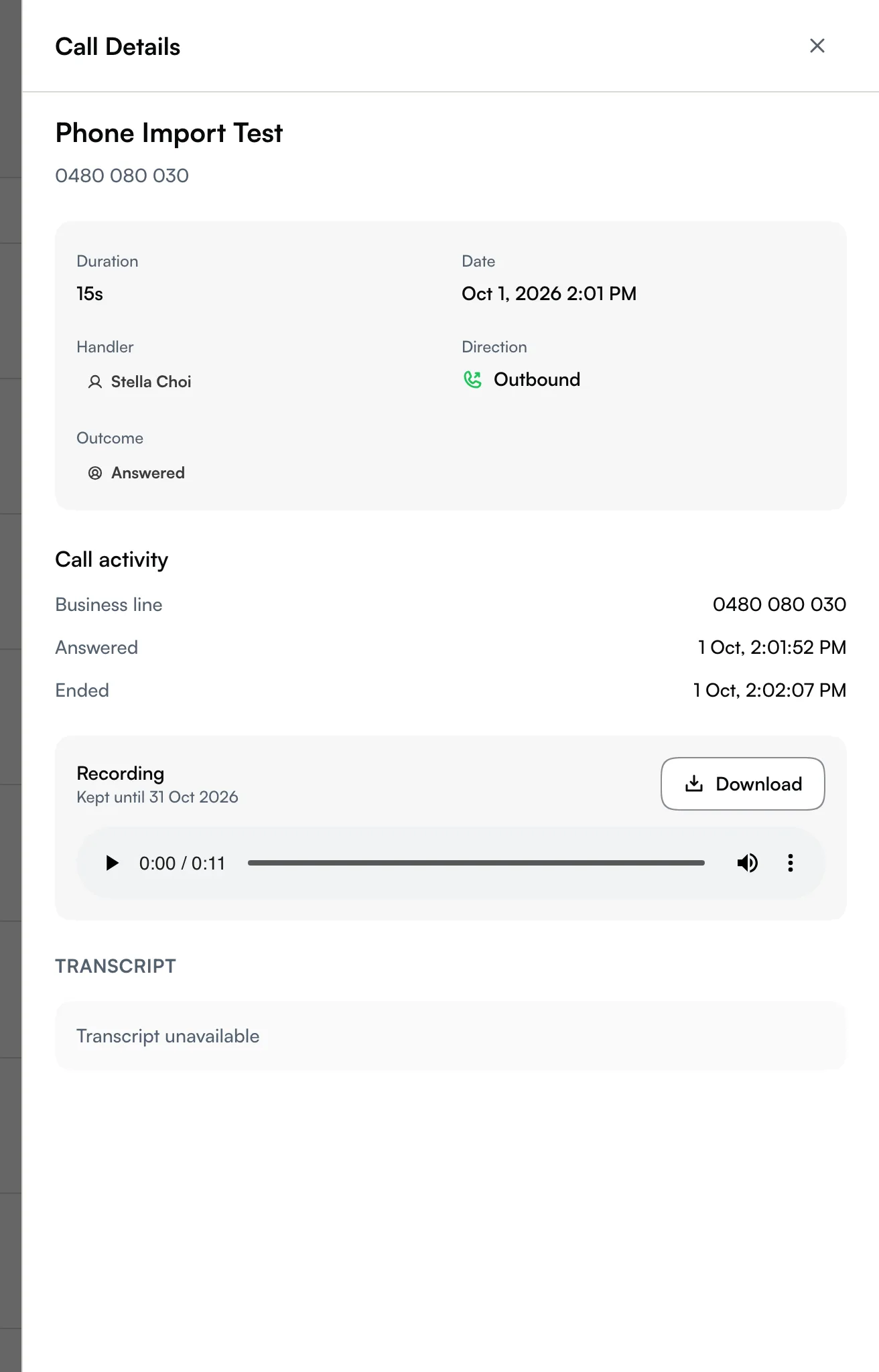
Open Calls in the sidebar and select the call. The Call Details panel shows the summary, a Recording player with its Kept until date, and the transcript.
Keep a copy, or delete a recording
Permission to manage Seglo Phone.
- Seglo Phone app: on the Recording card, tap the options button, then Download to save or share the audio file. Delete removes the recording.
- Web app: choose Download on the Recording card. Deleting is only in the Seglo Phone app.
Deleting removes the audio, transcript and summary for everyone, and can't be undone. Use it when a customer asks for their recording to be removed.
To download many calls at once, the owner can use Export call history.
How long recordings are kept
Audio is deleted 30 days after the call. The transcript and summary stay. Download the audio before then if you need to keep it.
If your Seglo Phone plan ends, recording stops until the plan is active again. Recordings you already have stay playable until their 30 days are up.
What each recording line means
| On the call | What happened |
|---|---|
| Player | The call was recorded. |
| Transcribing… | The audio is ready; the transcript is on its way. |
| Transcript unavailable | The audio is ready but no transcript could be made. Very short recordings are not transcribed. |
| Not recorded — the notice couldn't play | The notice is on but didn't play, so the call was not recorded. |
| Audio deleted after 30 days | The audio has gone; the summary and transcript remain. |
| Recording deleted | Someone deleted it. |
A call with nothing about recording on it was not recorded.
Tips
- Don't take card numbers on recorded calls. Card-like numbers are removed from transcripts and summaries, but the audio still has them.
- Turning the notice off doesn't stop recording. It only stops callers hearing that they're recorded.
- A recording follows the shop, not the person. Move a number to another shop and it takes that shop's recording setting.
Related
- Recent calls: find a call and read what was said.
- Phone numbers and routing: the rest of a shop's call handling.
- Data export: download your call history with recordings.
Related