Quick replies
Write common replies once, with the client's name, pet's name or a choice of options filled in, and let your team insert them in one tap.
Updated 2 October 2026
Typing "Running about 10 minutes behind today" for the fifth time this week gets old. Write a reply once and anyone on the team can drop it into a customer conversation with one tap, with the client's and pet's names already filled in.
Open in app: Quick replies
The list is shared by the whole business. Everyone sees the same replies in the same order. To add, edit or reorder them you need permission to edit Messages; everyone else can use them but not change them.
Add or edit a quick reply (web app)
- Open Settings → Quick replies.
- Click Add quick reply (or Add your first quick reply), or click an existing reply. The editor opens in a panel on the right: New quick reply or Edit quick reply.
- Write the Message. Add an optional Label, a short name shown in the picker instead of the full text (for example "Running late").
- Click Save.
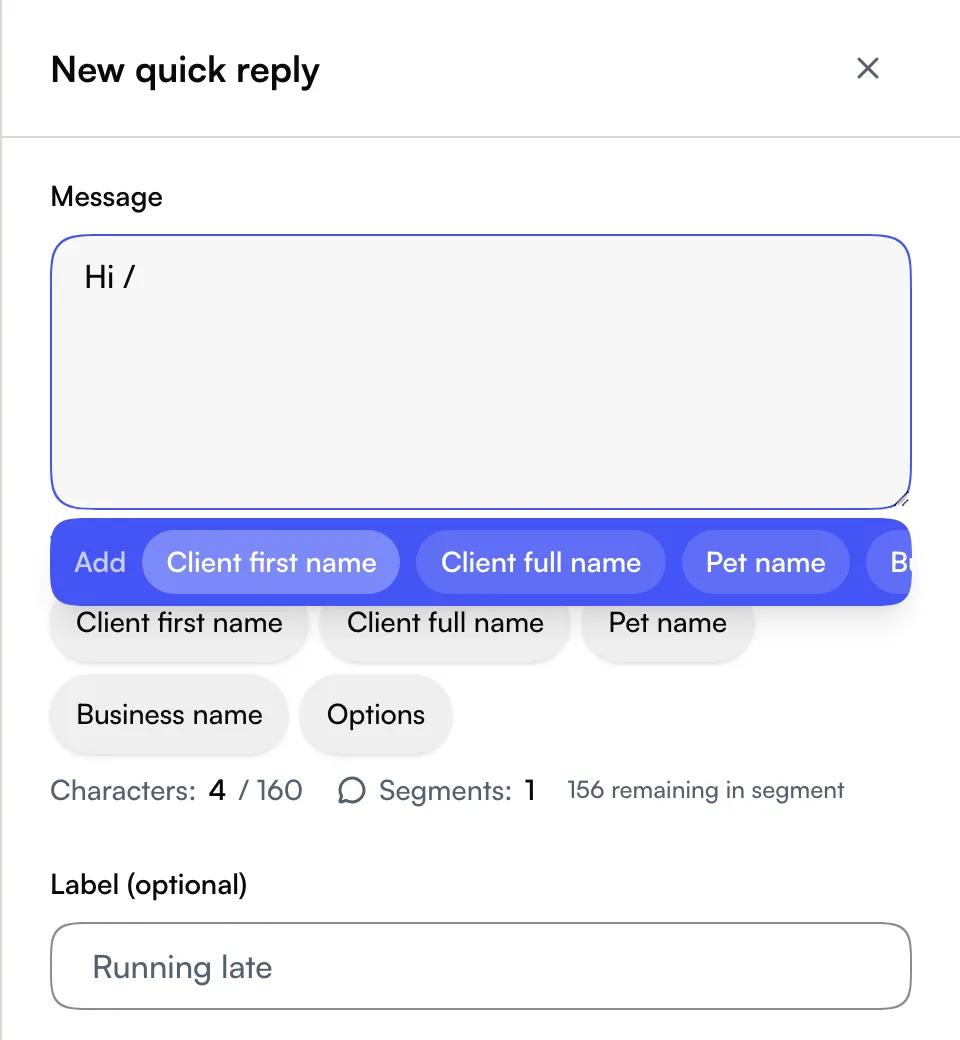
To remove one, open it and click Delete. It disappears for everyone straight away.
Add or edit a quick reply (Seglo Phone app)
- Open More → Message settings → Quick replies.
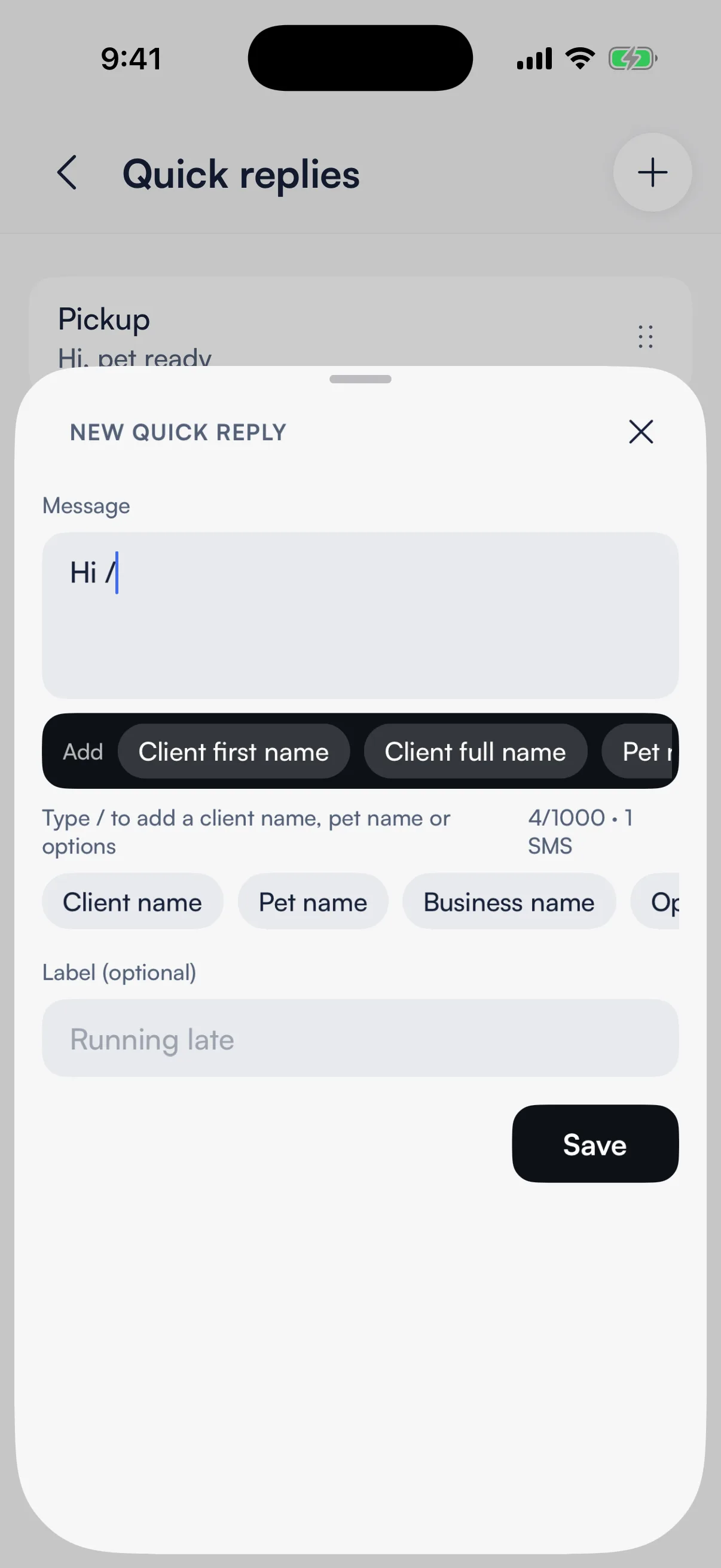
- Tap Add quick reply, or tap a reply to change it. The editor opens as a sheet.
- Fill in the Message and, if you like, a Label, then tap Save.
You can also add a new reply from inside a conversation: open the quick replies picker and tap Add quick reply at the top.
Fill in names and choices automatically
Type / in the message (at the start, or after a space) to insert something that changes per customer:
- Client first name, Client full name, Pet name or Business name. When someone inserts the reply, Seglo puts the real name in. A client with two dogs gets both names, such as "Bella and Max". If Seglo doesn't know the name, it writes "there" or "your pet" instead.
- Options: a short list to pick from, for example "10 minutes / 20 minutes / 30 minutes". You can add up to 12 options, and options can't contain
/,[or]. Option sets you've used recently are offered again.
This works in the quick reply editor on web and in the Phone app. Typing / in a conversation's message box doesn't open quick replies.
Change the order
Drag a reply to move it up or down. The web app has a drag handle on each row; in the Phone app, hold a reply and drag it. Put the replies your team uses most at the top, since everyone's picker uses the same order.
Use a quick reply in a conversation
Open a customer conversation and tap the lightning-bolt icon next to the message box. It's there in all three apps: the web app, the Seglo appointment app and the Seglo Phone app. Tap a reply and its text goes into the message box with names filled in. It never sends by itself, so you can change a word before you press send.
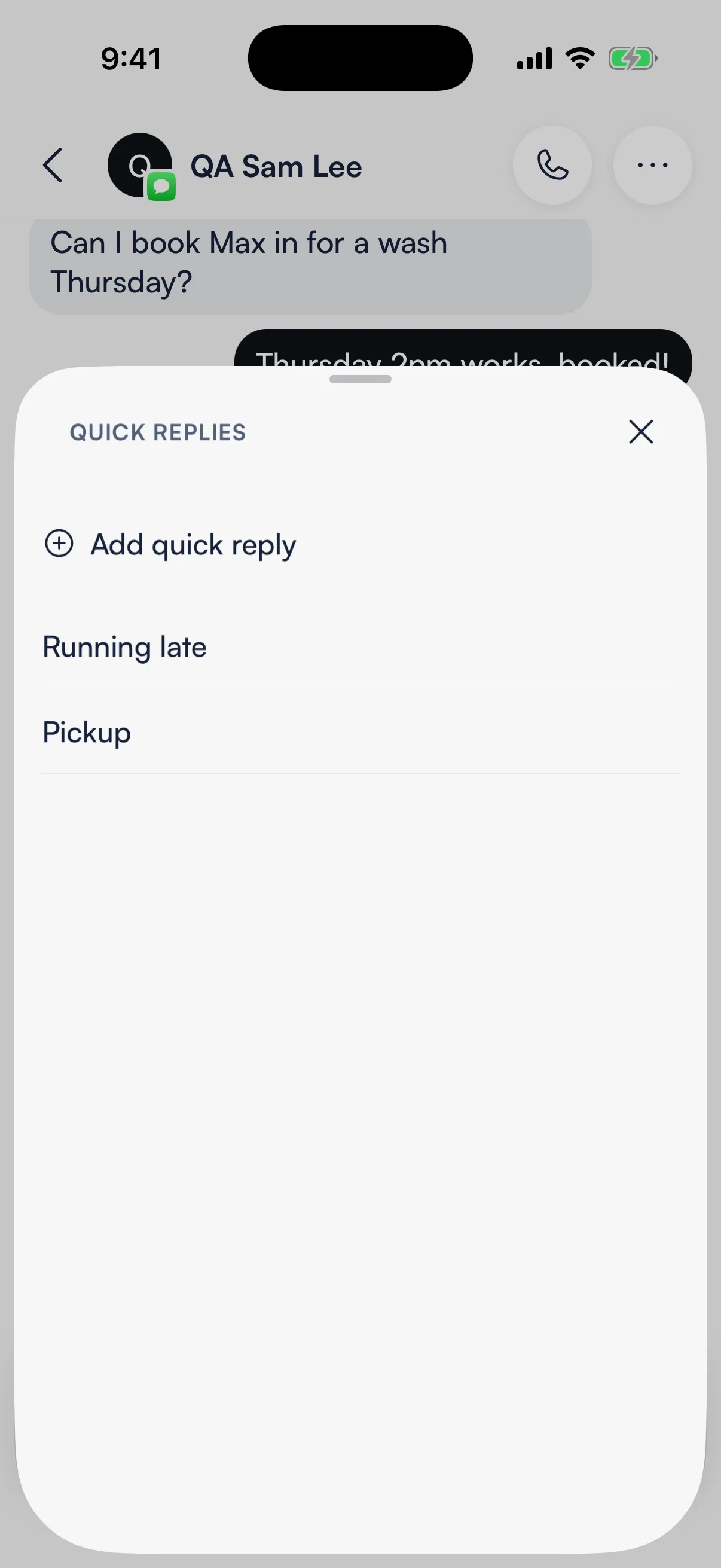
What happens to text you'd already typed depends on the app:
- Web app: the reply is added after what you'd written.
- Seglo Phone app: the reply replaces what was in the message box, so send or copy your draft first.
A reply with options goes in with the first option chosen. In the web app and the Phone app, a bar above the message box lets you swap it for another option. In the Phone app you can also tap Other and type your own.
In the web app, the lightning bolt only appears once your business has at least one quick reply. In the Phone app, an empty picker tells people who can't edit the list to ask their manager to add some.
Tips
- Read it before you send. A name fallback like "Hi there" reads fine, but check that the options make sense for this customer.
- Instagram has a shorter limit. An Instagram message can be at most 1000 bytes, so very long replies may need trimming. See Instagram messages.
- No private replies. Every quick reply is visible to the whole team.
Related
- Messages and Calls: where your team reads and replies to customers.
- Team inbox: who looks after each conversation.
- Phone numbers and routing: the number text replies are sent from.
Related