Instagram messages
Connect your shop's Instagram account and answer Instagram DMs in Seglo Messages, next to your texts, on web, the appointment app and the Phone app.
Updated 2 October 2026
Customers ask about bookings in your Instagram DMs as well as by text. Connect your shop's Instagram account and those DMs land in Seglo Messages, in the same list as your texts, so the team answers them in one place.
Open in app: Messaging channels
Connect Instagram (web app)
You connect Instagram on the web app only. The appointment app and the Phone app have no setting for it. You need permission to change settings.
- Open Settings → Messaging channels (in the Your shop section).
- Under Instagram, choose the Shop the account belongs to. If you have no shop set up yet, add one first.
- Click Connect Instagram. Seglo sends you to Instagram to sign in and approve access.
- Back in Seglo you'll see Connected. The account's @username is listed with its shop.
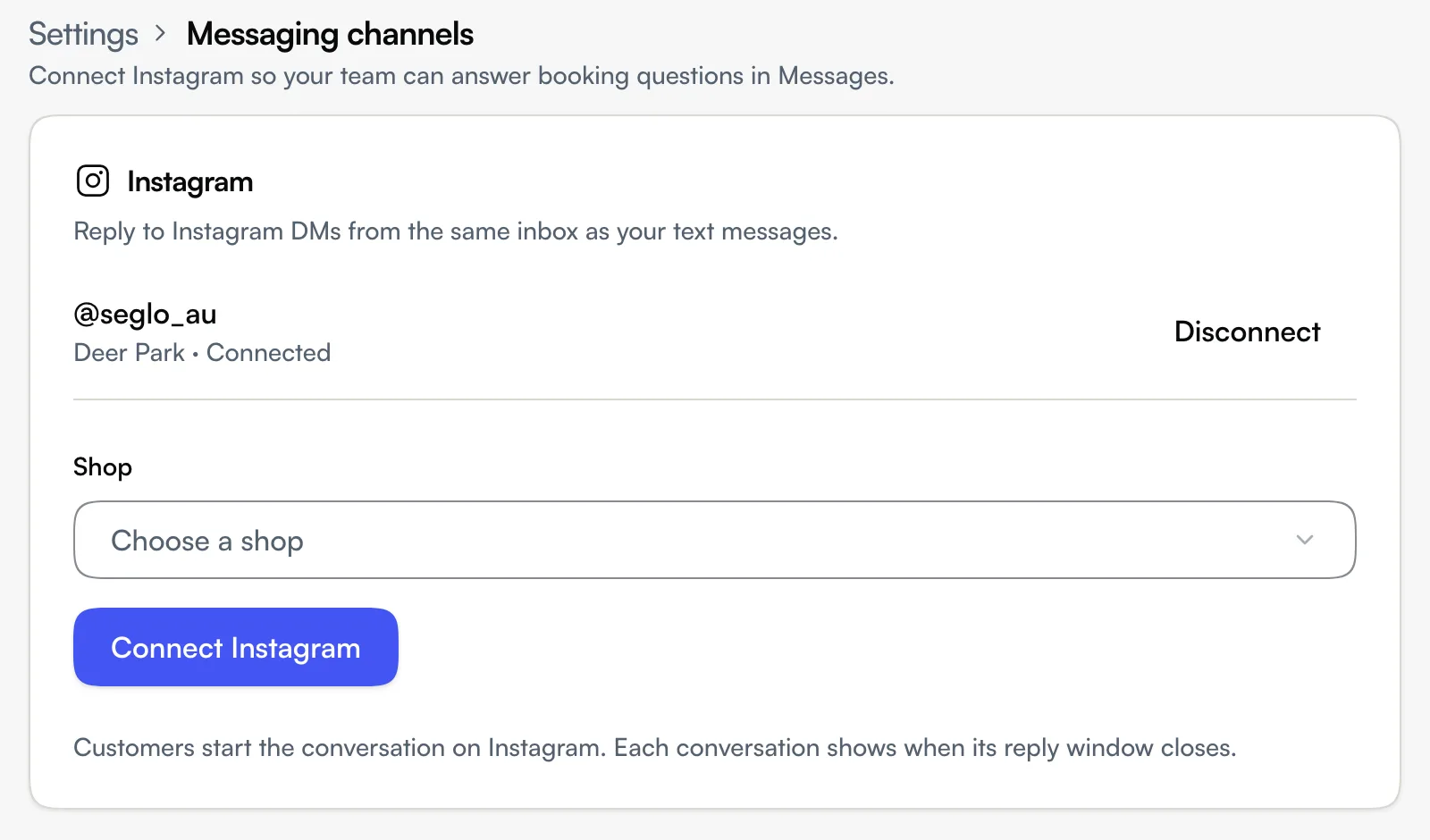
Each connected account belongs to one shop. If a connection shows Connection expired or Disconnected, click Reconnect.
Connecting doesn't bring in old messages. Only DMs that arrive from now on show up in Seglo.
Reply to an Instagram DM
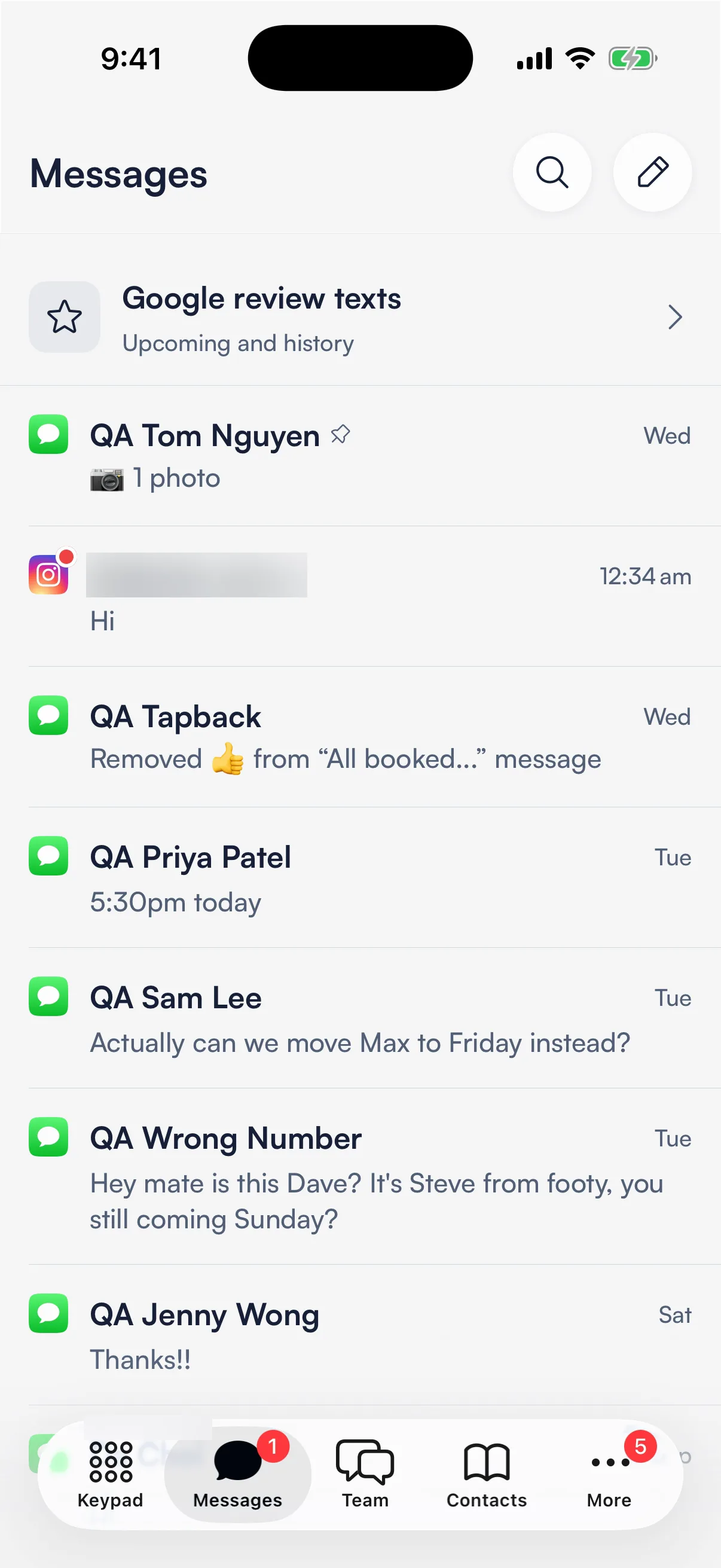
Instagram conversations sit in the normal Messages list, with an Instagram badge on the row instead of the SMS one. A red dot on the badge means it's unread.
- Web app: Messages in the left sidebar.
- Seglo appointment app: the Messages tab, Customers side.
- Seglo Phone app: the Messages tab.
Open the conversation and reply as you would to a text. The customer gets your reply in Instagram. Quick replies and team assignment work the same as for texts.
Know when you can still reply
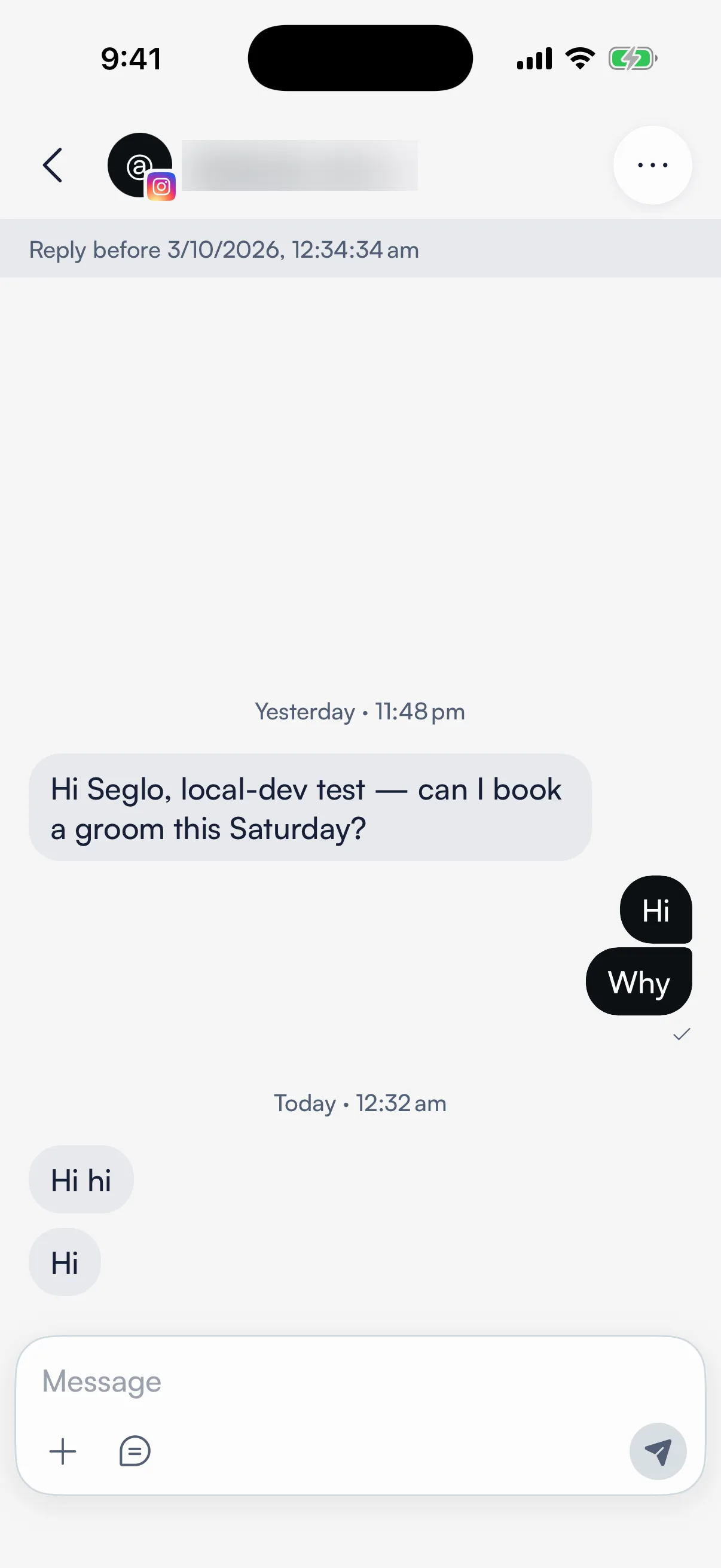
Instagram only lets a business reply for a while after the customer's last message. Inside that window, the conversation shows Reply before with the date and time. Once it closes, the conversation shows Reply window closed and you can't send. You can reply again when the customer sends a new message.
Seglo never messages a customer on Instagram by itself. Every Instagram reply is sent by a person on your team.
Send photos, video and files
You can send a photo, a video, an audio file or a PDF in an Instagram conversation:
- One attachment per message, and it can't share a message with text. Send the text separately.
- Photos up to 8 MB; video, audio and PDFs up to 25 MB.
- Text up to 1000 bytes per message. A counter appears as you get close. Emoji and accented letters use more than one byte each.
Photos, voice messages and other files that customers send you show up in the conversation.
Disconnect Instagram
In Settings → Messaging channels, click Disconnect on the account and confirm. New DMs stop arriving and you can't reply from Seglo. Earlier conversations stay in Messages.
Tips
- "Delivery unconfirmed — check Instagram before sending again." Seglo couldn't confirm Instagram received your reply. Check the chat in Instagram before you send it again, or the customer may get it twice.
- Replies you send from the Instagram app itself don't appear in Seglo. Reply from Seglo so the team can see the whole conversation.
- Customers have to message first. You can't start a new Instagram conversation from Seglo.
Related
- Messages and Calls: the inbox your Instagram DMs land in.
- Team inbox: choose who looks after each conversation.
- Quick replies: ready-made answers for common questions.
Related