Xero payroll sync
Send your team to Xero once, accept the matches Seglo suggests, and stop a pay run failing on a missing field or mismatched calendar.
Updated 9 October 2026
Your hours live in Seglo but your pay run happens in Xero — this page keeps the two in step so the run picks up the right people, rates and pay period without you re-typing anything. You line up your pay types once, send each team member across, and decide whether Xero or Seglo owns your pay schedule.
You do all of it at Pay → Integrations → Payroll. The page is titled Xero Payroll and splits into three tabs: Pay schedule source, Pay Types, and Employees.
Open in app: Xero Payroll
Get set up without guessing the order
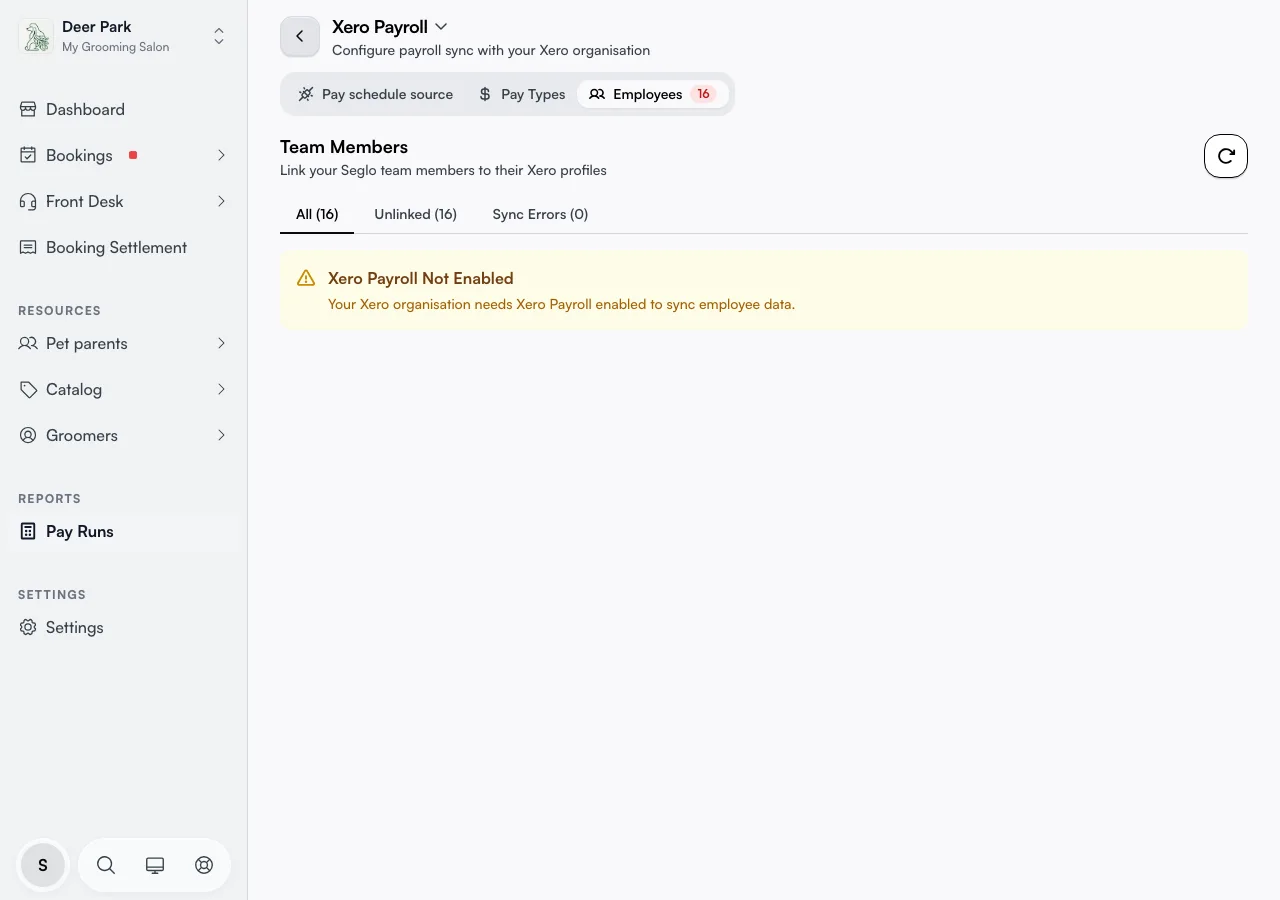
Two things have to be true before any of the tabs do anything. Xero must be connected (see Xero integration), and your Xero organisation must have Xero Payroll switched on — if it doesn't, the Pay Types and Employees tabs show a Xero Payroll Not Enabled notice and you turn payroll on inside Xero first.
If you'd rather be walked through it, the page header has four short guides — open them from the title: Integration setup guide (the 3-step path), Pay types deep dive, Pay schedule source, and First-time payroll setup in Xero (the setup order plus the four errors you hit if you skip a step). The clean order is: pay schedule source first, then pay types, then employees, then finish each new person inside Xero.
Choose who owns your pay schedule
Open the Pay schedule source tab and pick one of two cards:
- Managed by Xero (recommended) — Seglo mirrors your Xero payroll calendar. Choose the calendar once and your frequency, week start, and payday stay in step automatically. While this is on, those fields are read-only in Seglo.
- Managed in Seglo — you set the schedule yourself in Pay Schedule Settings and keep Xero's calendar matching by hand.
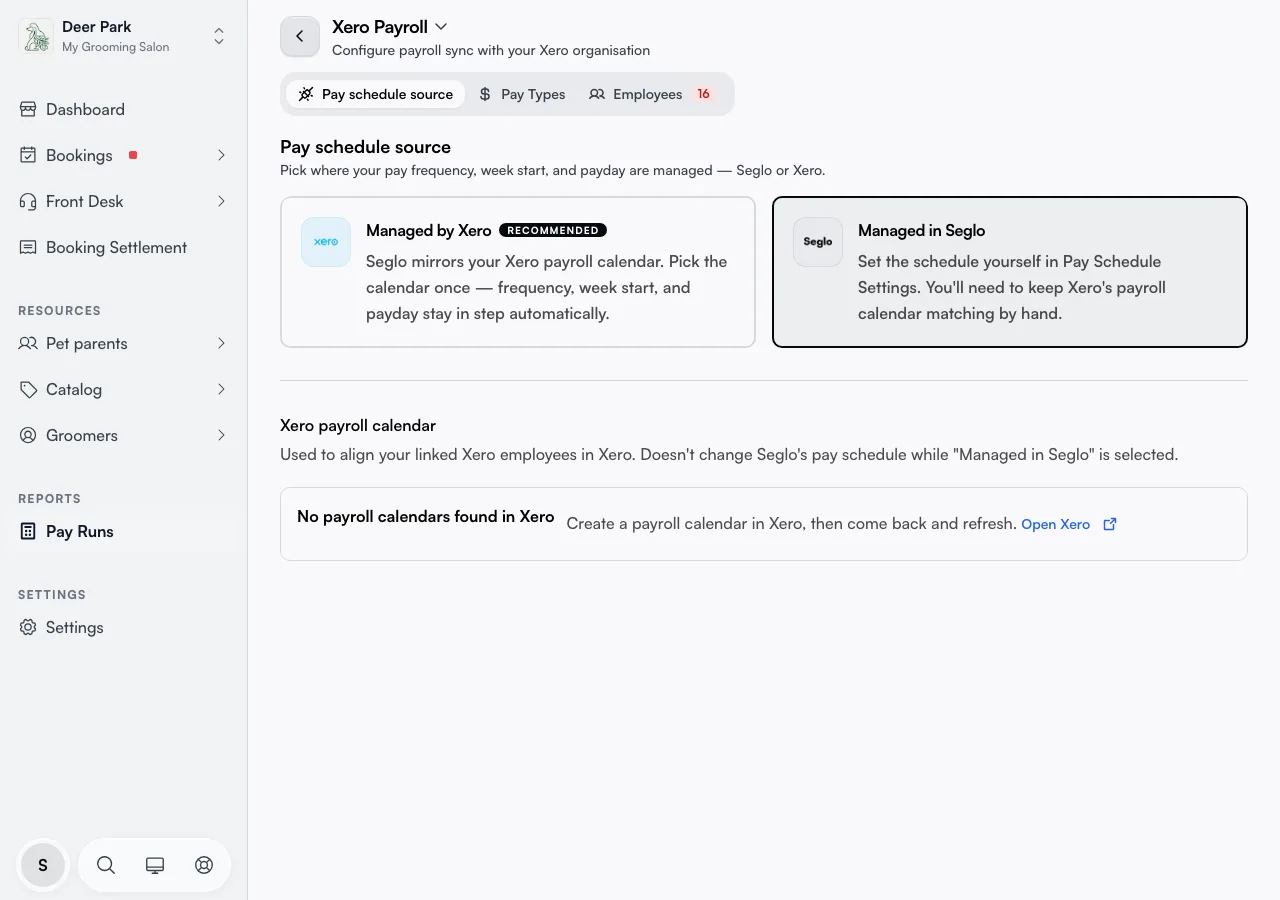
Pick your Xero calendar from the dropdown. Supported types are Weekly, Fortnightly, Twice monthly, and Monthly — anything else (Four-weekly, Quarterly) is flagged Unsupported right in the list and can't be used to hand the schedule to Xero. Choosing the mode and the calendar are both drafts: nothing saves until you click Save Changes, so you can line both up and apply them together. If the Save button stays greyed out, the panel tells you why — usually no calendar picked, or an unsupported frequency.
Watch the start day, not just the frequency. A Weekly-Wednesday Xero calendar will not stand in for a Seglo Weekly-Sunday schedule even though both are "weekly" — the day has to match too.
See exactly what will change before you switch
Before you hand the schedule to Xero, the panel shows a side-by-side preview: your current Seglo frequency, week start and payday against what Xero will set. If the two differ, you get a Schedules don't match warning with the diff spelled out, plus a shortcut to edit the Seglo schedule instead. Nothing is applied until you confirm, so the Save button never acts blind.
The first time you land here with a schedule that differs from Xero, Seglo pops a one-time recommendation asking whether to hand the schedule over to Xero or keep managing it yourself. It only ever appears once per business — dismiss it and it won't nag you again.
Map your pay types once
Open the Pay Types tab to line up Seglo's pay categories (Ordinary Hours, Overtime, and so on) with your Xero earnings rates, then click Edit Mappings.
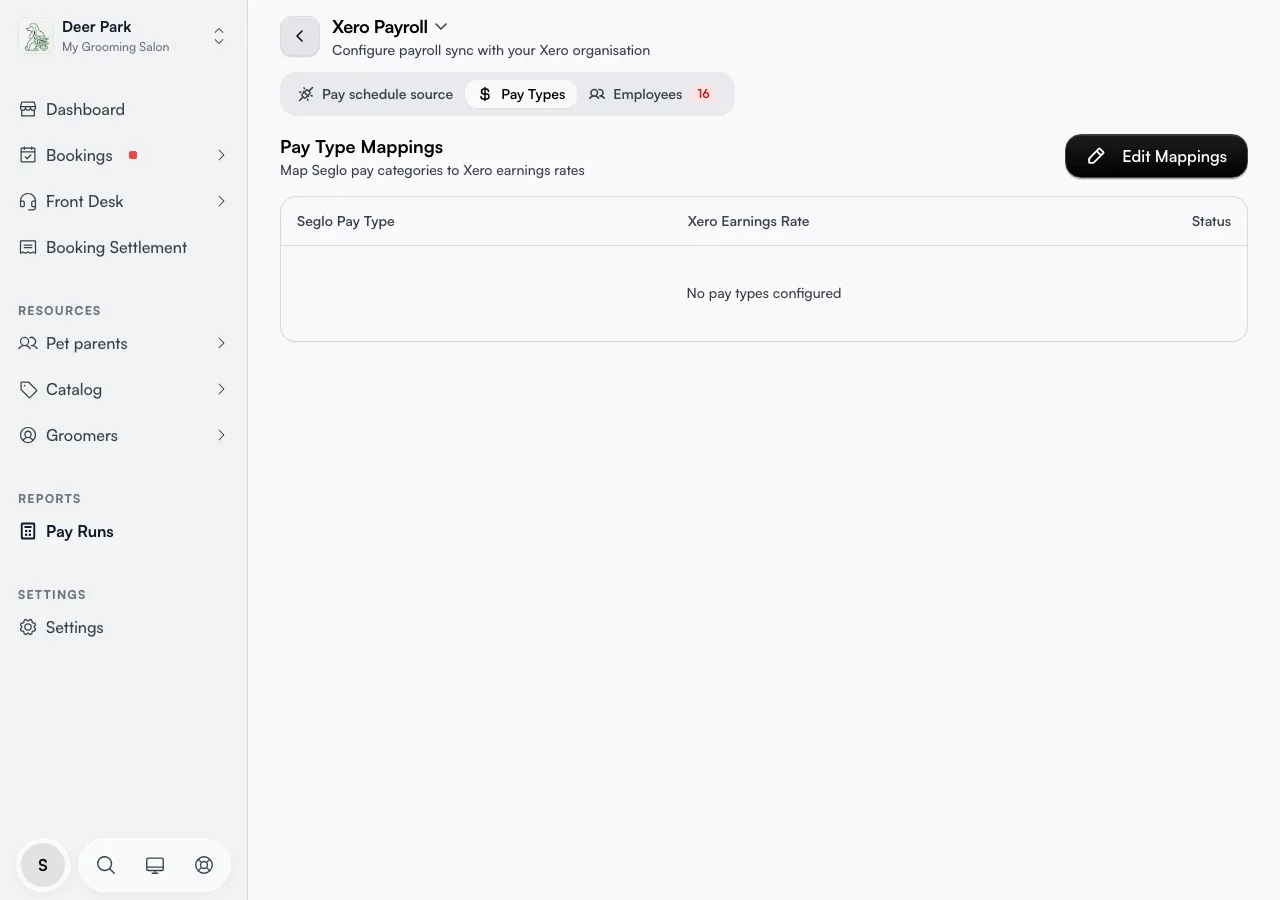
Seglo auto-matches your categories to Xero rates by name and shows an Auto-Matching Applied banner — you just review and adjust. Each row carries a status: Saved (stored), Unsaved (matched but not committed — auto-matches start here), or Not Set. Auto-matched rows are unsaved until you press Save Mappings, so don't assume a green-looking match is locked in.
Product commission has its own row. Map it to a separate Xero earnings rate, or leave it on Pay with Commission to add it to your Commission line. See product commission.
A pay run can't sync until your regular pay type is mapped, so don't skip this. If Xero has no earnings rates yet, the drawer tells you to create them in Xero first (Settings → Payroll Settings → Pay Items) and refresh.
Send a team member to Xero
Open the Employees tab. It lists every Seglo team member, with filters for All, Unlinked, and Sync Errors so you can work through whoever still needs attention. The Employees tab itself carries a red count badge showing how many people need action.
Seglo does the matching for you where it can. If it finds a Xero employee with the same email or name, that person shows as a Suggested match — click Accept to link them in one tap, or pick a different Xero employee from the dropdown to override. For anyone with no match, click Push to create them in Xero fresh.
When you Push, a confirmation dialog shows everything Seglo will write before anything reaches Xero — name, email, mobile, address, date of birth, the payroll calendar, an employee number tagged SEGLO-<id> (only if that field is blank in Xero), and one earnings line on their Pay Template. You choose which Ordinary earnings rate that line uses; if Xero has no rate literally named "Ordinary Hours", Seglo warns you and asks you to pick the right one rather than guessing.
Catch the things that would fail a pay run
This page flags problems before Xero rejects them, which is the part most owners miss.
- Missing details. If a team member is missing a field Xero requires (date of birth, address, and so on), the row shows a Missing: chip listing exactly which, and the Push button is blocked with a Complete profile shortcut straight to their profile. No email at all means no Push, because matching relies on it.
- Calendar move warning. When the suggested Xero employee sits on a different calendar than your selected one, the row warns Will move from "X" to "Y" before you act — Xero blocks calendar moves during an active pay run, so this is your heads-up to do it between runs.
- Name mismatch. A linked person whose Seglo and Xero names don't line up gets an amber warning icon so you can double-check it's really the same person.
- Sync errors filter. The Sync Errors filter collects linked people whose Xero calendar doesn't match your pay schedule. From there an Open Xero button jumps you straight to the Xero employee page to fix it. The refresh button re-pulls everything from Xero on demand.
Linked someone by mistake? Unlink on the row removes the connection in Seglo without touching the Xero record.
Spot Xero people who aren't in Seglo
At the bottom of the All view, a Xero employees not in Seglo section lists anyone who exists in Xero but has no matching Seglo team member. They're not a problem on their own — add them in Seglo if they should be paid through here, or ignore them.
Finish each new employee inside Xero
Before the ATO will accept a pay run for someone you just pushed, you set these up in Xero yourself, because they're tax and legal declarations Seglo doesn't hold the data for:
- Super membership / fund.
- Allowances and deductions — anything beyond Ordinary Hours.
- Leave balances and accruals.
- Tax declaration / TFN.
- STP2 details — Income Type and Tax Treatment Code. Xero prompts you to complete these on the new employee, and they're required before any pay run can be lodged.
- Bank account — for direct deposit.
Tips
- Auto-matches aren't saved until you save them. A green-looking pay-type match still shows Unsaved until you press Save Mappings — easy to walk away mid-setup and lose it.
- "Pay Template must contain at least one earnings line" on a sync means that employee's Pay Template is missing its Ordinary Hours line — the sync issue card has a one-click button to add it.
- Move people between calendars between pay runs, not during one. The Will move warning is telling you Xero will reject the change mid-run.
- A Calendar mismatch detected notice means a linked person sits on a different Xero calendar than your Seglo schedule — fix their calendar in Xero, then refresh here.
Related
- Xero integration — the connection these features build on.
- Xero payment sync — where pay-run sync results appear.
- Staff timesheet — the hours that feed a pay run.
Related