Xero sync timing and clearing accounts
Stop chasing payments that are simply on their way — control when sales reach Xero, what each line says, and why a clearing account never reads zero.
Updated 19 July 2026
When you take a payment in Seglo it reaches Xero on its own, with no double entry — so the real question is never "did it sync?" but "when, and as what?" This page is for the moment a payment looks missing, a clearing account won't zero out, or you want to shape exactly how the day lands in your books before your bookkeeper ever opens Xero.
Open in app: Invoice Sync Settings · Xero Sync
You need Xero connected and your payment methods mapped to bank accounts first — see Xero integration for the connection and Xero invoice settings for which payment methods generate invoices.
Know when a payment will actually appear
A paid appointment doesn't always land in Xero the instant you mark it paid — and knowing which way your business is set up stops the false "it's missing" panic.
Per-appointment. Each paid appointment becomes its own invoice and payment in Xero within seconds. This is a legacy mode — new connections no longer start here.
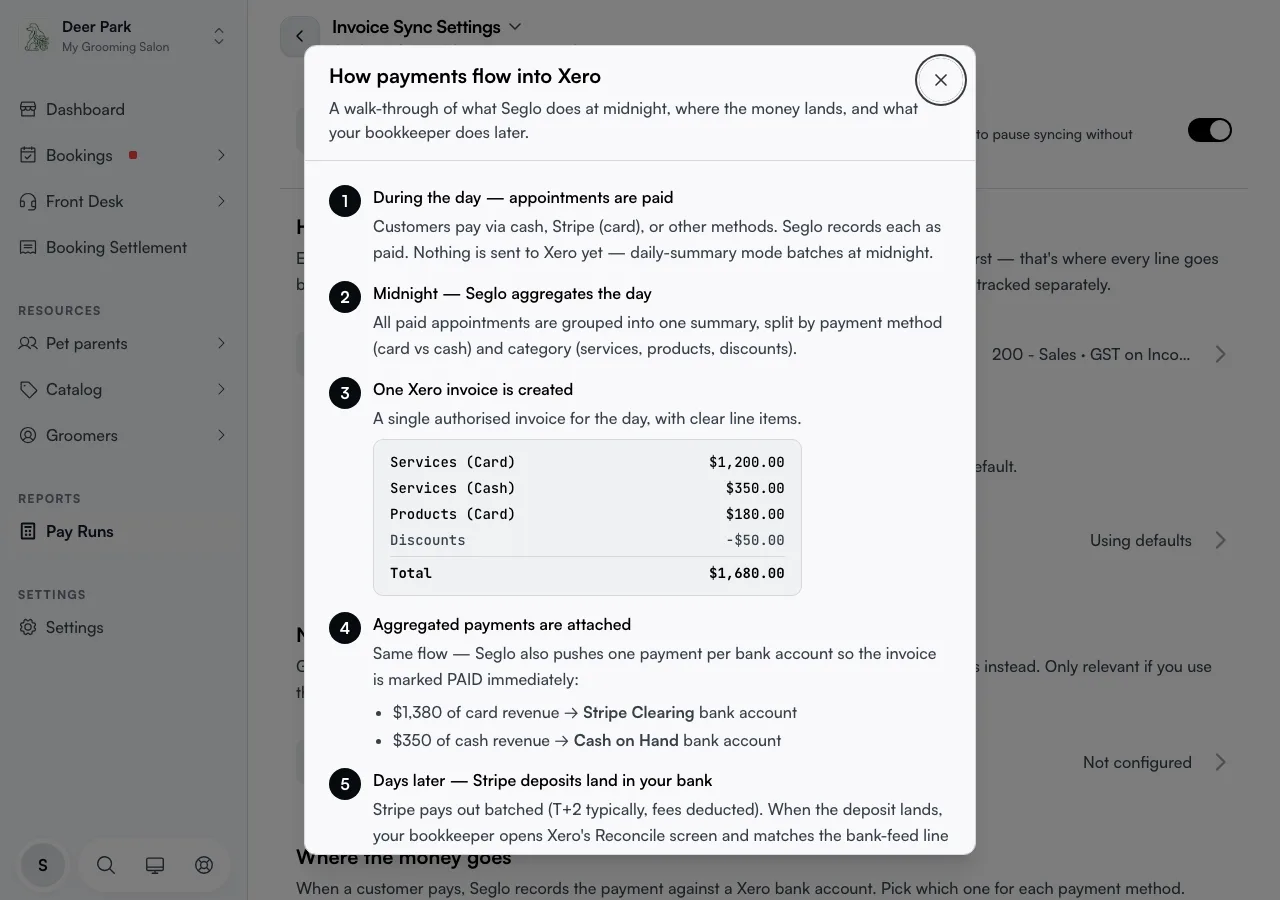
Daily-summary. Seglo holds the day's sales until just after midnight in your business timezone, then posts a single invoice for the whole day — lines grouped by category and payment method. This is the default every new Xero connection starts on. Your ledger stays clean (one line per category, not hundreds of tiny invoices) and reconciliation becomes a single match against the bank deposit.
 You mark an appointment paid
        │
        ├── Per-appointment ──► invoice + payment in Xero ── within seconds
        │
        └── Daily-summary ─────► held until midnight ──► one combined daily
                                  (business timezone)     invoice for Xero
To watch the daily-summary flow with a worked example, open Pay → Integrations → Invoice Sync Settings, click the page title, and choose How payments flow into Xero.
Find out why a payment looks late
If a payment hasn't reached Xero after a few minutes, open Pay → Integrations → Xero Sync. The History tab lists every sync attempt; the Issues tab — which carries a red count badge when something needs you — shows only what's stuck. On the Issues tab, each stuck daily summary lists the Reason it failed alongside a Retry button.
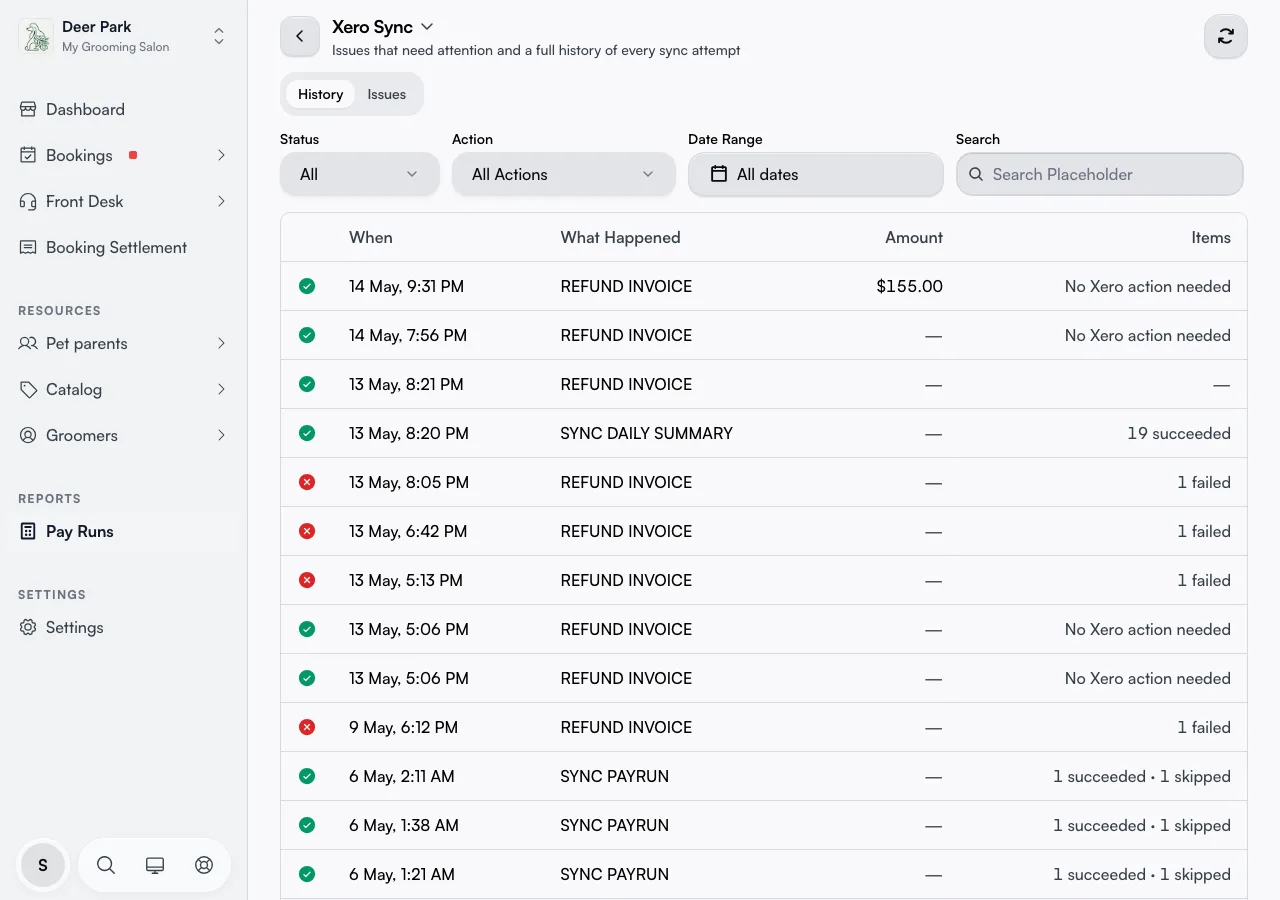
You rarely have to do anything. Seglo retries quietly in the background and re-sends whatever the first attempt missed. Lose the connection for a whole day and those appointments are swept into the next successful run — the gap closes itself once Xero is reachable. The most common stuck cause is an expired connection: if a red banner sits at the top of the page, click Reconnect Xero and the held items retry on the next run.
Understand why a clearing account never reads zero
A clearing account is a holding account in Xero for money you've recorded in Seglo that hasn't yet reached your real operating bank. A card payment taps at 2pm, but the processor's deposit arrives a day or two later as one net amount. In between, the clearing account holds the money the processor owes you — and trends back to zero once the deposit lands. That gap is normal, not a missing payment.
Each payment method maps to its own clearing or bank account:
- Stripe Clearing, Zeller Clearing, Tyro, and Square Clearing — created by each processor's own Xero app.
- Cash on Hand and Bank Transfer Clearing — Seglo can create these for you during setup.
Seglo posts each customer payment to the right account so your customer ledger is correct. It does not replace the processor's bank-feed reconciliation — matching a processor deposit against its clearing account stays your bookkeeper's normal workflow. To map a method, open Invoice Sync Settings and use the Bank account per payment method row.
Pause syncing without disconnecting Xero
When you need to stop pushing to Xero for a while — closing the books, switching accountants — you don't have to disconnect. Open Invoice Sync Settings and turn off the Sync to Xero switch at the top. Your connection stays intact and nothing else on the page changes; daily summaries simply stop posting until you turn it back on, at which point unsynced appointments catch up on the next nightly run.
Because silently switching this off is the kind of thing that has a bookkeeper calling a week later, Seglo asks you to confirm before it pauses — there's a short confirmation step on the way off, none on the way back on.
Control what each invoice line says
The same money can be filed many ways, and these controls — all under Invoice Sync Settings, each saved on its own — decide how cleanly it reads in Xero. The whole section greys out while Sync to Xero is off.
- Default income account — required; every invoice line posts here unless you override it.
- Override per sales type — optional. Send service sales, product sales, and discounts to separate income accounts only if your accountant tracks them apart.
- Invoice prefix — prepended to every Xero invoice number (up to 10 characters), so a typed
SEG-producesSEG-001. Leave blank for none; a live preview shows the result as you type. - Invoice due date — how many days after the invoice date payment is due. Presets cover same day, 7, 14, and 30, or type any value from 0 to 365.
Keep gift cards, deposits, and refunds out of your revenue
Money you owe a customer is not a sale, and posting it as one quietly inflates your income. Open the Gift cards, deposits & refunds row in Invoice Sync Settings to map these to the right account types — it only matters if you use these features.
- Gift card liability — where a gift-card purchase posts as an IOU rather than revenue. Required if you sell gift cards — without it, every new gift-card purchase is flagged as needing attention in Xero.
- Deposit liability — the parallel holding account for booking deposits.
- Refund tracking — an optional dedicated account for refund credit notes. Leave it blank and refunds inherit the original sale's account.
Each has a Use recommended button that creates a correctly-typed account in Xero for you — and if an account with that name already exists, it links to that one instead of making a duplicate.
Choose which payments reach Xero at all
Open the Payment Methods row in Invoice Sync Settings to decide which payment types are included in the sync: Cash, Card (In-Person), and Online Payment. Untick one and those sales are simply left out — handy if, say, cash is reconciled by hand elsewhere. Card (In-Person) covers both POS-terminal and mobile-tap payments under the one tick, so you don't have to chase legacy labels.
The neighbouring Skip $0 Invoices toggle (on by default) keeps zero-total appointments — fully comped or fully gift-card-covered — out of Xero, so your ledger isn't littered with empty invoices.
Refund a payment and know where it lands
A refund reaches Xero one of two ways depending on timing, and knowing which keeps you from hunting for a credit note that was never meant to exist. Open Xero Sync, click the page title, and choose How refunds flow into Xero for the full walkthrough.
- Same-day, before that night's summary — Seglo just ships a smaller daily invoice, net of the refund, and creates no credit note. A partial refund still contributes the un-refunded portion (refund $30 of a $100 sale and $70 lands in the day's invoice). On the History tab the row reads No Xero action needed — that's Seglo confirming the clean path.
- Prior-day, after the summary shipped — that day's invoice is already authorised and locked in Xero, so Seglo posts a credit note against it. Your bookkeeper sees both the original and the credit note, and the net is correct.
Tips
- Xero shows an appointment as unpaid? The bank-account mapping for that payment method is most likely unset. Check it in Invoice Sync Settings.
- A clearing account that never zeros is the processor's app's job, not Seglo's. Make sure the official Stripe, Zeller, Tyro, or Square app is installed in Xero.
- Daily summaries follow the money, not the calendar. A customer who pays today for a future appointment puts that revenue in today's invoice.
- Once a day is synced, edit it in Xero, not Seglo. Seglo won't rewrite an authorised invoice, so correcting a past day means editing the Xero invoice directly to keep both records in step.
- Gift cards flagged as needing attention? Set the gift-card liability account — that flag is Seglo telling you the IOU has nowhere to post.
Related
- Xero integration — connection and clearing-account setup.
- Xero payment sync — monitoring and retrying syncs.
- Xero invoice settings — choosing which payment methods generate invoices.
Related