Xero integration
Get your day's sales and pay runs into Xero on their own — connect once, control how every line posts, and fix anything that didn't sync.
Updated 19 July 2026
Stop re-keying every sale into your accounts. Once you connect Xero, Seglo rolls each day's paid appointments into your books on its own — and gives you the controls to decide exactly which account every line lands in, so the numbers are right before your bookkeeper looks.
Open in app: Integrations
Connect Xero to your books
Before you start, you need a Xero account with admin access to the organisation you want to connect, and a plan that includes Xero sync. If you don't see a Connect to Xero button, your plan doesn't cover it yet.
- Open Pay → Integrations and click Connect to Xero.
- Sign in to Xero and approve the access Seglo asks for — reading and writing invoices, payments, and contacts, plus a small accounting-settings permission used only to set up holding accounts for you. You can revoke this from inside Xero at any time.
- If your Xero login reaches more than one organisation, Seglo asks which one to connect. See Selecting a Xero organisation.
If you take card payments through Stripe or Zeller, install that processor's official Xero app first (search "Stripe" or "Zeller" in the Xero app store). Setup then detects the holding account it created and suggests it for you. For Cash and Bank transfer, Seglo can create those holding accounts itself during setup.
Finish the three-step setup
After Xero is authorised, a short three-step setup opens. The numbered steps across the top are clickable — once you've passed a step you can jump back to any earlier one to change it.
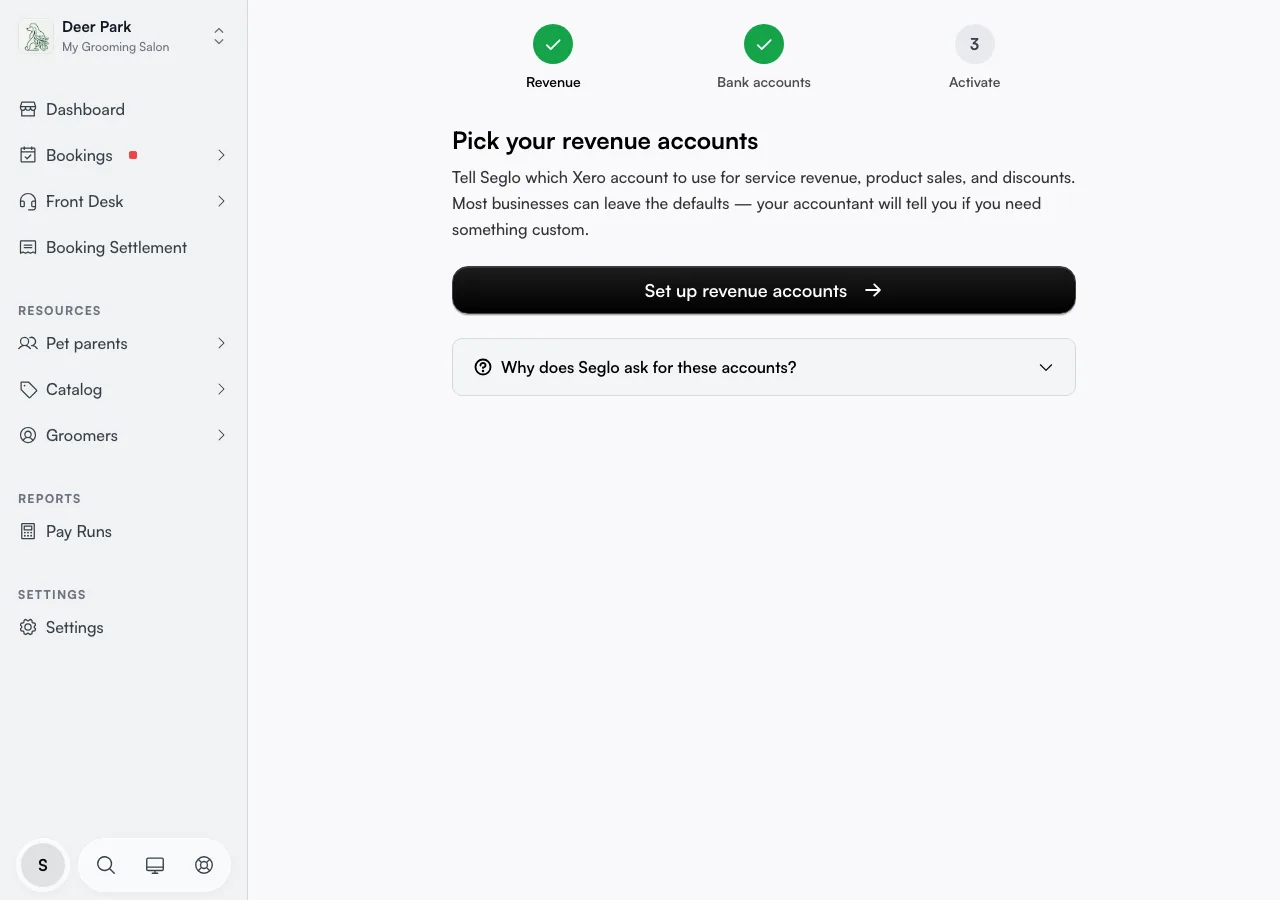
- Revenue — tell Seglo which Xero income accounts to use for service revenue, product sales, and discounts. Most businesses keep the defaults.
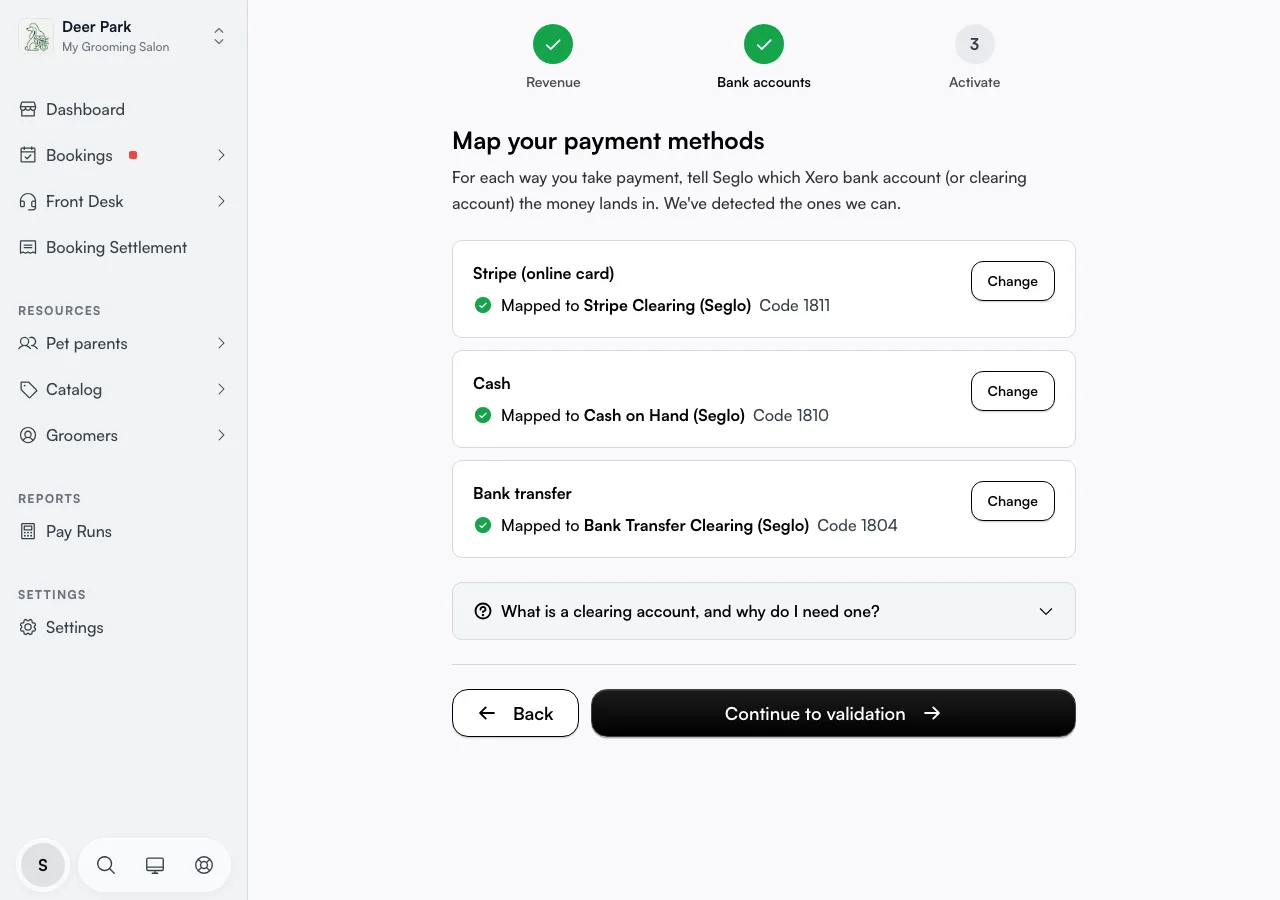
- Bank accounts — for each way you take payment, choose the Xero account the money lands in. You can't continue until every required method is mapped.
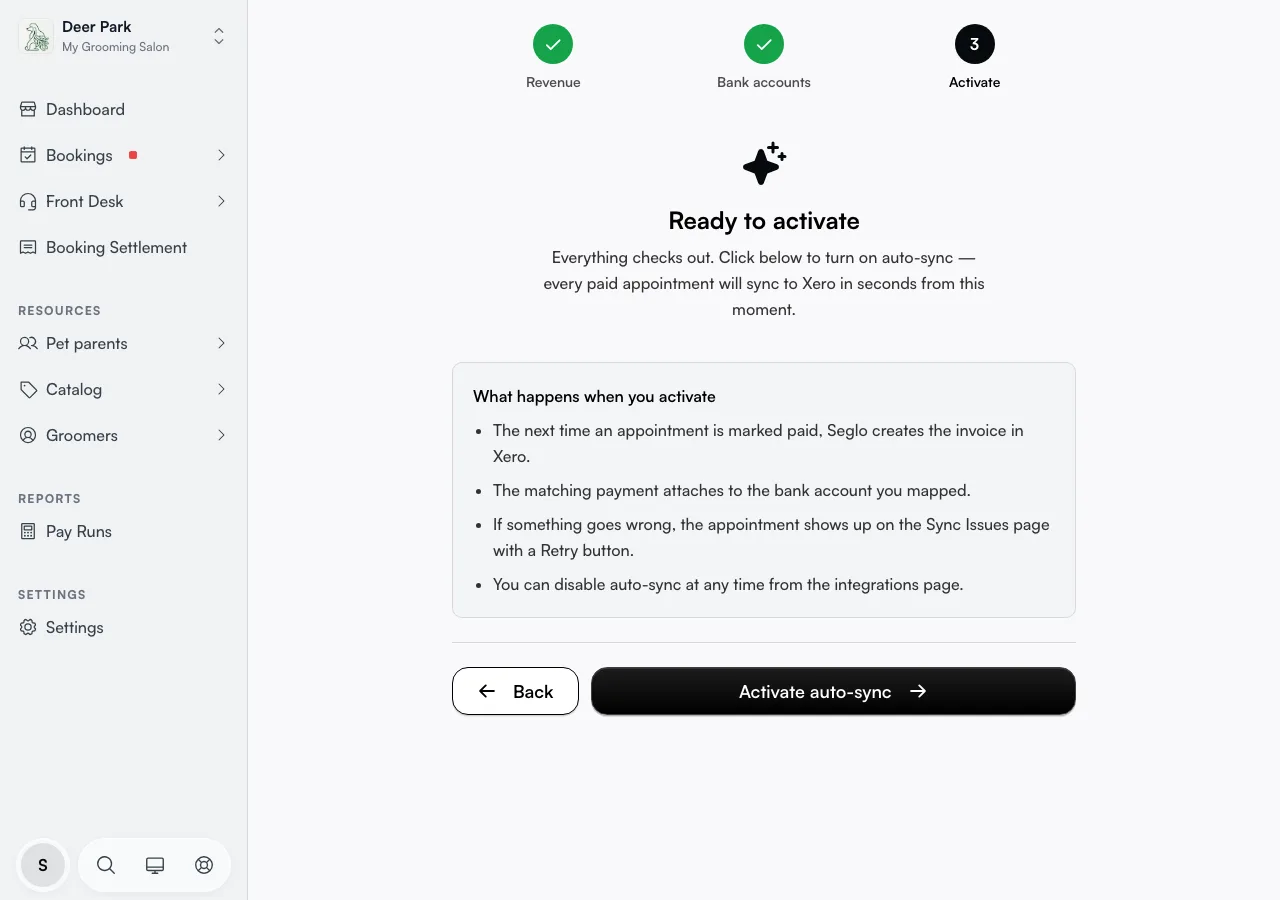
- Activate — Seglo runs a quiet check that confirms every account you mapped still exists and is active in Xero, without sending anything. If a check fails (someone archived an account, say), fix it in Xero and step back. When everything passes, click Activate auto-sync.
There's no "send a test invoice" button on purpose: once Xero records an invoice with a payment attached, it can't be voided cleanly. The Activate step is the safe dry run, and your first real paid appointment is the live test.
Understand what posts, and when
Seglo doesn't push one invoice per appointment. It batches: just after midnight in your business's timezone, every paid appointment from that day is rolled into one daily summary invoice, split by payment method (card vs cash) and category (services, products, discounts), with payments attached so it lands marked PAID. One clean line per category instead of hundreds of micro-invoices.
A few behaviours that surprise people:
- Daily summaries follow the money, not the calendar. If a customer pays today for a future appointment, that revenue lands in today's invoice — not on the appointment's date.
- Miss a night? Nothing is lost. Any unsynced paid appointments, whatever day they happened, are swept into the next successful nightly run.
- Once a day is synced, Seglo won't rewrite that Xero invoice. To correct a past day, edit the invoice directly in Xero so both records agree.
Control which account every line lands in
Open the Service Invoices card from the hub to reach Invoice Sync Settings. This is where the real control lives, and where you map far more than just income.
- Default income account is required — every line uses it unless you override.
- Override per sales type lets service sales, product sales, and discounts each post to a different account, if your accountant tracks them separately.
- Gift cards, deposits & refunds map to liability and contra-revenue accounts — money you owe a customer (a gift card sold, a deposit held) isn't a sale, and a refund reverses one. These only matter if you use those features.
- Bank account per payment method sets which Xero account each method's payment posts against.
Tune the invoice content and format
Lower down on the same page are the format controls most owners never open:
- Payment Methods — choose which methods are included in the daily summary at all. Leave one out and its sales stay off the Xero invoice.
- Invoice Prefix — text prepended to invoice numbers in Xero, so Seglo invoices are easy to spot.
- Invoice Due Date — how many days after the invoice date before it's due.
- Skip $0 Invoices — on by default, so a zero-total day doesn't post an empty invoice.
Pause syncing without disconnecting
You don't have to disconnect to stop posting. At the top of Invoice Sync Settings, turn Sync to Xero off. Because silently disabling sync is the kind of thing that has bookkeepers calling support a week later, Seglo asks you to confirm. Your connection stays intact, Seglo keeps recording appointments locally, and they catch up on the next nightly run once you switch it back on.
Send your pay runs to Xero too
The integration isn't only sales. Open the Pay card to map payroll, under three tabs:
- Pay schedule source — decide whether Xero or Seglo owns your pay schedule.
- Pay Types — map Seglo's pay categories to your Xero earnings rates.
- Employees — link each team member to their Xero employee record. Push a Seglo team member into Xero, or pull an existing Xero employee back.
The Pay card on the hub flags blockers directly — unmapped employees or a missing "regular" pay type — so you spot them before a pay run. When you send a period, Seglo creates a draft pay run in Xero; you review and post it inside Xero, which is where the tax submission happens. Watch for a calendar mismatch warning: a team member on a different Xero payroll calendar than your Seglo pay schedule needs their calendar updated in Xero first.
Fix anything that didn't sync
The Sync card opens a History tab (every sync attempt) and an Issues tab badged with how many need attention. Open any failed row to read exactly what Xero rejected; the most common cause is an expired connection, shown by a red banner — click Reconnect Xero and it retries on the next run.
Refunds are worth understanding here, because the same refund lands two ways:
- Refund the same day, before that night's summary, and Seglo quietly drops the refunded amount from the day's invoice — no credit note, nothing for your bookkeeper to reconcile. A partial refund just reduces that appointment's contribution.
- Refund a prior day, after the invoice already shipped and locked in Xero, and Seglo posts a credit note against it — the correct reversal, with both the original invoice and the credit note visible in Xero.
- Refund paid by gift card — when the appointment was paid (fully or partially) by gift card, the gift-card portion goes back onto the customer's card straight away; the balance is restored the moment you confirm the refund. In Xero this reverses the prepayment allocation that was applied to the invoice rather than creating a credit note, so the prepayment becomes available again. Mixed payments split proportionally: the card portion follows the rules above, the gift-card portion is restored to the card.
Switch organisations or disconnect
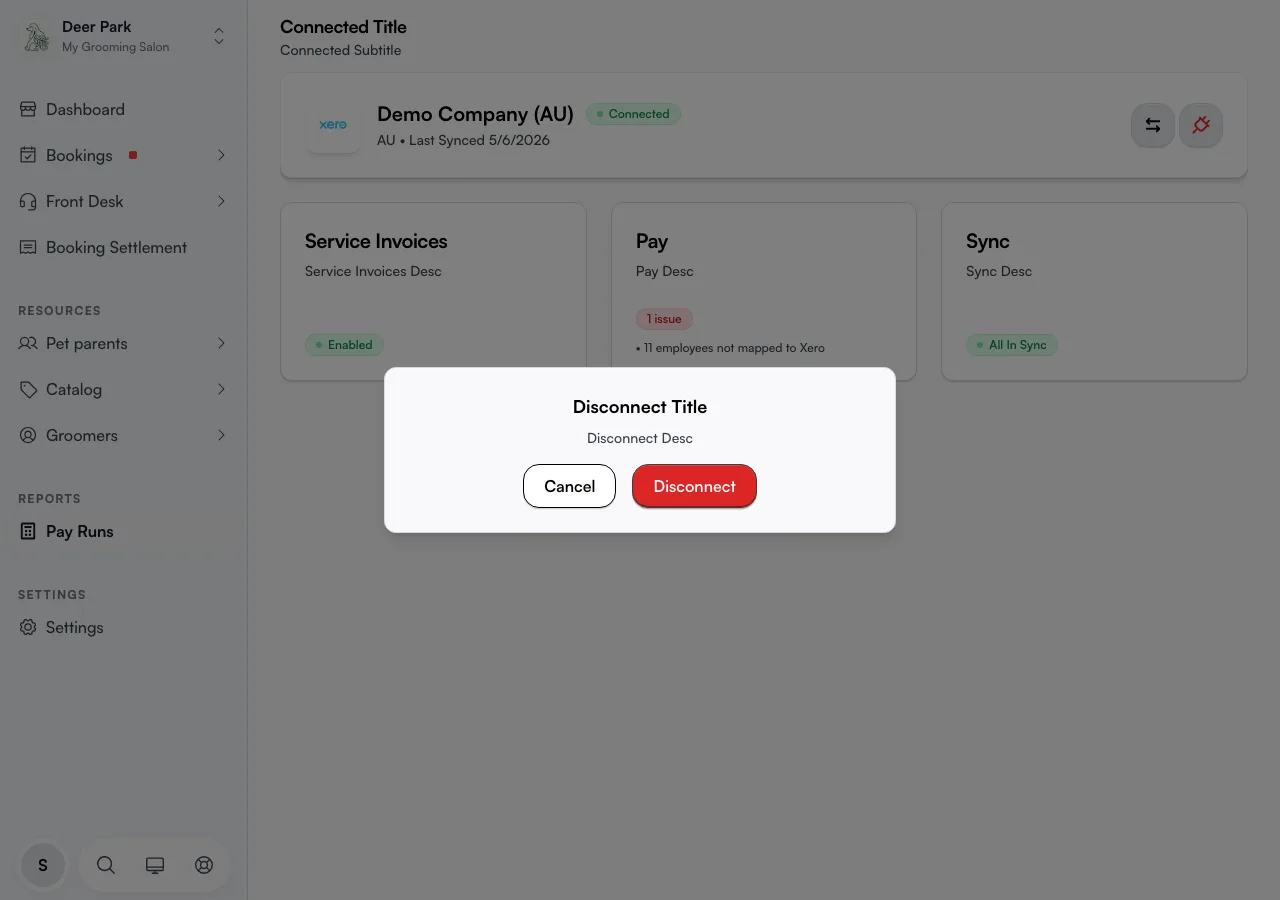
Once connected, the hub shows a status card with the Xero organisation name, region, and last sync time. Two buttons sit top-right:
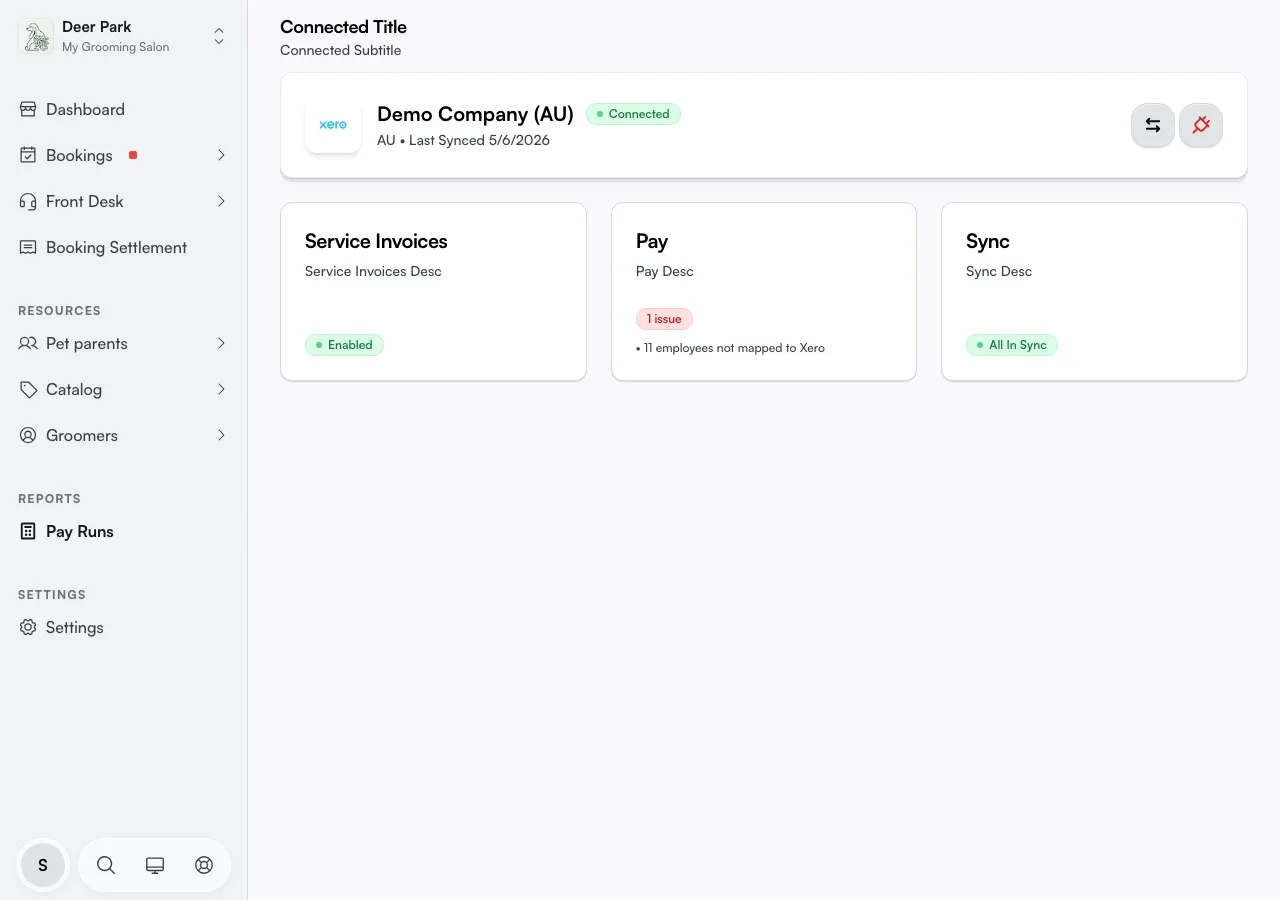
- Change account reconnects so you can pick a different Xero organisation.
- Disconnect ends the connection — syncing stops, but your existing Xero data is left untouched.
If your connection is about to expire, an amber banner offers Reconnect in place; if it has already expired, a red banner does the same. Reconnecting never loses your settings.
Tips
- Install the processor's Xero app before finishing setup. It posts the daily deposit and the processor's fees for you, so a holding account zeros out on its own. Without it, your bookkeeper matches each deposit by hand — still simple, just more clicks.
- Always use Mark as paid inside Seglo, even for payments taken on a separate terminal. Seglo doesn't pull payments back from Xero, so a payment applied straight to a Xero invoice leaves Seglo out of step.
- Changing account or bank mappings only affects future invoices. Anything already posted to Xero stays where it landed.
- A holding account that never sits at zero is normal. It holds the gap between when a customer paid and when the processor's deposit lands, and trends back to zero as deposits reconcile.
Related
- Xero invoice settings — account codes, tax types, and which payment methods generate invoices.
- Xero sync timing — how fast a payment reaches Xero, and how holding accounts settle.
- Xero payment sync — monitoring and retrying syncs.
Related