Xero payment sync
Confirm a payment reached Xero, retry anything that failed, and understand the refund and pay-run rows most owners misread.
Updated 3 June 2026
When your accountant asks "did Friday's payment actually reach Xero?", this is the page that answers it in seconds — without you opening Xero at all. Every push Seglo makes (invoices, payments, refunds, gift cards, pay runs) leaves a row here, so you can confirm what went through, find anything stuck, and retry it.
Open in app: Xero sync
The page needs Xero connected first (see Xero integration). If your connection has lapsed, a red Your Xero connection has expired banner sits at the top — click Reconnect Xero before anything else, because nothing will sync past an expired connection.
Check whether a specific payment reached Xero
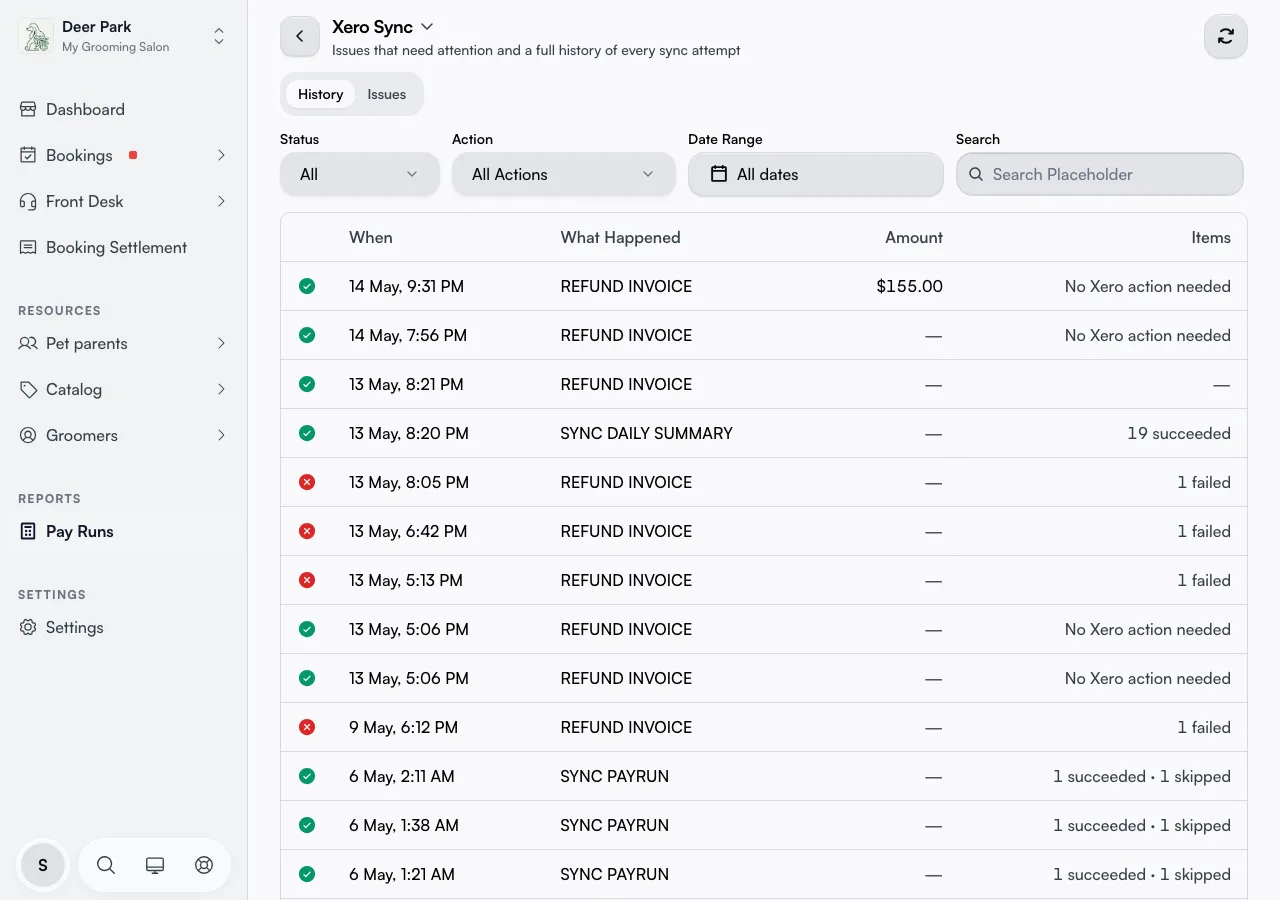
Open Pay → Integrations → Sync. The page opens on the History tab — every sync attempt, newest first. Each row shows when it ran ("Today, 2:34 pm" in your business's timezone), what it was, the amount, and a result count like "19 succeeded" or "1 failed".
To find one payment fast, narrow the list with the filters above the table:
- Status — All, Successful, Failed, or In progress.
- Action — the type of push (see the hidden list below — there are seventeen).
- Date range — open it for one-tap presets (Today, Yesterday, Last 7 days, This month, Last month) or pick an exact range on the calendar.
- Search — this one trips people up: it matches only the Reference or Batch ID of a sync row, not a client name or amount. Use the filters for everything else.
Clear filters resets the lot. A green tick means it worked, a red cross means it failed, a spinner means it's still running.
Open a row to see exactly what happened
Click any row to slide out its detail panel. It tells you the Result, Time taken, when it Started and Finished, and — usefully — Started by: a person's name if someone triggered it, or Automatic if Seglo ran it on its own. A failed row spells out exactly what Xero rejected, so you know whether a retry will help.
For a pay-run sync the panel also carries an Open pay run in Xero button that jumps you straight to that pay run inside Xero. The Reference and Batch reference at the bottom are the same values the Search box matches, so you can copy one to trace a related sync.
See everything you push, not just invoices
The Action filter holds seventeen push types most owners never realise are tracked. Beyond the obvious invoice and payment rows, you'll find gift card prepayment and its later allocation, contact sync, timesheets, commissions, pay runs (both syncing and posting), employee fetches, and the live invoice-paid and invoice-updated notices Xero sends back. If a number in your accounts looks off, filtering by the exact action narrows the hunt to the right kind of push.
Fix anything that fell out of sync
Switch to the Issues tab to see only what failed or drifted — the red number on the tab is your count of items needing attention, and it refreshes itself every thirty seconds, so you can leave the page open and watch it clear. When all is well, the tab reads Everything is in sync with Xero.
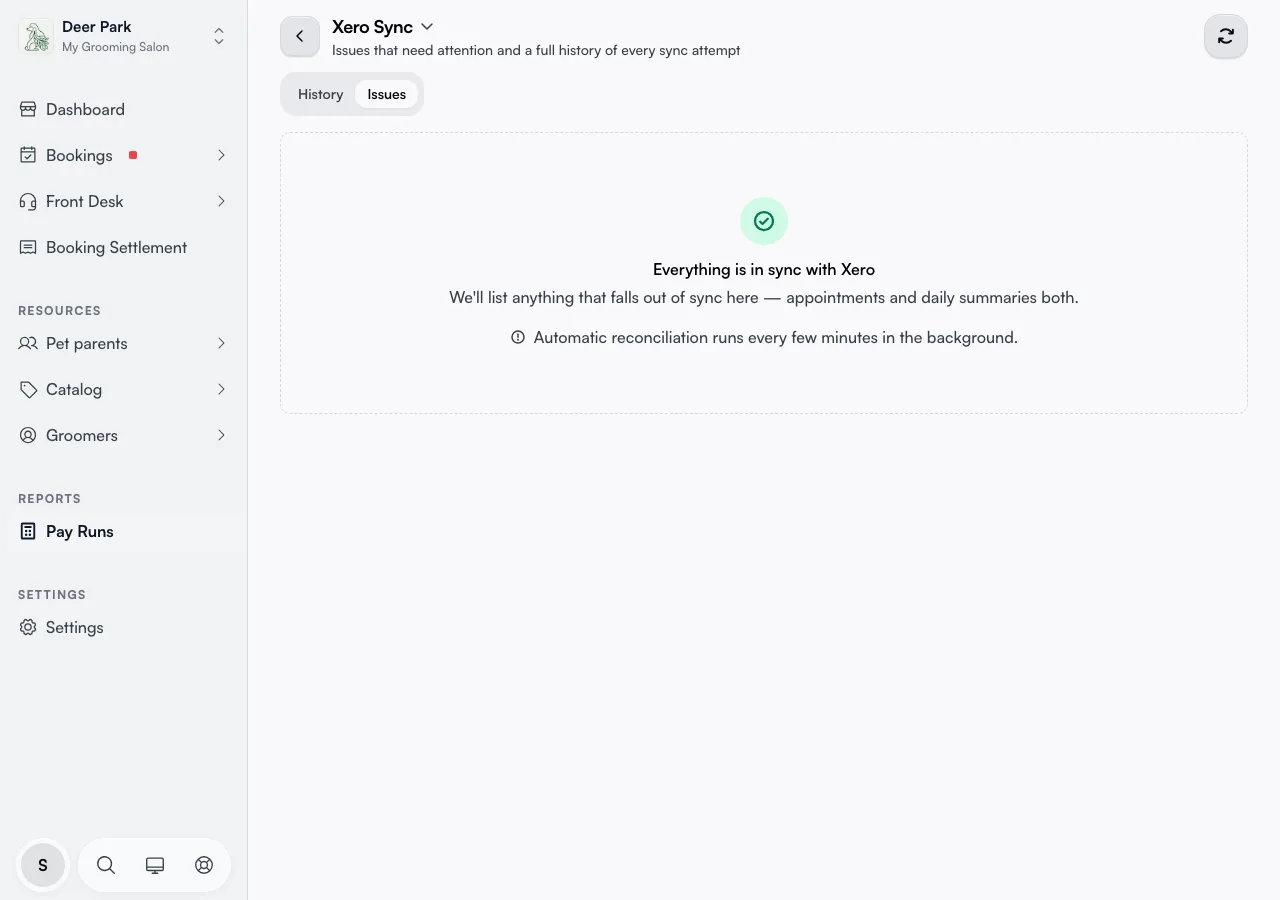
Issues split into two groups:
- Daily summaries — daily-summary invoices that failed, usually because someone voided the invoice in Xero or edited its total. Read the Reason, fix it in Xero if needed, then Retry.
- Per-appointment invoices — single appointments whose Xero record drifted (only shown if you run per-appointment invoice mode). A Drift badge names the problem: Invoice not in Xero, Payment missing, Credit note missing, or Amount mismatch.
Read the reason before you retry. Retrying only helps once the underlying cause is gone — and if nothing has actually drifted, the retry just reports back Nothing to retry — already in sync.
Understand why a refund shows two different ways
A refund can land in Xero by two paths, and both are correct. The page title has a built-in guide — How refunds flow into Xero — click it for the full walkthrough. The short version:
Refund a payment
   │
   ├─ Same day, before tonight's summary ─► netted out of tonight's invoice,
   │                                        NO credit note. Row reads
   │                                        "No Xero action needed".
   │
   └─ A previous day's payment ───────────► credit note against that day's
                                            (already-locked) invoice. Row
                                            reads "Success".
A same-day refund is quietly subtracted from that night's invoice — so the row shows No Xero action needed, which is success, not failure. A partial refund still counts the un-refunded part: refund $30 of a $100 booking and $70 lands in the day's invoice. A refund of an earlier day's payment makes a credit note instead, because Xero has already locked that day's invoice and won't let it change.
Force a fresh check
The circular Refresh button in the top-right re-pulls the latest history and issues on demand — handy right after you've fixed something in Xero and want to confirm the page caught up, without waiting for the next automatic check.
Tips
- Reconciliation runs on its own every few minutes and re-pushes most things a direct sync missed, so you rarely need to retry by hand. The Issues tab also self-refreshes every thirty seconds.
- "No Xero action needed" is expected on a same-day refund — it means Seglo handled it the clean way, with no credit note for your bookkeeper to reconcile.
- A failed refund is almost always an expired connection. If the red banner is up, Reconnect Xero and it retries on the next sync.
- Search is Reference or Batch ID only — to find a payment by date or status, use the filters, not the search box.
- Fix a voided or edited summary invoice in Xero first, then Retry — otherwise the retry hits the same rejection.
Related
- Xero integration — connection and refund behaviour.
- Xero sync timing — how fast a payment reaches Xero.
- Xero invoice settings — the account mappings a failed sync may be missing.
Related