Product commission
Pay your team commission on the retail products they sell: set rates per person or per product, record who sold each item, and see it on payslips.
Updated 9 October 2026
Your groomer recommends a de-shedding shampoo at pickup and the client buys two bottles. This page shows how to pay them for that sale, separately from what they earn on grooms, and where everyone can check the numbers.
Open in app: Groomers
Everything here works in the web app on a computer or a phone. The Seglo appointment app shows the same phone screens, so the steps match. Product commission is its own figure: it never changes service commission, and a change to someone's pay rate never changes it.
Before you start
You need products in your catalog, and you need permission to change pay rates. If you can see pay but not change it, the same screens open read-only.
Set what one person earns on products (web app and Seglo appointment app)
- Go to Team → Groomers and open the person.
- Open the Employment tab. Under Product commission, click Set rates.
- Next to All products, click Change and choose % or $ per unit. This is what every product without its own rate pays this person. Choose None to pay nothing by default.
- To give one product a different rate, find it in the list and click Change on its row.
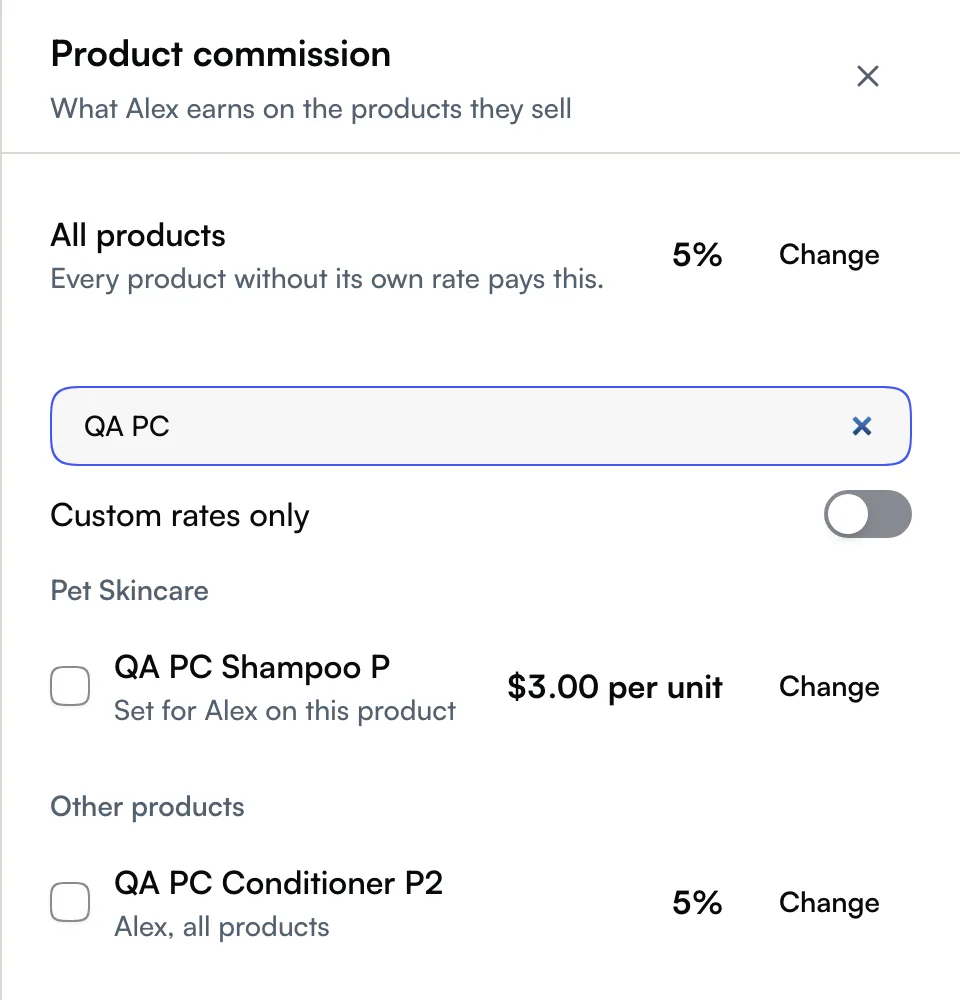
Each row shows the rate that applies to that person and where it comes from, for example Set for Alex on this product or Alex, all products. Use Search products, the category headings and Custom rates only to find what you need. Tick several products and click Set rate to give them one rate in a single save.
On a phone, the same Product commission row sits on the person's Employment screen.
Set one rate for everyone on a product (web app and Seglo appointment app)
Use this when a product's margin decides the commission, whoever sells it.
- Go to Catalog → Products and open the product.
- Scroll to Commission. Next to Everyone, click Change.
- Choose a rate, then Save rate.
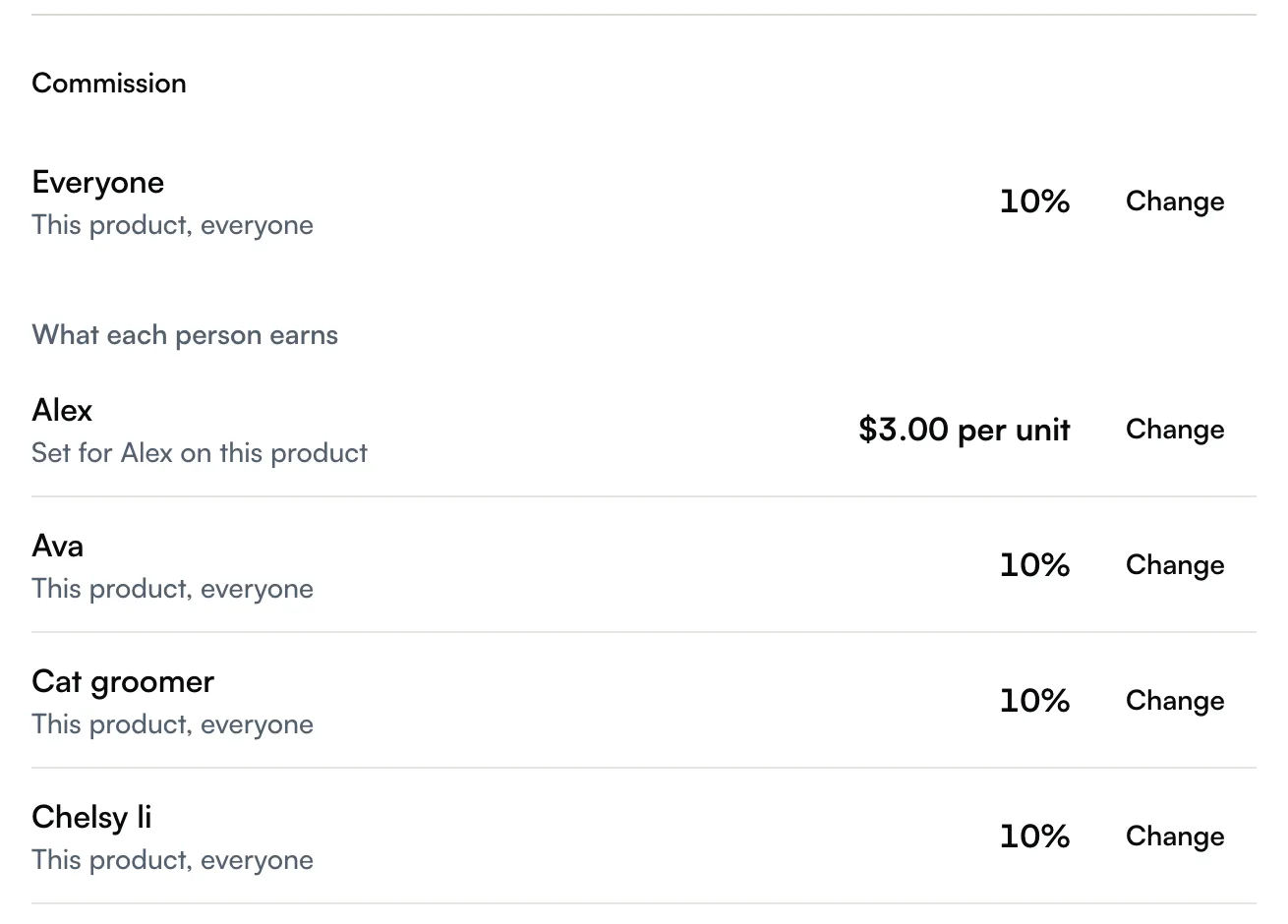
What each person earns lists every active team member with the rate they actually get on this product. Click Change on a name to give that person their own rate here. On a phone, tap Commission in the product form to open the same settings.
When you add a new product, you can set the Everyone rate before you create it. Individual rates become available once the product exists.
Choose between Default, No commission, % and $ per unit
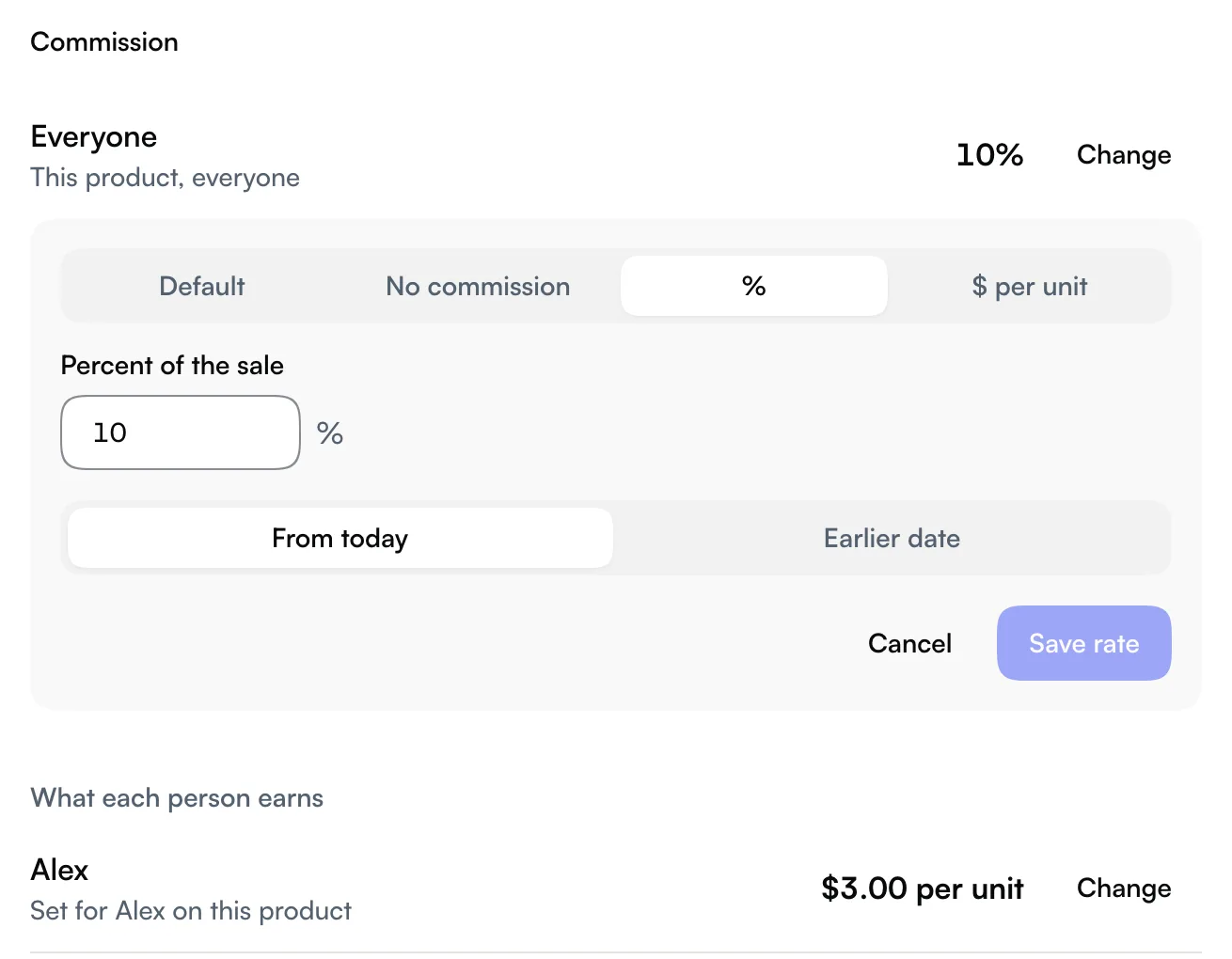
- % pays a whole-number percentage of the sale.
- $ per unit pays a fixed amount for each unit sold, so two bottles pay twice.
- No commission pays $0 and stops any lower rate from applying.
- Default removes this rate so the next rate down applies. The editor shows what Default works out to.
The difference matters. If Jane earns 10% on all products and you set one product to No commission, Jane earns nothing on it. Set it to Default instead and she earns her 10%.
Know which rate wins
For each product line, Seglo picks the most specific rate in effect on the booking's date:
- The person's own rate on this product.
- The product's rate for everyone.
- The person's all-products rate.
- No rate set: $0.
The product's rate beats the person's general rate. If Jane's all-products rate is 15% and a low-margin brush pays everyone 5%, Jane earns 5% on the brush. When you save an all-products rate that some products override, the drawer warns you how many.
Record who sold a product on the bill (web app and Seglo appointment app)
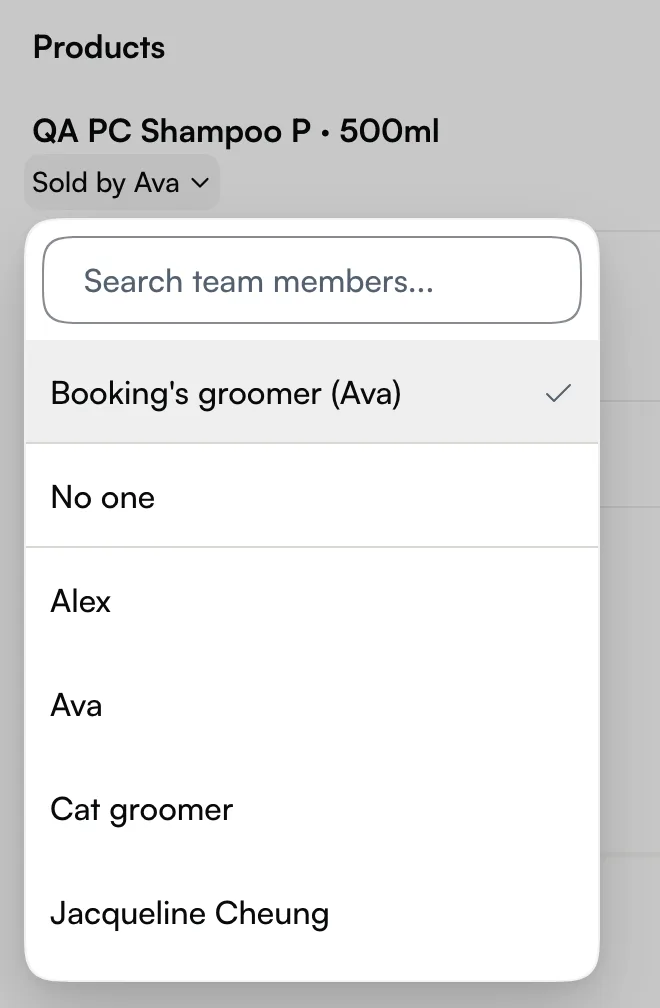
Every product on a bill shows Sold by under its name, on the booking and at checkout.
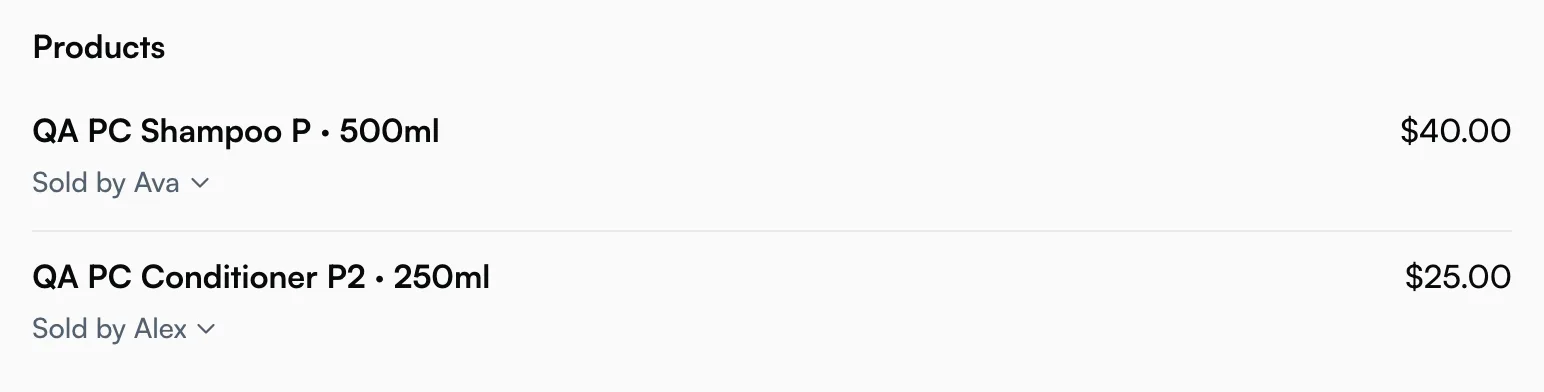
To change it, click Sold by and pick from the list. It offers the Booking's groomer, No one, and every active team member at the location, front desk included.
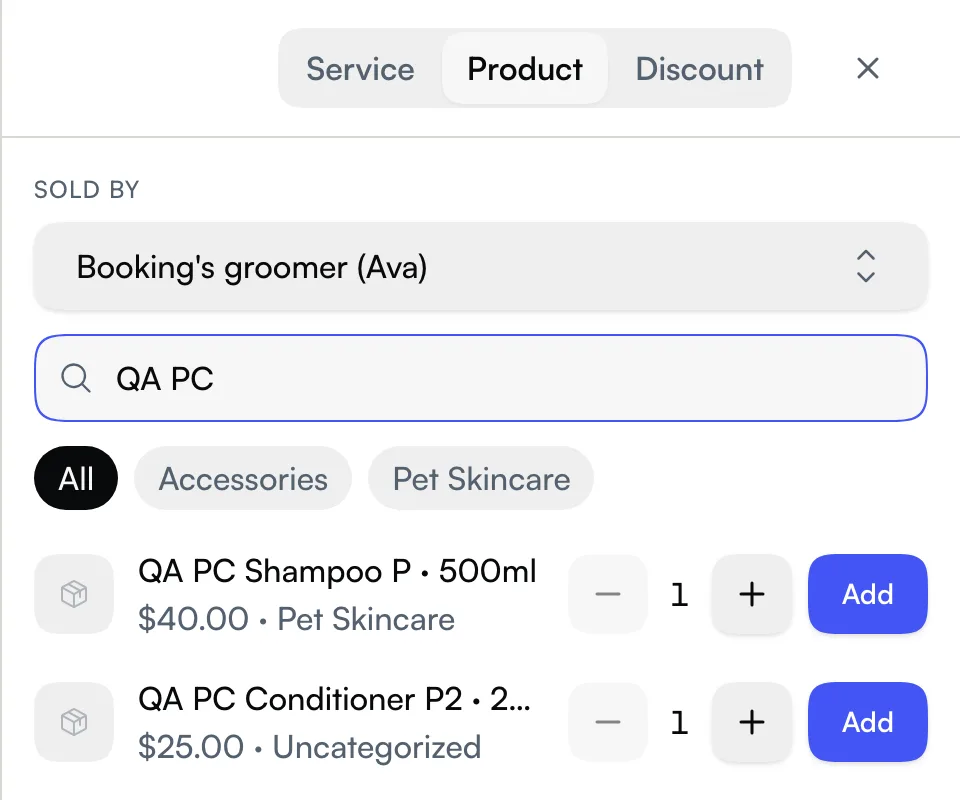
When you add products through Add to bill → Product, choose Sold by at the top first. It applies to every product you add in that sheet.
If nobody picks a seller, the booking's groomer is credited when the booking has exactly one. Seglo never guesses between two groomers. Those lines stay uncredited, and if any rate could pay them, Before you settle on the settlement page asks you to Choose who sold the product. Picking a seller never blocks payment, and you can still change it after the bill is paid.
The bill never shows commission amounts, so it's safe to turn the screen towards the client.
See who earned what (web app and Seglo appointment app)
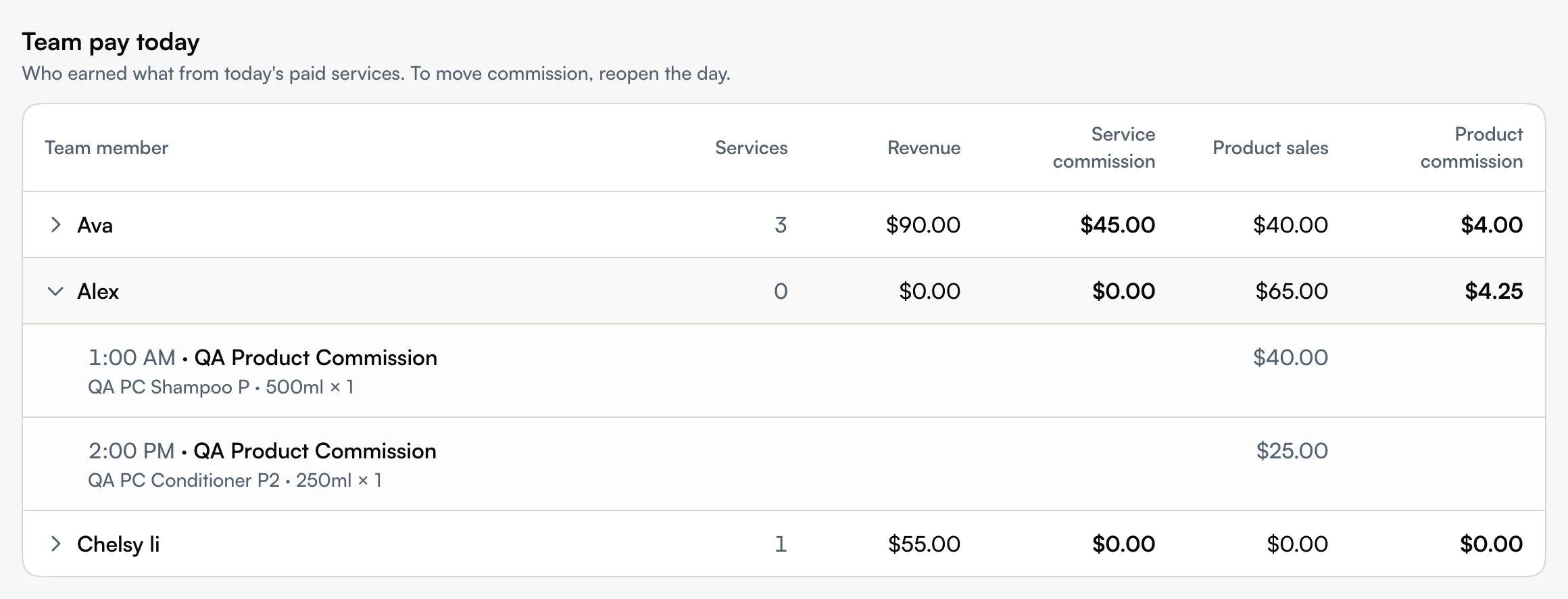
Booking settlement adds Product sales and Product commission columns to Team pay today once your business sells products. Open a person to see each product they sold. Someone who only sold products still gets a row.
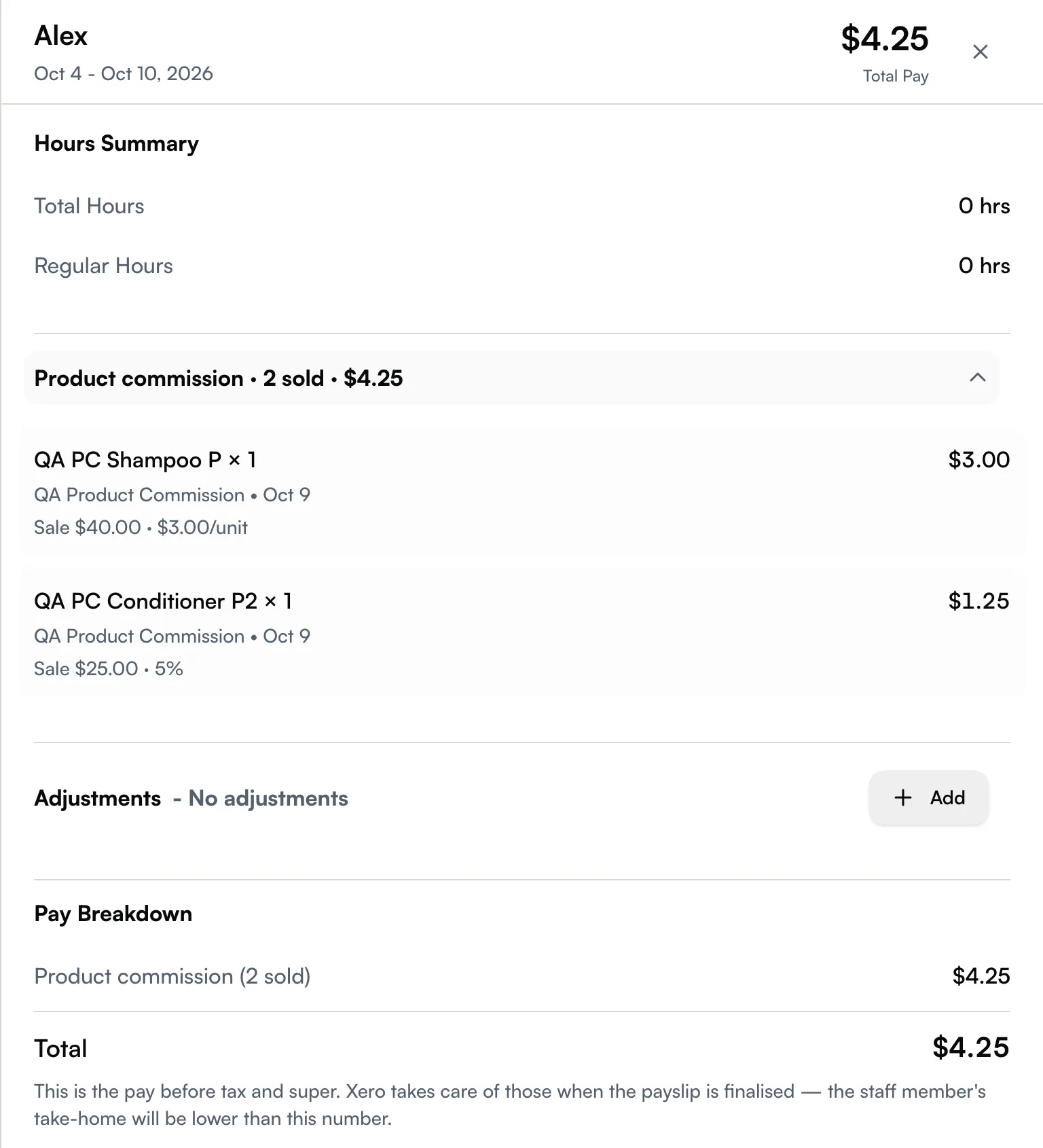
In a pay run (Team → Pay Runs, then open the period), each card reads Service comm. and Product comm. Open a person for the Product commission section: product and quantity, client, date, the sale and the rate used. Pay Breakdown lists service and product commission on separate lines.
Reports → Products shows what sold and who sold it, by product, by seller or every sale, with date, seller and location filters and Export. Sales by Seglo AI, sales added online and uncredited sales get their own rows, so the totals match your Sales report. The Team report also gets Product sales and Product commission columns.

Check your own product commission (web app and Seglo appointment app)
Every team member can see their own product commission, whatever their access:
- My Profile lists your all-products rate and any products with their own rate.
- My Pay on a phone adds a Product commission row to the This week estimate, and each payslip lists your products. See My pay.
- Reports → Products shows your own sales and the commission on them.
Change a rate from an earlier date
A new rate starts From today. Choose Earlier date to back-date it, and the editor shows how many past sales change and by how much before you save. You can't back-date into a pay run that is already finalised or sent to Xero; the editor names the person and the first date you can use. Set rate for several products always starts today. To start earlier, change one product at a time.
Send product commission to Xero (web app)
In Pay → Integrations → Payroll, open Pay Types and Edit Mappings. Product commission can map to its own Xero earnings rate. Leave it on Pay with Commission and it's added to your Commission line, as before. See Xero payroll sync.
Tips
- Seglo AI and online sales earn no commission. They show as Sold by Seglo AI or Added online, can't be changed, and are counted only in the Products report.
- Cancelling a booking or marking it a no-show takes back its commission, service and product.
- A finalised pay run doesn't move. Seglo refuses a seller change that would touch a pay run already finalised or sent to Xero. A sale recorded after the run was locked shows as After this pay run and isn't in its total.
- The rate follows the sale amount on the bill: the product's price times the quantity, before any discount on the whole bill.
Related
- Daily settlement — closing the day that records commission.
- Finalising pay — paying the period these figures land in.
- My pay — where staff check their own pay.
- Products — setting up the products you sell.
- Xero payroll sync — mapping pay types.
Related