Pay history
Look back at any pay period from the past quarter, check which were paid, finish an unsettled one, and push or re-push a run to your accounting software.
Updated 19 July 2026
When a pay period drops off your main Pay Runs screen, this is where you go to find it again — every period from the past three months in one table, paid and unpaid side by side. It is your look-back record: confirm what was paid, reopen a period to check the numbers, or finish one that was never closed out.
Open in app: Pay history
You need a pay schedule in place first — the schedule is the rule that produces the periods, so until it exists this table has nothing to list. Once it is set, periods appear on their own with nothing else to switch on.
Get to the look-back record
From the left navigation open Pay Runs. That screen only ever shows periods that need you right now, so paid ones are deliberately missing from it. Click View history at the top right, next to Requires attention, to land here.
There is a second door most owners never notice: when nothing on the overview needs attention, the "all caught up" panel that replaces the table has its own link straight into this history — so even an empty overview gives you a way back to the full record.

Find a past period and read it at a glance
The table lists periods newest first. Each row tells you three things without opening anything:
- Period — the start and end dates. On a fortnightly schedule a small Fortnight tag sits underneath, numbered from your schedule's anchor date.
- Settlement — how many of the period's working days are settled, as a count like 8 / 10. Any period with days still unsettled is highlighted, so a period that needs finishing stands out from one that is clean.
- Status — a coloured badge for where the whole period stands (covered next).
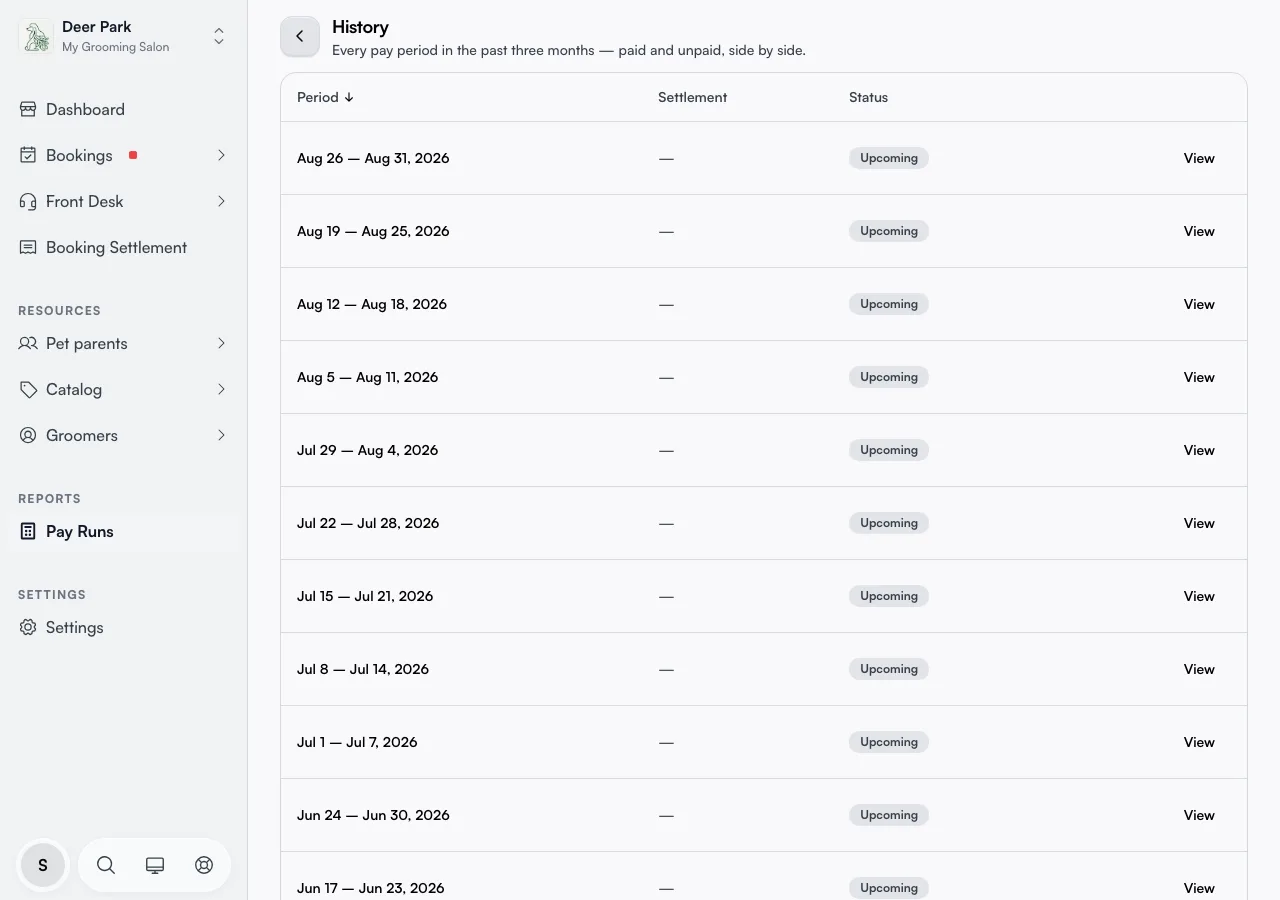
Fifteen periods show per page; use the pager at the bottom to step back through the window. Click the Period column heading to flip the order — handy when you want the oldest period in the window at the top instead of the newest.
Tell where each period stands from its badge
The badge describes the period as a whole, not one person — a Paid period can still have individual staff who were excluded, which you only see by opening it.
- In progress — the period you are currently inside; numbers are still accruing.
- Upcoming — a future period that has not started.
- Needs settlement / Partial calc — a period that is otherwise ready but has a gap to clear before it can be paid (unsettled client payments, or some days calculated and others not).
- Ready — fully prepared, waiting for you to pay it or send it.
- Draft in Xero — pushed to your accounting software but not yet finished there.
- Paid / Paid in Xero — closed and recorded; the "in Xero" version means it was posted through the sync rather than marked paid by hand.
Reopen a period to check the detail
Click View on a row to open that period's full breakdown — the same screen you use to finalise a period. This is where you see every staff member's figures, any adjustments applied, and who was excluded. A long-closed paid period is still fully readable.

Finish a period without leaving the table
Some rows offer a one-click action so you do not have to open the detail at all:
- Settle days — jumps straight to settlement for a period with unsettled client payments.
- Calculate — finishes a period that was only partly calculated.
- Mark as paid — closes a ready period directly from here.
These are the exact same actions as on the Pay Runs overview, so you can clear a stale period from whichever screen you happen to be on.
Push a period to your accounting software — or push it again
If your accounting sync is connected, a ready period shows Send to Xero. When you click it Seglo quietly finishes calculating the period first, then opens the send dialog — so even a period that was never explicitly calculated can be sent in one step.
Once a period is a Draft in Xero but not yet locked, two more buttons appear: Resend pushes it across again (use this if the first attempt was incomplete or you changed something), and Open in Xero jumps to the run in your accounting software. After the run is posted and the period locks, Open in Xero becomes Open posted run — same link, but a signal that the period is now closed on both sides.
Know what marking paid does for good
Marking a period paid is not just a label — it locks the period's numbers. The period moves to "Completed" and can no longer be edited, by you or by the sync. A confirmation step spells this out before it happens. Once locked, the period's editing actions fall away — a locked row leaves only View (plus Open posted run if it went through the Xero sync), your sign that the period is settled and frozen.
Tips
- The window is the last three months, and it is fixed. Older periods are gone from this table by design — they live in your accounting software or your export. Treat this as a recent ledger, not a permanent archive.
- A "Needs settlement" or "Partial calc" period is unfinished, not broken. Open it, clear the highlighted gap, and it moves to Ready.
- Mark as paid is final. It locks the figures and removes every edit option — confirm the staff really were paid before you click it.
- Upcoming periods show here too. The table reaches a few months forward as well as back, so do not be surprised to see periods that have not run yet sitting below the current one.
- For the period happening now, stay on Pay Runs. That screen is the "what needs me today" view; this page is purely the look-back.
Related
- Finalising pay — closing a period so it shows as paid here.
- Pay schedule — the rule that produces every period in this table.
- Pay adjustments — bonuses or deductions that show inside a period's detail.
- Xero payroll sync — what "Send to Xero", "Resend", and "Paid in Xero" connect to.
Related