Tap to Pay on your phone
Take a card payment at the counter using just your phone — set it up once, test it, and charge the exact booking total in one tap.
Updated 21 July 2026
When a customer wants to pay by card and you don't have a terminal, your phone becomes the card reader — they tap their card or phone against yours and the booking is settled. No extra hardware, no second device, and the charge is part of the same checkout you already use to close a booking.
This is the fastest way to take a card payment at the counter or on the floor. It runs inside the Seglo app on a supported phone, and once it is on, every staff member sees it as a payment option.
Open in app: Tap to Pay settings
Turn your phone into a card reader
You set up Tap to Pay once, on the phone you will collect payments with, inside the Seglo app.
- Open the Seglo app and go to Tap to Pay settings.
- Tap Set Up Tap to Pay. A screen explains that Apple and Stripe require your location to securely process Tap to Pay payments — tap Continue and your phone's own location permission prompt appears; allow it.
- The first time, you also accept the terms for contactless payments — the app walks you through this once.
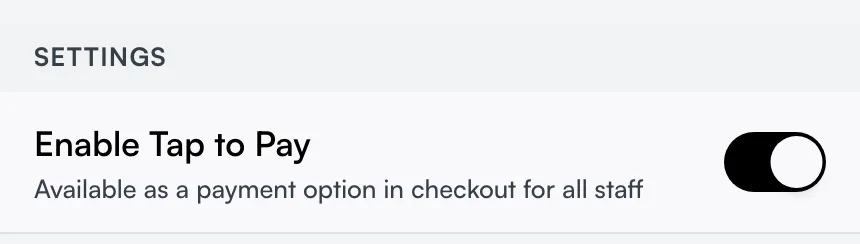
- When it finishes you see Tap to Pay is now set up, and the Enable Tap to Pay switch turns on.
A progress bar runs during setup — leave the app open until it completes. The moment it succeeds, a short how-to-use animation plays so you know exactly where the customer's card should sit.
If you don't allow location access, setup stops there and you see Location Access Needed with an Open Settings button. Tap it, turn Location on for Seglo in your device settings, then come back and tap Set Up Tap to Pay again. The Enable Tap to Pay switch runs through the same location check before it turns on, so declining it there stops the switch the same way — it stays off until location is allowed and setup succeeds.
Take a payment in one tap
You take the payment from the booking's checkout, in the Seglo app on your phone.
- Open the appointment and start checkout.
- Choose Tap to Pay on iPhone — it sits at the top of the payment-method list so you never have to scroll for it.
- Hold the customer's card or phone flat against the back of yours.
- Wait for the confirmation. The booking is now paid and a receipt is ready to send by email or text.
Seglo charges the exact amount it worked out for the booking — the service price minus any deposit, discount, or gift card already applied. You never type the amount at the tap screen; the app uses the figure Seglo computed, so the charge always matches the bill. To change a price before tapping, edit the line on the checkout bill first (see Adjusting a price), and the adjusted total is what gets charged.
Charge a whole group in a single tap
When several pets are booked under one customer, Tap to Pay charges the group total in one go and settles every booking in the group together. You tap once; each booking in the group is marked paid. There is no need to check them out one at a time.
Test the reader before a real customer
Most people miss this one: there is a Test Connection check under Resources on the Tap to Pay page. It confirms your phone can find and connect to the contactless reader without taking any payment — handy before a busy day, after a phone update, or the first time a new staff phone is used. You will see Connection Successful when it is ready, or a clear reason if it can't connect. Run it any time you are unsure the tap will work.
Replay the how-to walkthrough
Tap How to Use under Resources to play the contactless-payment walkthrough again — the same one shown right after setup. It shows where the card should touch the phone, which cuts down on "it's not reading" moments at the counter. It is always available, not just during setup.
Let staff take payments without giving them setup rights
Only the business owner can switch Tap to Pay on. Once it is on, every staff member sees it as a payment option in checkout and can collect with it — they do not need their own setup. If a staff member opens the Tap to Pay settings page, they see a note that only the owner can set it up, and in checkout a staff member who picks Tap to Pay before it is enabled is told to ask the owner to turn it on. The owner, picking the same option, instead gets a direct link to finish setup.
When Tap to Pay is on, the helper text under the switch reads Available as a payment option in checkout for all staff. Switch it off and it reads Disabled — not visible in checkout — turning it off simply removes the option for everyone without losing your setup, so you can switch it back on later in one tap.
Read the right message when a tap fails
Tap to Pay tells you why a tap didn't go through, so you know what to do next:
- Payment Declined — the card was refused. Try another card or a different payment method.
- Card Not Detected — the card wasn't read in time. Try again and hold the card near the top of the phone, where the reader sits.
- A payment amount mismatch means a price changed between starting the tap and confirming it. Start checkout again, and if it keeps happening, update the Seglo app.
- Location Access Needed — Tap to Pay checks that location access is still allowed every time you collect a payment, not just at setup. If it was turned off since, you'll see this message with an Open Settings button; allow location again and try the payment once more, or choose another payment method for this booking.
Cancelling mid-tap is treated as a quiet back-out, not a failure: the booking stays unpaid and you can choose another method. Nothing is charged.
Two staff, one booking — handling a payment collision
If two staff members both open checkout for the same booking on different devices — one starting a card payment, the other trying to collect cash — Seglo blocks the second attempt rather than risk charging the customer twice:
- "A card payment is in progress on another device" means a Tap to Pay or terminal charge is already running elsewhere for this booking. A Clear card payment button cancels that other attempt so you can try again on your device.
- "This appointment was already paid by card — do not collect again" means the card payment on the other device already went through. Do not take a second payment; the button is Close, and you can check the payment list to confirm.
- If Seglo can't immediately confirm the other device's status, you'll see a message asking you to try again in a moment, with a Try Again button.
None of these clear the checkout sheet automatically — you always get a message and a named button telling you what to do next, and the booking is never marked paid until a payment genuinely goes through.
See what each tap costs
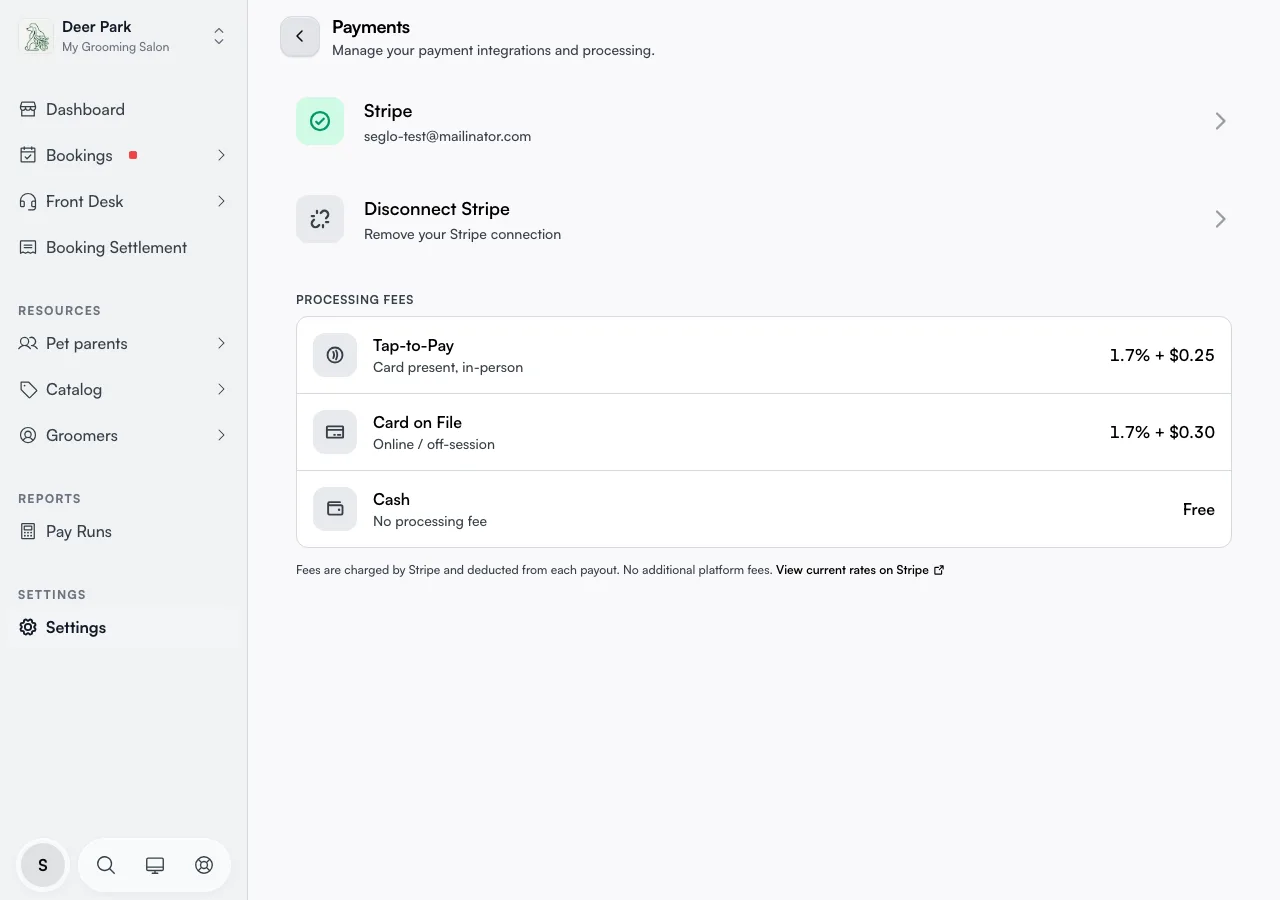
Tap to Pay carries a card-present processing fee. The current rate shows in Settings → Payments, under Processing Fees, as Tap-to-Pay · Card present, in-person — currently 1.7% + $0.25 per charge. The fee comes out of each payout, and there are no extra platform fees on top. Cash, by contrast, carries no processing fee.
Tips
- Connect a payment account first. Until one is connected, the switch is greyed out with Requires a connected payment method, and the setup screen tells you to set up your payment account first. See Payment methods.
- Location access is required. Apple and Stripe require it to securely process Tap to Pay payments, on both setup and every payment you collect — if it's off, Tap to Pay tells you and points you to Open Settings rather than failing silently.
- It needs a supported phone. An iPhone XS or later on iOS 16.4 or later, or an Android device with contactless support on Android 9.0 or later. Older phones can't run it — that's a hardware limit, not a setting.
- A $0 bill can't be tapped. A booking fully covered by a gift card owes nothing, and Tap to Pay can't charge $0 — settle it with Cash or mark it paid.
- Refunds aren't done by tap. They are processed separately through your payment provider, never on the phone.
- Supported cards and wallets include Visa, Mastercard, American Express, eftpos, Apple Pay, Google Pay, and Samsung Pay.
Related
- Payment methods — connecting the payment account so card payments work.
- Payments overview — how a payment moves through Seglo.
- Adjusting a price — change a line price before you charge.
Related