Daily settlement
Close out each trading day so reports and pay runs add up — plus the catch-up summary email, reopening a day, and taking a late payment on a day you already settled.
Updated 11 October 2026
When you want the day's takings to be final — the register cashed up, every customer accounted for, the numbers ready to flow into pay runs — this is where you close it. Until a day is settled, its totals stay provisional and the pay period it belongs to can't be calculated.
Open it from Bookings -> Daily settlement in the left navigation. It opens on today for the store you have selected. Each store settles its own day; switch store with the store picker.
Open in app: Daily settlement
Close out today's takings
You settle one day at a time, and a day only closes once every booking on it is resolved.
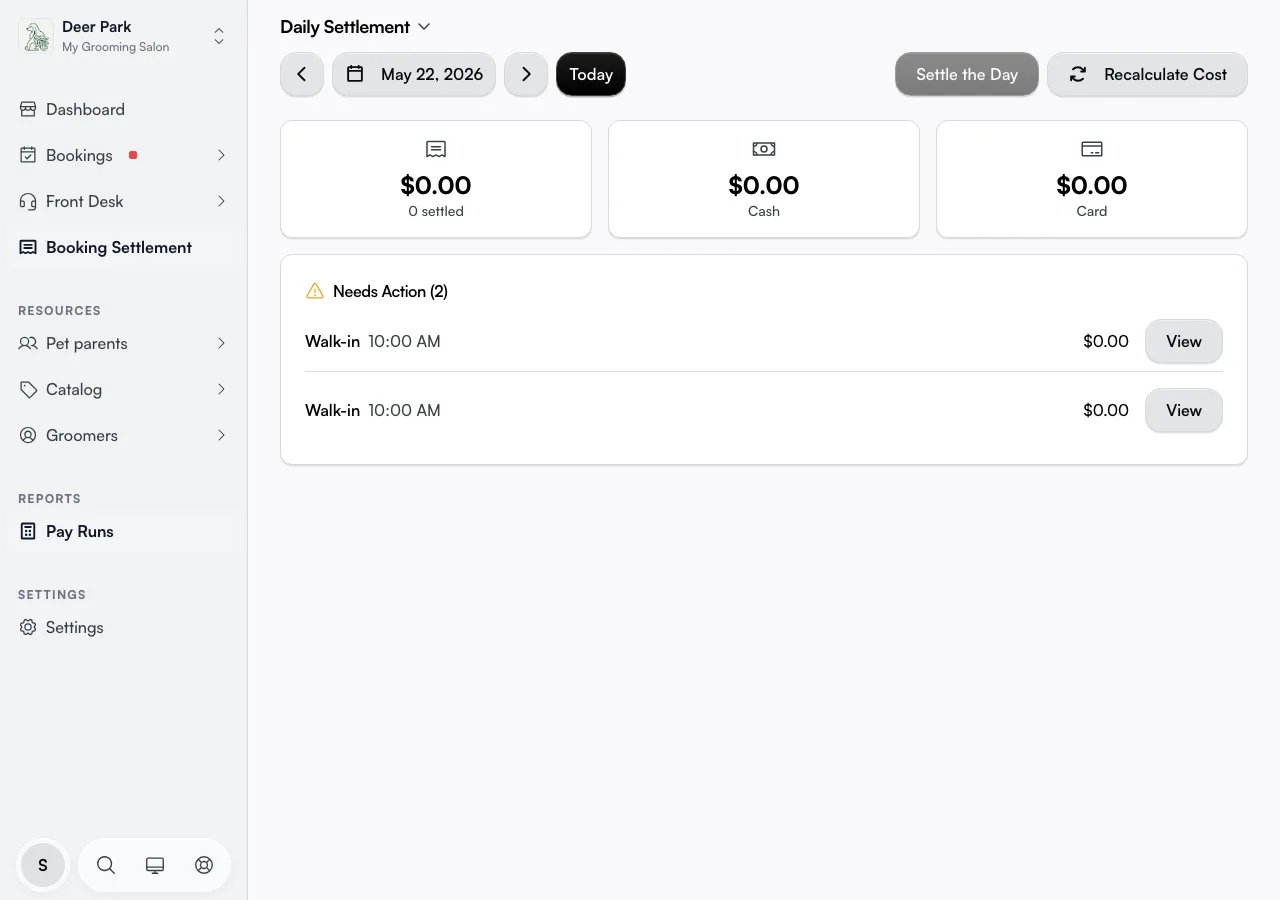
- Pick the day with the Previous and Next arrows, the date button (which opens a calendar), or Today to jump back. Day total at the top shows the day's Revenue, Staff cost (commission plus wages) and Net, and says Final once the bookings are settled and the hours confirmed. Below it, the Bookings tab shows Takings — how the day was paid — and the Hours tab shows who worked and their wages.
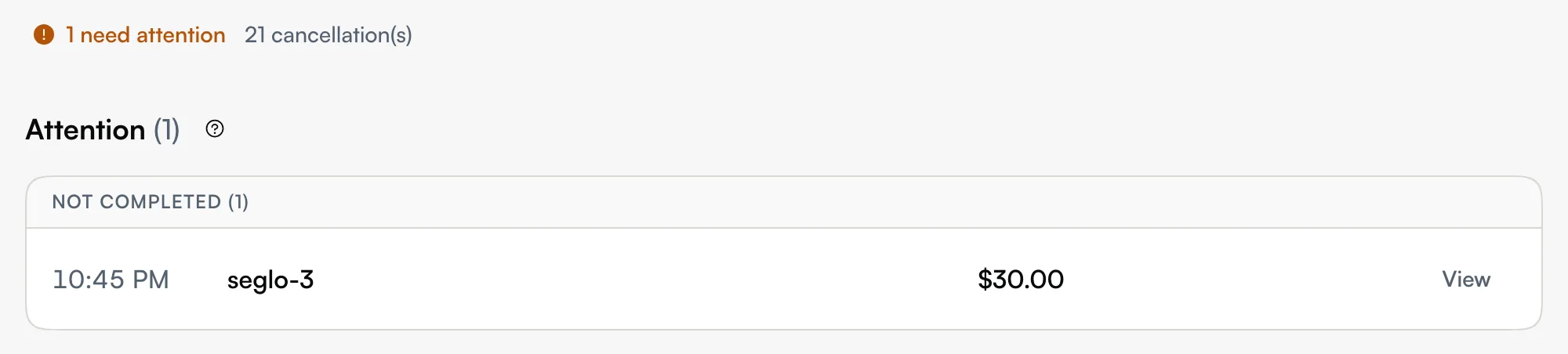
- If anything still needs finishing, an Attention list appears. Not paid is customers who were served but haven't paid — click Checkout to take payment. Not completed is bookings still waiting on a status — click View to open each one and check out, mark a no-show, or cancel.
- Once the list is empty, click Settle the Day (top right). It settles the bookings and confirms the day's hours in one step. The button turns into Settled with the time, and a day-summary email goes to the owner. A missing clock-out doesn't stop the bookings settling — fix it, and Settle the Day comes back to confirm the hours.
Read who took what, and how
A settled day isn't just a total. Team lists each team member's services, revenue and commission for the day; open a name to see what they did and sold. No-shows and cancellations are counted separately so they don't inflate your revenue, and any no-show fee collected shows on the same line.
Commission follows that attribution, including the two cases that used to fall through the cracks:
- Bundles — a bundle's price is split equally between the staff who performed the bundle's services, and each share counts toward that person's commission.
- Retail products — each product line earns its own product commission for whoever sold it, shown in separate Product sales and Product commission columns. Without a chosen seller it goes to the booking's groomer when there is exactly one; otherwise Before you settle asks you to choose who sold it.
If any of the day's revenue belongs to bookings with no staff assigned, an amber warning shows above the day's report with the amount. That revenue earns commission for no one — open the bookings and assign staff before you settle.
The Cash and Card split is worked out per payment, not guessed: cash payments land in Cash, while card terminal, Tap to Pay, online, and card-in-person payments all land in Card. That split is what you check against your bank deposit at the end of the week.
Get a catch-up summary even if you forget
You don't have to be at the desk every evening. If nobody sends the day's summary, the system emails it to the owner on its own — and it looks back over the last few days, not only last night, so a day you closed for or simply forgot still gets a summary sent.
The summary email is a reminder: it doesn't settle the day for you. To finalise the day's numbers you still come back and press Settle the Day.
Take a late payment on a settled day
Money sometimes lands after you've closed — a customer pays the next morning, or cash gets counted late. Take the payment on the booking as usual. Settling doesn't lock checkout, so you don't need to reopen the day. The day's totals, staff commission and any unpaid pay run update on their own.
Reopen a settled day
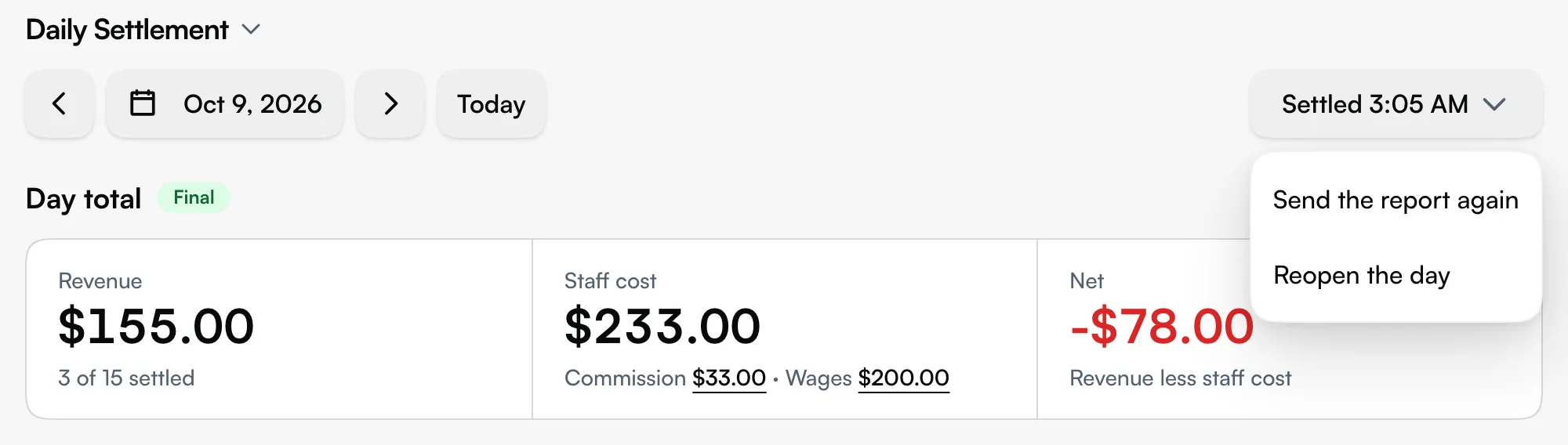
Click Settled at the top right, then Reopen the day. That reopens the bookings and the hours together, so you can move commission to a different team member. Settle it again when you're done. Reopening touches no money, so there's nothing to confirm.
Send the day's summary email again
Click Settled, then Send the report again. Handy if the owner missed the first one or changed email address. It sends the report as it stands right now.
Step through a whole pay period
When you open settlement from a pay run, the page runs in period mode with a strip of the period's days across the top. Step through each one and confirm it's closed before the run is calculated.
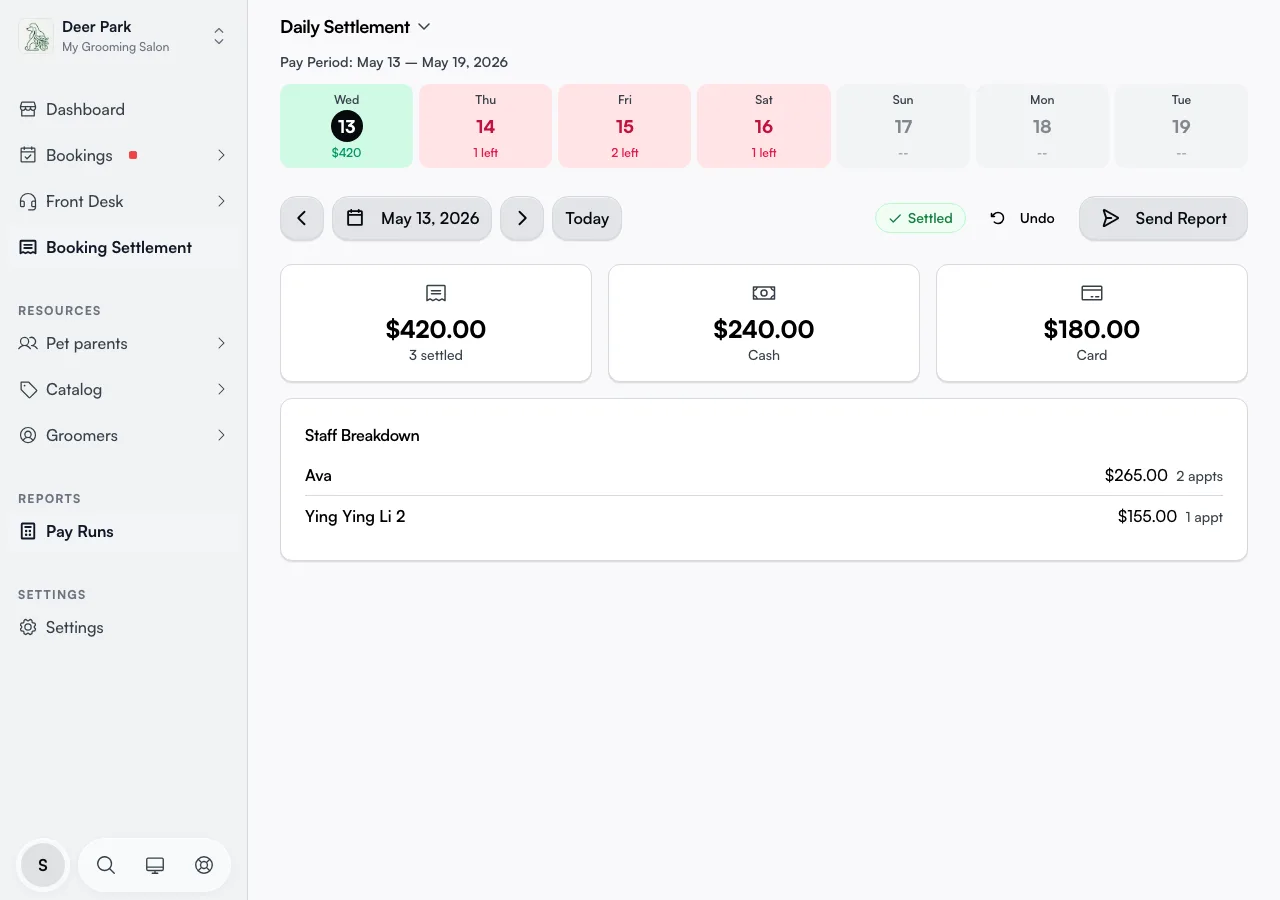
The strip is colour-coded: red means a day still has bookings needing action, amber means everything's resolved and it's ready to settle, green means it's settled. The strip even starts on the right weekday — a Wednesday-to-Tuesday pay period shows Wednesday first, not Sunday. Every day must be green before you can finalise pay for the period.
Tips
- A future day won't settle — the button stays disabled with a tooltip until the day has actually passed.
- The Settle button is disabled while anything is open, and its tooltip tells you exactly how many bookings remain. Clear the Attention list first.
- Missing commission in a pay run is almost always an unsettled day. A period can't be calculated until every day in it is green.
- Take a late payment on the day it belongs to, even if that day is settled. Moving it to another day breaks the match against your bank statement.
Related
- Finalising pay — the pay run that every settled day feeds into.
- Product commission — rates for retail products and who sold them.
- Payments overview — how each payment reaches this page in the first place.
- Tap to Pay — card payments that land in the day's Card total.
- Xero integration — how settled days reach your accounting books.
Related