Gift cards
Look up a card at the counter, read what you still owe in unspent value, and cancel, transfer, refund, or extend any card without guesswork.
Updated 20 September 2026
When a customer hands over a gift card at the counter, this is where you confirm it's real, see what's left on it, and act on it if something's wrong. It's also the one place that tells you, in a single number, how much value you've sold but not yet delivered — money you still owe in services.
Open in app: Gift cards
Cards only show up here once gift cards are switched on and customers start buying. If the page is empty, open the gear icon (top right) to turn them on first — see Gift card settings.
Find a card a customer brings to the counter
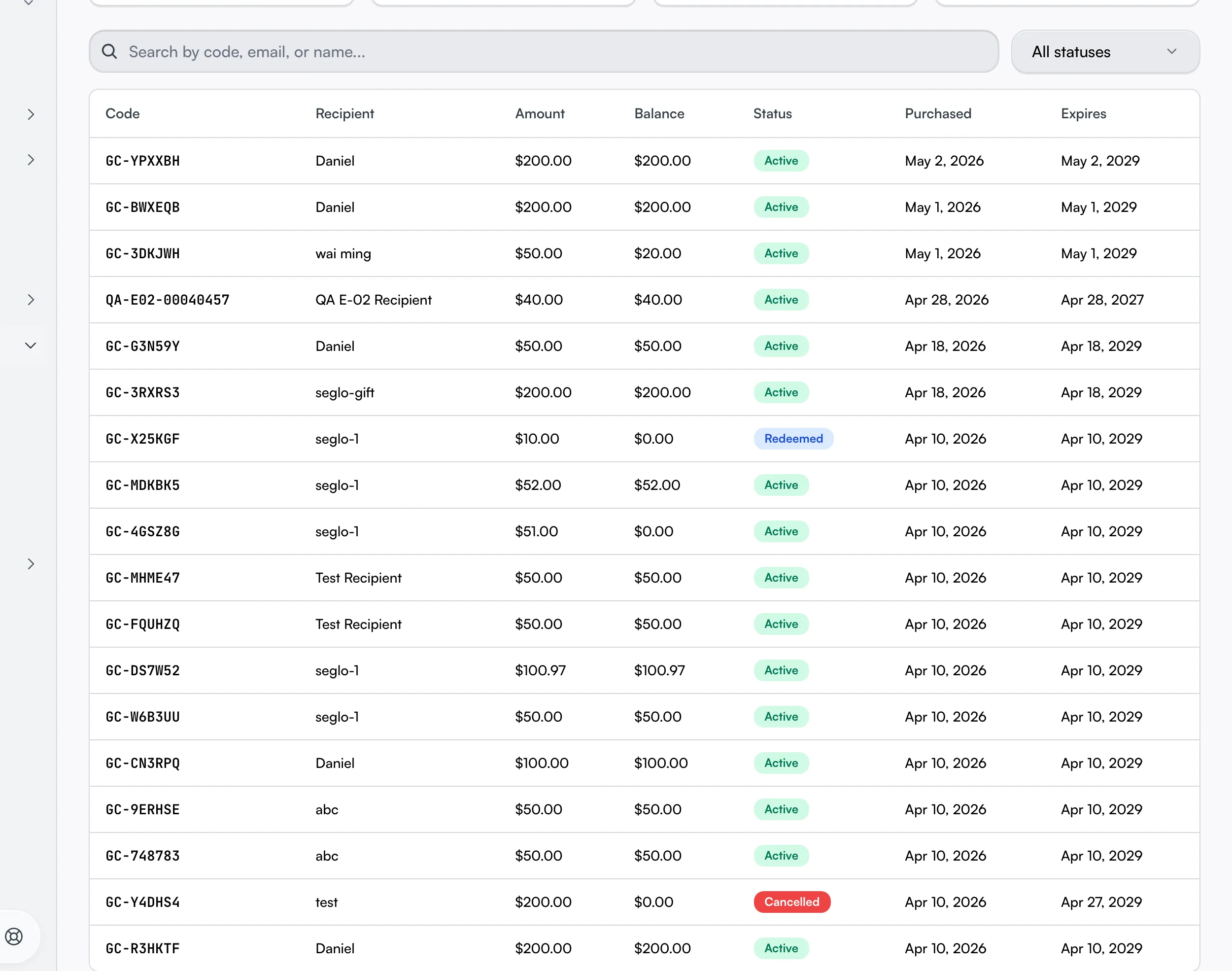
Type into the Search by code, email, or name box. It matches four things at once, so any of them works: the card code, the recipient's email or name, and the purchaser's email — useful when a card was bought as a gift and the buyer is the one asking about it.
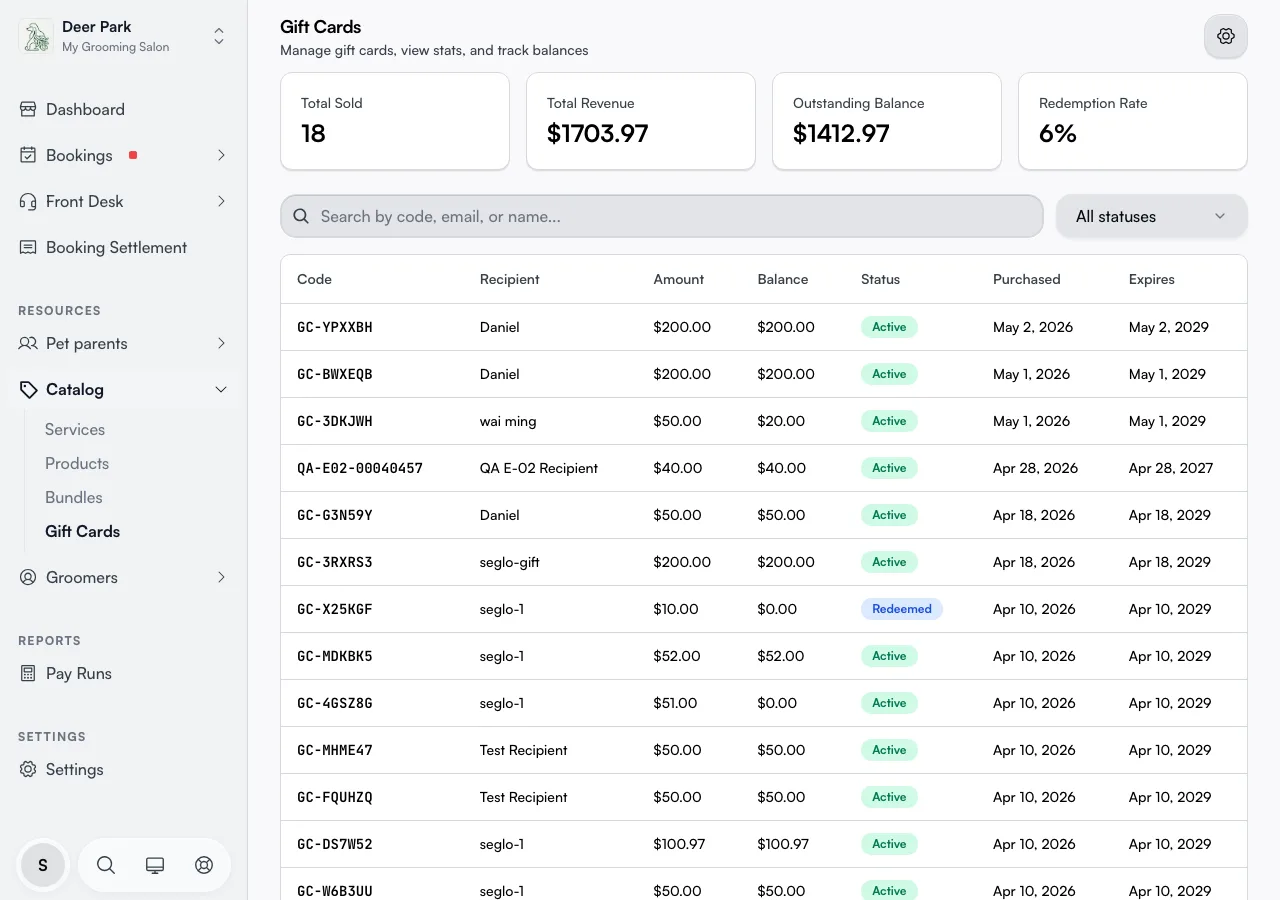
Narrow the list with the status dropdown: All statuses, Active, Fully Redeemed, Expired, or Cancelled. Each row shows the Code, Recipient, Amount (original value), Balance (what's left), Status, and the Purchased and Expires dates.
Read what you still owe at a glance
The four cards across the top summarise the whole program. The one to watch is Outstanding Balance — value still loaded on active cards. That's your live liability: money customers can still claim back in services, so it belongs on your books as something owed, not as income already earned.
Total Sold and Total Revenue show how many cards and how much value you've issued. Redemption Rate is the share of cards that have been fully redeemed — a low rate means a lot of cards still have value sitting on them waiting to be spent.
Trace exactly where a card's money went
Click any row to open the card. Its Transaction History is a full ledger — every Purchase, Redemption, Refund, and Cancellation, each with the amount and the balance after it. So if a customer swears they had more left, you can show them the exact line where it was spent.
The Reference column carries the booking ID for a redemption, so a "where did $40 go" question ties back to the appointment that spent it.
Move a card to the right person
Open an active card and use Transfer Gift Card to change the recipient name and email — for when it was bought for the wrong person, gifted onward, or the buyer wants it in their own name. Both name and email are required before you can confirm.
This only changes who the card belongs to. The balance, code, and history all stay intact — you're re-addressing the card, not reissuing it.
Push out an expiry before a customer loses value
Open the card and click Extend Expiry. The dialog shows the current expiry right above the date field so you know what you're extending from. The new date has to be later than the current expiry — you can push the date out, never pull it in — and at least 36 months after the card was bought.
A card reads as Expired from the moment its expiry date passes — nobody marks it by hand. Extend Expiry stays on an expired card, so you can still rescue it for a loyal customer: save a later date and the card is Active again, with its balance ready to spend.
Cancel a card and refund the right amount
Open an active card and use Cancel & Refund. A Reason is required (it's saved to the card's history), and there's a separate Also issue Stripe refund checkbox — cancelling and refunding are two decisions, not one. Cancel without ticking it and the card is voided with no money returned.
What gets refunded is the remaining balance, not the original purchase price. A card half spent down refunds only the half that's left. Two things have to be true for a refund to actually go through: the card was paid for by card (cash-bought cards have nothing to refund through the system), and there's still a balance on it — a fully-redeemed card refunds nothing because there's nothing left.
A card you've already cancelled can't be cancelled again. Transfer and Cancel & Refund only appear while a card is Active. On an expired card you'll see just Extend Expiry — extend it first if you need to transfer or cancel it. A redeemed or cancelled card has no actions.
Let customers check their own balance
Customers don't have to call you. Your public booking site has a Check gift card balance page where they enter the card code and the recipient email (both must match the card) and see the current balance, status, and expiry themselves. If there's value left on an active card, the page offers a Book now button straight into your booking flow. A card past its expiry date shows as Expired, with no Book now button.
One thing the public number reflects that a quick glance won't: if a customer has a card part-applied to a booking that isn't finalised yet, that amount is reserved and shown as already committed, so the spendable figure is the balance minus anything held against an open booking.
Tips
- A refund for buying a card is not the same as the card's balance. A customer refunded for the purchase may still be holding a perfectly valid card — check the Transaction History before assuming it's empty.
- Cancelling zeroes the balance. It's irreversible, so confirm the customer wants the card gone, not just paused. To pause value loss instead, extend the expiry.
- Expiry has a legal minimum. In Australia, gift cards must stay valid for at least 36 months, which is why the settings page won't let you set a shorter period.
- A code search returning nothing isn't the end — try the recipient's name or the buyer's email instead; the box accepts all of them.
Related
- Gift card settings — turn gift cards on and set amounts, custom-amount limits, and expiry.
- Payments overview — how a gift card is applied at checkout.
- Payment history — find the original gift card purchase on your payment record.
Related