My pay
Check what you were paid, open the breakdown behind any total, and see your projected pay for the week that hasn't been run yet.
Updated 9 October 2026
When you want to confirm what you were actually paid — or check it against your bank statement before raising anything with your manager — this is the page that holds the answer. Every figure here is the locked amount your manager finalised, plus a few things most people never scroll far enough to find.
Open in app: My pay
See what you were paid for each period
Open My Pay and you get one list of your finalised periods, newest first. Each row reads across three things: the Period (the start and end dates the pay covers), the Finalized date (when your manager locked it), and your Total Pay for that period.
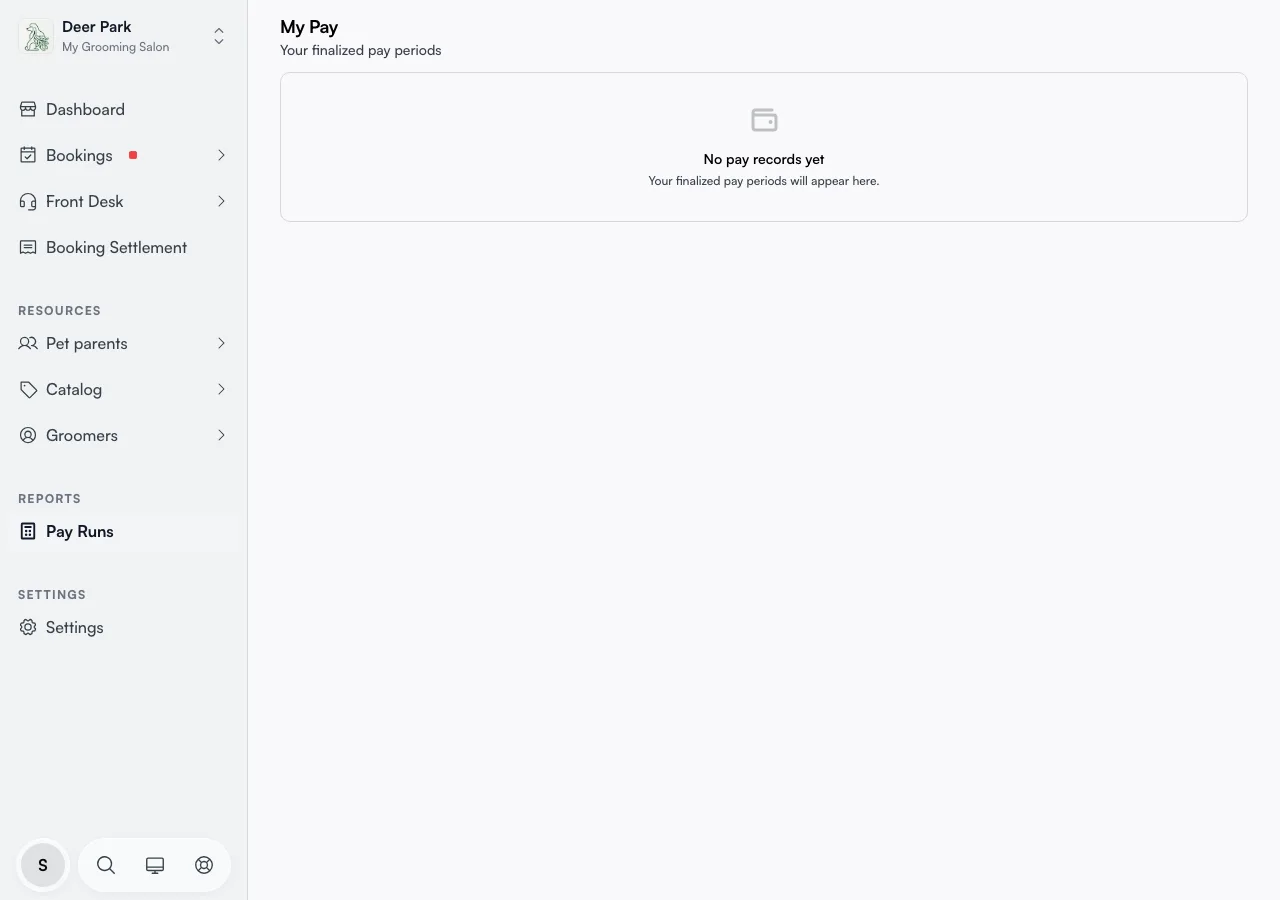
Only finalised periods show up. The period you're working through right now stays hidden until your manager closes it — so every number here is final and locked, never a moving estimate. If nothing is listed yet, you'll see No pay records yet; your periods appear the moment your manager closes one that includes you.
Open the breakdown behind any total
Tap any row and a panel slides in with everything that adds up to that total. Work down it in order:
- Hours summary — your total hours, split into regular and (if you went over) overtime hours.
- Weekly overtime breakdown — on periods spanning more than one week, a per-week split of regular vs. overtime hours.
- Daily breakdown — a day-by-day view, with your clock-in and clock-out times on days you clocked.
- Service commission — tap to expand and see every appointment that earned you commission, each showing the service, the customer, the date, the revenue, the rate applied, and your cut.
- Product commission — if you sell products, every product line that earned you commission: the product and quantity, the customer, the date, the sale and the rate. See product commission.
- Adjustments — any one-off bonus or deduction added to this period.
- Pay breakdown — the final stack that sums to your total pay.
Everything you see is exactly what was locked at finalisation. It does not change afterwards.
Check your commission appointment by appointment
The commission section is collapsed by default — its header tells you the count and the total ("Service commission · 12 appointments · $340.00"). Tap it open and each appointment is listed on its own line: the service name, the customer, the date and time, the revenue that booking brought in, the rate that applied, and the commission you earned from it.
This is the place to settle "why was my commission that amount" without asking anyone. If a rate looks off for one booking, the line shows the exact percentage used, so you can see whether it was the booking's revenue or the rate that moved your number.
Spot an unpaid break deduction
If your business deducts unpaid breaks automatically, the hours summary shows it as its own line under your hours — for example "30 min break × 4 days", with the hours it removed shown in red. This is why your paid hours can come out lower than the hours you actually clocked: the break time was subtracted before pay was worked out. It only appears when your business has unpaid-break deductions switched on and you worked a long enough shift to trigger one.
See your projected pay before the period closes (mobile)
On the My Pay screen in the mobile app, a This week card sits above your history and shows your current period before it's been run. It gives you earned so far next to a projected total, with a progress bar beneath them, then breaks it down by how you're paid:
- Hourly — hours done versus hours scheduled.
- Commission — bookings completed versus bookings assigned for the period.
- Product commission — what you have earned on products sold so far, when you earn product commission.
- Salary — a fixed amount for the period (salaried staff see a flat figure instead of a progress breakdown).
It's an estimate, not a promise. It's built from base rates only — overtime, penalty rates, tips, bonuses, and deductions all resolve at the pay run, so the final figure can land higher or lower. The card is labelled Estimate only. Final pay is confirmed at pay run for exactly that reason. New staff see it from day one, even with no history yet. Pull down on the screen to refresh both your estimate and your history.
Tips
- Only finalised periods show. A period has ended but isn't listed? Your manager hasn't closed it yet — that's normal, wait for them. See finalising pay.
- The total never rewrites itself. If something was corrected after finalisation, the fix lands as a separate adjustment on a later period — it does not change the original total you're looking at.
- A finalised period is locked. Numbers, hours, and adjustments can't be changed once it's paid; corrections go onto the next period instead.
- The "This week" estimate can move. It uses base rates only, so don't treat it as your exact take-home — overtime, tips, and deductions are added when your manager runs pay.
- Working for more than one business? Switch the active business from the switcher at the top of the sidebar, then open My Pay again to see that business's periods and estimate.
Related
- Finalising pay — what your manager does to make a period appear here.
- Pay schedule — how pay periods are timed and when they close.
- Adjustments — how corrections after finalising are recorded.
- Product commission — your rates and the products you sold.
Related