Pay adjustments
Add a bonus, dock a deduction, repay an advance — and shape the exact labels staff pick from so every payslip lands clean in Xero.
Updated 19 July 2026
When you need to add money to a staff member's pay or take some off — a performance bonus, a uniform fee, an advance being repaid — a pay adjustment does it on top of their normal hours and commission. This page is where you set up the labels staff pick from when they add one, so every pay packet stays consistent and each line lands in the right place on the payslip.
An adjustment always changes what a staff member earns. It is never a customer refund — to return money to a customer, open the booking and use Refund on the payment row instead.
Open in app: Pay Adjustments
Add the bonus, deduction, or repayment to a pay packet
You set labels up here, but you actually apply an adjustment during a pay run. Open a staff member's pay, open Payment Adjustments, and Add. Pick a label from the Type dropdown — it's split into Deductions (red minus) and Additions (green plus) so you can't choose the wrong direction by mistake. Enter a positive Amount (the sign is decided by the label, not by you), and optionally add a Category and Notes.
Adding and removing adjustments needs the finalise pay permission, so a staff member without it sees the list but no add or delete buttons. The drawer shows a running Net Adjustment at the top — additions minus deductions — so you can see the effect on that packet before you finalise.
Add your own labels for anything specific to your business
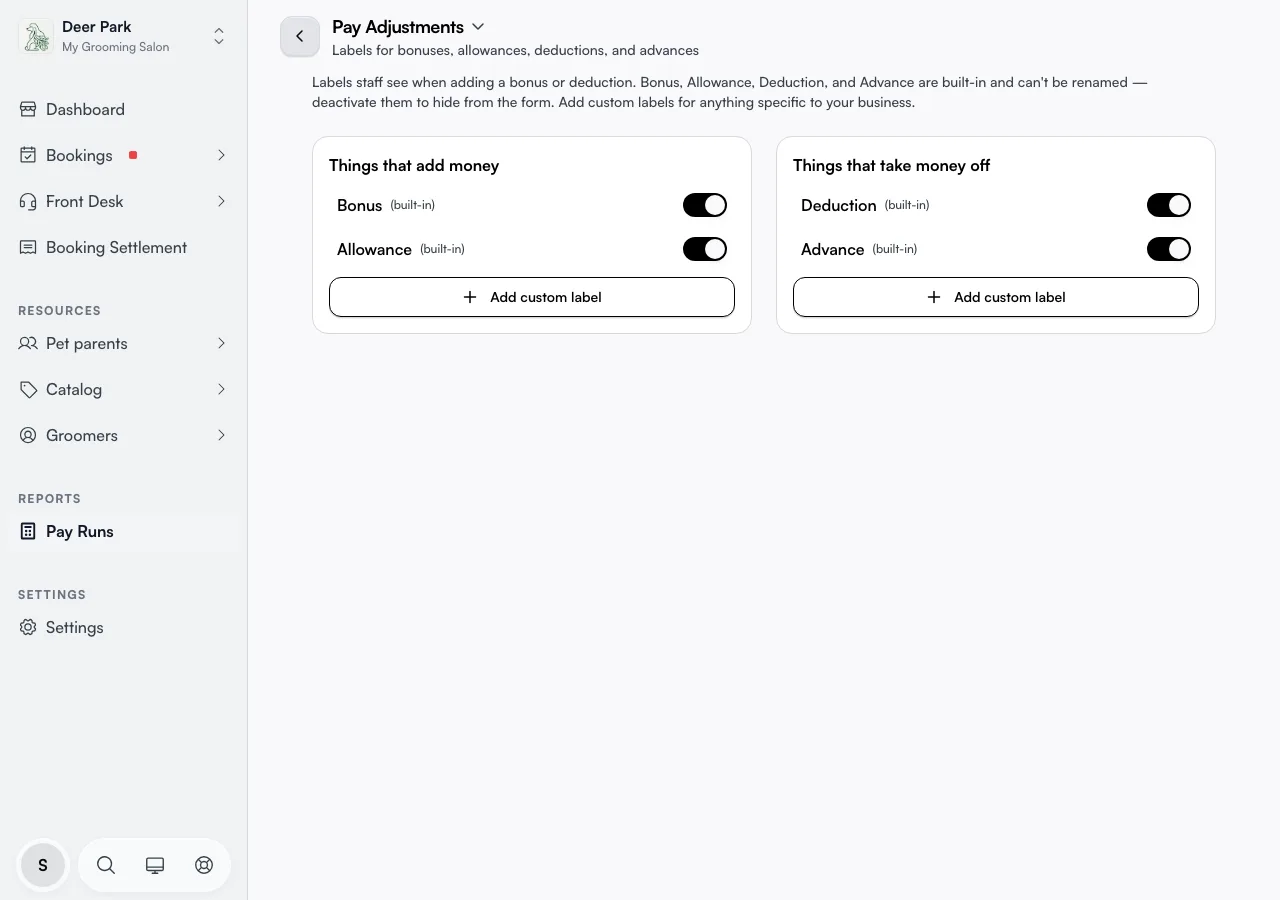
The four built-in labels won't cover everything. In the column that fits — Things that add money on the left, Things that take money off on the right — click Add custom label, type a name such as "Christmas tip", "Saturday penalty", "Booth rental fee", or "Locker key replacement", and save.
A name can be up to 60 characters and must be unique in your business — try to reuse an existing name and the save is rejected. The new label appears in that column straight away and is ready on the next pay run. Custom labels stay private to your business and never leak into other Seglo accounts.
Hide a label you never use without losing its history
Every label has a toggle. Switch it off and it vanishes from the staff-pay dropdown, but any past adjustments that used it keep their label and their amount. This is the only way to retire a built-in label — Bonus, Allowance, Deduction, and Advance can't be renamed or deleted (identical names across every business keep reports consistent), but you can deactivate the ones you don't use. Flip the toggle back on any time to bring it back.
Rename or delete a custom label safely
A custom label can be renamed (click the pencil) or removed (click the bin) any time. One thing you can't do is flip whether it adds or subtracts — a label is locked to its column for life, which protects past records from a bonus history silently turning into a deduction.
Delete behaves differently depending on history. If no adjustment has ever used the label, it's removed cleanly. If past adjustments do reference it, Seglo blocks the delete and tells you how many — those records must keep their label, so deactivate it instead. That guardrail is deliberate: it's why a label you've actually used can't quietly disappear from your reports.
Land every line on the right place in the Xero payslip
When Xero is connected, each adjustment becomes its own line on the payslip — labels that add money become Earnings lines, labels that take money off become Deduction lines. Xero matches by name, so the four built-in labels flow through automatically on the standard chart.
For a custom label, create a Xero pay item with the exact same name, then resync. No dropdown, no stored mapping — the match happens by name every time, so there's nothing to drift out of sync.
 Adjustment label ──► Pay run ──► Xero payslip line
   adds money    ─────────────► Earnings line
   takes money off ───────────► Deduction line
        (matched to Xero by exact name)
Pre-tax adjustments — salary sacrifice, a novated lease, super top-ups — are not handled here. Those are tax decisions that belong directly in Xero.
Understand why Seglo's total looks higher than Xero's
A deduction reduces the staff member's pay by the exact amount you enter — dock $20 and they receive $20 less, with the business absorbing none of it. That's the correct model for damage, uniform fees, and advance repayment, which Australian payroll treats as post-tax deductions.
Seglo shows pay before tax and super; Xero works out tax and super and shows the final take-home. So Seglo's total always looks a little higher than what reaches the staff member's account — it's the same wage, measured at two points.
Tips
- A deduction missing from the Xero payslip almost always means the label name doesn't match a Xero pay item. Built-in labels match automatically; custom ones need a pay item with the identical name.
- Take-home didn't change after a deduction? The pay run hasn't been resent to Xero. Resend it, then reload the payslip.
- Can't delete a custom label? It's been used on a past adjustment. Deactivate it instead — the toggle hides it from the form while keeping the old records intact.
- A finalised period can't be edited. Once a pay period is finalised, adding, editing, or deleting an adjustment for it is blocked — the total is locked.
- For an adjustment that repeats every period (a standing advance repayment or a fixed allowance), you can save it as a recurring adjustment template in the Payment Calculator so its details are ready to hand. Note that recurring templates are not applied automatically — add the adjustment to each pay run when you run it.
Related
- Finalising pay — where adjustments are applied to a pay run.
- Pay schedule — when pay periods start, end, and pay out.
- Xero integration — pushing earnings and deductions to payroll.
Related