Revenue dashboard
Check what a day actually earned, see which team member drove it, and catch the days where pay is eating your margin.
Updated 19 July 2026
When you want a fast, honest read on a single day — what came in, what it cost in pay, and who brought it in — this is the page you open. It shows one day at a time so you can spot a thin day before it surprises you at pay time, and so you can compare team members on the same footing.
Open in app: Revenue dashboard
The page opens on today. If staff cost looks wrong, the usual cause is pay that isn't set up yet — see the last task below before you trust the margin.
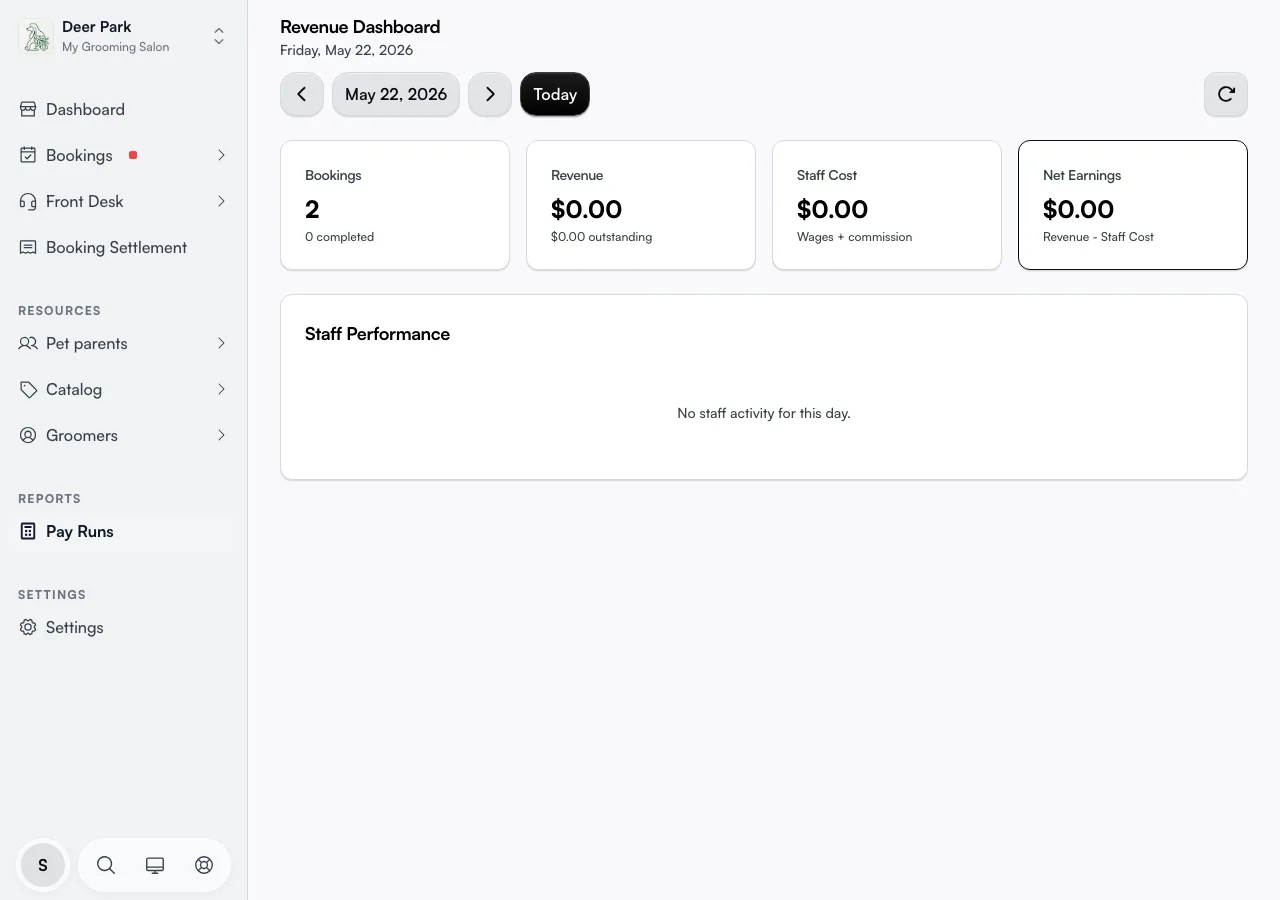
Read the day at a glance
Four cards across the top give you the whole day in one line of sight.
- Bookings — how many appointments fall on this day, with how many are completed noted underneath.
- Revenue — money actually collected so far, with anything still owed shown as outstanding beneath it.
- Staff Cost — wages plus commission for everyone who worked, combined.
- Net Earnings — collected revenue minus staff cost: the day's margin, highlighted because it's the number that matters.
The point most owners miss: the Revenue card is money collected, not money booked. A fully-booked day with unpaid visits shows a low Revenue figure and a large outstanding amount until those bookings are paid off.
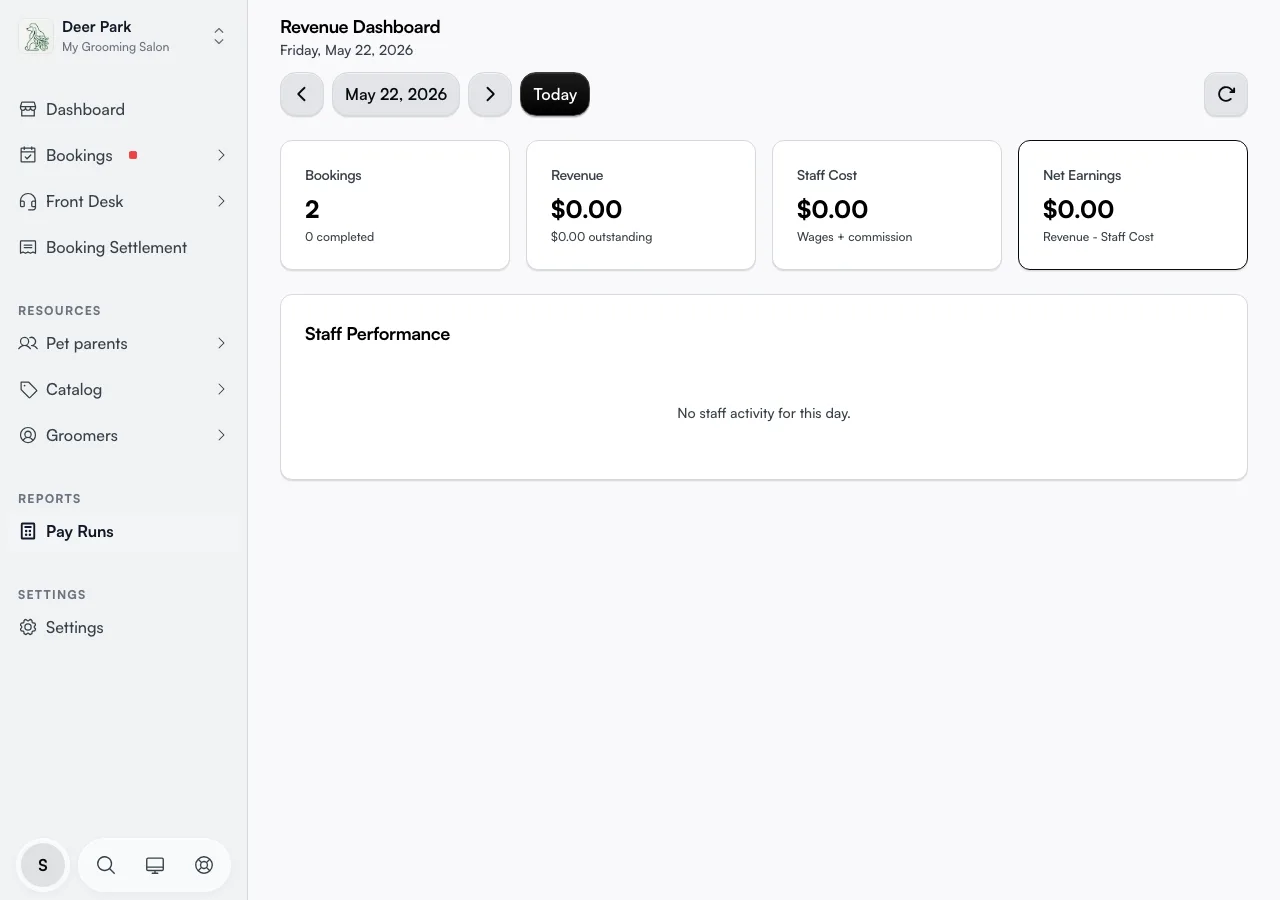
See who drove the takings
Below the cards, Staff Performance breaks the day down per team member, sorted with the biggest revenue earner on top. Each row opens expanded, so you can see the appointments straight away — click the row to collapse it.
The header line for each person shows their appointment count, the revenue they drove, and their Net for the day. Net runs green when they earned more than they cost, and red when they cost more than they brought in — a quiet warning that a slow shift or a high commission rate is underwater for that person.
Check the math behind each person's cost
Under each name is a single cost line that spells out exactly how their cost was built:
8.0h · $160.00 hourly · $45.00 commission = $205.00 cost
That's hours worked, the wage for those hours, the commission they earned, and the total. Overtime is already folded into the hourly figure — there's no separate overtime line here, so a high hourly number on a normal-rate person usually means they ran past their scheduled hours.
Hours and hourly pay are pulled live from the roster every time you open the page, so they stay current even after the day. Commission and the revenue figure are locked in when the day is settled at the till — which is why a team member only appears in this breakdown once their day has been closed out.
Open a person's appointments
Inside each expanded row is that person's appointment list for the day — time, client, service, amount, status, and payment. It's the audit trail behind their revenue number, so you can see exactly which visits made up the total and which are still unpaid.
The Payment badge is more precise than a simple paid/unpaid flag: it reads Paid when settled, Partial when some money is in but not the full price, and Unpaid while nothing has been taken. A row of Partial badges on a strong-looking day is the tell that your Revenue card is lagging behind your bookings.
Move between days and pull fresh numbers
The date bar sits above the cards. Use the arrows to step one day at a time, the calendar button to jump to any date, or Today to snap back. The day you're viewing is carried in the page address, so you can bookmark or share a link to one specific day.
The figures refresh on their own roughly every minute and again whenever you return to the tab, so they stay close to current. If a booking completes or a payment lands and you want the latest immediately, click the refresh button on the right rather than waiting.
See just one branch (multi-location)
This page follows the location you've picked in the location switcher at the top of your dashboard, rather than showing a dropdown of its own. Switch branches there and the whole day — revenue, cost, and every staff row — re-reads for that branch only. With All locations selected, the figures combine every branch into one day.
Trust the staff cost (set pay up first)
For Staff Cost and Net Earnings to mean anything, each team member needs their pay configured — an hourly rate, a commission rule, or both. With no pay set up, that person's cost line reads near zero, Staff Cost comes out low, and Net Earnings looks better than it really is.
If one team member looks suspiciously profitable, check their cost line shows a real hourly rate or commission before you celebrate.
Tips
- Revenue is collected money, not booked money. A busy day with unpaid visits shows low Revenue and a large outstanding figure — it isn't a bad day, it's an uncollected one.
- A staff member missing from the breakdown usually means their day hasn't been settled yet — commission only locks in at till-close, so close the day to see them.
- Net Earnings is a one-day margin read, not a pay figure. For a full pay period, use the page tied to your pay schedule instead — this dashboard never finalises anyone's pay.
- A red Net on a person isn't a bug. It means that person cost more than they earned that day — worth a look if it repeats, not if it's a one-off quiet shift.
Related
- Daily settlement — close out the day so its commission and revenue lock in.
- Finalising pay — turn a period's days into an actual pay run.
- Pay schedule — the periods these daily figures roll up into.
- Payment history — the record behind the collected and outstanding amounts.
Related