Finalising pay
Pay your team without surprises: review every person's hours and pay, clear what's flagged, lock the run, and send payslips — plus the buried controls.
Updated 9 October 2026
When a pay period ends, you need to pay your team the right amount — once, with the numbers locked so nothing shifts afterwards. This page is where you confirm everyone's hours and earnings, deal with anything that looks wrong, lock the run, and send each person their payslip.
You do this once per pay period, after its days are settled. Everything starts from Pay Overview, where every period you still need to act on sits in one list.
Open in app: Pay overview
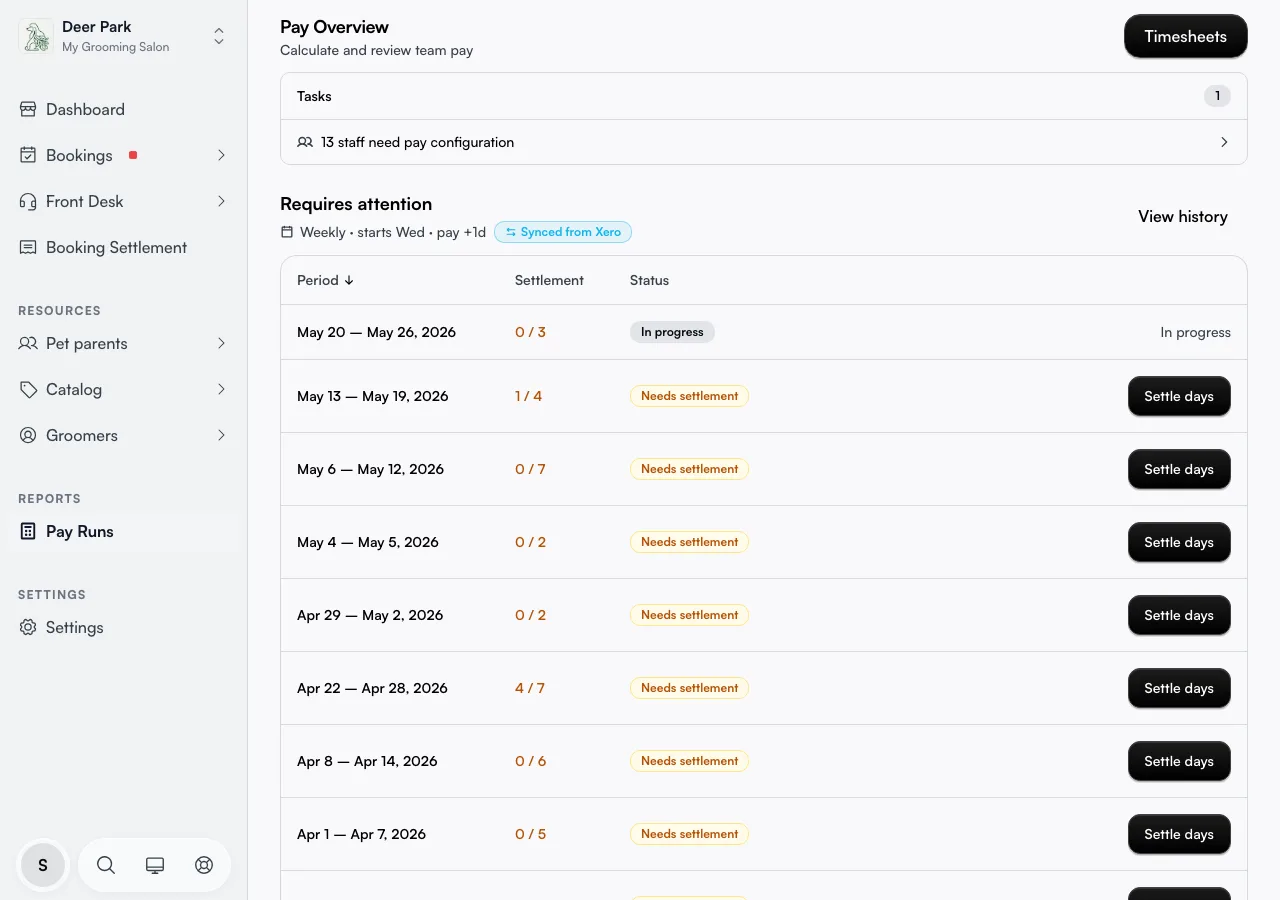
Find the period you can pay right now
Open Pay Runs in the left navigation. The overview opens on Requires attention — the periods you can act on now, plus the one still in progress. Finished and paid periods aren't here on purpose; they live in Pay history.
Read the Status chip to know where each period stands:
- In progress — the period hasn't ended yet, so there's nothing to do but watch it accrue.
- Needs settlement — the period ended but some of its days still need closing. You can't finalise until they are.
- Ready — calculated and good to pay.
- Draft in Xero / Paid — already sent on or closed.
Click View on the row to open the pay period. If a period's Settlement column shows fewer days closed than its total (say 4 / 7), it offers a Settle days button instead — close those days through daily settlement first, because an unsettled day means money you haven't accounted for yet.
Check every person before you lock it
The period page lists each team member who has a pay rate, with hours worked, total pay, and a tick box. Everyone's ticked by default, and the bar at the bottom keeps a live total of selected pay.
Click a person's row to open their full breakdown — regular and overtime hours, break time deducted, service commission per booking, product commission per product sold, and any pay adjustments. Review this now, because once the run is locked these numbers can't be edited.
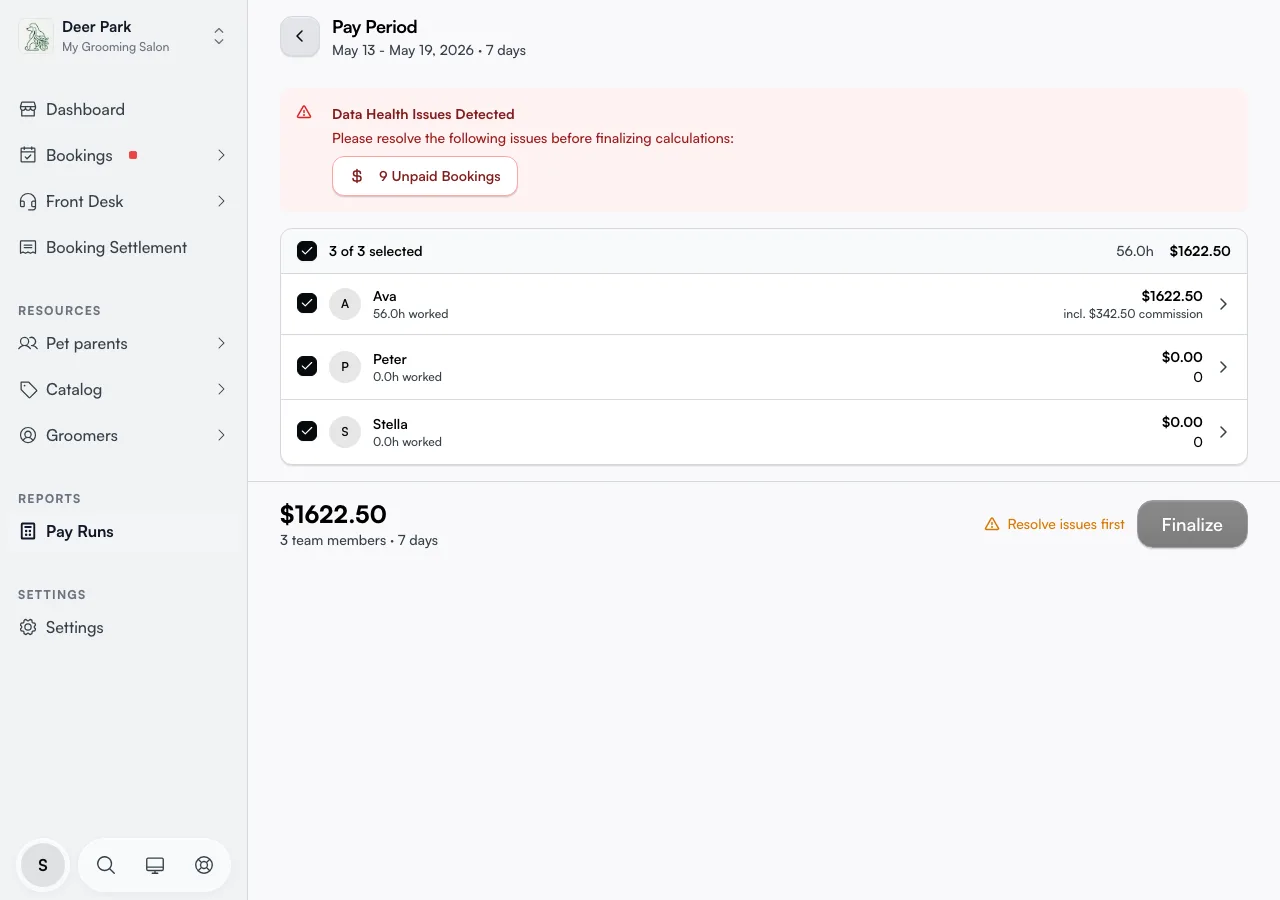
One number that confuses people: the totals shown are pay before tax and super. Tax and superannuation come off afterwards (in Xero, if you've connected it), so each person's actual take-home is lower than the figure on this page. That's expected — you're approving gross pay here, not net.
Clear what's flagged before the button unlocks
If something in the period needs fixing, a red Data Health Issues Detected banner appears at the top. While anything remains, the Finalise button stays disabled and the bar reads Resolve issues first. The gate is strict on purpose — a disabled button always means a real problem, never a glitch.
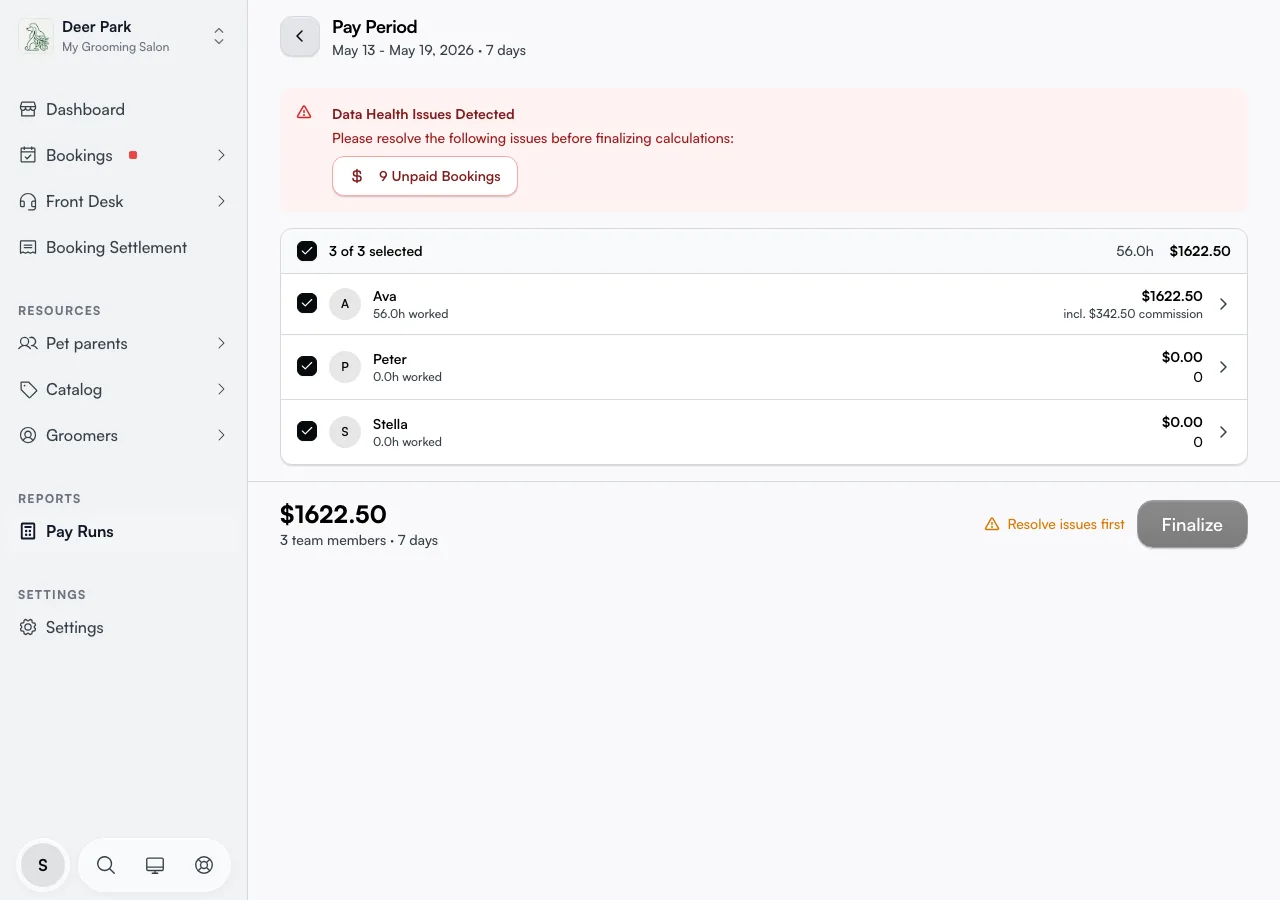
Two things get flagged, and each is a button that opens straight to where you fix it:
- Unpaid Bookings — bookings in the period that were never paid for. Commission can't be calculated correctly until they're settled, so the drawer lists them for you to resolve.
- Incomplete Clock-Outs — a staff member clocked in but never clocked out, so their hours are unbounded. The drawer lets you close the entry.
Fix the underlying booking or clock-out — never work around a flag by unticking the affected person. Once the cause is gone the banner clears and Finalise lights up.
Leave someone out of this run
Untick anyone you don't want to pay in this run before you finalise. They aren't deleted — they're simply left out of this run, not paid. Use this for a contractor you pay separately, or someone whose hours you're still sorting out.
Lock the run and send payslips
With every flag cleared, click Finalise in the bottom bar. In the Finalise Pay dialog, choose how payslips go out under Payslip Distribution:
- Send payslips to all team members — everyone in the run gets theirs.
- Send to selected team members only — a checklist appears so you can pick exactly who, handy when you want to hold one back.
- Don't send payslips now — locks the run but sends nothing yet, so you can send later from history.
Confirm. The period locks, payslips are sent, and you land back on Pay Overview. The finalised period leaves Requires attention and moves to Pay history. Finalising can't be undone without recalculating, so treat the click as final.
Pay outside of Xero with "Mark as paid"
You don't have to send a run to your accounting software to close it. On the overview row, Mark as paid locks the period locally — no Xero involved — and moves it to Completed. Use this for an off-cycle run or a correction you don't want recorded in Xero. Be aware of the trade-off: once you've marked a period paid locally, pushing that same period to Xero later means reconciling it by hand, so only mark-as-paid the runs you're sure you want to keep out of Xero.
Push the run to Xero instead
If Xero is connected, the row shows Send to Xero. This finalises the period locally and creates a draft pay run in Xero in one step. It does not post it — you still open Xero, review, and post there, which is where the tax submission actually happens. After sending, the period reads Draft in Xero, and the row offers Resend (push updated payslips again) or Open in Xero (jump straight to the draft).
You don't normally have to babysit the status: when you post the run inside Xero, Seglo notices and flips the period to Paid in Xero on its own the next time you open the overview, so a draft never sits frozen after you've actually posted it.
Finish a half-done run
If a run was finalised for only some of the team and then more hours came in, the period shows a Partial calc chip and a Calculate button. Click it to fold the newly added people or hours into the run rather than leaving them unpaid. This is easy to miss because the row looks almost like a normal Ready one — the amber Partial calc chip is the tell.
Tips
- The totals are before tax and super. Take-home is lower; you're approving gross pay. Tax and super are handled downstream.
- A disabled Finalise button is always a real flag, never a bug — clear the Unpaid Bookings or Incomplete Clock-Outs behind it.
- "Mark as paid" and "Send to Xero" are a fork, not a sequence. Mark-as-paid keeps the run out of Xero; reconciling it into Xero afterwards is manual. Pick the right one up front.
- Nothing edits in place after locking. A correction is a separate pay adjustment on a later period — never a re-open of this one.
Related
- Pay schedule — how often periods start and end.
- Daily settlement — closing the days a period depends on before you can finalise.
- Pay adjustments — bonuses, deductions, and the only way to correct a locked period.
- Product commission — what each person earns on the products they sell.
- Pay history — finalised and paid periods after the fact.
Related