Pay schedule
Pick which day pay periods start, how often they run, and when payday lands — change it safely without ever rewriting past pay.
Updated 11 October 2026
This is the one rule that decides which day each pay period starts, how often periods run, and when pay is calculated — and every period you see on your pay pages is built from it. Get it right once and Seglo lays out your periods automatically from then on; change it later and only future periods move, so the pay you have already run never shifts under you.
Open in app: Pay calculation rules
To get here, open Pay Runs in the left navigation, then open settings from there. The page is titled Pay Calculation Rules, and your pay schedule is the first row, Work Week & Service Calculation. The summary on the right shows your current setup at a glance — for example Weekly · Mon. Only an owner with pay access can open it.
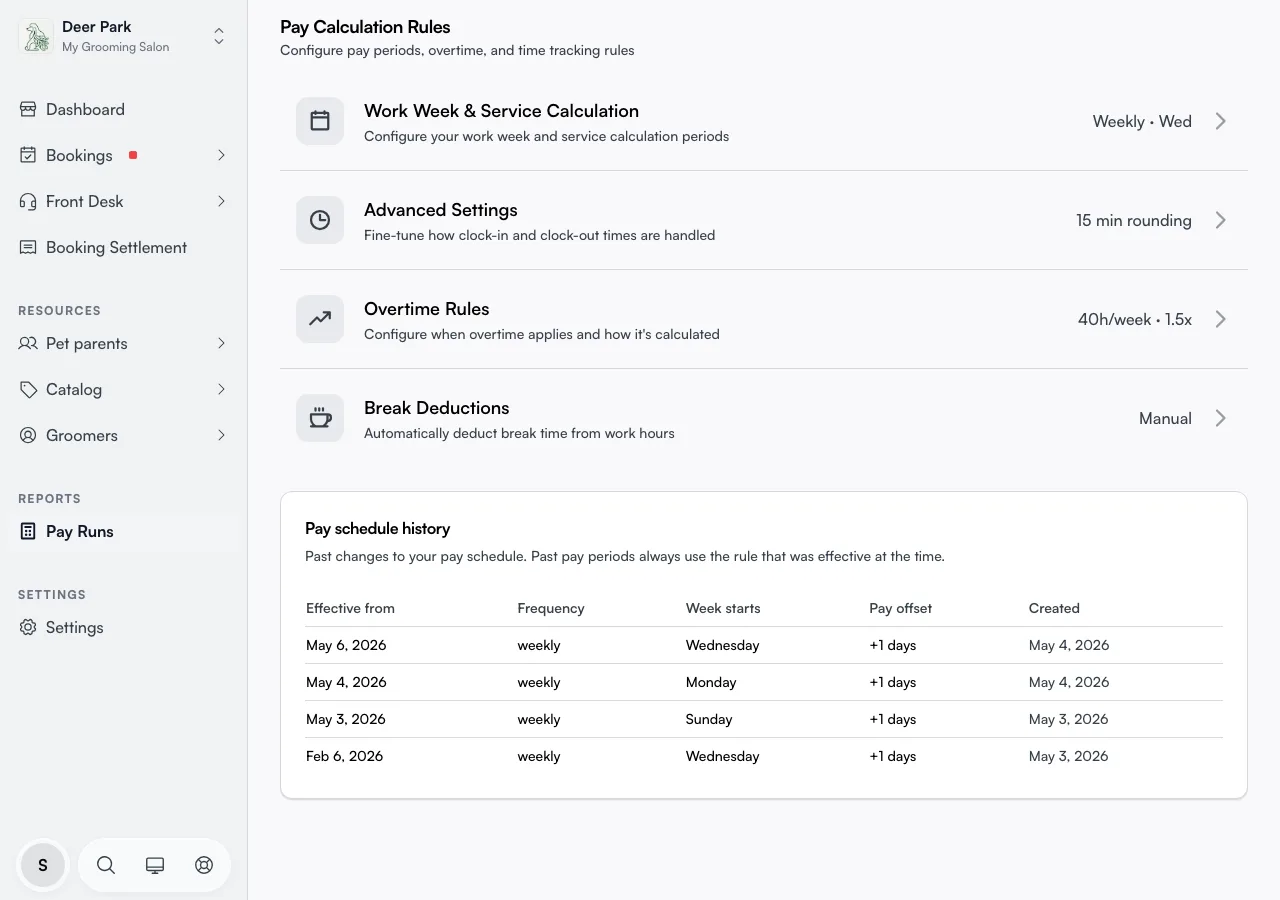
Set how often you pay and which day the week starts
Click Work Week & Service Calculation to open the drawer. Two choices define your schedule:
- Week Starts — the day a period begins, Sunday through Saturday. This anchors every weekly and fortnightly period.
- Calculation Frequency — Weekly, Bi-weekly (every two weeks), or Monthly.
As you change either field, the Calculation Schedule Preview at the bottom redraws the next two periods, with the current one highlighted. Use it to confirm the dates land where your business actually pays before you save.
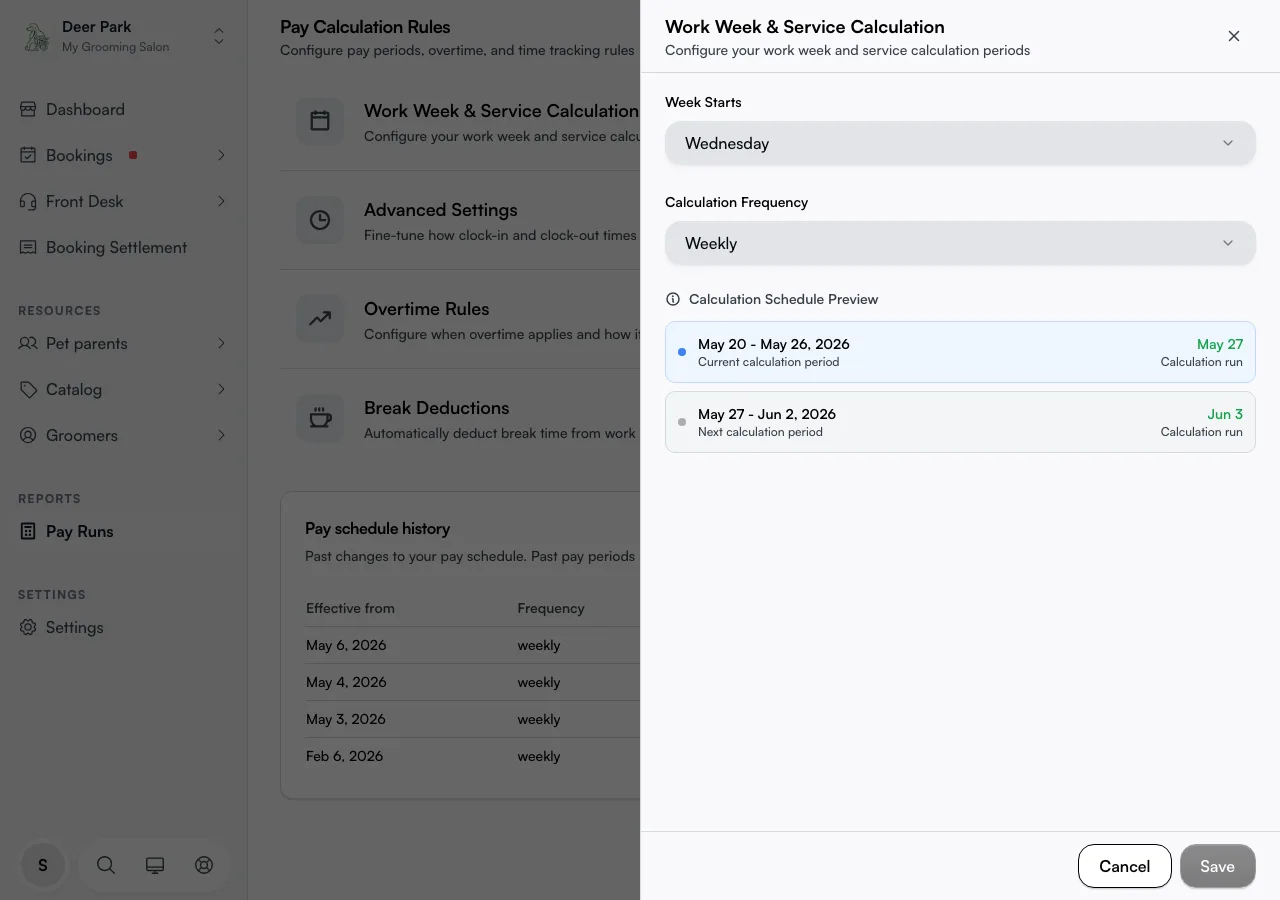
Check exactly when payday falls
The green date on the right of each preview row — labelled Calculation run — is not the end of the period. It is the payday, and it sits a set number of days after the period ends. That gap defaults to two days, which is the buffer most businesses keep for approving hours and clearing bank transfers before staff are paid.
So a Sunday-to-Saturday week doesn't pay out on Saturday — it pays the following Monday. If your payday looks a day or two later than the period end, that offset is why. The same value shows as the Pay offset column in your schedule history.
Change your schedule without touching past pay
When your business changes how it pays — say weekly to fortnightly — edit the fields and save. A schedule change is forward-only: every past period stays locked to the rule it ran under, and only periods starting on or after the change date follow the new rule.
The moment you change a field, an Apply from date appears. This is the first date the new rule takes effect, and Seglo handles two things for you automatically:
- It snaps the date forward to the next period boundary, so no single period is ever split across two different rules. If the date looks a little later than you picked, that is the snap.
- It rejects any date in the past — you can only schedule a change from today onward.
Past periods keep their original boundaries and stay visible in your pay history, and reports for past dates use the schedule that was in effect then. Totals never move.
The period that runs into the change is cut short. Say you pay Monday-to-Sunday weeks and switch to Wednesday weeks from Wednesday 14 October: the Monday week ends on Tuesday 13 October, and the first Wednesday week starts the next day. That short period is paid like any other, on its own payday.
Each period keeps the payday offset of the rule it ran under, so changing the offset only moves paydays for periods under the new rule.
   Past periods            Apply-from date         Future periods
  (old rule, locked)             │              (new rule, applied)
 ┌──────┬──────┬──────┐          │          ┌──────────┬──────────┐
 │ wk 1 │ wk 2 │ wk 3 │ ────────►│◄──────── │ period A │ period B │
 └──────┴──────┴──────┘          │          └──────────┴──────────┘
   never rewritten         snapped forward      new frequency
                          to next boundary       starts here
See the change on your calendars and pay screens
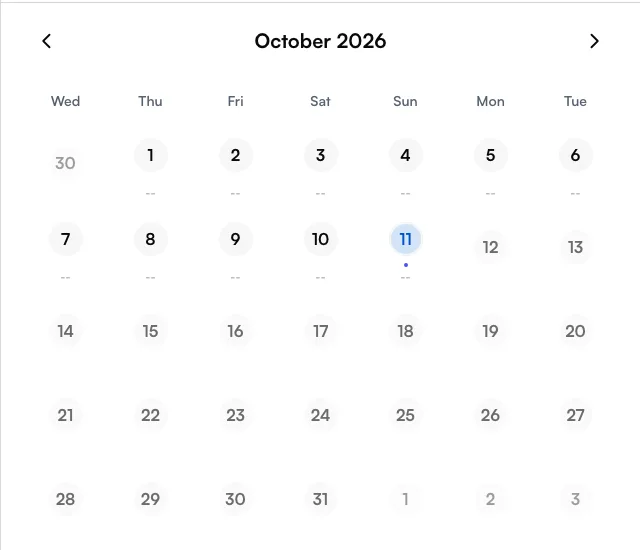
From the day the new rule takes effect, every screen that shows pay weeks follows it. Days before the change still show the old week.
- Daily settlement — in the web app, Bookings → Daily settlement, the calendar's columns start on your pay week's first day. In the Seglo appointment app, the week strip on Daily Settlement does the same. Opened from a pay period, the strip starts on that period's first day instead.
- Timesheets and Daily Earnings (Seglo appointment app) — the week strip starts on your pay week's first day.
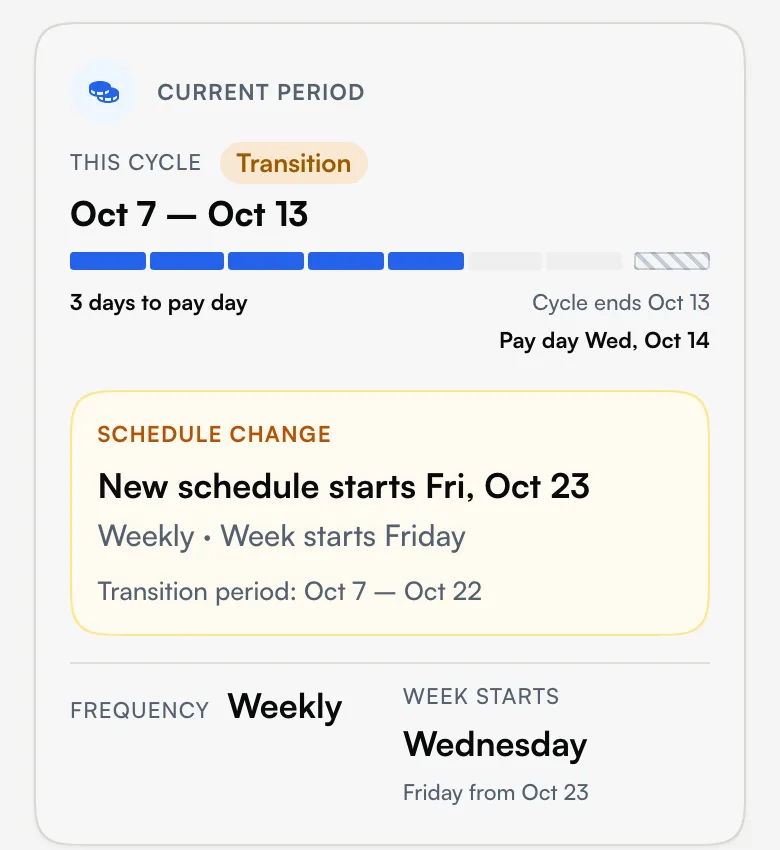
- Staff Pay (Seglo appointment app) — while a change is waiting to take effect, the current period card shows a Schedule change box with the day it starts, and Week starts shows the new day under today's, for example Friday from Oct 23.
- Dashboard (web app and Seglo appointment app) — the Pay run card shows Next pay run: with your next payday under the schedule in effect. The card appears when staff are owed commission or payday is within three days.
- My Pay (Seglo appointment app) — your estimate covers your current pay period: This week on a weekly schedule, This pay period with its dates on a fortnightly or monthly one.
Set up your schedule for the first time
A brand-new business sees a setup banner at the top of the page before any schedule exists. Click Apply Settings and Seglo writes a sensible starting schedule in one tap — a weekly cycle with the standard two-day payday offset — so you are not forced to fill in every field before you can run pay. You can fine-tune it afterward in the drawer.
See every past change you have made
Once you have changed your schedule at least once, a Pay schedule history card appears at the bottom of the page. It lists each version with its effective-from date, frequency, week-start day, and pay offset, newest first. This is your record of what rule was live for any given period — the card stays hidden until there is real history worth showing.
Choose whether Xero or Seglo owns the schedule
If you connect Xero, you choose who owns the pay schedule on the payroll integration page: Managed by Xero, where Seglo mirrors the Xero payroll calendar you chose, or Managed in Seglo, where you set it here and keep Xero matching by hand. To change the source, use the Xero settings page.
Tips
- Payday is offset from the period end, not the same day. The green preview date sits two days after the period closes by default — that is normal, not a bug.
- The Apply-from date snaps forward on purpose so no period straddles two rules. A later-than-expected start date is the snap doing its job.
- A shorter period right before a change is expected. It is the old week ending the day before the new rule starts, not a missing day.
- A schedule change can never move or delete a past pay period. History is always safe to leave alone — to re-pay an old period you reschedule by hand, you never edit the rule.
- Always read the preview before saving. It is the fastest check that the new dates match how your business really pays.
Related
- Finalising pay — running a pay period the schedule produced.
- Pay history — past periods and the schedules they ran under.
- Xero integration — syncing the schedule with your payroll calendar.
Related