Timesheet and hours tracking
See who's on the floor, fix missed clock-ins before payday, and catch the late starts and overruns that quietly inflate your hours.
Updated 19 July 2026
When payday is wrong it almost always starts here — someone forgot to clock out, a late start went unnoticed, or a shift never got rostered so the hours never counted. This page is where you catch all of that on the day it happens, while it's still easy to fix.
It shows, for one chosen day, every team member who has a shift: when they were due in, when they actually clocked, and the hours that result. Those hours feed your pay periods, so a tidy day here means a pay run with nothing to argue about.
Open in app: Timesheet
See who's actually on the floor right now
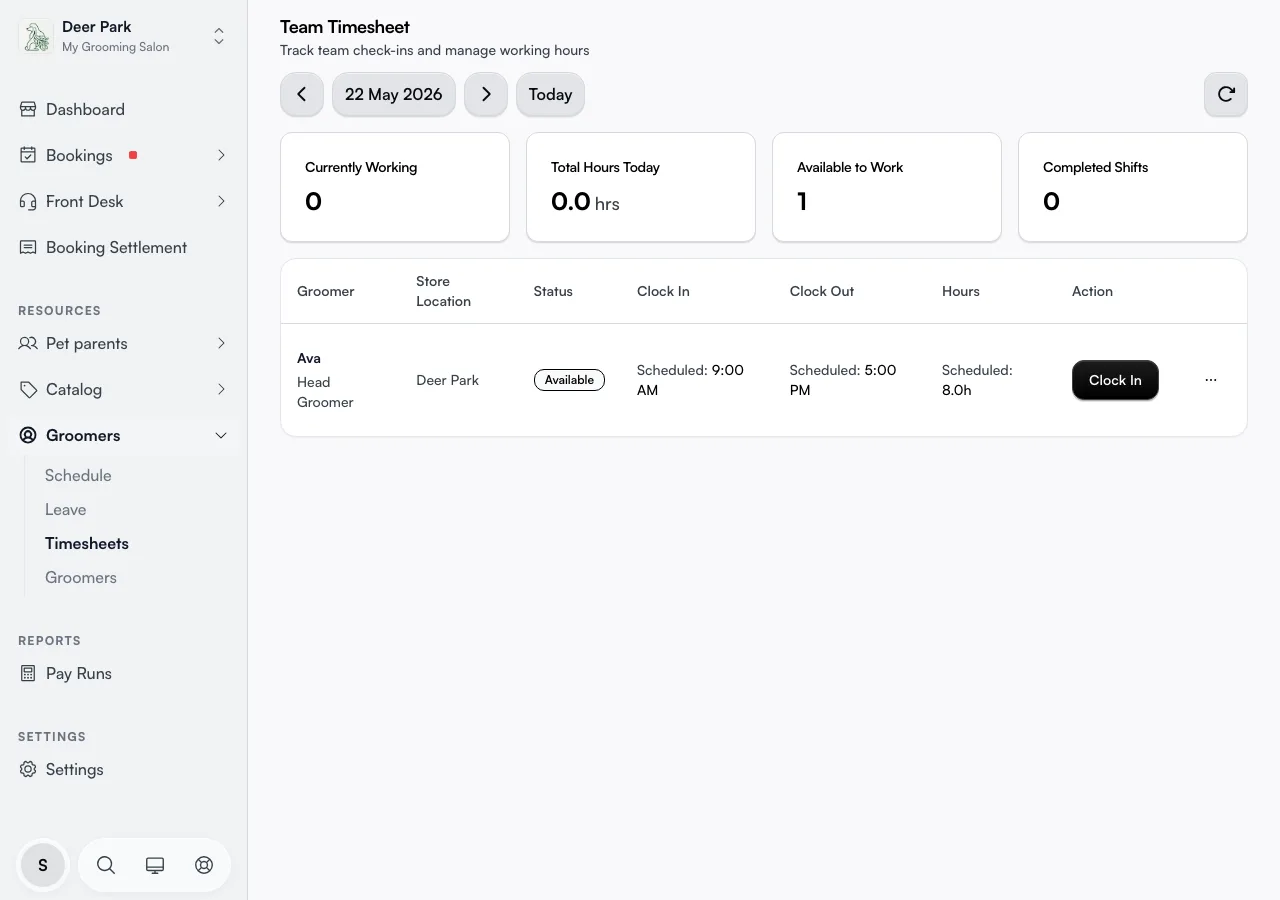
Open Team → Timesheet. The four tiles across the top give you the day at a glance: Currently Working (clocked in, not out), Total Hours Today, Available to Work (rostered but not yet clocked in), and Completed Shifts. The page quietly refreshes itself about once a minute, so a screen left open updates as people clock in and out without you reloading.
Each row carries a status badge that tells you where that person is in their day:
- Available — rostered, hasn't clocked in yet.
- Working — clocked in, still on the floor.
- Finished — clocked out, hours locked in for the day.
Every time column shows the Scheduled time, and once someone clocks, the Actual time appears beneath it in green — so one glance tells you whether the day is running to plan.
Clock someone in or out for them
The Action button on each row mirrors that person's state: Clock In before they start, Clock Out while they're working, and a greyed Completed once the shift is closed.
Anyone can always clock themselves — a staff member opening this page sees only their own active button. Clocking someone else in or out needs the timesheet-edit permission; without it, every other row's button is locked. This is how a manager covers for a stylist whose hands are full, or starts the day for a team that clocks at a shared front desk.
Fix a missed or wrong clock-in before it hits pay
Forgotten clock-outs are the number-one cause of wrong hours. To correct one, open the ⋯ menu on the row and choose Edit times.
- Set the Clock In and Clock Out times in the panel.
- Tap Use Scheduled Times to pre-fill straight from the rostered shift — the fastest fix when someone simply worked their planned hours but never clocked.
- Click Save changes. The hours recompute on the spot.
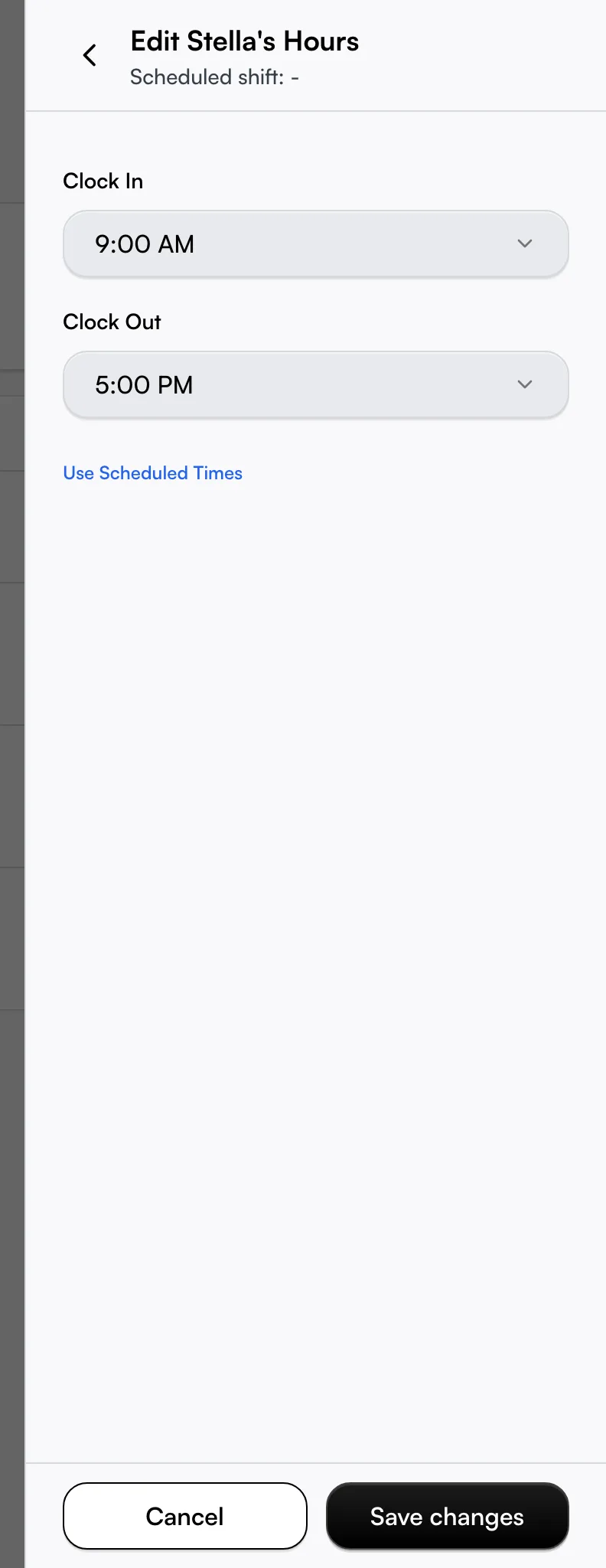
A few guard rails stop a typo becoming a payroll problem: clock-out must be after clock-in (the picker won't even offer an earlier time), a single shift can't exceed 16 hours, and it must be at least 15 minutes. You can also save just one of the two times — handy when someone is mid-shift and you only need to backfill their start.
To wipe a record entered in error, open the same ⋯ menu and choose Remove record — this clears that day's clock data for that person and can't be undone.
Spot late starts and overruns at a glance
The timesheet doesn't just record times — it flags when reality drifts from the roster. On the mobile view a per-person timeline marks each clock event against the schedule: more than 5 minutes late shows in amber with a "min late" note, more than 5 minutes early shows in blue. Anything inside that 5-minute window counts as on time, so you're not chasing a one-minute difference.
While someone is still clocked in, their running total reads as hours so far rather than a final figure — useful for seeing who's heading into overtime before the shift even ends, not after.
Read the right day and the right clock
Use the date controls in the header to step back or forward a day, or Today to jump to the current date. The manual refresh control pulls in any clock activity that landed since you opened the page.
Times always display in the business timezone, never your own. A manager handling an Auckland salon from London still sees the salon's clock — so "clocked in at 9am" means 9am where the shop is, not where you're sitting.
Decide who can edit the timesheet
Timesheet access has two levels, and they don't unlock the same buttons:
- Timesheets (view) lets a person see the team timesheet — everyone can always see their own regardless of this setting.
- Edit & Approve Timesheets unlocks clocking other people in and out, Edit times, and Remove record together — it's a single permission, not separate edit and approve levels.
Set this per person on their member record under Team → Members.
Tips
- 0 hours despite a full shift almost always means the person never clocked. Backfill it with Edit times → Use Scheduled Times, or relax their clock-in requirement on their member record.
- The timesheet feeds pay, it isn't pay itself. For per-period totals, go to the Pay area's pay periods. Editing hours on a period that's already finalised won't change money already paid.
- Someone missing from the table has no shift rostered that day. Add one on the staff schedule and they appear — until then there's nothing for the timesheet to measure against.
- Amber on a clock-in means more than five minutes late, not a system error — it's the page telling you a pattern may be forming.
Related
- Staff schedule — the roster the timesheet measures every actual clock against.
- Leave and time off — approved leave that explains a missing day.
- Staff welcome — the first-login flow a new hire completes before they can clock at all.
Related