Receptionist dashboard
Check overnight calls and chats at a glance, prove the receptionist is booking work, and dig into any conversation it handled.
Updated 19 July 2026
This is where you confirm, in five seconds, that the assistant answering your phone and website chat overnight actually turned those calls into bookings — not just took messages. Open it first thing in the morning, or any time you want to check the receptionist is pulling its weight while you are with a customer.
Open in app: Receptionist
The numbers here are always current — they read the same live booking data as the rest of Seglo, so there is no refresh or sync to wait on.
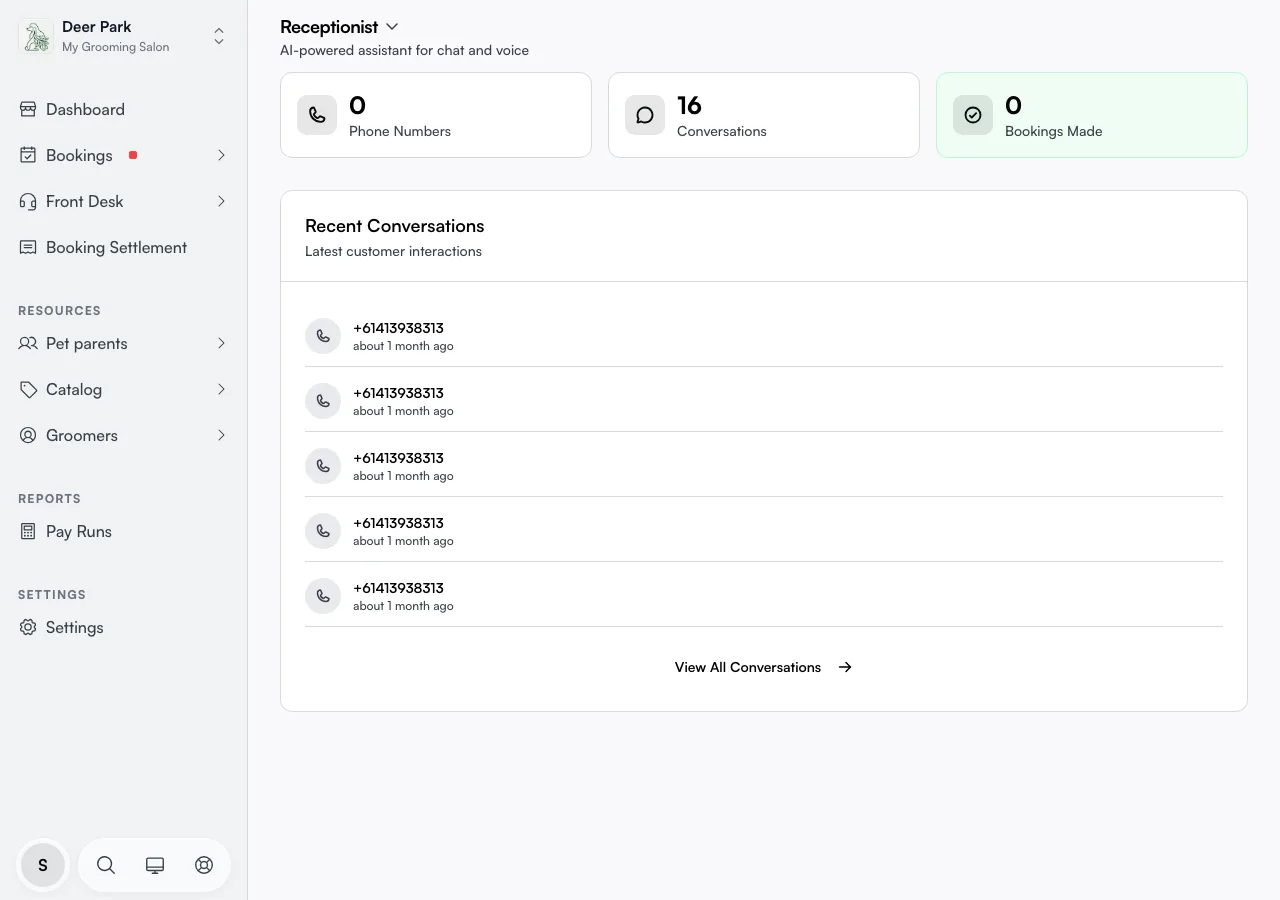
See how much work it handled overnight
Three running counts sit across the top, left to right:
- Phone Numbers — how many numbers are connected. Zero here means phone calls are not reaching the receptionist at all.
- Conversations — every interaction it handled, both phone calls and website chats counted together.
- Bookings Made (shown in green) — the conversations that ended with a confirmed appointment. This is the one that tells you it is earning its keep, not just chatting.
Below the three cards, a summary line shows "AI handled X calls · booked Y" for the current calendar month in your business's timezone. This gives you the month's running tally at a glance — X is every call the AI receptionist answered; Y is the subset that ended in a confirmed booking. Click through to Calls to see which specific calls those were.
A high Conversations count with a low Bookings Made count is the signal worth chasing — it usually means customers asked for something the receptionist could not give them (a service you do not list, a time you are closed). Read a few transcripts to find the gap.
Jump straight to the conversation list
Click the Bookings Made card to open Calls filtered to bookings, where you can filter further by Handler and outcome to isolate the calls that produced a booking and audit a busy day.
Click the Phone Numbers card to jump to Receptionist settings where numbers are connected, or the Conversations card to open Messages.
Read any conversation in full
Scroll to Recent Conversations for the five latest interactions. Each row shows who it was (phone number or email), how long ago, and an outcome tag. Click any row — or View All Conversations at the bottom — to open the transcript, listen to the recording, and read the receptionist's own summary of what happened.
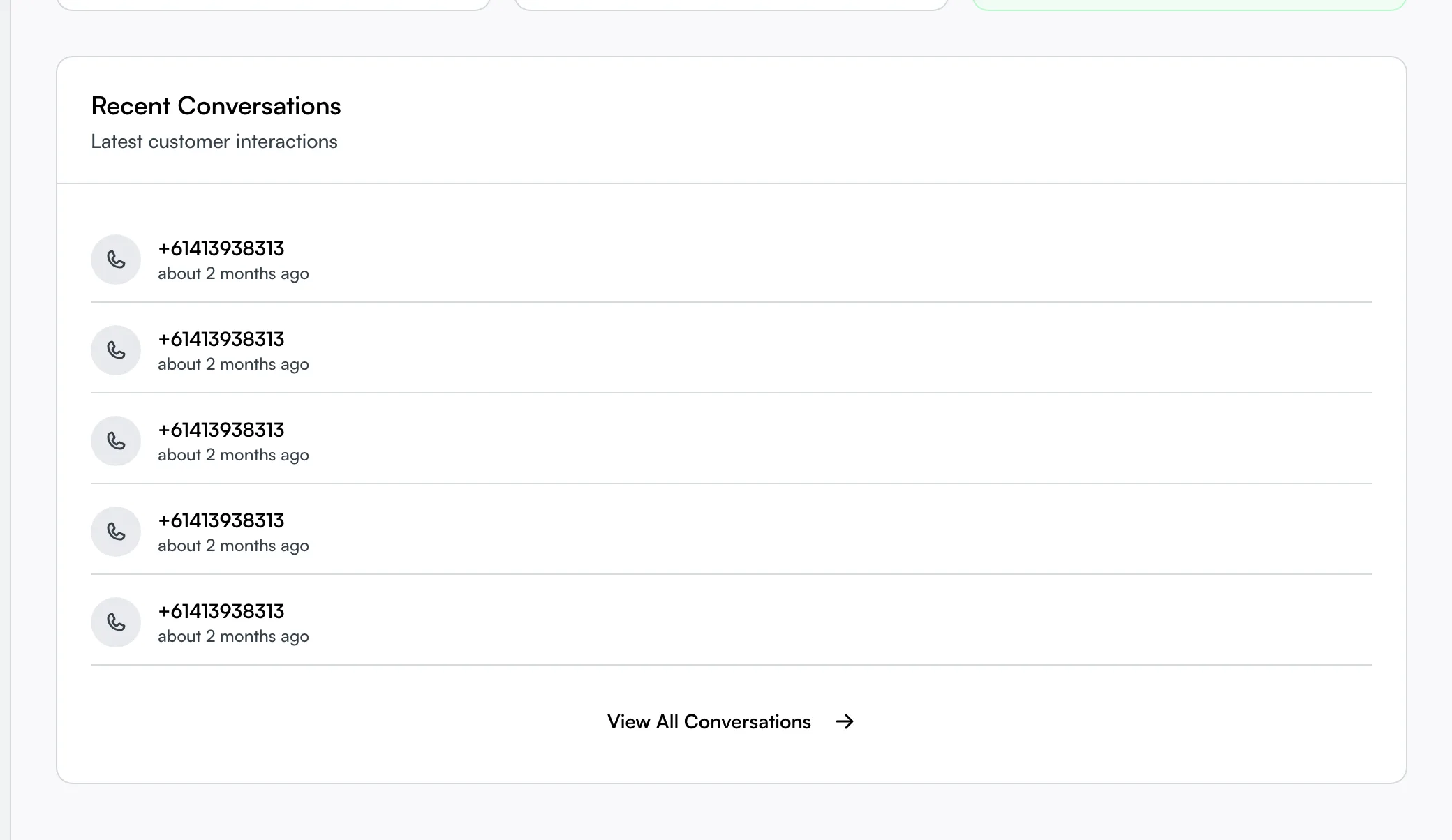
The small icon on each row is doing quiet work: a phone marks a voice call, a globe marks a website chat. You are looking at both channels in one list, so you do not have to check two places.
Tell at a glance what each conversation did
The outcome tag is not just "booked or not". Open any conversation and it splits into the states that actually matter to you:
- Booked — a confirmed appointment came out of it.
- Cancelled — the customer cancelled an existing booking through the receptionist.
- Completed — handled and finished, no booking needed (a question, a status check).
- Missed and Voicemail — the call was not answered live or went to a recorded message you should listen to.
- Error — something went wrong mid-conversation; worth opening to see what.
- Active — still in progress right now.
A run of Missed or Voicemail tags is a prompt to check your number setup or hours, not a fault with the booking itself.
Spot when a human took the call instead
The receptionist is not always the one who answers. Inside a conversation, a handler badge tells you who actually dealt with it — AI, a named staff member (if someone on your team picked up), or Voicemail if it went to a recording. This matters when you are reviewing quality: an AI-handled booking and a staff-handled one read very differently, and the badge stops you from coaching the receptionist for something a person did.
Follow up on customers it could not finish
Some conversations end with the customer needing a call back rather than a booking. Those become follow-up requests, tagged by urgency, and they live on your callbacks list — not buried in the conversation history. If the receptionist promised someone a human would ring them, that promise surfaces there so it does not get dropped.
Take the guided tour if the numbers do not click
First time on this page, open the Receptionist Overview tutorial from the page title for a short walkthrough of the three cards. It is the quickest way to learn what counts as a "conversation" versus a "booking" before you start reading into the numbers.
Tips
- All three cards reading zero usually means the receptionist is switched off, not that nobody called. Check the master toggle and number setup in Receptionist settings.
- A zero Phone Numbers card silently drops every call — no number is routed yet, so the phone side simply will not work until you connect one.
- Bookings it makes land on your normal calendar alongside everything else — there is no separate place to approve them, and no way to tell at a glance on the calendar that the receptionist made them rather than you.
- Website chat counts here too. If your Conversations number climbs but you have no phone number connected, those are chat-widget conversations, not calls.
- This page needs the AI add-on. Without it, you see an upgrade prompt instead of stats — the receptionist itself is the paid part, the dashboard just reports on it.
Related
- Receptionist settings — connect numbers, switch the receptionist on, and shape how it sounds.
- Messages and Calls — the full Messages (SMS) and Calls (voice) lists, with outcome and handler detail available on each conversation.
- Callbacks — follow-up requests the receptionist could not close on the call.
- Appointment calendar — where the bookings it makes appear.
Related