AI agent management
Answer every call and chat, decide exactly what your AI can do, and ask Seglo about your own numbers — with the buried controls most owners never find.
Updated 19 July 2026
You have two AI helpers pulling from the same picture of your business — one answers your customers, one answers you. Most owners turn the receptionist on and stop there, missing the controls that decide whether it rings your team first, what it's allowed to book, and how it greets a regular by name. This page walks the jobs worth doing, common to hidden.
Open in app: Receptionist · Assistant
The receptionist faces your customers — it answers phone calls and website chats, books appointments, and takes callbacks. The assistant faces you — a chat where you ask about your own business. Both read the same live data (services, team, hours, policies, client history), so the answers stay consistent.
See what your receptionist handled while you were busy
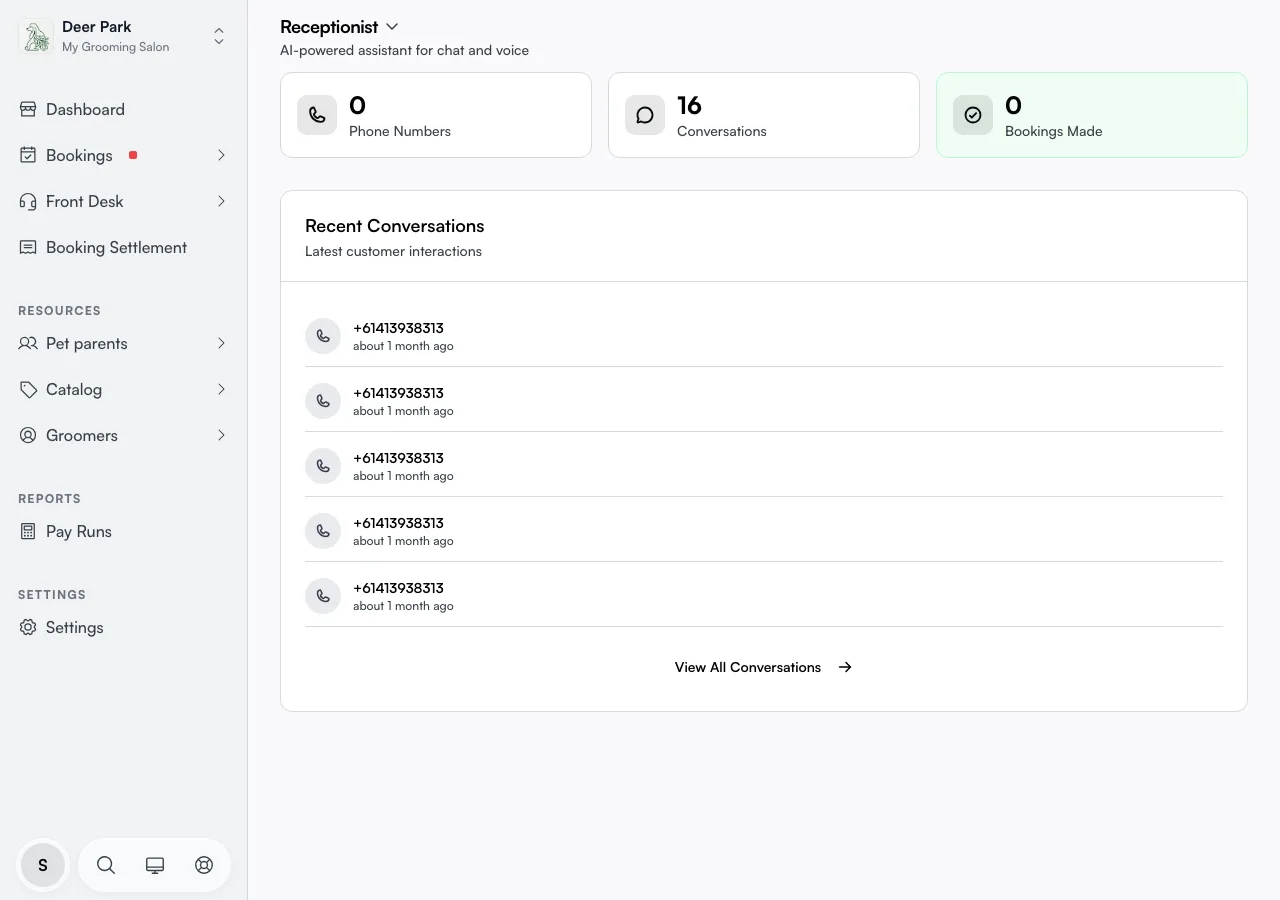
Open Front Desk from the left navigation. The top of the dashboard shows three live counts — Phone Numbers active, total Conversations, and Bookings Made — and the bookings tile is the one to watch: it's revenue the agent captured without you. Tap any tile to drill in; the bookings tile jumps straight to a filtered list of calls that ended in a booking.
Below that, recent conversations let you skim what just happened. To read the full picture of any call or chat, open Receptionist conversations.
Turn on phone calls
Open Receptionist settings (linked above). You can't configure call handling until you've added a phone number — the Call Flow, Personality, and Capabilities tabs stay locked, with a prompt to add a number first. Use Add a phone number to get one.
Decide who answers first — your team or the AI
In the Call Flow tab, pick what happens when a customer calls during opening hours:
- Staff First (recommended) — rings your team, and the AI only takes over if nobody picks up.
- Receptionist — the AI answers immediately, every time.
- Staff Only — rings your team and drops to voicemail if no one answers; the AI never picks up.
Choose Staff First or Staff Only and a slider appears for how long the phones ring before the AI (or voicemail) takes over — anywhere from 10 to 60 seconds. Set it short and customers wait less; set it long and your team gets a fair chance to answer first.
Keep answering after you've closed
Most owners forget calls still come in after hours. Lower down the Call Flow tab, Outside Business Hours controls what happens when you're shut:
- Receptionist (recommended) — the AI handles calls and can still take a message or book.
- Voicemail — plays a greeting and records a message.
- Message Only — plays a "we're closed" message and hangs up.
Pick Voicemail or Message Only and a box appears for your own closed-hours greeting (up to 500 characters). Leave it blank and customers hear a generic line — write your own and they hear your name, your hours, and what to do next.
Control exactly what the AI is allowed to do
Open the Capabilities tab — this is the safety dial, and every action is a separate switch. Turn on only what you trust the agent with:
- Book Appointments — schedule new bookings.
- Look Up Appointments — tell a customer what they have booked.
- Check Service Status — let drop-off customers check on a groom or repair in progress.
- Cancel Bookings and Reschedule — change existing appointments.
- Request Callbacks — log a follow-up for your team instead of acting.
- Auto Hang-up — let the AI end a call once it's clearly done, so the line frees up.
A cautious setup is to leave Cancel and Reschedule off at first, then loosen it once you trust the agent.
Make it sound like your brand, not a robot
In the Personality tab you give the agent a Name and a Tone — Professional, Friendly, Enthusiastic, or Empathetic. Under Voice you pick the speaking voice (each has an accent label and a preview button) and a Speaking Speed from 0.7x to 1.2x, useful if an older clientele needs it slower.
Returning callers are greeted automatically by name — no setup needed, and separate from the New Callers greeting you write above. The Custom Instructions box below takes house rules in plain English — "always mention our current promotion", "prioritise morning appointments".
Review any call or chat word for word
Open Calls from Front Desk in the left navigation for phone calls, or Messages for website/SMS chats. On Calls, filter by handler — All handlers, AI, Staff, or Missed — or by a date range (Today through All time). Watch for rows badged Error: they surface calls that went wrong so you can fix the cause.
Open any row to read the full transcript, see whether the AI or a staff member handled it, read the AI's written summary, and — for calls — play the recording or voicemail right in the panel.
Ask Seglo about your own business
Open Assistant (linked above — it's not currently in the left navigation) and type into Ask anything… — "who are my top spenders this month", "find the client who called yesterday", "summarise today". Answers come from your live data, so the numbers are current as you read them.
Two things people miss: the microphone lets you speak your question instead of typing (up to 60 seconds, transcribed automatically), and the assistant keeps Topics — past conversations saved on the left, so you can reopen a thread instead of starting over. The agent can also start a topic itself: an amber needs-attention card on the landing screen means it spotted something worth your eye. Open the full Assistant page for more.
Tips
- Both AI tabs stay locked until a phone number exists. Added the AI but can't touch Call Flow? Add a number first.
- After-hours handling is separate from daytime. Setting daytime routing does nothing for calls that come in once you've closed — set the Outside Business Hours block too.
- Returning callers are greeted automatically by name — there's no separate setting to configure; only the new-caller greeting is yours to write.
- Capabilities are a whitelist. If the agent won't cancel a booking on a call, the Cancel switch is off — that's by design, not a fault.
- The receptionist is part of the AI add-on. Without it, the receptionist pages show an upgrade prompt instead of the dashboard. You can cancel the package from the Manage plan menu at the top of Settings — it keeps working until the end of your billing period.
- The old /business/agent address now redirects to the receptionist automatically — bookmarks still work.
Related
- Receptionist dashboard — call volume, channels, and bookings made.
- Receptionist settings — call flow, voice, personality, and capabilities.
- Receptionist conversations — transcripts, recordings, and AI summaries.
- Assistant — the in-app business assistant with voice and saved topics.
Related