Team chat
Message your staff inside Seglo: 1:1 chats, groups and an Everyone chat, with photos, files and @mentions, on the Phone app, appointment app and web.
Updated 2 October 2026
Roster swaps, "can you fit Max in at 10?", a photo of a matted coat for the owner. Team chat keeps those messages in Seglo, with the people they're about, instead of in someone's personal WhatsApp group.
It works in all three Seglo apps, and they all show the same chats. Where each one lives:
| App | Where to find it |
|---|---|
| Seglo Phone app | The Team tab in the bottom bar |
| Seglo appointment app | The Messages tab, then Team at the top |
| Web app | Team chat in the left sidebar |
Open in app: Team chat
Before you start
Team chat is for people on your team list. If you see You're not on the team list, add yourself under Team members first. A teammate also has to sign in to Seglo before they can chat. Until then the people picker says how many teammates can't chat yet. Team chat isn't available on a shared kiosk device.
Every business starts with an Everyone chat. Every active team member is in it, and you can't leave it. Mute it if it gets busy.
Start a chat (Seglo Phone app)
- Open the Team tab. The page is titled Team chat.
- Tap the pencil button (New chat) at the top right.
- Tap a person to open a 1:1 chat. If you already have a chat with them, Seglo opens that one instead of making a second.
- For a group, tap New group, tick the people in Who's in the group?, tap Next, give it a name (for example "Front desk") and tap Create.
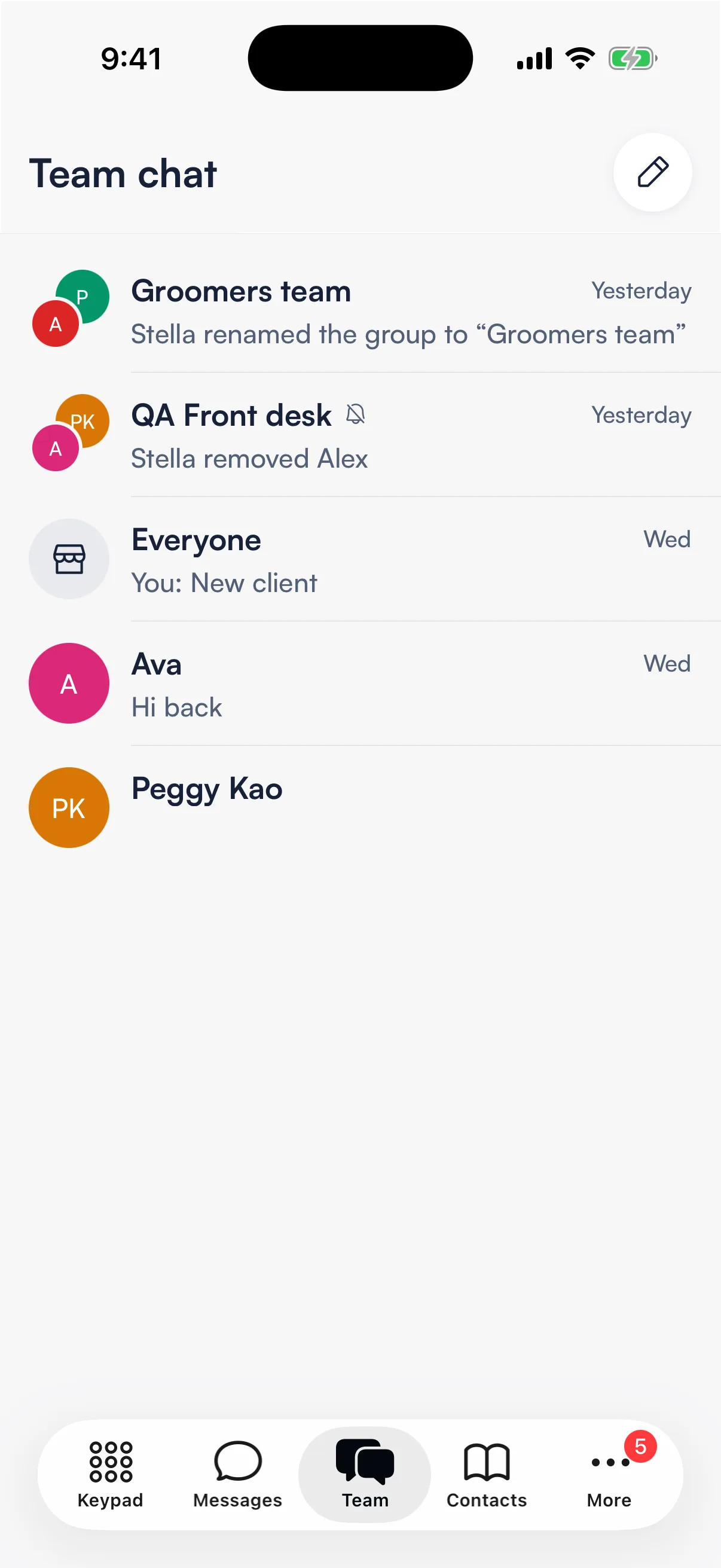
In the Phone app you chat with teammates only. You can send text, photos (camera or library) and files, and @mention teammates. Mentioning clients or bookings, and adding notes, is only in the appointment app and the web app.
Start a chat (Seglo appointment app)
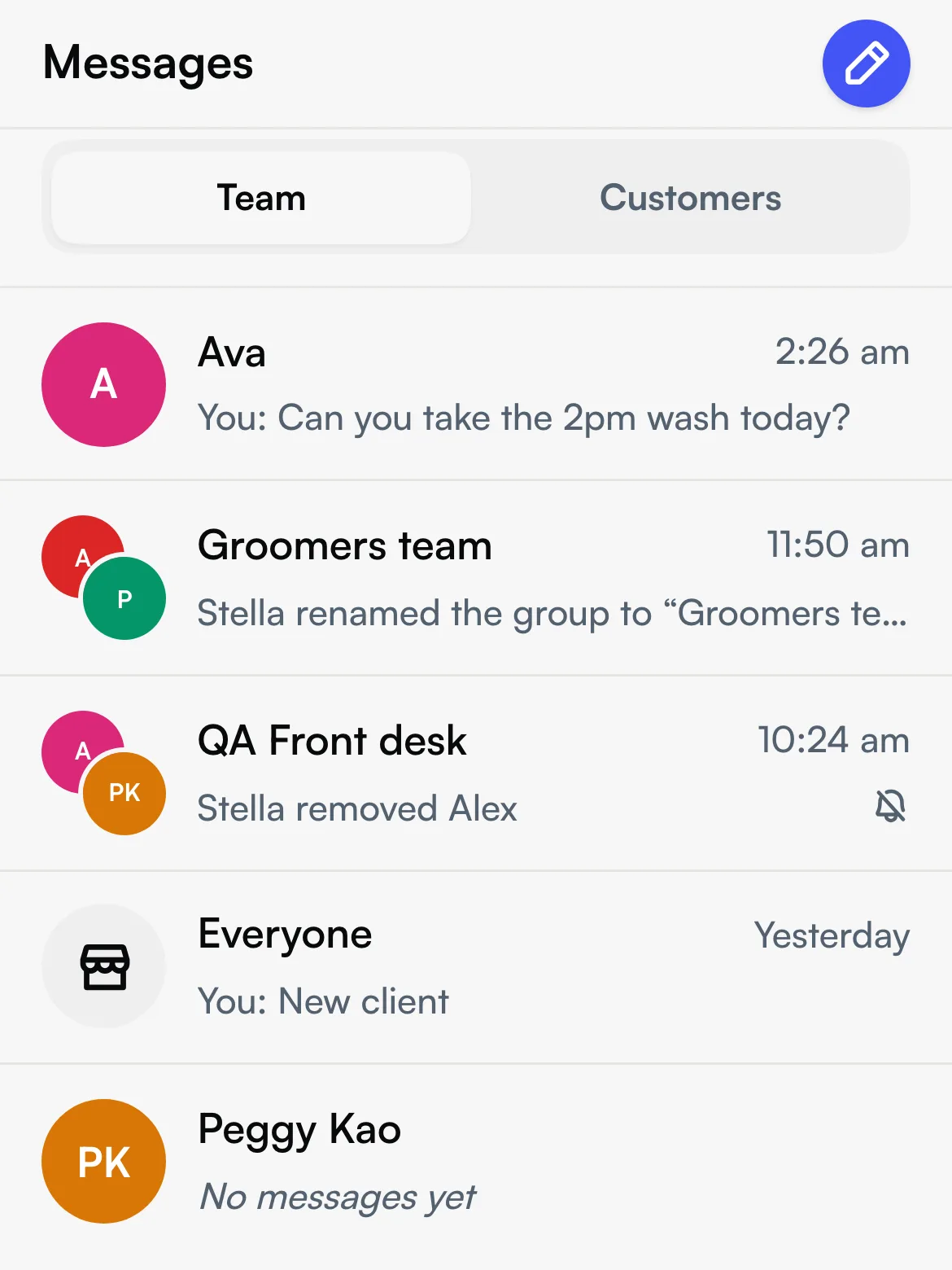
- Open the Messages tab. If you can also see customer messages, tap Team at the top. If you can't, the tab shows team chats only.
- Tap the pencil button (New chat).
- Tap a person for a 1:1 chat, or tap New group → pick people → Next → Name the group → create it.
The Messages tab badge counts unread team chats and unread customer messages together.
Start a chat (web app)
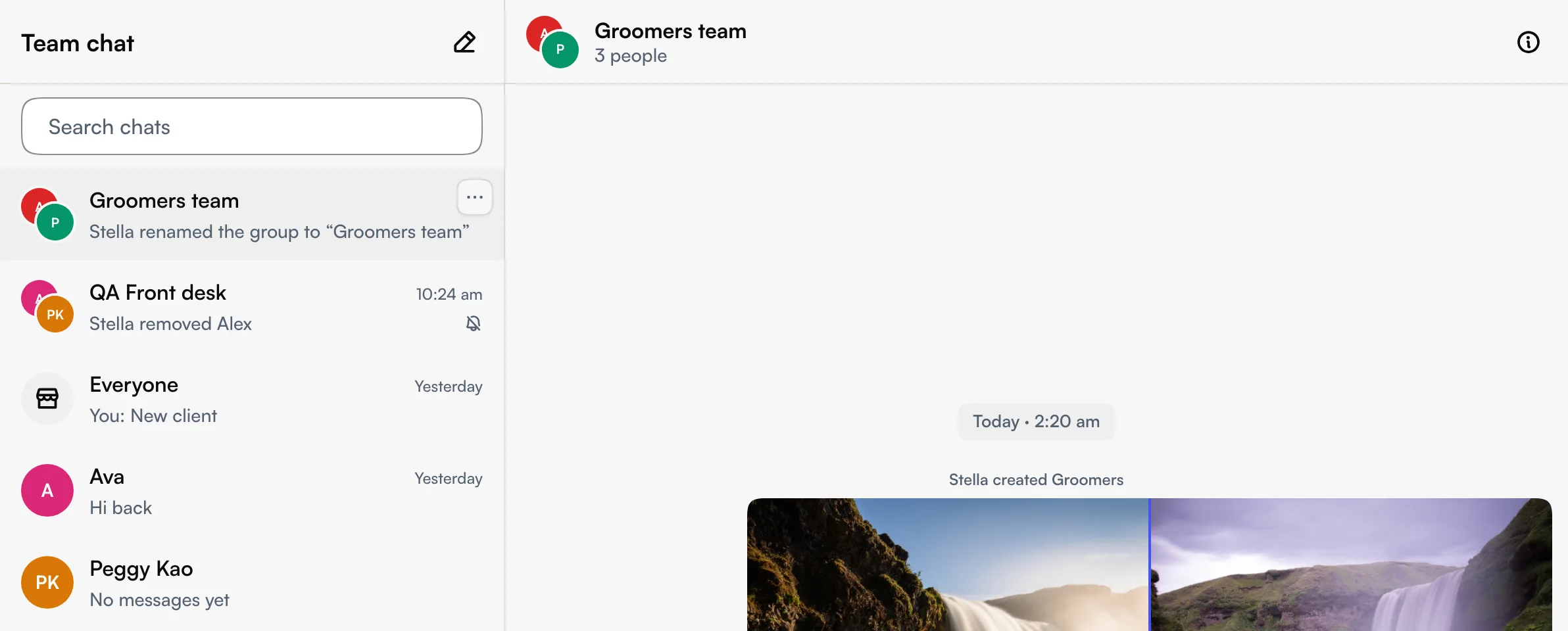
- Click Team chat in the left sidebar. A badge shows how many chats are unread.
- Click New chat. Pick a person, or choose New group ("Chat with several people at once"), add a Group name and click Create group.
- Use Search chats above the list to find an old conversation.
Point a teammate at a client or booking (appointment app and web)
In the appointment app and the web app, a message can link to the work it's about.
- Type @ to mention someone. The list has three groups: Team, Clients and Bookings. Clients and bookings show up after you type 2 letters. A mentioned teammate gets notified, and anyone in the chat can tap a client or booking to open it.
- Tap + for Photo, File, Client, Booking or Add note. Client and Booking attach a card to your message.
- Add note asks What is the note about? If you pick A client, the note is added to the note on their client card. If you pick A booking, it's added to the booking's notes. A card about the note is then posted in the chat, so the whole team sees it at the visit, not just in chat.
What the card shows (client, pet, time) is fixed when you send it. Tapping it opens the live record, and each person only sees what they already have access to.
Edit or delete a message
- Phone app and appointment app: long-press a message for Copy, and Edit and Delete on your own messages.
- Web app: hover over a message and click … for the same actions. In the web app, Enter sends and Shift+Enter starts a new line.
When you delete a message, everyone in the chat sees Message deleted. An edited message shows (edited).
Pin a chat to the top
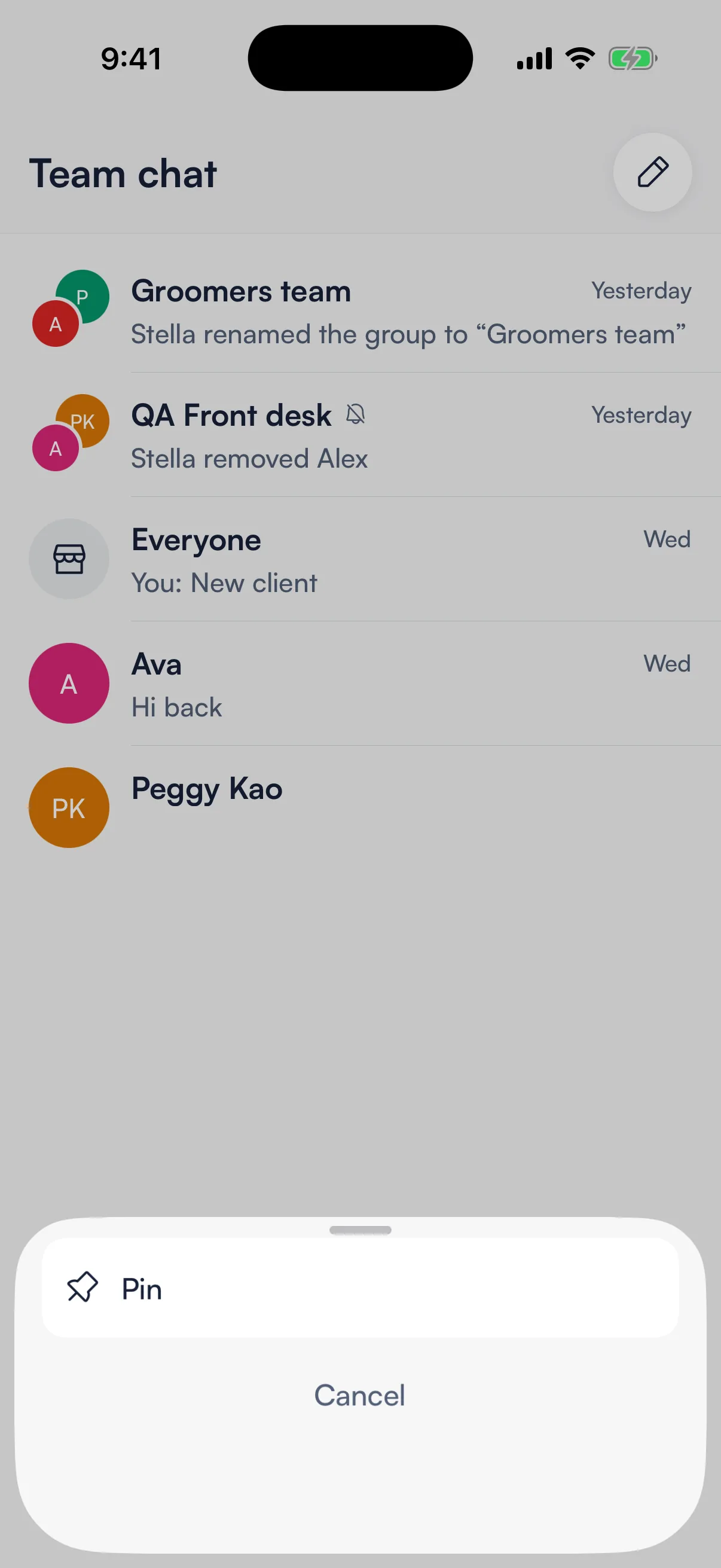
You can pin up to 5 team chats. Pins are only for you; nobody else's list changes. Pinned chats sit at the top with a pin mark, and the one you pinned most recently comes first.
- Seglo Phone app: long-press a chat in the Team tab and tap Pin (or Unpin).
- Seglo appointment app: long-press a chat in Messages → Team and tap Pin.
- Web app: right-click the chat, or hover and click …, then choose Pin.
If you try a sixth, Seglo tells you you can pin up to 5 chats. Unpin one first. Customer chats have their own 5 pins. See Messages and Calls.
Manage a group, mute or leave
Tap the chat's name at the top (Phone app and appointment app) or the info button (web) to open Chat info. From there you can:
- Add people or Rename group (any member of a group can).
- Mute this chat: no notifications for new messages, but you still hear about it when someone mentions you.
- Leave group. Anyone still in the group can add you back. You can't leave Everyone or a 1:1 chat.
- Remove a member. Only the person who created the group, or the business owner if they're in it, can do this.
- Browse Photos and files shared in the chat.
Choose which team chat alerts you get (web app)
In the web app, open Settings → Notifications → My notifications (you need permission to change settings). Team chat message pushes can be turned off. Mentioned in team chat is always sent and can't be turned off. The appointment app has no screen for this, so change it in the web app.
Tips
- The owner can't read other people's 1:1 chats. Each chat is visible only to the people in it. Use a group when the owner should see it.
- Files are checked before anyone can open them. A new file can show Checking file… for a moment. A file that may be unsafe is blocked and can't be opened.
- Photos up to 10 MB, other files up to 20 MB, up to 10 per message.
- Someone who leaves the team shows as Former teammate in old messages. Their 1:1 chat says they can't get messages here any more.
Related
- Messages and Calls: customer conversations, in the same apps.
- Team inbox: who looks after each customer conversation.
- Team members: add the people who can chat.
- Notification settings: every message Seglo sends, including your own alerts.
Related