Follow-ups
Keep track of work promised to a customer for later, from a message, a conversation or a call, with an owner, a due time and a reminder.
Updated 27 October 2026
A customer asks for a quote, you reply "I'll check with the groomer and get back to you", and the conversation is answered. The promise isn't. A follow-up holds that promise: what needs to happen next, who does it, and when.
Follow-ups are in the web app and the Seglo Phone app. The Seglo appointment app and a front-desk kiosk don't show them, though the appointment app has the switch that turns them on or off.
Open in app: Inbox · Team inbox settings
Create a follow-up from a message or conversation (web app, Seglo Phone app)
From one message, when a particular message explains the work:
- Web app: hover the message, click …, then Create follow-up.
- Seglo Phone app: hold the message, then tap Create follow-up.
From the whole conversation:
- Web app: click the Create follow-up icon in the conversation header. On a narrow screen it moves into the ⋮ menu.
- Seglo Phone app: tap the status button at the top right of the conversation, then Create follow-up.
Any channel works, including SMS and an Instagram chat whose reply window has closed. A follow-up is internal, so creating one never sends anything to the customer and never takes, opens or closes the conversation.
Create a follow-up from a call (web app, Seglo Phone app)
- Web app: open Calls, click a call, then Create follow-up at the top of its details.
- Seglo Phone app: open the call's details from your recent calls, then tap the Create follow-up icon at the top.
It works for a finished call from an unknown number too. Seglo doesn't need a transcript, a client record or a text conversation, and it doesn't create one.
Fill in the follow-up (web app, Seglo Phone app)
- Next step: what needs to happen, such as "Send Alice a quote". Required, up to 120 characters.
- Notes: optional, up to 2,000 characters. Only your team sees them.
- Follow-up owner: you by default. Pick a teammate or Unassigned. This field is hidden when assignment is off.
- Due: No due time unless you choose one. The quick choices show the exact time they set: later today (three hours from now, offered before 6 pm), tomorrow at 9:00 am, next Monday at 9:00 am, or Date and time. Times use your business's time zone.
- Lead: turn on for a sales enquiry. You then record a result when it's done.
Click Create (web app) or tap the tick at the top right (Seglo Phone app). Seglo says Follow-up created with View follow-up, and you stay where you were, with your reply draft untouched.
Add a message or call to a follow-up you already have (web app, Seglo Phone app)
The same customer rings about the quote they texted about yesterday. Add the call to the existing follow-up instead of making a second one.
- Start Create follow-up from the call or message as usual.
- In the Follow-up field at the top, pick the existing follow-up, or Choose another… to search every follow-up still to do.
- The form switches to attaching: there's no new next step to type, and the follow-up's owner, due time and status stay as they are. Save with Attach (web app) or the tick (Seglo Phone app).
If the message or call is already on a follow-up, the form says Already on a follow-up so you can open it instead.
Work through your follow-ups (web app, Seglo Phone app)
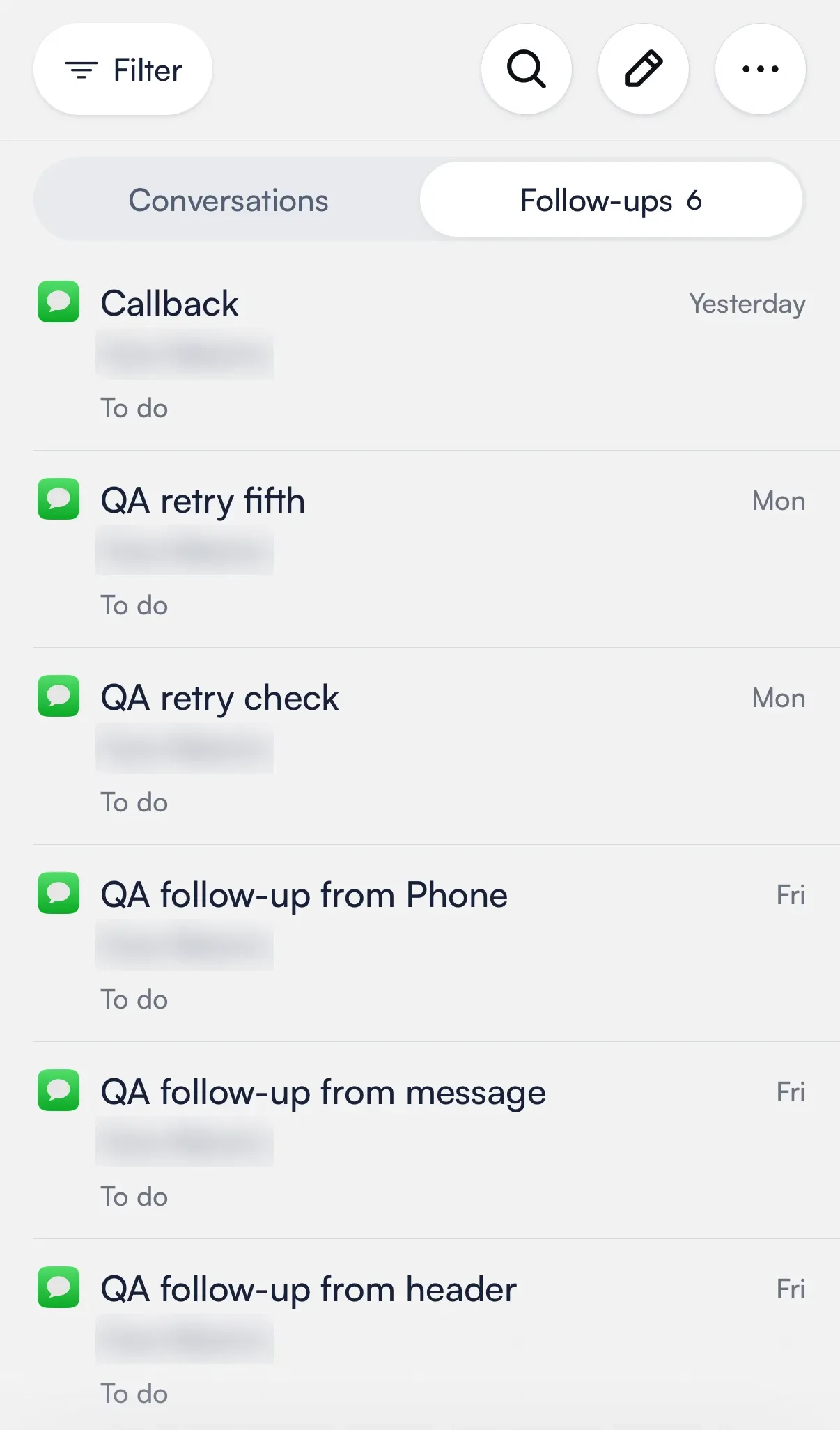
Open Inbox and switch from Conversations to Follow-ups. The switch shows how many are still to do.
- Web app: All · Unassigned · You and each teammate sit above the list, with each person's count.
- Seglo Phone app: All, You and each teammate sit above the list. Unassigned is in Filter.
The list shows follow-ups To do. Filter narrows by Status (To do, Done, Deleted), Due (Overdue, Today, This week, No due time), Lead and Source; the web app adds Number. Search looks through follow-ups while this view is open.
Each row leads with the next step, then the customer, owner and due time. An overdue one reads Overdue · {date} in red.
- Web app: click … on a row for Take it (when nobody has it) and Complete.
- Seglo Phone app: swipe a row left for Complete and, when nobody has it, Take it.
Complete, reopen or delete a follow-up (web app, Seglo Phone app)
Open the follow-up. Complete is at the top right.
- Ordinary follow-up: one tap. Afterwards, Add note lets you record how it ended (in the ⋮ menu on the web app).
- Lead: Seglo asks for the result: Won, Lost or Not a sales enquiry, with an optional note. Won is your record only; it doesn't create a booking or a payment.
A completed follow-up offers Reopen. A follow-up that is overdue shows Reschedule with its due time.
To change the owner or due time, tap or click its value in the follow-up. In the Seglo Phone app, tap the notes to edit them; in the web app, choose ⋮ → Edit. A handover can carry a short note for the new owner, which shows in Activity.
To delete one, open ⋮ (web app) or … (Seglo Phone app) and choose Delete. Seglo asks first, then shows Undo. Deleted follow-ups stay in Filter → Status → Deleted, where the follow-up offers Restore.
See a conversation's follow-ups (web app, Seglo Phone app)
A conversation with follow-ups still to do shows:
- 1 follow-up to do (or 2 follow-ups to do) on its row in Inbox,
- a strip under the conversation header with the next step. With several, it opens the list for that conversation.
Completed ones are under Past follow-ups: in the ⋮ menu (web app) or the status button menu (Seglo Phone app).
Tell follow-ups apart from conversation status (web app, Seglo Phone app)
| Conversation | Follow-up | |
|---|---|---|
| Answers | Has the customer been answered? | What did we promise, who does it, by when? |
| States | New, Taken, Closed | To do, Done |
| Owner | The conversation's owner | Its own follow-up owner |
The two never move each other. Closing a conversation leaves its follow-ups to do, and Seglo says so: "Closed · 2 follow-ups still to do", with View. Completing a follow-up doesn't close the conversation, and a new customer message never reopens a completed follow-up. See Team inbox for conversation status.
Read where a follow-up came from (web app, Seglo Phone app)
Each follow-up lists its Sources. Tap one to open the exact message, conversation or call. Go back to return to the follow-up (the web app shows Back to follow-up).
- A message: the Seglo Phone app quotes it, with Sent or Received and the time. The web app labels it Message.
- The whole conversation: made from the conversation rather than one message. The web app labels it Conversation.
- A call: the caller and the call's time. The web app labels it Call.
A source someone later deleted shows as unavailable. You can remove a source from a follow-up; Undo puts it back.
Get reminded when it's due (web app, Seglo Phone app)
At the due time, Seglo sends Follow-up due to:
- the follow-up's owner, or
- the person who created it, when it's unassigned or assignment is off.
The form shows who will get it, for example Reminder to you. The reminder arrives on Seglo Phone and in the web app. Nothing goes to the customer. When nobody can receive it, the follow-up still shows Overdue in the list.
Turn follow-ups off (web app, Seglo appointment app, Seglo Phone app)
Follow-ups are on for every business until someone who can change settings turns off the Follow-ups switch:
- Web app: Settings → Team inbox.
- Seglo appointment app and Seglo Phone app: More → Settings → Team inbox.
Turning them off doesn't ask first, because nothing is lost:
- every follow-up is kept exactly as it is, but hidden everywhere,
- nobody can create or change one,
- reminders stop, and a reminder missed while follow-ups are off is never sent later.
Turn them back on and your follow-ups return as they were. Reminders that fell due while they were off are skipped.
Tips
- Callbacks are different. Callbacks are callers the AI receptionist couldn't help. A follow-up is something your team promised to do.
- Calls but no messages? Someone who can see calls but not customer messages sees only Follow-ups in Inbox.
- Someone else changed it. If a teammate edits the follow-up while you have it open, Seglo keeps what you typed and offers Reload.
Related
- Team inbox: New, Taken and Closed conversations, and the Team inbox settings.
- Messages and Calls: reading and replying to customers.
- Callbacks: callers waiting for a call back.
- Recent calls: find a call in the Seglo Phone app.
Related