Team inbox
Give each customer conversation one person looking after it: take it, hand it over with a note, mark it done, or turn assignment off for the whole business.
Updated 2 October 2026
Two people reply to the same customer, or nobody does because everyone thought someone else had it. The team inbox gives each customer conversation one person looking after it, so everyone can see who has which one.
Owning a conversation is about responsibility, not permission. Anyone who can see a conversation can still reply to it, whoever is on it.
Open in app: Team inbox settings · Messages
Turn assignment on or off for your business
Assignment is one switch for the whole business. Nobody can turn it on or off just for themselves. If you don't see Mine and Unassigned above your messages, it's off.
- Web app: Settings → Team inbox → Assign conversations.
- Seglo appointment app: More → Settings → Team inbox.
- Seglo Phone app: More → Team inbox (under Manage).
Anyone who can see settings can open the page. Only people who can change settings can flip the switch; everyone else sees whether it's on or off.
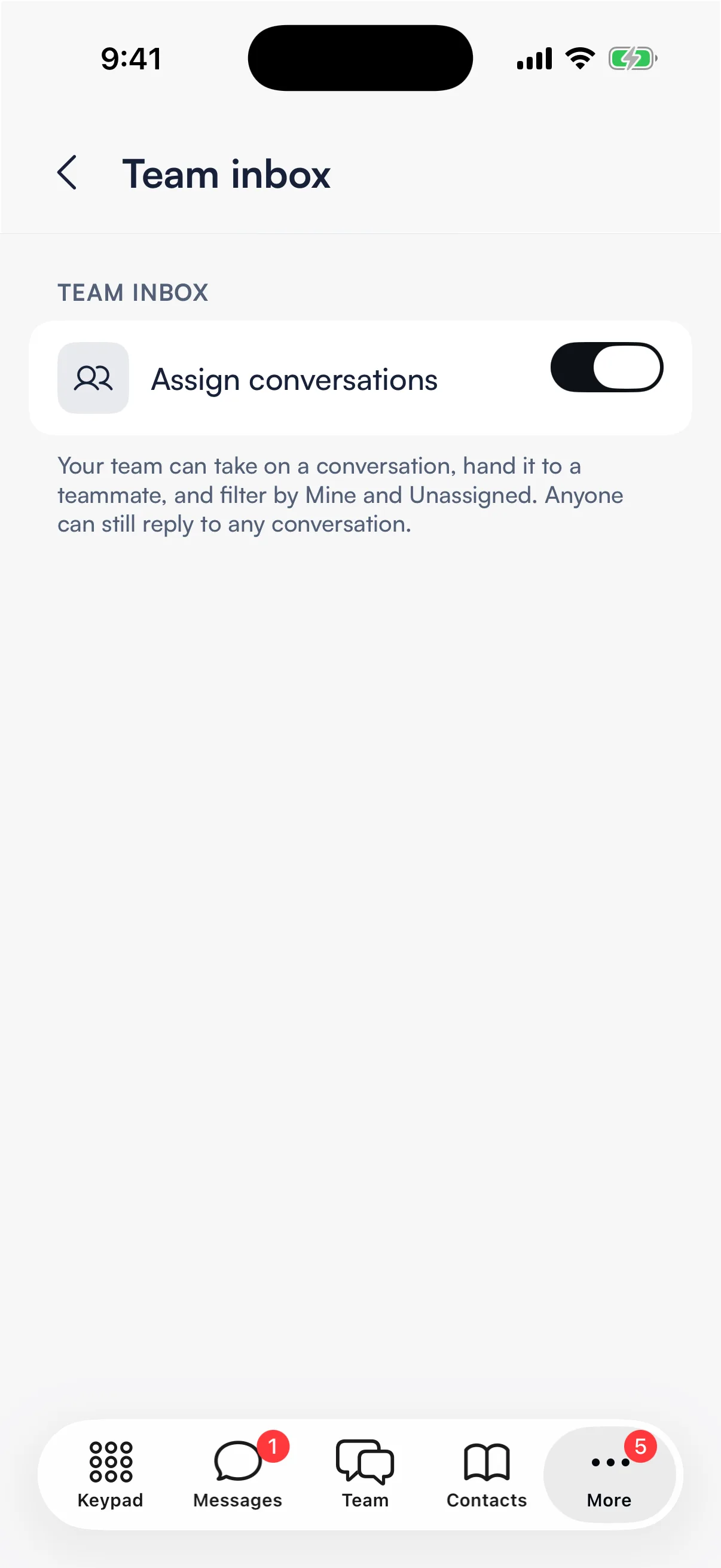
Turning it off asks you to confirm first. Every conversation that has an owner goes back to nobody, and its message alerts go to everyone again. Turning it back on later won't bring those owners back. Seglo then tells you how many conversations no longer have an owner.
With assignment off, Seglo hides the Mine and Unassigned filters, the owner line on each row and the take or hand over controls. Marking conversations done still works in the Phone app.
See who's on each conversation
With assignment on, the third line of each conversation row shows its owner. You see You, a teammate's name, or — when nobody has it. In the Phone app, a done conversation shows Done there instead.
Filter the list with All, Mine or Unassigned:
- Web app: the control above the conversation list. Each option shows a count.
- Seglo appointment app: the filter row under the Messages header (the Customers side).
- Seglo Phone app: the chips at the top of the Messages tab, plus Done.
Take a conversation (web app and appointment app)
Open the conversation. The strip under its header says who is on it:
- Unassigned: tap I'll take it.
- {name} is on this: tap Take over.
- You're on this: tap Hand over and pick a teammate. Pick Give back to nobody to release it.

Take a conversation (Seglo Phone app)
- From the list: swipe a conversation right and tap Take it. If a teammate already has it, Seglo asks you to confirm Take over.
- From the conversation: tap More (…) at the top right, then Ticket. The sheet says who's on it (You're on this, {name} is on this or Nobody's on this) and offers Take it, Take over, Hand over and Done, depending on who has it.
The conversation header also has a Call button, when calling is available, to ring the customer back.
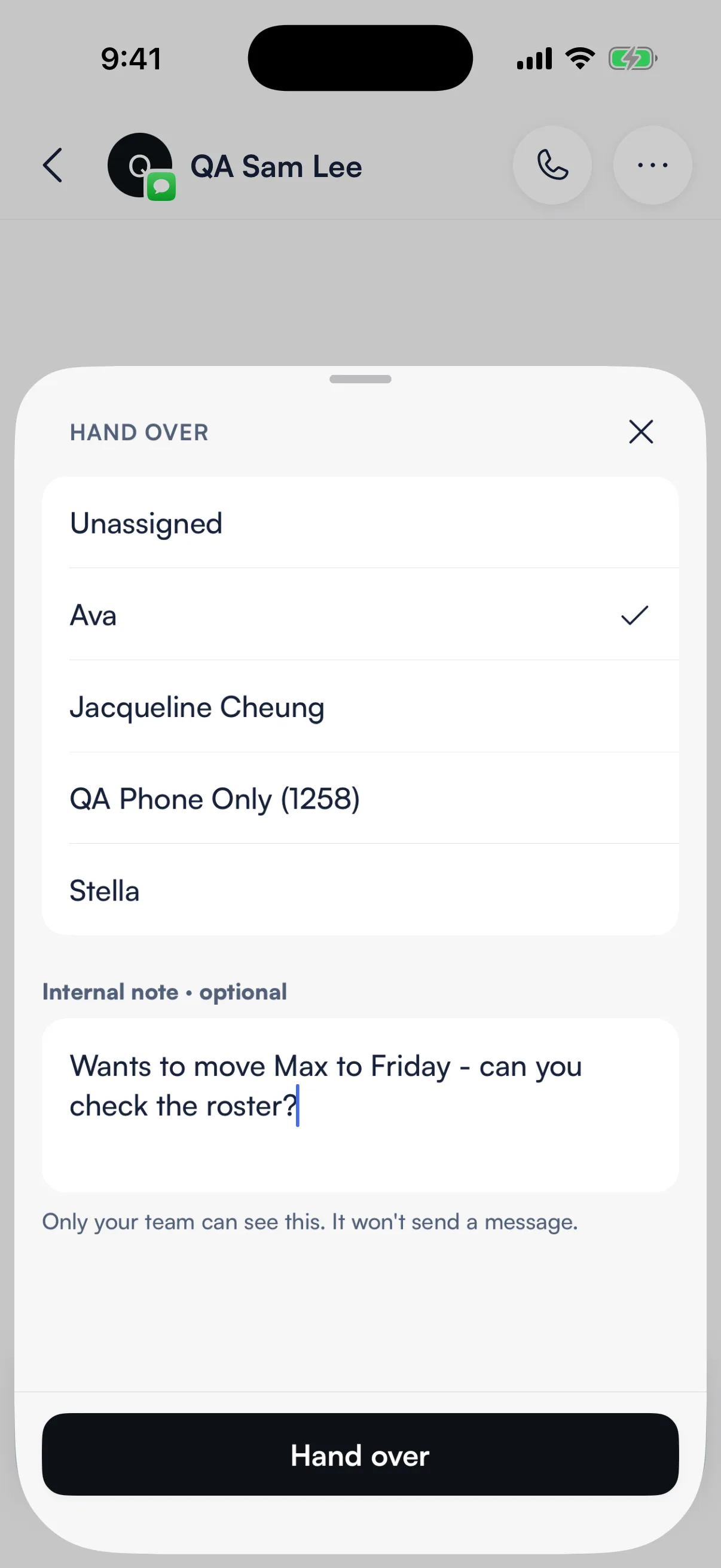
Hand over with a note (Seglo Phone app)
- In the conversation, tap More → Ticket → Hand over.
- Pick a teammate, or Unassigned to give it back to the team.
- Optionally add an Internal note in "What should your teammate know?" (up to 500 characters). It won't send a message to the customer. Only your team can see it.
- Tap Hand over (or Return to Unassigned).
The note appears in the conversation as Internal note · {your name}. Handover notes can only be written in the Phone app.
Every change leaves a short grey line in the conversation, such as "Anna took this on" or "Anna handed this to Ben", so anyone opening it later can see what happened. These lines show on all three apps.
Mark a conversation done (Seglo Phone app)
Mark a conversation done when the customer's question is answered:
- swipe it left in the list and tap Done, or
- tap More → Ticket → Done inside it (with assignment off, it's More → Done).
Done conversations move to the Done filter. When the customer writes again, a new request starts. A Done card in the conversation marks where each request ended and how long it took, for example "Done · Anna · 25 min". To bring back a finished conversation without waiting for the customer, use Reopen.
Marking done is only in the Phone app. The web app and appointment app show the "marked this done" and "reopened this" lines, but not the controls.
Let Seglo suggest when a request is finished (Seglo Phone app)
When a request looks finished, Seglo shows Looks finished with a Done button at the bottom of the conversation. Nothing is marked done until someone taps it.
Seglo can also decide a customer's message is just a thank-you rather than a new question. If it got that wrong, tap Open as new request under the message.
Tips
- Someone got there first. If a teammate takes or hands over the conversation while you're looking at it, Seglo shows the new owner. Check before you try again.
- A new message arrived. Seglo won't mark a conversation done if the customer just wrote again. Read the latest message first.
- Private conversations can only go to people who can see private conversations.
Related
- Messages and Calls: reading and replying to customers.
- Team chat: talk to your team about a customer.
- Callbacks: callers waiting for a call back.
- Quick replies: ready-made replies for common questions.
Related