Quotes
Price an enquiry from the client's returned form, record yes or no, then invoice or mark it paid and ask for a review, all in the conversation.
Updated 19 November 2026
A client asks what a full groom on a matted doodle will cost. You send a form, they send back photos and answers, you work out a price and tell them. Then the conversation moves on and nobody remembers whether they ever said yes. Quotes keep that enquiry in the conversation as a short row of cards, Form → Quote → Invoice → Review, each with the one next step on its button.
Every step is optional. Stopping at any card is fine, and texting the client the usual way still works with or without cards.
Quotes are in the web app Inbox and the Seglo Phone app (iPhone, iPad and Android). The Seglo appointment app doesn't show them.
Open in app: Inbox · Documents · Quote check-in
Before you start
- Make the form you send for enquiries an Enquiry document. See Documents.
- Follow-ups must be on (Settings → Team inbox). A quote is a follow-up, so it also shows in Follow-ups.
Price a returned enquiry (web app, Seglo Phone app)
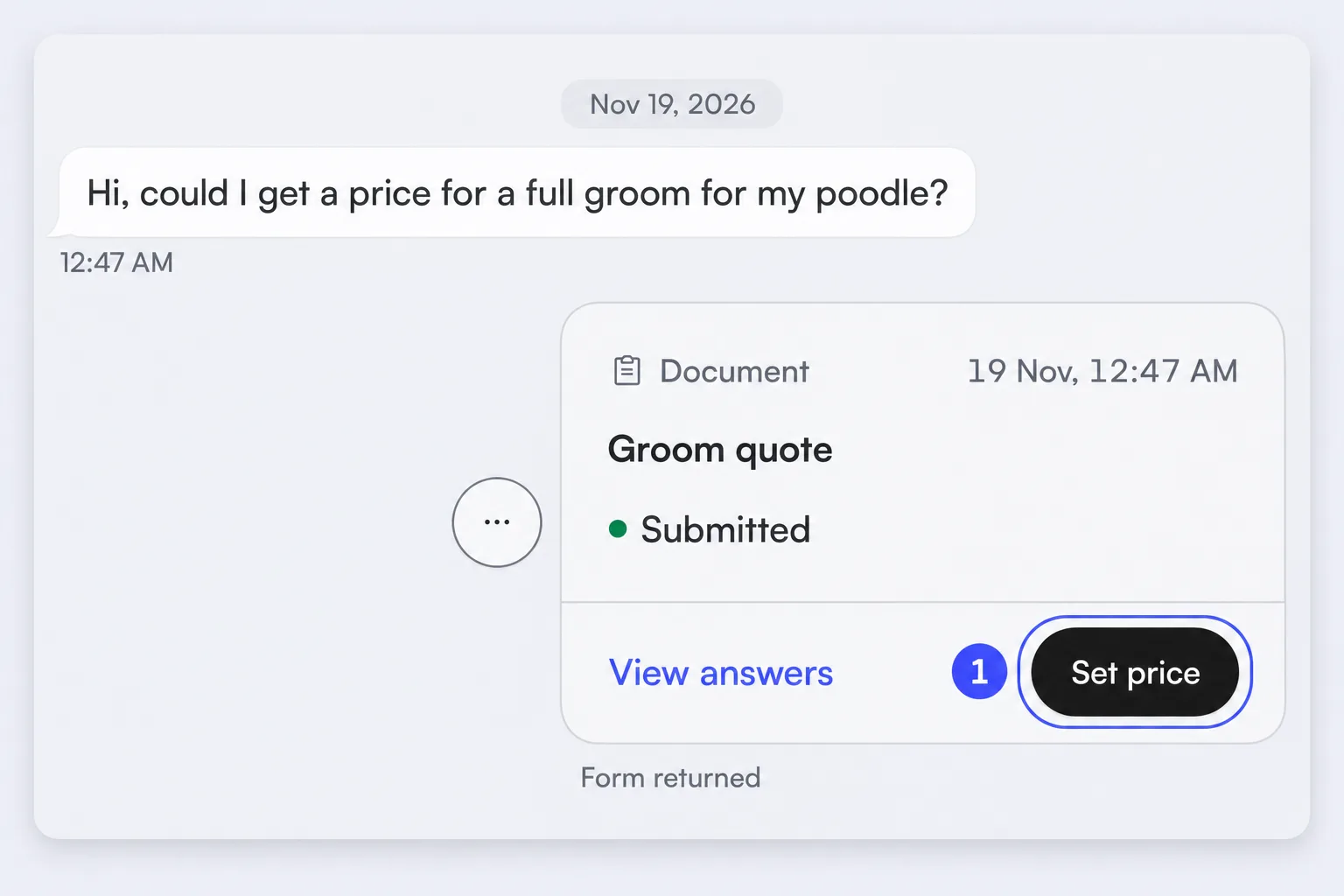
- In the conversation, send the form with + → Document. When the client returns it, the thread says Form returned and the card offers Set price.
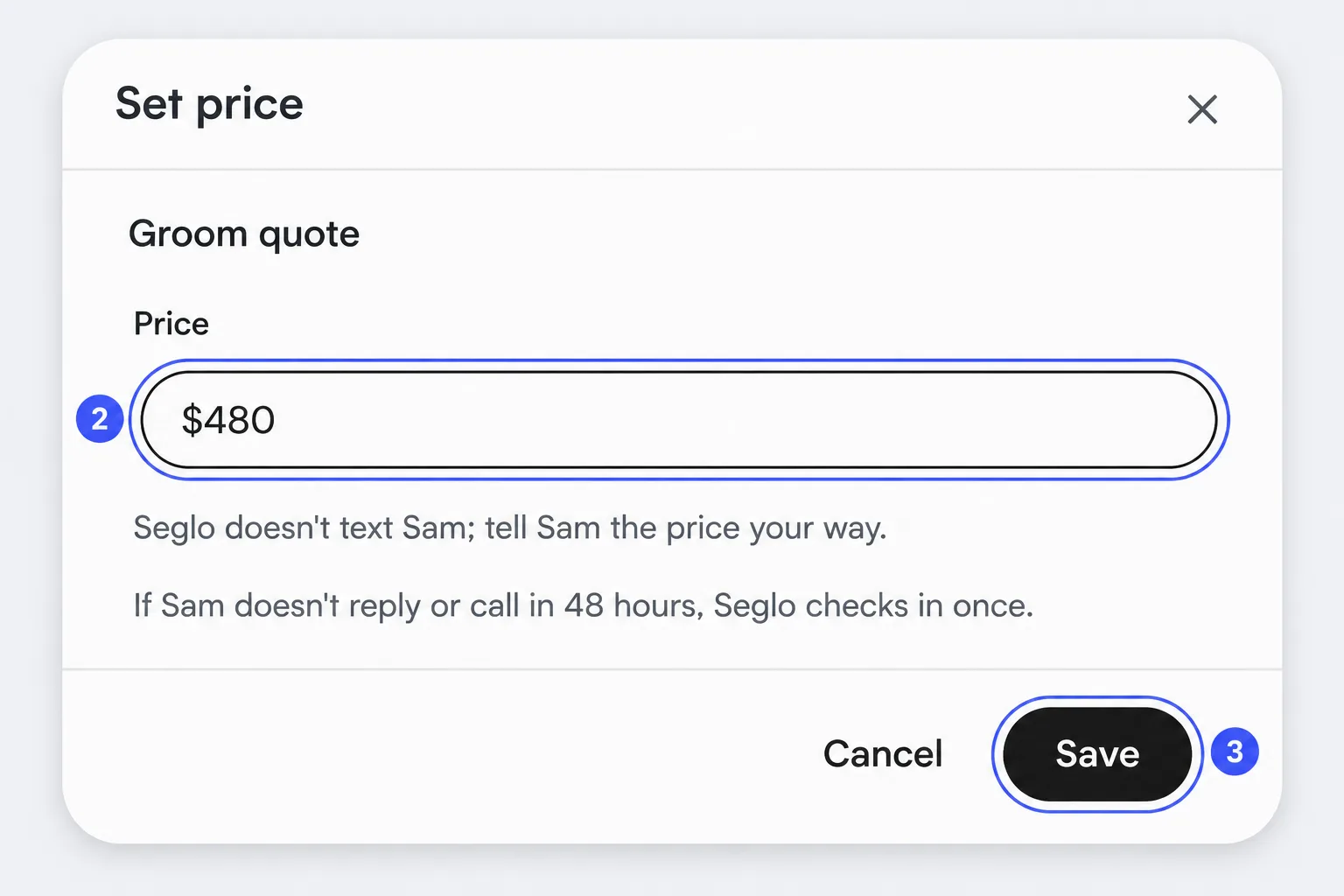
- Type the price. It's free text, so "$480", "$400–500" or "$60 an hour" all work.
- Save it.
Seglo doesn't text the client the price. Tell them your own way: a reply in the same conversation, a call, or in person, before or after you set it. The Quote card that appears is marked only your team sees this, and the client never sees a card or a quote page.
No form? Use + → Set price in any conversation. It starts an enquiry called "Quote".
Record what the client says (web app, Seglo Phone app)
While you wait, the Quote card reads Awaiting reply with the price.
- Client agrees: tap Mark accepted on the Quote card. When Seglo reads the client's newest text as a yes, a Client said yes? · Mark accepted hint also appears under it. Nothing changes until you tap it, and ✕ hides it.
- Client says no: ⋯ → Mark declined. Reopen puts it back to Awaiting reply.
- Client wants it cheaper: ⋯ → Change price. The card updates in place and says "Changed from $480".
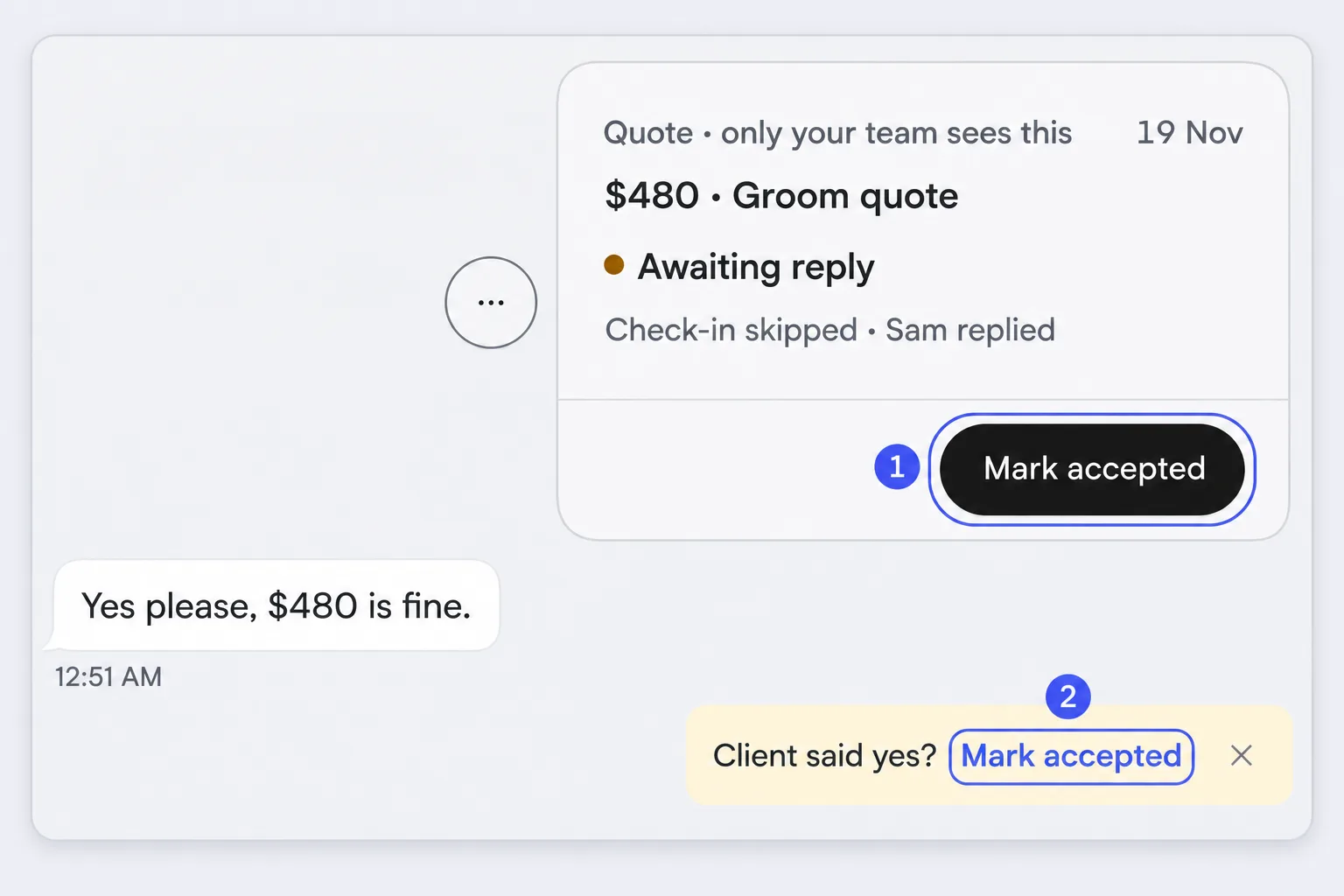
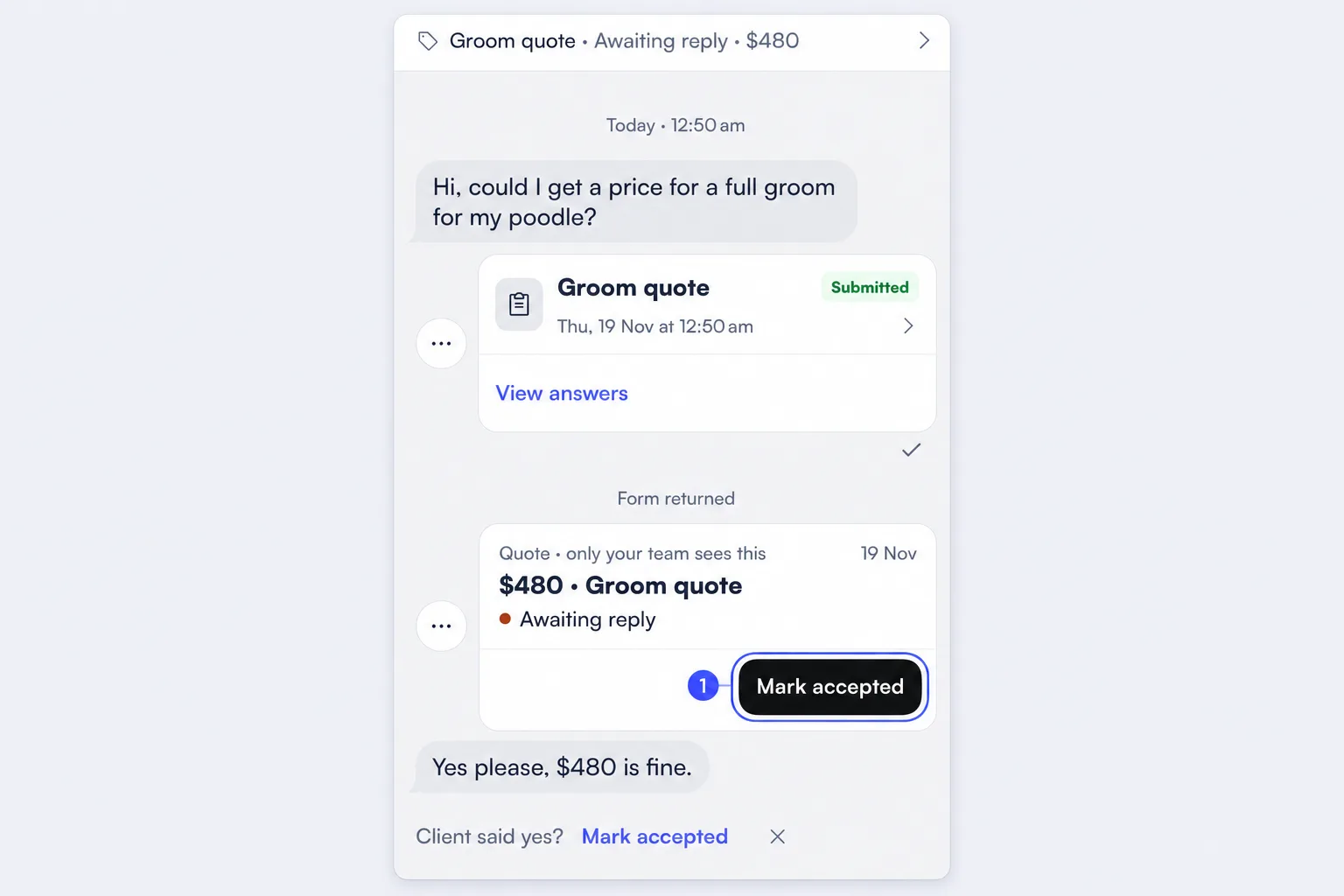
In the Seglo Phone app the same cards sit in the chat, with the step strip under the header.
Mark accepted tells the client nothing. Pressed it too early? Tap Undo on the confirmation, or ⋯ → Undo agreement later.
Get paid (web app, Seglo Phone app)
An accepted quote offers two ways to finish:
- Send invoice opens a new invoice for the client, linked to this quote. An Invoice card then follows in the thread and shows whether it's paid. To change the amount, change it on the invoice.
- Mark paid is for money that came outside Seglo, such as cash or a bank transfer. It only marks the quote: it doesn't record a payment, doesn't show in Payments or your takings, and doesn't trigger the automatic review text. ⋯ → Undo paid takes it back.
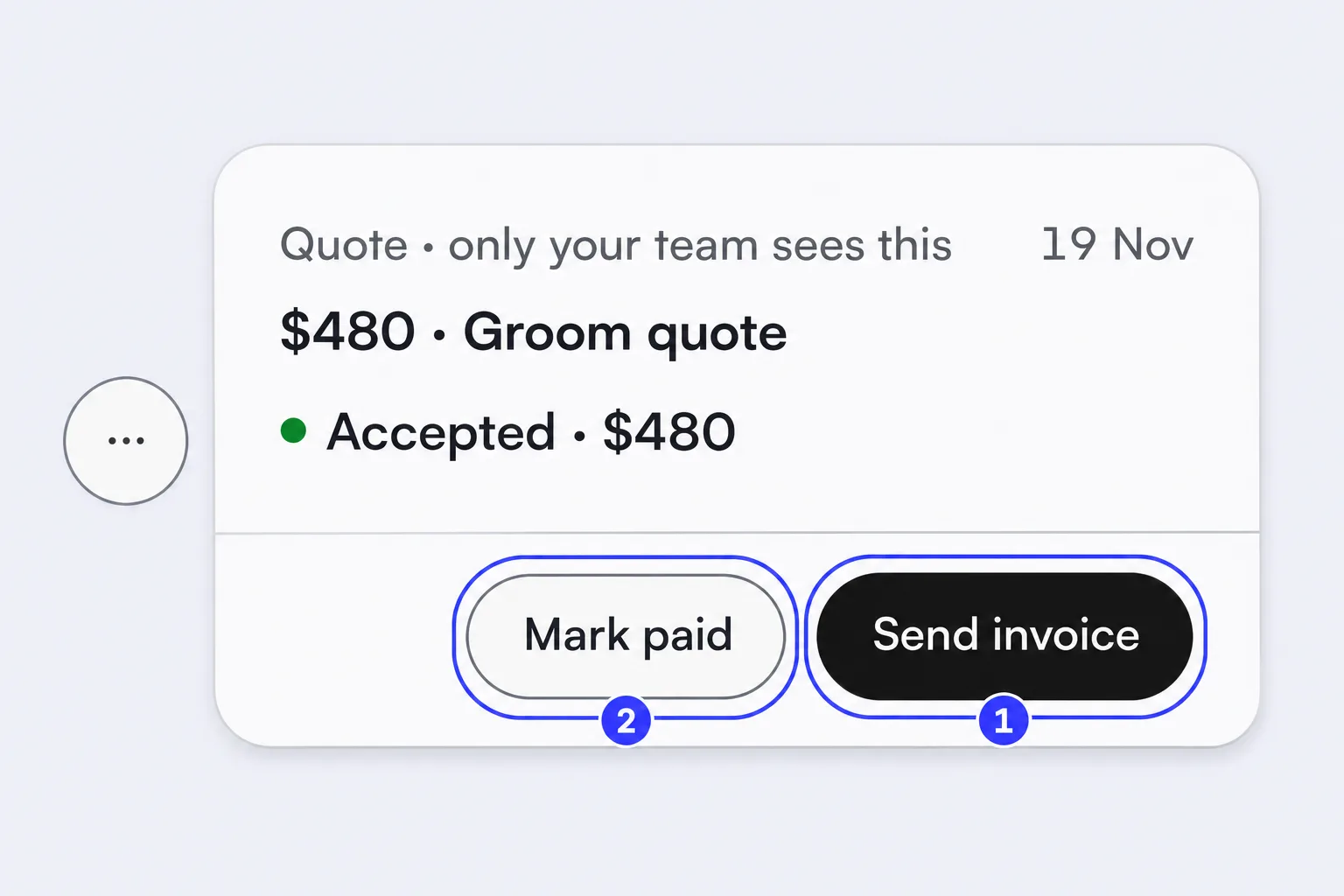
Once the quote is paid, by a paid invoice or Mark paid, Undo agreement and Change price stay greyed out with Paid beside them.
Ask for a review (web app, Seglo Phone app)
When the invoice is paid, the Invoice card offers Request review. A quote you marked paid offers it on the Quote card. It opens the review text for this client, ready to check and send. After that the card shows Review queued or Review sent with the date. See Google review requests for the message itself.
See the current step at a glance (web app, Seglo Phone app)
A strip under the conversation header names the enquiry and its step, for example Groom quote · Awaiting reply · $480, Invoice unpaid or Paid · Review sent. Tap it to jump to that card in a long conversation. An ordinary form makes no strip.
Let Seglo check in once (web app, Seglo Phone app)
When you set a price on a new quote in a text conversation, Seglo can send the client one check-in text from your number if they don't reply or call. The Set price sheet says when, for example "If Sam doesn't reply or call in 48 hours, Seglo checks in once", and the Quote card shows Check-in · 21 Nov.
- A reply or a call from the client cancels it. The card then says Check-in skipped · Sam replied (or called).
- Mark accepted, Mark declined and End enquiry cancel it too. ⋯ → Skip check-in cancels it yourself.
- Changing the price never sends a second check-in.
- Check-ins go between 9 am and 6 pm in your business's time zone, worded a little differently each time.
If the client still hasn't answered a day after the check-in, the quote's owner gets a Follow-up due reminder, as with any follow-up.
To turn check-ins off for every quote, or change the hours and the wording, open Settings → Quote check-in in the web app or More → Settings → Quote check-in in the Seglo Phone app.
Stop, end or cancel a quote (web app, Seglo Phone app)
| You want to | Use | What happens |
|---|---|---|
| Stop tracking but keep what happened | ⋯ → End enquiry | The cards stay as history, dimmed. Nothing is cancelled and the client gets no message. A new enquiry can start in the conversation. |
| Withdraw the quote for good | ⋯ → Cancel quote | It can't be changed afterwards. Form links still waiting for this quote show the client "This request was cancelled". A linked invoice stays as it is. The client gets no message. New quote then starts again. |
| Record a no | ⋯ → Mark declined | Reopen brings it back. |
A conversation tracks one enquiry at a time. To quote a second job, end the first one. A client who comes back months later starts a new enquiry, and the old cards stay as history.
Tips
- Already texted the price? Set price still sends nothing. If the client has replied since, the check-in is already skipped.
- Ask for more photos (Seglo Phone app). On a returned Enquiry, ⋯ → Ask for more sends another request that joins the same quote.
- Two of you on one conversation? The cards update for everyone. If someone already marked it, a second tap changes nothing.
Related
- Documents: build the Enquiry form.
- Follow-ups: owners, due times and reminders.
- Messages and Calls: replying to clients.
- Google review requests: the review text.
Related