Callbacks
Catch every caller your AI receptionist couldn't fully help — triage by urgency, hand each one to a person, and close it with notes.
Updated 2 October 2026
When a caller wants a specific person, a quote, or an answer your AI receptionist can't give on the spot, the call doesn't just end — it lands here as a follow-up you can't lose. This page is the worklist that makes sure every one of those callers actually gets called back.
Each request arrives with the customer's contact details, why they reached out, and how urgent it is, so whoever picks it up calls back already knowing the story.
Open in app: Callbacks
You can work callbacks in two apps:
- Web app: Callbacks in the left sidebar, next to Messages and Calls.
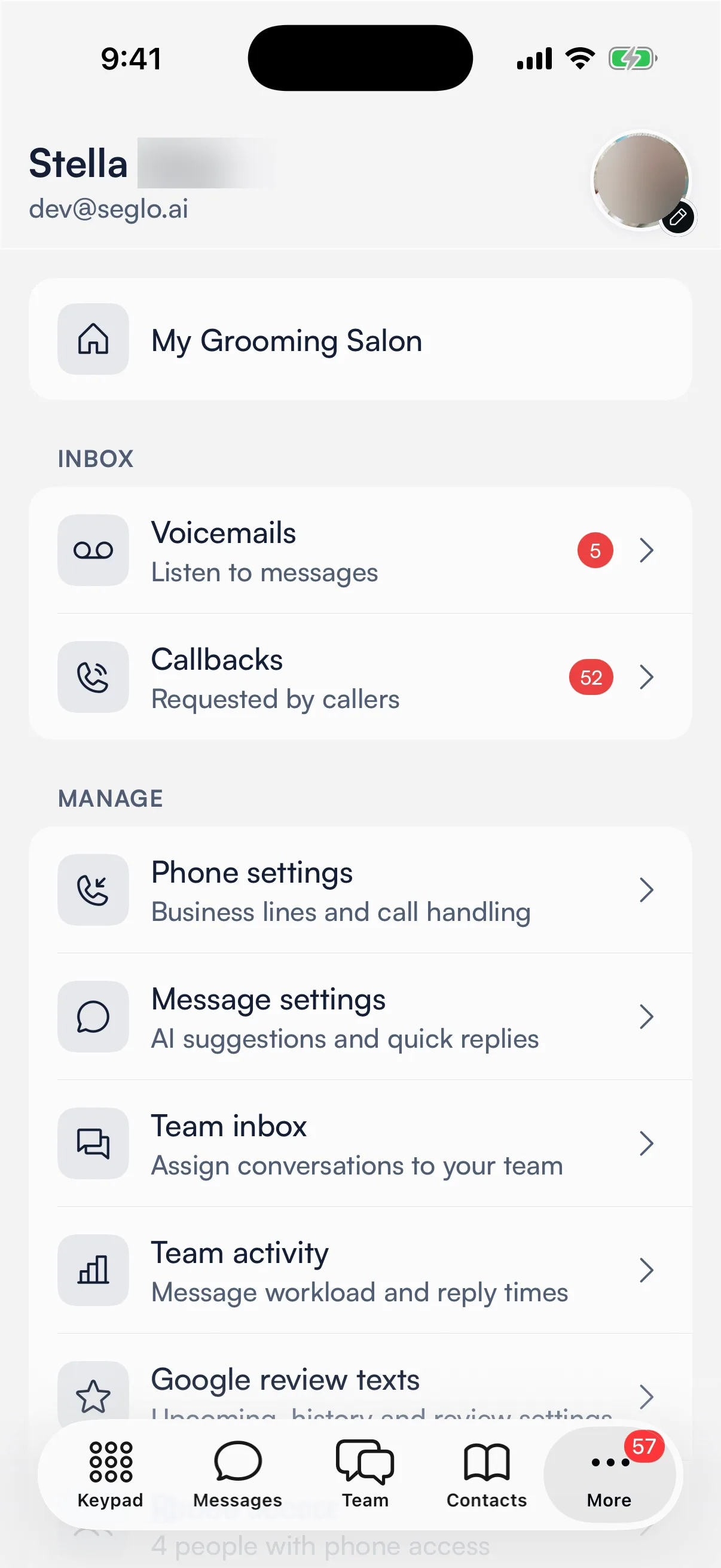
- Seglo Phone app: More → Callbacks (under Inbox), when your plan includes callbacks and your AI receptionist is turned on. See Work callbacks in the Seglo Phone app below.
The Seglo appointment app has no Callbacks screen.
On an iPad running as a front-desk kiosk, this queue is also one tap away — open the Front Desk tab in the kiosk's bottom nav and switch to the Callbacks segment. Assign, complete, and cancel work the same way there.
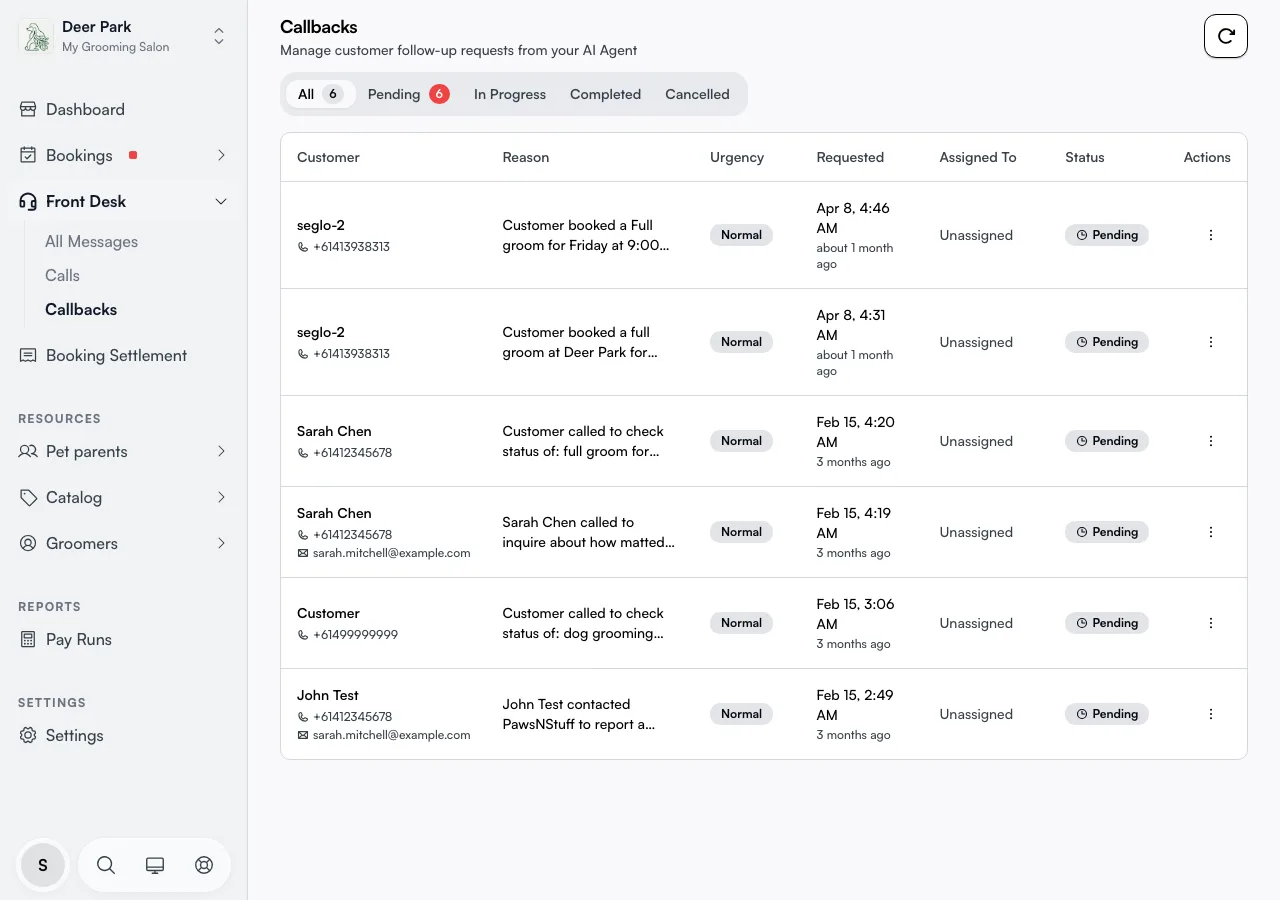
Clear the most pressing requests first (web app)
Open Callbacks on the web app. New requests land in Pending. Each row carries an urgency badge — High, Normal, or Low — so you can spot the pressing ones at a glance as you work down the list.
The tabs across the top — All, Pending, In Progress, Completed, Cancelled — let you focus. The red number beside Pending and the count beside In Progress are your backlog at a glance, and they count across your whole business, not just the page you're looking at — so the badge keeps showing real work waiting even when the list in front of you is filtered or empty. Switching tabs never resets those counts.
New callbacks don't appear on their own. After a busy stretch, tap the refresh button in the page header to pull in anything that came in while you were working.
Read the full story before you call (web app)
Click the three-dot menu at the end of a row and choose View Details to open the request on the right. You get the customer's name, the conversation summary your receptionist captured, the urgency, and any preferred call-back time the caller gave — call then and you're far more likely to reach them.
The drawer also shows a View conversation link — click it to open the original call on the Calls page and read the full transcript and AI summary of what the customer said and what was promised. This is especially useful if the callback was filed a day or two ago and you need a reminder of the context before you ring.
The phone number and email are tap-to-act: tap the number to start the call straight from the drawer, tap the email to start a message. No copying, no switching apps.
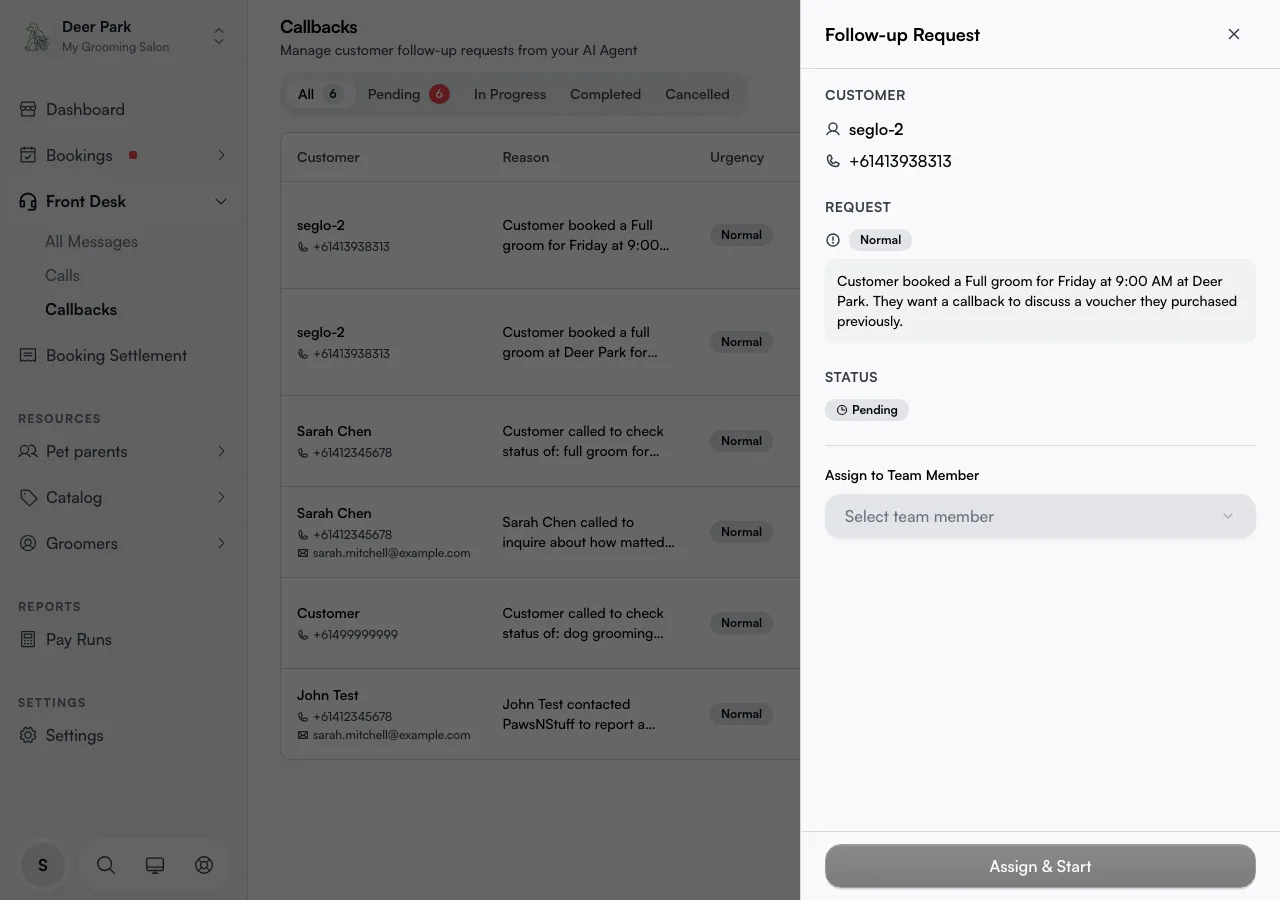
Hand a request to the right person (web app)
In the drawer, open Assign to Team Member, pick who will handle it, and click Assign & Start. The request moves to In Progress and shows that person as the owner so two people don't ring the same customer.
The picker lists your existing team — add people first under Team members if someone's missing. You can also reach Assign directly from a pending row's three-dot menu — it opens the same drawer straight to the assignment step.
Close the loop with a note that helps the next person (web app)
Once you've reached the customer, reopen the request and click Mark Complete. Add a line under Completion Notes first — "Booked Tue 2pm" or "Quoted $90, will decide" — and it's saved with the request and shown in a green panel whenever anyone reopens it later. That one line is what turns a closed task into a useful record on that customer.
To drop a request you no longer need — the customer already reached you another way — choose Cancel from the row's three-dot menu. Cancel stays available while a request is still Pending or In Progress; once a request is completed or cancelled it's read-only.
 AI receptionist files it
   └─ Pending ──── Assign & Start ──► In Progress
                                        ├─ Mark Complete ──► Completed (with notes)
                                        └─ Cancel ─────────► Cancelled
Work callbacks in the Seglo Phone app
The Phone app keeps callbacks in one list, without tabs. Each row shows its status: Pending, In progress, Handled or Cancelled. Handled is the same as Completed on web.
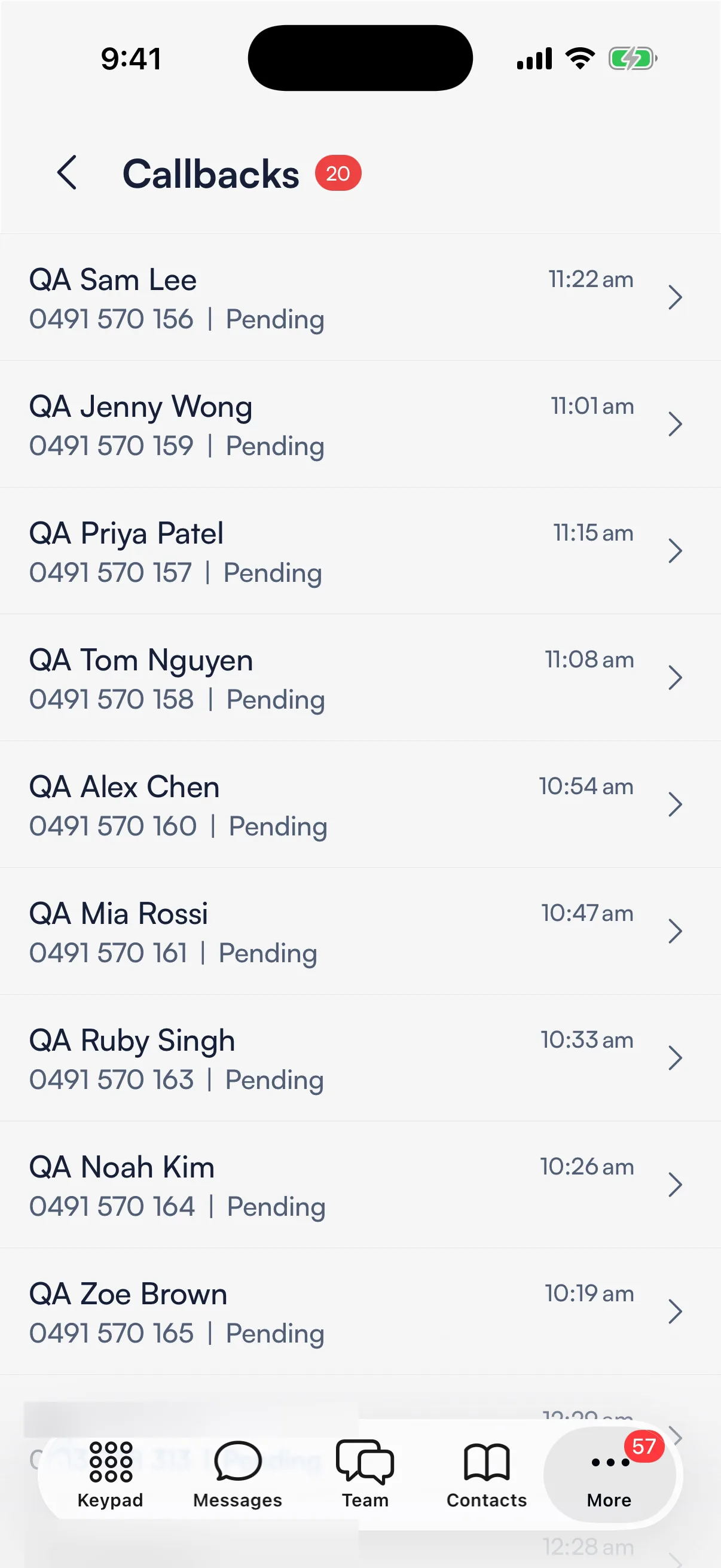
- Mark one handled from the list: swipe the row right and tap Handled. It's done straight away, with no confirm step.
- Mark one handled from its details: tap the row, then Mark as handled at the top right, and confirm.
- Call the customer: in the details, tap Start Callback. Seglo marks the callback in progress and starts the call. Call Again rings them again later.
- Drop one you don't need: Cancel Request in the details. Swiping a row left deletes it, which can't be undone.
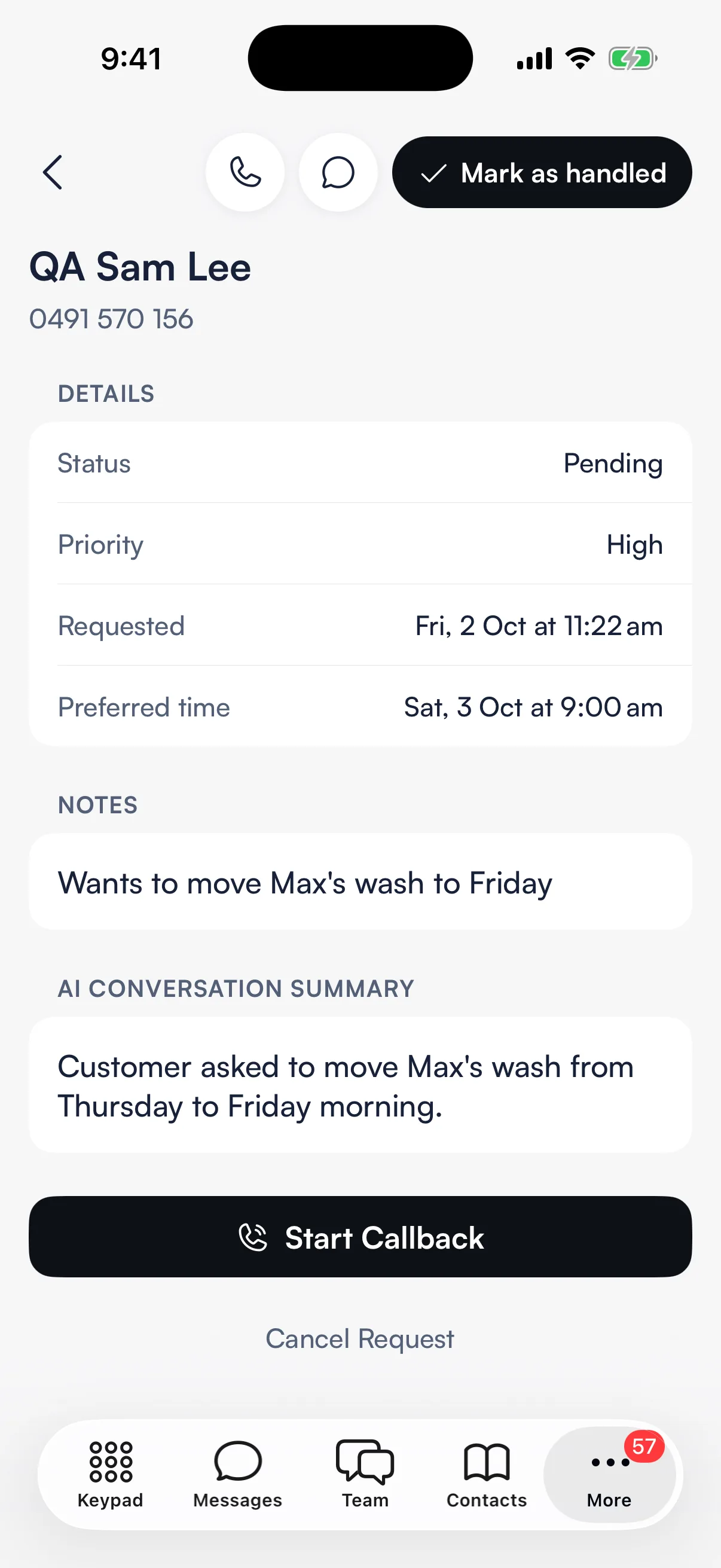
The details show the Priority, the Preferred time, Notes and the AI Conversation Summary of the call.
Why the badge doesn't go away when you look
The red count on the Callbacks row is for callers still waiting, and it's part of the count on the More tab (with new voicemails). Opening the list doesn't clear it. It only drops when you mark a callback handled or cancel it.
Catch "where's my order?" calls automatically
Not every callback comes from a missed booking. When a customer phones to check on the status of a service or order — "is my dog ready?", "did my repair come back?" — the receptionist files a callback on its own, tagged with the service they asked about and any reference or ticket number they gave. That reference shows under Notes in the drawer, separate from the summary, so the person calling back has the number in hand. These arrive at Normal urgency in your Pending tab like any other request.
Tips
- A note when you complete is not optional in practice. Completing with the box blank leaves the next person blind — even three words beats nothing.
- Creation notifies, assigning doesn't. Your team gets pinged when the receptionist files a new callback, but assigning one to a colleague only shows ownership on screen — for an urgent one, tell the person directly.
- The web list isn't live. It won't update mid-shift on its own; hit refresh to see new arrivals.
- The urgency badge is a flag, not a sort. High, Normal, and Low tell you how pressing each request is — scan for the High ones rather than assuming the top row is the most urgent.
Related
- Messages and Calls — the original call or SMS thread behind each callback.
- Receptionist conversations — reading transcripts and call detail.
- Team members — add and manage the people you assign callbacks to.
- Receptionist dashboard — the wider view of what your AI receptionist is handling.
Related