Staff first-login welcome flow
Get a new hire booking-ready on their first sign-in — what they must fill in, where they resume, and the position you still have to assign.
Updated 19 July 2026
When someone you invited signs in for the first time, Seglo hands them a short setup flow they have to finish before they can do anything else — so no team member ever shows up on a booking, schedule, or invoice with a half-built profile. You never click through it yourself; your job is to have the right things in place beforehand and know what's left to do once they're done.
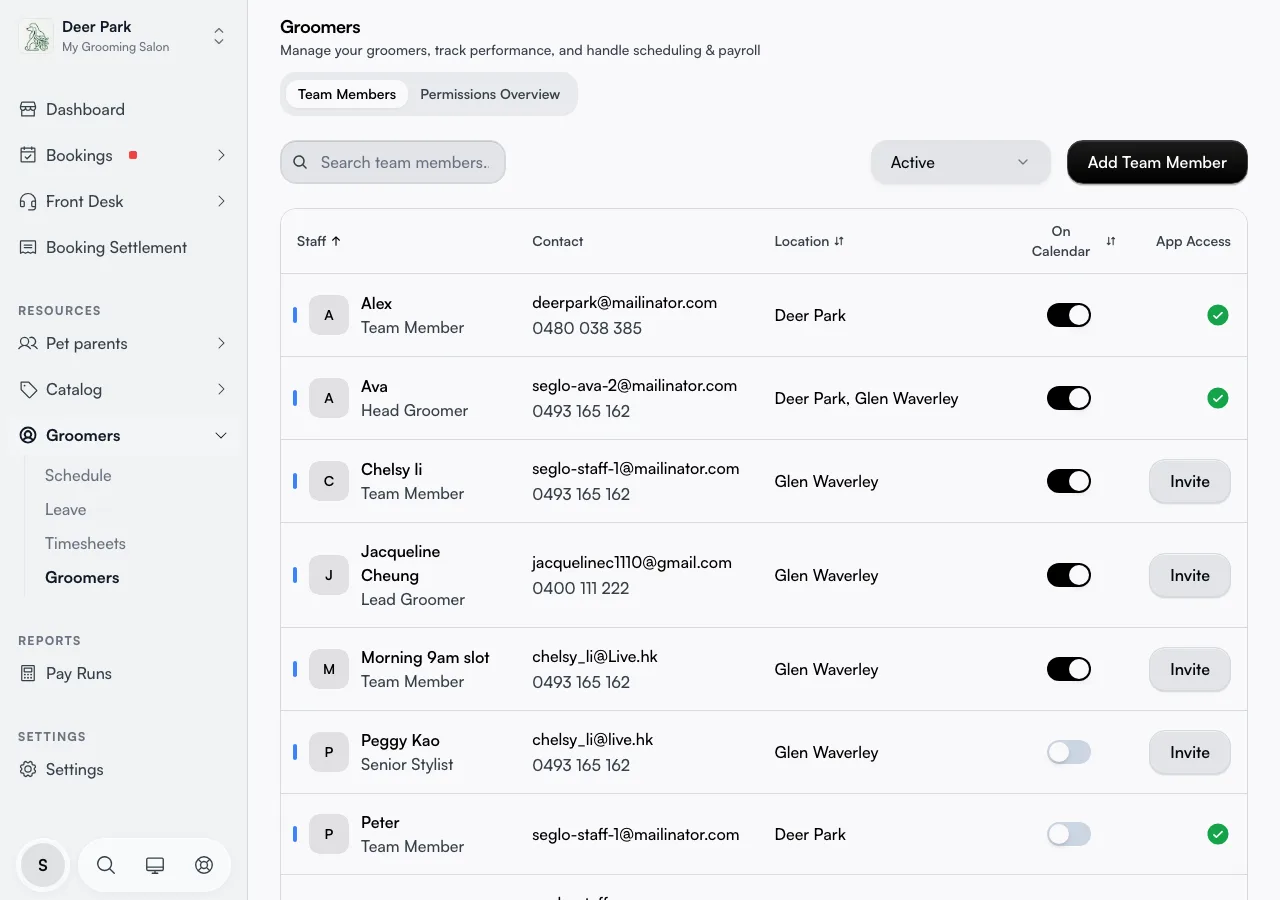
Open in app: Team members
Make sure a new hire can actually finish before you invite them
Publish at least one service first. One step of the flow makes the new hire pick the services they can perform, and if your catalog is empty there's nothing there to tick — the screen tells them "ask your manager to add some," which becomes a support message to you. They can still skip past it and finish the flow, but they won't be bookable for anything until skills are added. Sort the service catalog before the invite goes out.
You also can't fill the flow in for them. There is no skip control and no "complete on their behalf" button on your side — it is one person, one device, by design.
Know exactly what they're asked for
The flow runs in four steps, always in the same order, and each step saves the moment they tap Continue. On the first step, required fields carry a star.
- Your details — first name, last name, display name, and phone are all required; date of birth and a profile photo are optional. The display name is the one customers and schedules show, so it can differ from their legal name. These details flow onto bookings, schedules, and invoices.
- Where you live — street, suburb, post code, and state. This step is optional; they can skip it and add an address later from their profile. This address is private — it's used only for payroll and tax records, never shown to clients.
- Your skills — they tick the services they can perform. This step is also optional — they can skip it with nothing ticked and add skills later from their profile, though they won't be bookable for anything until they do.
- About you — a short bio clients see on their profile. Optional, and skippable here to add later.
After the last step they get a brief "You're all set" screen for a couple of seconds, then the flow closes on its own.
Let them type an address fast, or by hand
The address step opens on a search box, not blank fields — even on a returning device. As they pick a result, Seglo fills in street, suburb, post code, and state for them and then reveals those fields so they can eyeball and correct the parsed result before continuing. State names are shortened automatically (for example New South Wales becomes NSW).
If their address doesn't come up in search, there's a Can't find it? Enter address manually link to type every field directly, and a Search for an address instead link to switch back. Worth telling new hires about — it's the fix for rural or brand-new addresses search hasn't indexed.
Understand what "skills" actually picks
The skills step doesn't list services — it lists the individual priced variants under each service, grouped into collapsible categories. A "Full groom" service with Small / Medium / Large pricing shows as three separate tick boxes, each with its price beside it. Each category header shows a live count (for example 2/5) so they can see how much of a category they've claimed.
A new hire only becomes eligible to be booked for the exact variants they tick — leave one unticked and they won't appear as an option for it. Any service you never put in a category shows up under an Other group at the bottom, so nothing gets hidden. They can change this selection any time later from their own profile, so it's fine to start broad.
Don't expect this to make them bookable
Finishing the welcome flow completes the profile — it does not put the person on your calendar. They stay invisible to customers until you open their record under Team members and give them a Groomer-linked position. This is the single most common "I onboarded them, why can't anyone book them" question, and the answer is always this.
They can't lose their place
If the new hire closes the tab partway through, they don't start over: the flow drops them back on the first step they haven't finished, even if they reopen on a different phone or computer later. Everything they'd already entered is still there.
Help them turn on notifications afterwards
The moment they finish, a separate notifications prompt appears asking to turn on alerts. This is its own thing, controlled by the device, not the account — so the rules surprise people:
- Allowing it on the web does not allow it on their phone, and the other way round. Each device asks once on its own.
- Skip for now means exactly that — it comes back next time they open the app. It is not a permanent "no."
- A permanent "no" only happens if they block at the device's own pop-up. To undo that, they have to switch notifications back on in their phone or browser settings — Seglo can't re-ask.
- A new phone, or reinstalling the app, resets this and shows the prompt again.
Tips
- An empty catalog leaves a new hire with nothing to tick on the skills step — they can still finish the flow, but they won't be bookable for anything. Publish a service before you invite anyone.
- Finishing the flow is not the same as being bookable — assign a Groomer-linked position on their team record afterwards.
- Skills are per-variant. If a staff member isn't offered for one size or option of a service, they likely left that variant unticked — they can fix it from their profile.
- Someone who also works at another of your businesses runs the welcome flow again there. The second profile is entirely separate.
- "Skip for now" on notifications is genuinely temporary — it reappears next session. If a staff member never gets alerts, they probably blocked at the device prompt, which only device settings can reverse.
Related
- Team members — invite people and assign a Position to make them bookable.
- Staff schedule — set the hours a new hire works.
- Service catalog — publish services so onboarding has skills to pick.
Related