Recent calls
Catch up on every call your line took: who called, what they wanted and how it ended, then open one to read the conversation or play it back.
Updated 16 October 2026
You were with a dog on the table and the phone rang. This is where you find out what happened: every call your number took, whether your AI receptionist answered, a staff member picked up or it went to voicemail. Catch the booking you missed, check what a customer actually asked for, or follow up a call that ended badly.
Open in app: Calls on the web (the old /business/phone-numbers/recents link redirects there). In the Seglo Phone app, open Keypad → Recents.
Calls show in the web app and the Seglo Phone app, each in its own layout. The Seglo appointment app has no call history.
This page only fills up once you have a number connected. If it's empty, set one up first in Set up Seglo Phone.
Find a call (Seglo Phone app)
Open the Keypad tab and switch to Recents. Filter with All, Incoming or Outgoing.
Each row shows the caller, the time, and one line with the shop, who answered and how long you talked. Two small marks help you scan:
- AI with a sparkle: your AI receptionist answered.
- A record mark at the end of the line: the call has a recording. See Call recording.
- Transferred to a name, with answered, missed or caller hung up: someone passed the call to a teammate. See Call transfer.
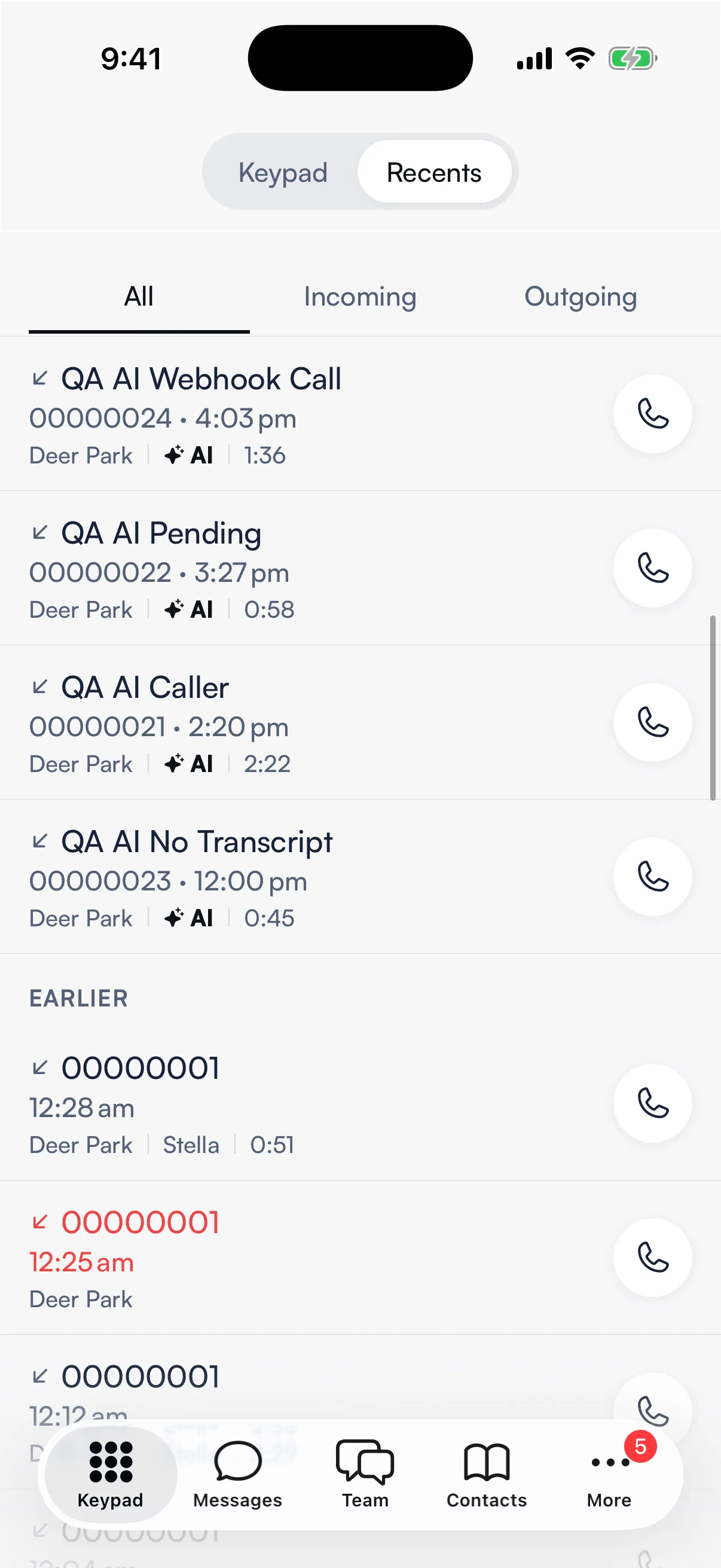
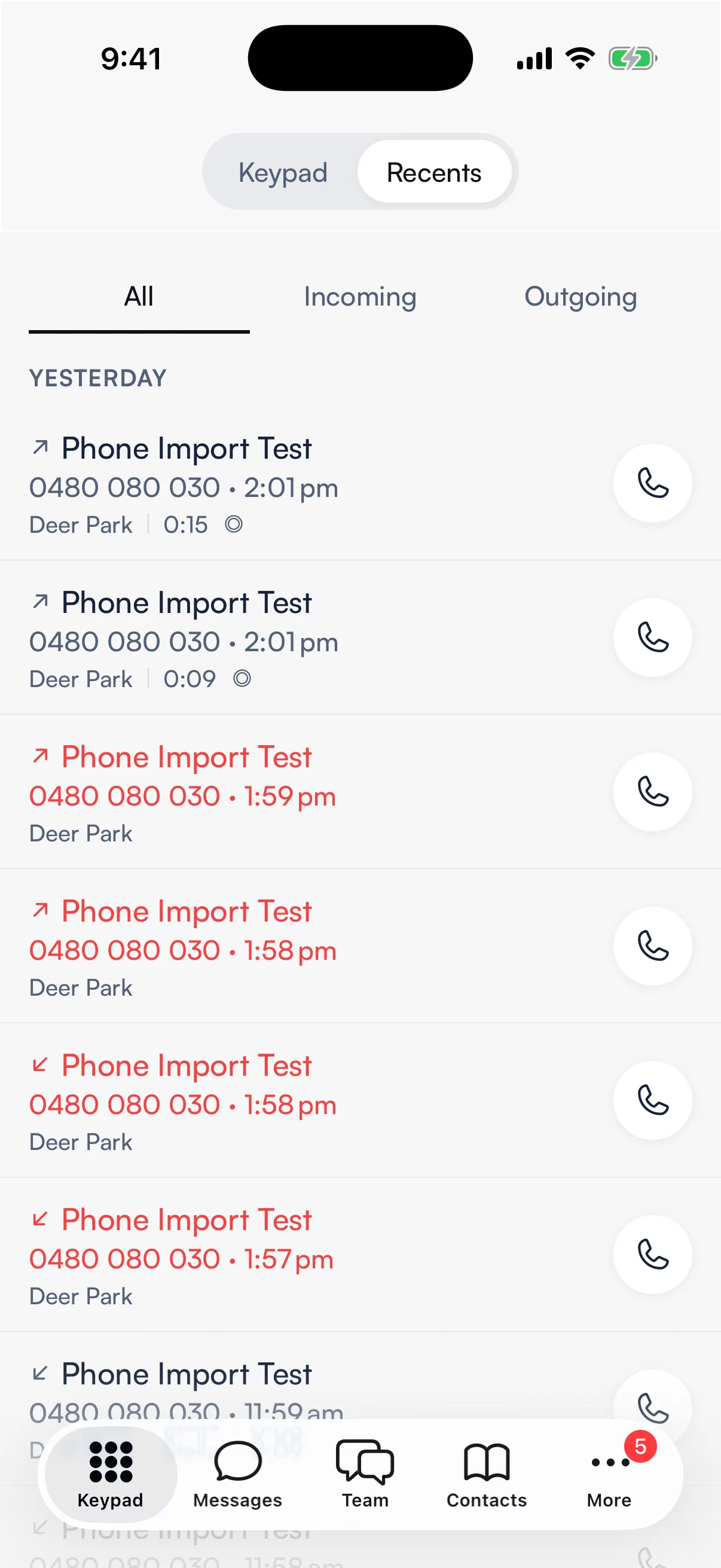
If you use the AI receptionist, its calls are also listed in More → AI call history. Tapping one opens the same call page as a Recents row.
Read what happened on a call (Seglo Phone app)
Tap a call. The call page stays short, with the details first:
- The caller and how it ended. Name and number, then one line: the outcome (for example Answered (AI), Voicemail or Missed), how long it ran, and when.
- Call details. Tap to open: Handled by, Location, Started, Rang, Answered, Ended, Ended by and End reason.
- The client. For a saved client, their visits, last visit, client since, and their pets.
- Summary. A few sentences on what the call was about.
- Recording, when the call was recorded.
- Conversation. The first few lines of what was said.
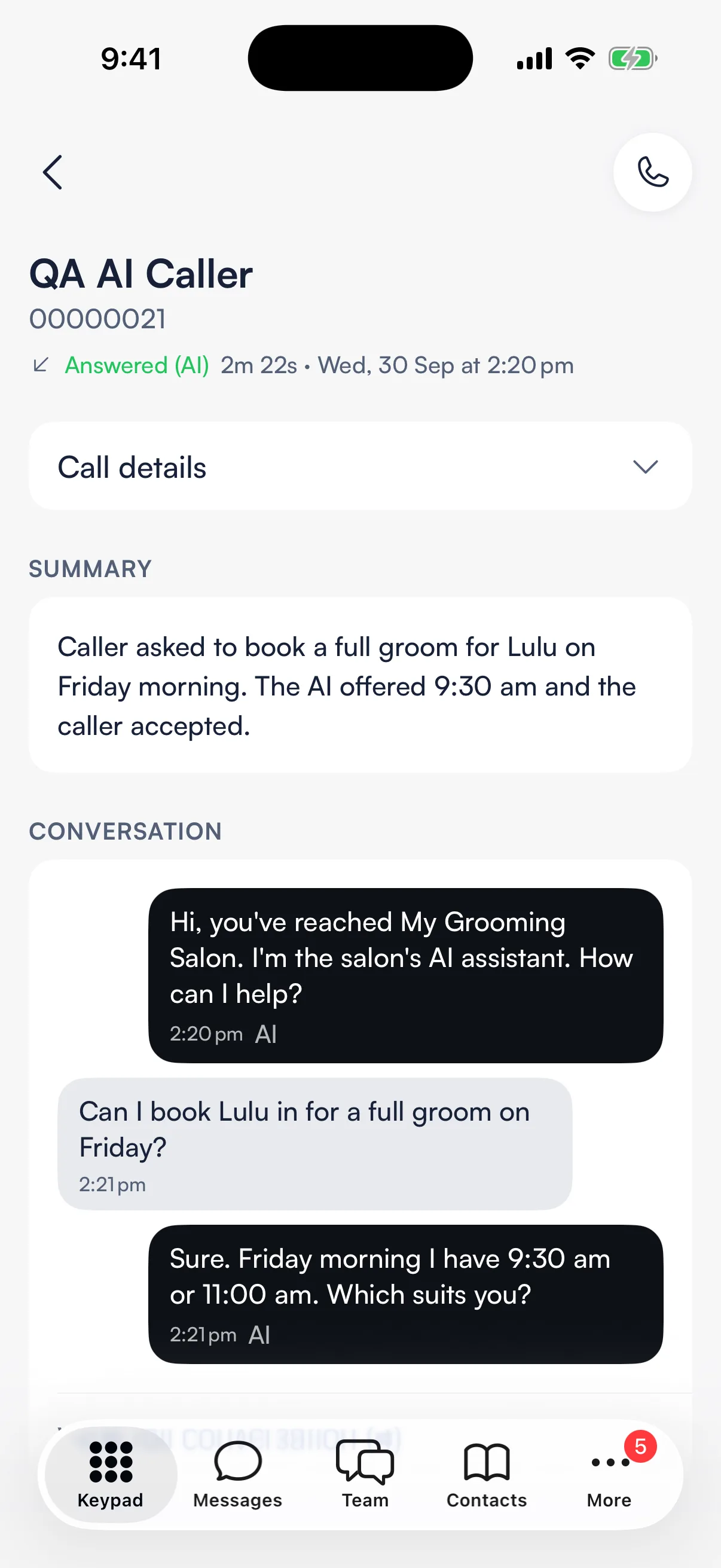
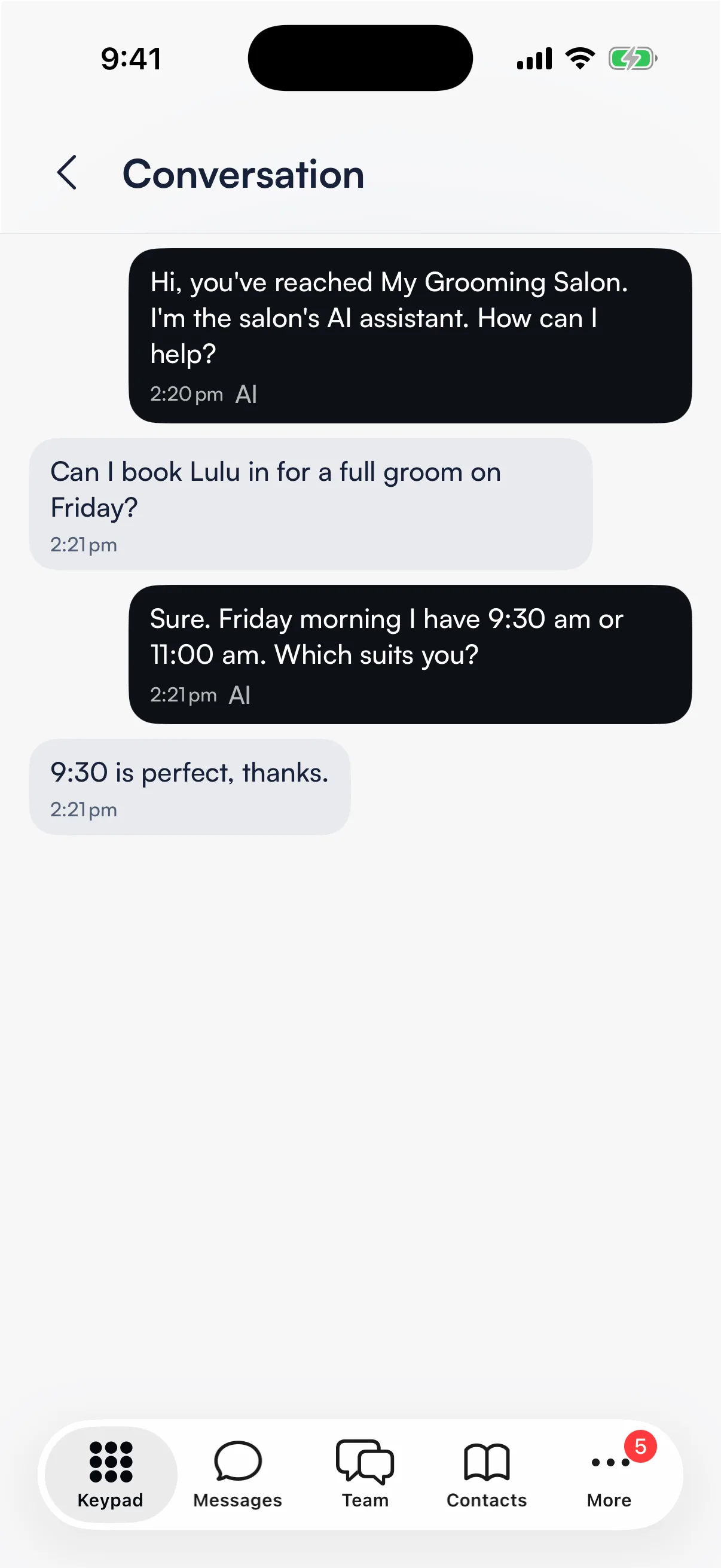
Tap View full conversation to read every line on its own Conversation screen. Use the call button at the top right to ring the caller back.
Ended by says who hung up: Caller, Staff, AI agent, or Customer for someone you called. It's left off when the line can't tell who ended it, rather than guessing.
If an AI call shows No transcript yet, wait a minute or two after the call ends and pull down to refresh.
Find a call (web app)
Open Calls in the sidebar. Calls list newest first, each with the customer, what happened, who handled it, how long it lasted and when.
The customer's name shows when the number belongs to a saved client; otherwise you see the phone number. Before any calls arrive you see No calls yet.
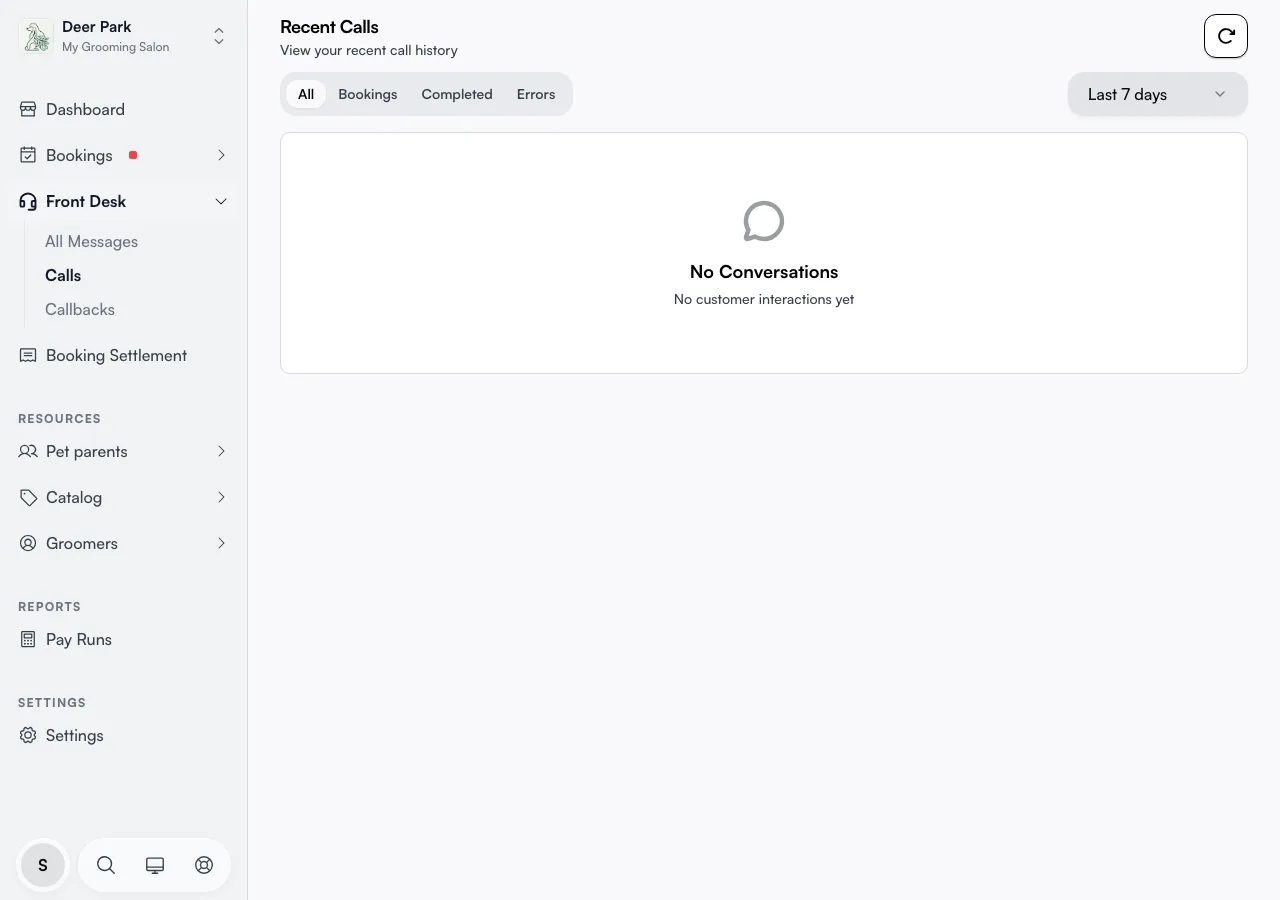
Narrow the list with two dropdowns:
- All calls, Handled by AI, Handled by staff or Missed calls.
- Today, Yesterday, Last 7 days, Last 30 days (the default), This month, Last month or All time.
Older calls are hidden until you widen the date range, so reach for All time when you're hunting a call from a while back. The list shows 20 calls a page, with Previous and Next at the bottom.
A call appears a short time after it ends. The page doesn't refresh on its own, so use the refresh button at the top right before assuming a call is missing.
Read what happened on a call (web app)
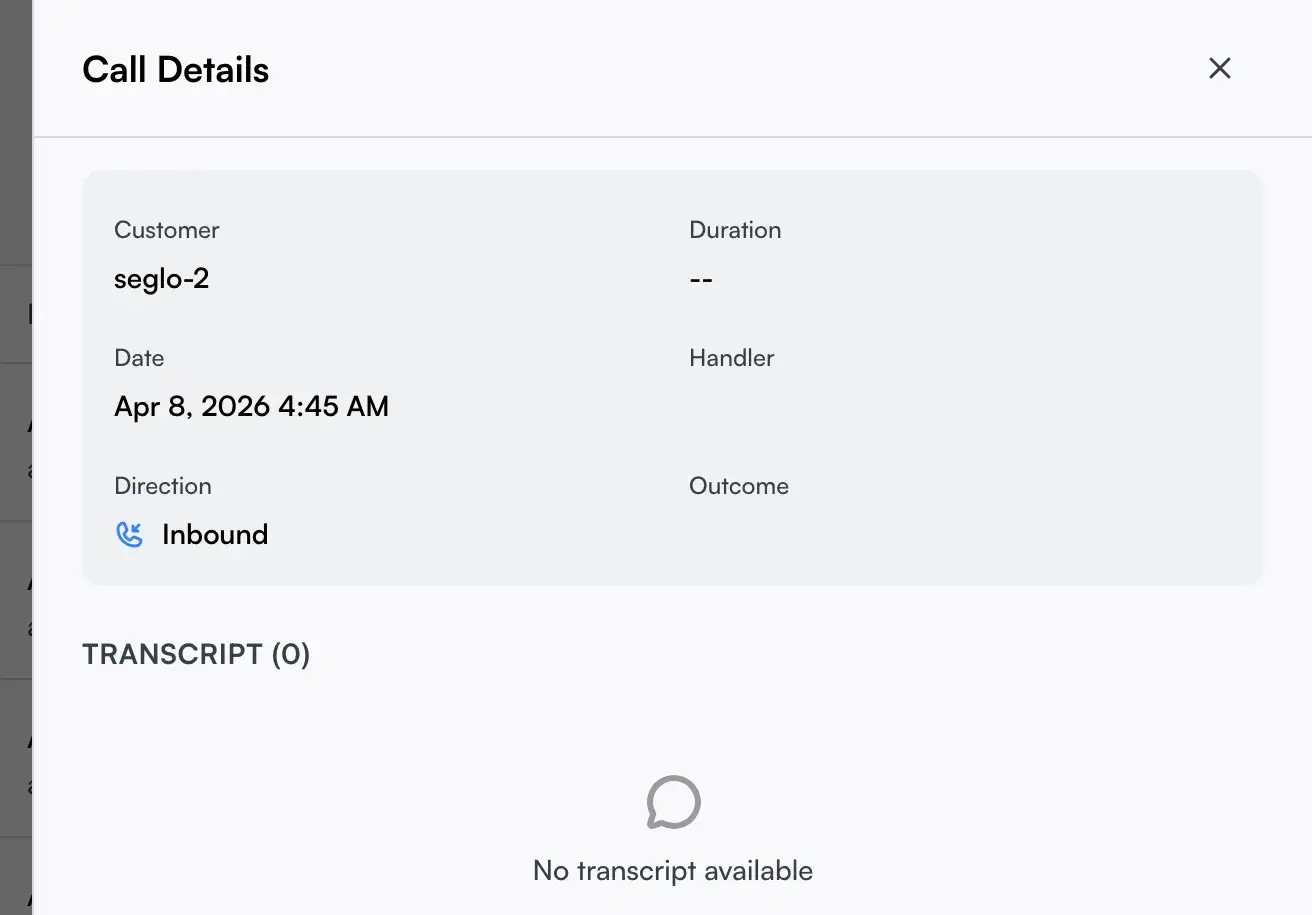
Click a row to open Call Details on the right. The top shows the customer, duration, date, direction and the Handler: a staff member's name, AI for your receptionist, or Voicemail.
Below that sit the summary, any Recording or Voicemail player, and the Transcript, line by line, with each line marked AI or Staff. A call that was never transcribed shows No transcript available; the rest of its details still show.
Keep your own copy of your calls
Your call history belongs to you. As the business owner:
- Web app: choose Export call history at the top of the Calls page.
- Seglo Phone app: open More → Export call history. It opens the export page of Seglo on the web in your browser.
Either way you get a spreadsheet of your calls, with recordings and voicemails if you want them. See Data export.
Tips
- One call record, two apps. The Seglo Phone app and the web read the same calls; there's no separate copy to keep in sync.
- A missing call on the web is usually a narrow date range. The list opens on the last 30 days.
- No recording doesn't mean no record. Calls your AI receptionist answers have a transcript and summary even when the shop doesn't record calls.
Related
- Messages and Calls: the web pages where calls and text threads live.
- Call recording: record calls and play them back.
- Phone numbers and routing: the numbers these calls come in on.
- Data export: download your call history and other records.
Related