Data export
Download your business records and original files, export your call history or one client's data, or schedule weekly or monthly copies.
Updated 2 October 2026
Keep a copy of your shop's records for your own files or a move to another system. Open Settings → Data export to choose the records and prepare a download yourself.
Open in app: Data export
Before you start
Sign in as the business owner. Staff access to clients, reports or pay does not give permission to export the business archive. In the Seglo appointment app, open More → Settings → Data export. In the Seglo Phone app, open More → Export call history.
An export copies retained records; it does not change or delete the originals in Seglo. It is not an automatic restore package. If you plan to delete your business or account, download and check your files first.
Create a copy of your records
- Open Settings → Data export.
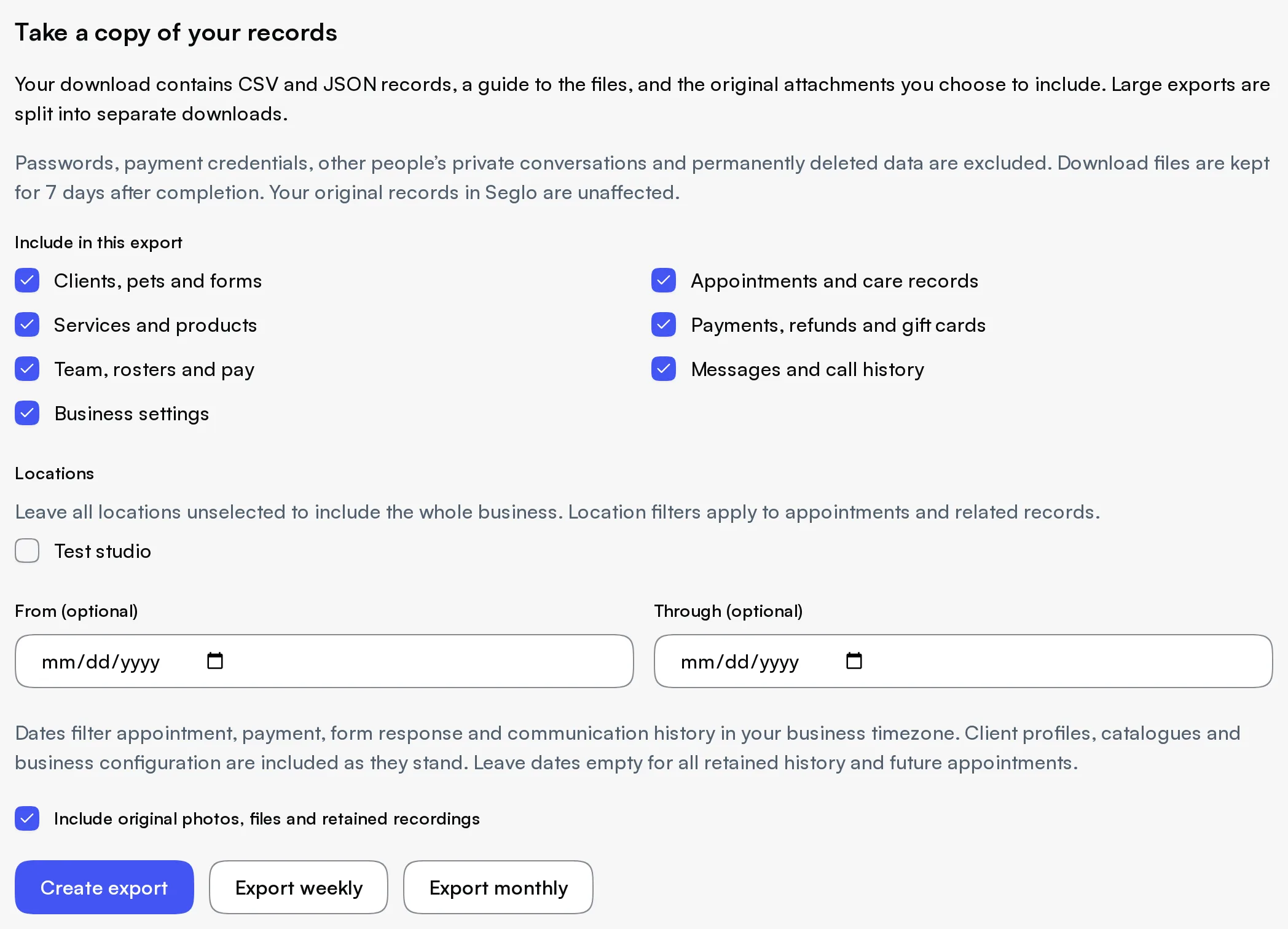
- Under Include in this export, keep all categories selected for the widest copy, or untick what you do not need.
- Leave Locations unselected to include the whole business. Select locations to narrow appointments and related records.
- Leave From (optional) and Through (optional) empty for all retained history and future appointments, or set dates for the history you need.
- Keep Include original photos, files and retained recordings selected if you want those files alongside the records.
- Choose Create export. Your request appears under Recent exports, first as Waiting, then Preparing.
You can leave the page while the files are prepared. Seglo sends an email and an in-app notification when the export is ready or has failed. Only one export can be waiting or preparing for a business at a time.
Dates use your business timezone. They filter appointment, payment, form-response and communication history. Client profiles, the catalogue and business configuration are included as they stand. Location filters do not turn the archive into a location-only copy of every dataset.
Choose which records to include
| Selection | Records it covers |
|---|---|
| Clients, pets and forms | Client contacts, pet profiles, saved details, forms and responses, notes and associated media |
| Appointments and care records | Bookings and their service details, care records and Auto Book records |
| Services and products | Your catalogue, pricing and related reference records |
| Payments, refunds and gift cards | Customer payment and refund records, gift cards and related transactions |
| Team, rosters and pay | Staff records, rosters, time and pay records |
| Messages and call history | Shared business conversations, call records and your own business AI chat messages |
| Business settings | Business configuration, hours, templates and other retained settings |
Passwords, sign-in tokens, payment credentials and full card details are excluded. The archive also excludes other businesses' records, other users' private conversations, hidden AI reasoning and permanently deleted data. Your Seglo subscription invoices and usage credits are not exported as customer balances.
Download and check every file
- Return to Recent exports when the status is Ready.
- Choose Download beside each file, including the manifest ZIP. Large exports have several numbered ZIP files; each opens independently.
- Read
README.txtfor the file guide andmanifest.jsonfor the selected scope, record counts, exclusions and missing attachments. - Open the CSV files in a spreadsheet, or use the JSON files if you need the original value types. Import phone numbers and IDs as text to preserve their formatting.
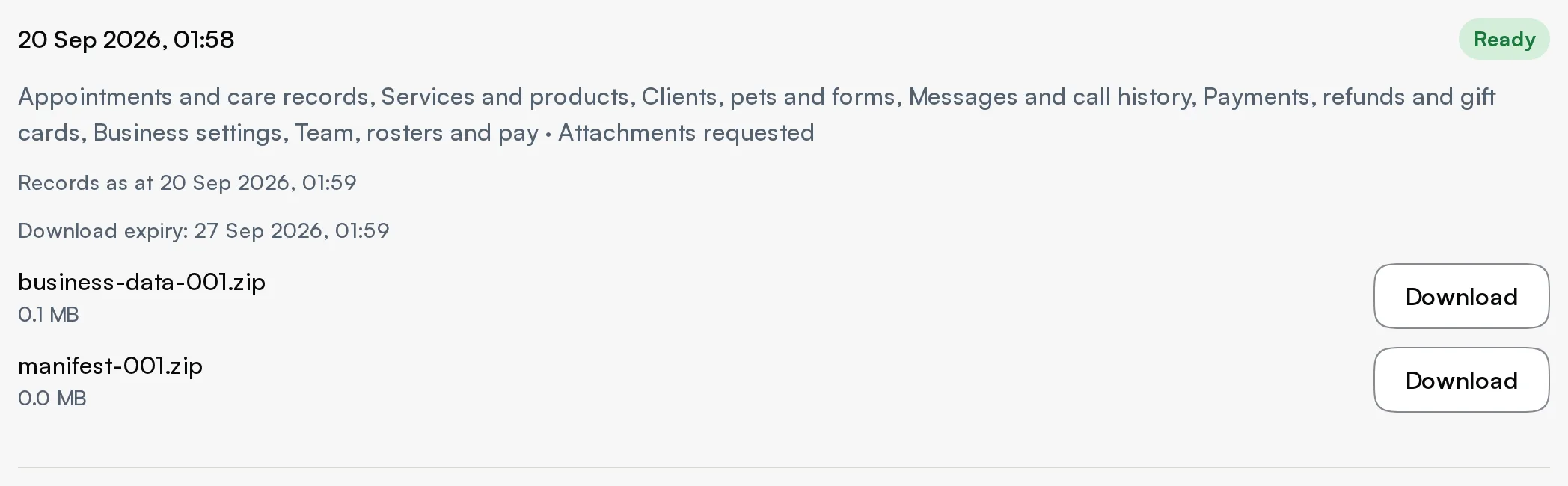
Records as at shows the snapshot time. Download expiry is seven days after completion. Download all parts before that deadline; copies already saved on your computer do not expire. If a download link has stopped working before the deadline, return to this page and choose Download again.
Ready with missing items means some original attachments could not be included. The available records and files can still be downloaded. Check the manifest's missing-file count and details; these can include files no longer retained or originals too large to include.
Export your call history
Business owner. Start from whichever app you're in:
- Web app: choose Export call history at the top of the Calls page.
- Seglo Phone app: open More → Export call history. It opens this export page on the web in your browser, so you finish the steps below there.
- Seglo appointment app: open More → Settings → Data export and select only Messages and call history.
From the web or the Seglo Phone app, the export page opens with only Messages and call history selected.
- Set From (optional) and Through (optional) for the calls you need, or leave them empty for all retained calls.
- Keep Include original photos, files and retained recordings selected to add call recordings and voicemails as audio files.
- Choose Create export, then download the files when the export is Ready.
Open the CSV file in the calls folder (for example calls-0001.csv) in a spreadsheet. Each row is one call: the date and time, the caller's and your number, incoming or outgoing, the client, how long it lasted, whether it was answered, missed or went to voicemail, who handled it, and the summary and transcript. A recording or voicemail you deleted is listed without its audio. Your SMS threads are in the conversations and messages folders of the same download.
Export one client's records
Open the client from Clients → Directory, then choose Export client data in their details. The export page shows Export for one client and the selected client's name. Choose categories and files, then create the export as usual. This action is also available in the client's details on mobile.
The copy includes the selected client's records and business reference data such as your service catalogue. Team pay, business settings, gift card codes and your private business AI chat are excluded from this client-specific copy. Review the contents before sharing: this is not a package containing only information suitable to send to that customer.
For form answers, include Clients, pets and forms. The individual Form responses screen remains a place to read answers; the download is prepared here.
Keep a weekly or monthly copy
- Set the categories, locations, dates and attachment choice in the export form.
- Choose Export weekly or Export monthly to save that selection.
- Check Automatic exports for the saved frequency, included categories and next export date.
- Choose Stop automatic exports when you no longer want new copies prepared.
There is one saved schedule per business. Saving another selection replaces it. A schedule prepares downloadable copies; it does not save them onto your computer. Each completed copy has its own seven-day download window.
Dates you enter remain fixed in the saved selection; they do not roll forward each week or month. Leave them empty if each scheduled copy should include all retained history and future appointments.
Cancel or try again
- Waiting or Preparing: choose Cancel export to stop that request. This does not stop a saved automatic schedule.
- Failed, Ready with missing items, Cancelled or Download expired: choose Create new export to request a fresh copy using the same selection.
- An export is already being prepared: wait for it to finish or cancel it before starting another.
- Business ownership changed: the new owner creates a new export. A previous owner's downloads and schedule are not available to the new owner.
For analytical tables, use Export CSV or Export PDF in Reports. Those exports serve a different purpose from the business archive described here.
Related
- Client directory — open a client and start a client-specific export.
- Form responses — read individual questionnaire answers.
- Recent calls — read and play back calls before you export them.
- Reports — download filtered analytical tables.
- Account and login settings — download your files before deleting your business or account.
Related